
How Much RAM for a Local LLM? A Practical Sizing Guide
For local LLM inference, 16GB of system RAM is a workable floor for small quantized models, 32GB is the practical starting point for regular 7B-to-14B use, 64GB gives room for many 30B-class quantized models and larger contexts, and 128GB is the safer tier for 70B-class quantized models or heavy multitasking. These are planning ranges, not guarantees: the exact model file, KV cache, runtime, context, GPU memory, and operating system determine the real requirement.
- Model file size is the starting point, not the total RAM requirement.
- Quantization reduces weight memory but can trade quality and performance.
- Long context increases KV-cache memory.
- VRAM offload changes how much remains in system RAM.
- Buy matched, platform-compatible modules and leave operating-system headroom.
Recommended KingSpec Options
 KingSpec option
KingSpec 32GB RAM Collection
DDR4 and DDR5 options for compatible desktop and notebook platforms. Check generation, DIMM type, speed, and capacity limits.
 KingSpec option
KingSpec DDR5 RAM
Desktop DDR5 options for compatible current platforms. DDR5 is physically incompatible with DDR4 slots.
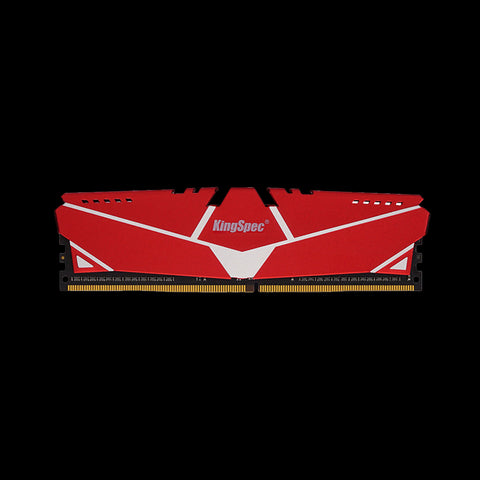 KingSpec option
KingSpec DDR4 RAM
Memory options for systems whose motherboard and processor require DDR4.
The Short Answer by Model Tier
| Local model workload | Practical system RAM target | What it allows | Main caveat |
|---|---|---|---|
| 1B-3B quantized | 16GB | Basic chat, extraction, lightweight tools | Limited multitasking and larger contexts |
| 7B-14B quantized | 32GB | Comfortable everyday local inference | Speed depends heavily on GPU and CPU |
| 20B-35B quantized | 64GB | Larger models, contexts, and applications | Model format and KV cache can shift the requirement |
| 70B quantized | 128GB | Room for weights, cache, OS, and tooling | CPU-only inference may still be slow |
A model can technically load with less memory and still be unpleasant to use. Plan for the model plus runtime overhead, context cache, the operating system, and any browser, IDE, retrieval database, or agent tools running beside it.
Why Parameter Count Is Not RAM Usage
Parameter count tells you how many learned values the model contains. Precision determines how many bits store each value. An uncompressed 8B model in 16-bit form needs roughly 16GB for weights alone, while a 4-bit version is much smaller. Real model files also contain metadata and tensors that do not reduce perfectly to the simple formula.
llama.cpp's current quantization documentation gives useful reference points: Llama 3.1 8B Q4_K_M is about 4.9GB and 70B Q4_K_M is about 43.1GB. Ollama similarly lists an 8B build around 4.9GB and a 70B build around 43GB. Loading the file is only the beginning; runtime allocations and context add more.
Context Length and KV Cache
The KV cache stores attention information for tokens in the active conversation. More context, concurrent requests, and larger batch settings increase memory. A model advertised with a 128K context window does not mean you should configure 128K by default. Long contexts can consume substantial memory and reduce speed.
Start with the smallest context that supports your documents or conversation. Measure actual memory use in the chosen runtime, then increase gradually. Retrieval-augmented generation can often keep prompts focused instead of placing an entire document library into one context.
RAM, VRAM, and Unified Memory
On a discrete-GPU PC, model layers placed in VRAM reduce the amount processed from system RAM, but many runtimes still use RAM for loading and coordination. If the model exceeds VRAM, partial offload can split work across GPU and CPU. It may run, but data movement and CPU computation can lower token speed.
Apple silicon and some integrated systems use unified memory shared by CPU and GPU. The capacity is flexible, but the operating system, applications, graphics, and model all compete for the same pool. Treat 32GB unified memory as a total system budget, not 32GB dedicated to the model.
How to Size a New Build
Choose the exact model build
Record parameter count, quantization, model-file size, and intended context.
Add workload headroom
Reserve memory for the OS, runtime, KV cache, browser, IDE, retrieval service, and concurrent sessions.
Decide the offload plan
Estimate what fits in VRAM and what remains in system or unified memory.
Validate platform limits
Check motherboard capacity, DIMM generation, module type, supported speeds, and slot population rules.
16GB vs 32GB vs 64GB vs 128GB
16GB works for experimentation with small quantized models, but the OS can leave little room for long contexts or development tools. 32GB is the best general starting point for local AI enthusiasts running 7B or 8B models and some 14B builds. It also leaves room for normal desktop work.
64GB is appropriate for larger quantized models, heavier coding workflows, document retrieval, and several services. 128GB becomes reasonable for 70B-class quantized models, high context, or multiple simultaneous models. More capacity does not guarantee speed; memory bandwidth, GPU acceleration, CPU instruction support, and runtime optimization remain important.
Choosing Compatible KingSpec RAM
KingSpec's 32GB collection includes DDR4 and DDR5 products, but generation and form factor must match the system. Desktop DIMMs and laptop SO-DIMMs are not interchangeable, and DDR5 does not fit DDR4 slots. Check the motherboard qualified-memory guidance, maximum capacity, supported module density, and recommended slot arrangement.
Matched pairs can provide the memory channels the platform expects. For 64GB, that may mean two compatible 32GB modules; 128GB can require four modules or higher-density sticks depending on the board. High advertised frequency is secondary to stable capacity for long inference sessions.
Common Local LLM Memory Mistakes
- Using the model download size as the complete RAM estimate.
- Configuring the maximum context window before measuring the workload.
- Assuming VRAM and system RAM are freely interchangeable.
- Buying DDR5 for a DDR4 motherboard or desktop DIMMs for a laptop.
- Filling every slot without checking supported speed and module density.
- Expecting additional RAM to compensate for a slow CPU-only inference path.
Measure peak committed memory during representative prompts. If the system swaps heavily, reduce context or model size before deciding that capacity alone is the problem.
Inference, Fine-Tuning, and Training Need Different Memory
The recommendations in this guide are for inference: loading an existing model and generating responses. Fine-tuning needs extra memory for gradients, optimizer states, activations, and training data batches. Full training requires vastly more resources and is generally not a consumer-RAM planning problem. Parameter-efficient methods can reduce fine-tuning requirements, but they still need a workload-specific estimate.
Serving several users also changes the calculation. Model weights can be shared, while each active sequence needs cache and runtime resources. A machine that handles one interactive chat comfortably may run out of memory with several long concurrent requests. Set concurrency and context limits deliberately instead of allowing every client to request the maximum.
How to Measure Before Buying More RAM
Load the exact quantized model with the context and offload settings you intend to use. Record idle memory, peak committed memory during prompt processing, memory after a long conversation, and whether the operating system begins swapping. Repeat with the browser, IDE, vector database, or agent tools open. This produces a much better estimate than parameter count alone.
If the system swaps, first test a smaller quantization, shorter context, lower batch size, or greater GPU offload. If quality or workload requirements prevent those changes, add enough capacity to keep a meaningful margin above the observed peak. Sustained inference should not sit at nearly 100 percent committed memory because ordinary background tasks can trigger severe slowdowns.
Upgrade Strategy and Platform Stability
Check the motherboard or laptop service manual before ordering. Systems can limit total capacity, per-slot density, rank arrangement, or speed when every slot is populated. Mixing kits can work but is less predictable than using a matched set validated for the platform. Update firmware when the vendor recommends it for high-density memory support.
After installation, confirm the full capacity in firmware and the operating system, then run a memory test before starting long model sessions. Stability is more valuable than an aggressive memory profile for inference that may run for hours. If enabling XMP or EXPO produces errors, return to a supported baseline and test again.
For laptop workstations, browse KingSpec's DDR4 laptop RAM only when the machine has replaceable DDR4 SO-DIMM slots.
How We Chose the Recommendations
This guide starts with compatibility because a fast component that does not fit or is not recognized has no value. We then consider sustained behavior, capacity, thermal conditions, power, and the actual workload. Product-page maximums are treated as laboratory or interface capabilities, not guaranteed results in every host.
For third-party devices, the device manufacturer's current manual and compatibility list take priority. Firmware revisions and hardware generations can change support. KingSpec specifications are used only for KingSpec product facts, while installation and platform requirements come from the relevant device documentation.
Practical Buying Checklist
- Write down the exact device model and hardware revision.
- Confirm physical format, interface, capacity limit, and required speed class.
- Choose capacity for the next several years, while preserving free working space.
- Check power, cooling, cable, and enclosure requirements.
- Plan backup, migration, formatting, and recovery before installation.
- Test the component under the real workload before trusting important data to it.
Compatibility note: Listings and firmware change. Recheck the linked live pages before publication and purchase.
Frequently Asked Questions
Is 16GB RAM enough for a local LLM?
How much RAM does a 70B model need?
Does more RAM make an LLM faster?
Is VRAM more important than RAM?
Final Answer
For local LLM inference, 16GB of system RAM is a workable floor for small quantized models, 32GB is the practical starting point for regular 7B-to-14B use, 64GB gives room for many 30B-class quantized models and larger contexts, and 128GB is the safer tier for 70B-class quantized models or heavy multitasking. These are planning ranges, not guarantees: the exact model file, KV cache, runtime, context, GPU memory, and operating system determine the real requirement.
Confirm the exact host requirements and current KingSpec specification before purchase. Back up important data before changing storage or memory hardware.
Related KingSpec Resources

