

Yes, you can play games off an external SSD, but where it works depends on the platform. Most PC games run well from a fast USB SSD. A PS5 can play PS4 games from USB storage but only stores PS5 games there. An Xbox Series X|S plays Xbox One and older titles from USB, while Optimized for Xbox Series X|S games need internal storage or an official Storage Expansion Card. This guide explains how to set up games on an external SSD and avoid common problems.
Key Takeaways
- On PC, games run from external SSDs through Steam and most launchers.
- Use at least a USB 5 Gbps port. Faster ports mainly help load times.
- External storage affects loading, not graphics power. FPS depends mostly on your CPU and GPU.
- PS5 and Xbox Series X|S games have strict rules about what plays from USB.
- Plan for 1 TB at minimum and 2 TB or more for a growing library.
Can You Play Games Directly From an External SSD?
Yes, on most platforms, with clear exceptions. Here's a quick compatibility summary before the details.
| Platform and game type | Store on USB? | Play from USB? |
|---|---|---|
| Windows PC (Steam and most launchers) | Yes | Yes, for most games |
| PS5 games on PS5 | Yes | No. Copy back to console storage or an M.2 SSD to play |
| PS4 games on PS5 | Yes | Yes |
| PS4 games on PS4 | Yes | Yes |
| Optimized for Xbox Series X|S games | Yes | No. Use internal storage or a Storage Expansion Card |
| Xbox One, Xbox 360, and original Xbox games on Series X|S | Yes | Yes |
Based on PlayStation Support and Xbox Support documentation, October 2026. Individual PC games and launchers can have their own rules.
How Gaming From an External SSD Works
The game files live on the external SSD, and your system reads them over USB as you play. The CPU and GPU still do all the processing, so the drive mainly affects how fast data arrives.
That data matters at specific moments:
- Launching the game and loading saves or levels.
- Fast travel and respawns that load new areas.
- Asset streaming in open-world games that load textures as you move.
- Installs and updates, which write large amounts of data.
External SSD vs Internal SSD for Gaming
An internal NVMe SSD is the fastest place for games. An external SSD trades some peak speed for portability and easy expansion, and it is far faster than an external hard drive.
| Criteria | Internal SATA SSD | Internal NVMe SSD | External USB SSD | External HDD |
|---|---|---|---|---|
| Typical interface | SATA III (6 Gb/s) | PCIe 3.0, 4.0, or 5.0 via M.2 | USB 5, 10, or 20 Gbps (some USB4) | USB 5 Gbps or faster, mechanical disk |
| Speed considerations | Capped near 600 MB/s by SATA | Highest bandwidth and lowest latency | Capped by the USB link and cable | Limited by spinning platters and seek time |
| Game loading | Fast for most games | Fastest | Fast. Often close to SATA on 10 Gbps or faster ports | Slowest. Longer loads and more pop-in |
| Portability | None | None | High | Moderate. Sensitive to drops |
| Compatibility | Desktops and older laptops | Modern PCs, PS5 M.2 slot | PCs, consoles with limits | PCs, consoles with limits |
| Best use case | Budget upgrades for older systems | Main game drive | Extra library space, laptops, multiple PCs | Cheap cold storage for games you aren't playing |
For a deeper look at the trade-offs, see our internal vs external SSD guide.
Game Loading Speed Differences
Expect shorter load times than a hard drive and slightly longer or similar load times compared with an internal SSD. The exact gap depends on the game, the drive, and the USB connection.
Many games don't load data as fast as a modern SSD can deliver it. CPU work like decompressing assets often becomes the bottleneck first. That's why a 10 Gbps external SSD can feel close to an internal SATA SSD in many titles. Games built for fast NVMe storage may show a larger difference.
USB Connection Requirements for Gaming
Connect the SSD to a USB port rated at least 5 Gbps. A USB 2.0 port (480 Mbps) is too slow for a good experience and won't meet console requirements.
USB 3.0 vs USB 3.2 for Gaming Storage
USB 3.0 and USB 3.2 Gen 1 are the same 5 Gbps speed under different names. USB 3.2 Gen 2 runs at 10 Gbps, and USB 3.2 Gen 2x2 runs at 20 Gbps. Both the drive and the port must support a speed to use it.
| USB name | Nominal speed | Gaming fit |
|---|---|---|
| USB 2.0 | 480 Mbps | Not recommended |
| USB 3.0 / USB 3.2 Gen 1 | 5 Gbps | Minimum for consoles. Works for many PC games |
| USB 3.2 Gen 2 | 10 Gbps | A good target for PC game libraries |
| USB 3.2 Gen 2x2 | 20 Gbps | Faster installs and transfers, if your PC has the port |
These are signaling rates, not real transfer speeds. Our guide to USB 3.0 speed explains how Gbps converts to MB/s and why transfers fall below the rated number.
How to Install PC Games on an External SSD
Connect the drive, format it if needed, and add it as a library location in your game launcher. The process takes a few minutes.
- Plug the SSD into a 10 Gbps or faster USB port if you have one. Avoid unpowered hubs.
- For a Windows-only game drive, format it as NTFS. Our exFAT vs NTFS guide explains when exFAT makes sense instead.
- Give the drive a fixed drive letter in Disk Management so launchers find it in the same place each time.
- Add the drive as a library or install location in your launcher.
- Install new games there or move existing ones using the steps below.
How to Move Steam Games to an External SSD
Steam has a built-in Move feature, so you don't need to reinstall. Valve's Steam Support guide describes these steps:
- Open Steam and go to Settings > Storage.
- Click the + button and choose a folder on your external SSD to create a new Steam Library folder.
- Select the drive where the game is currently installed.
- Check the games you want to move and click Move.
- Choose the external SSD as the destination and wait for the transfer to finish.
Steam keeps cloud saves for supported games, but some games store save files in your Windows user folders. Those stay on your PC, not on the external drive.
Other PC Launchers
Most launchers let you pick an install folder. The Xbox app on PC offers Settings > General > Game install options, though some users report that certain external drives don't appear as choices. Some games with anti-cheat software or launcher-specific rules may refuse to run from removable storage. Check the game's support page if a title won't launch.
Using an External SSD With PlayStation 5
A PS5 can store PS5 games on USB extended storage, but it can't play them from there. PS4 games can be stored and played directly from USB.
According to PlayStation Support, USB extended storage must meet these requirements:
- SuperSpeed USB 5 Gbps or later.
- 250 GB minimum and 8 TB maximum capacity.
- Connected directly, not through a USB hub.
- Only one extended storage drive in use at a time.
To set it up, go to Settings > Storage > USB Extended Storage > Format as USB Extended Storage. This erases the drive. Sony also notes that not every device is guaranteed to work.
To play PS5 games from extra storage, Sony supports an internal M.2 SSD instead. Its M.2 SSD requirements include a PCIe Gen4 x4 NVMe drive, 250 GB to 8 TB, a recommended sequential read speed of 5,500 MB/s or faster, and effective cooling such as a heatsink. KingSpec markets the XG7000 PCIe 4.0 SSD (rated up to 7,400 MB/s read) for PS5 upgrades. Confirm that your chosen version and its cooling fit Sony's size limits. Our PS5 storage upgrade guide covers installation.
PS4 Game Support
PS4 games run directly from USB extended storage on both PS4 and PS5. On a PS4, Sony's PS4 extended storage page requires system software 4.50 or later, a 5 Gbps or faster connection, and 250 GB to 8 TB of capacity. Only games and add-ons can be installed there, not saves or captures.
Using an External SSD With Xbox Series X and Series S
Xbox Series X|S can play Xbox One, Xbox 360, and original Xbox games from a USB drive. Optimized for Xbox Series X|S games can be stored on USB but must be moved to internal storage or a Storage Expansion Card to play.
Xbox Support's Storage Expansion Card guide states that Optimized for Xbox Series X|S games must be installed on the internal SSD or a Storage Expansion Card. For USB game storage, Xbox's external storage requirements call for a USB 3.0 or later connection and at least 128 GB of capacity. The console reformats the drive during setup.
When You Need an Official Expansion Card
An official Storage Expansion Card is the only way to play optimized Series X|S games from added storage. It plugs into the dedicated rear slot and performs like the internal SSD. A standard USB SSD, including any KingSpec portable drive, works as cold storage for those games and as playable storage for backward-compatible titles.
Compatibility Limitations to Know
- Consoles reformat USB game drives. You can't use the same drive for console games and PC files at the same time.
- Some PC games resist external installs. Anti-cheat or launcher rules can block them.
- Drive letters matter on PC. If the letter changes, launchers may lose track of installed games.
- Sleep and power settings can disconnect USB drives. Turn off USB selective suspend if you see random drops.
- Not every drive is guaranteed on consoles, even if it meets the listed specs.
Do External SSDs Affect FPS?
Generally, no. Frame rate depends mostly on your GPU, CPU, and graphics settings. Storage affects how quickly data loads, not how fast frames render once it's in memory.
There's one exception to watch. Games that stream assets constantly can show brief stutter or texture pop-in if storage can't keep up. That's much more likely on an external hard drive or a USB 2.0 connection than on a fast external SSD.
Recommended SSD Capacity for Gaming
Choose 1 TB for a handful of large games and 2 TB or more for a growing library. Large modern games and their updates can exceed 100 GB each.
- 1 TB: a few large games plus smaller titles.
- 2 TB: a comfortable library for most players.
- 4 TB: big libraries, multiple platforms, or keeping everything installed.
Sony limits USB extended storage to 8 TB. Check our 4 TB portable SSDs if you want headroom. For current pricing trends, see our guide to SSD prices.
KingSpec External SSDs for Compatible Gaming Uses
These KingSpec drives suit PC game libraries and console uses that Sony and Microsoft allow over USB. Specs come from KingSpec's product pages. KingSpec has not published game load benchmarks for them.
Discover High-Performance Storage & Memory by Kingspec
Explore Kingspec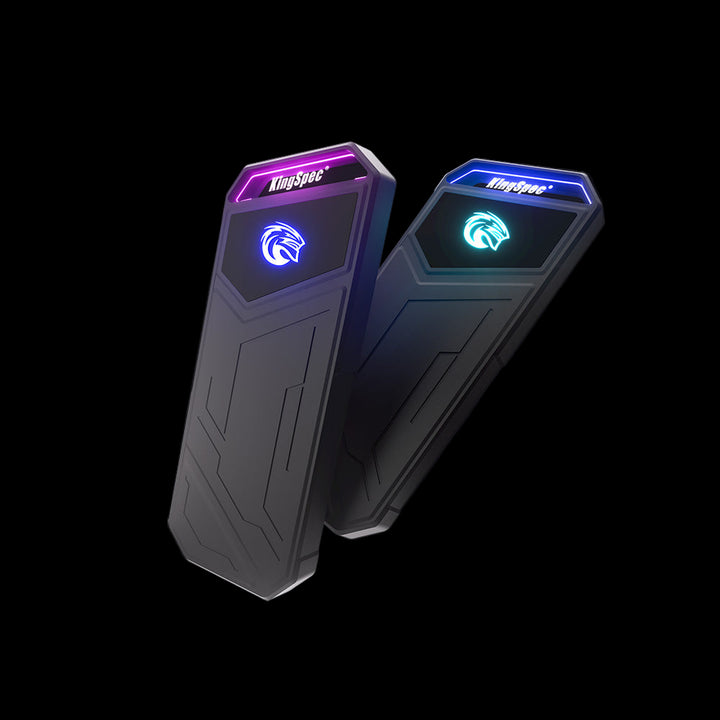
Z5 Series Portable External SSD
USB 3.2 Gen 2x2 (20 Gbps), USB-C. Rated up to 2,100 MB/s read. Room for a large PC library.
Shop now →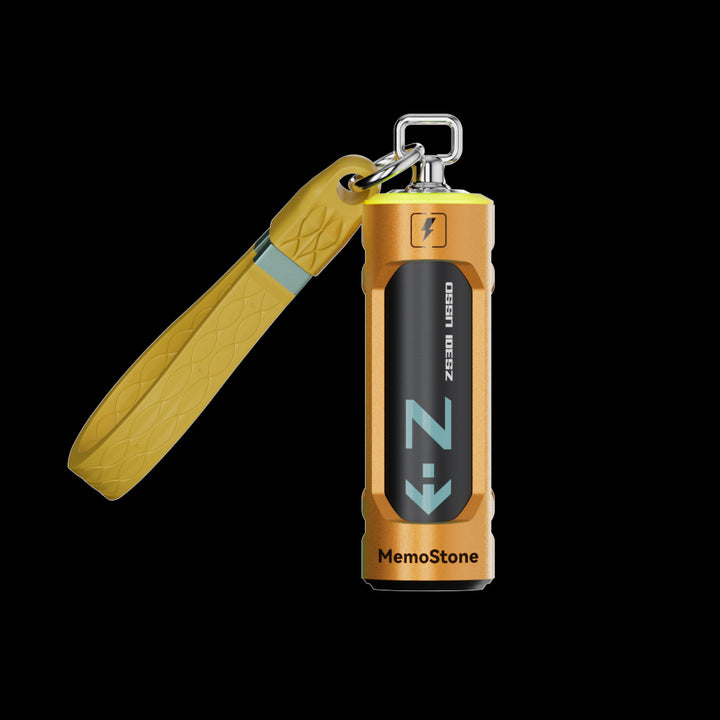
ZS301 Portable External USSD
USB 3.2 Gen 2x2 (20 Gbps). Rated up to 2,000 MB/s read. Works with older USB-A gaming PCs.
Shop now →
US5 Portable USB External SSD
USB 3.2 Gen 2x2 (20 Gbps), USB-C. Rated up to 2,050 MB/s read, up to 2 TB.
Shop now →20 Gbps speeds need a USB 3.2 Gen 2x2 port. On 10 Gbps or 5 Gbps ports, the drive runs at that port's speed.
Common Problems and Troubleshooting
| Problem | Likely cause | Fix |
|---|---|---|
| Slow loading | USB 2.0 port, slow cable, or hub | Use a rear USB 3.x port and the included cable. Check the port's speed rating. |
| Drive disconnects mid-game | Power saving or a loose connection | Disable USB selective suspend. Connect directly, not through a hub. |
| Steam shows games as not installed | Drive letter changed | Restore the original letter in Disk Management, or re-add the library folder. |
| PS5 game won't start from USB | PS5 games can't play from USB | Copy it to console storage or an M.2 SSD. |
| Xbox says the game must be moved | It's an Optimized for Series X|S title | Move it to internal storage or a Storage Expansion Card. |
| Console won't detect the drive | Below capacity minimum, hub use, or unsupported device | Check the 250 GB (PlayStation) or 128 GB (Xbox) minimum and connect directly. |
| Drive not visible on PC | Uninitialized or no drive letter | See our guide to an SSD not showing up. |
Common Mistakes to Avoid
- Buying for PS5 game play over USB. PS5 games need console storage or an internal M.2 SSD to run.
- Plugging into the slowest port. Front panel and hub ports are often slower than rear ports.
- Using one drive for console games and PC files. Console setup erases the drive.
- Expecting higher FPS. Storage changes load times, not GPU performance.
- Unplugging during updates. It can corrupt game files and force a reinstall.
Frequently Asked Questions
Is it okay to play games on an external SSD?
Yes. Playing games from an external SSD is safe and works well for most PC games. Use a 10 Gbps or faster USB port when possible, connect directly instead of through a hub, and eject the drive safely. Console support depends on the game type, as covered above.
Can I play PS5 games from an external SSD?
No. A PS5 can store PS5 games on USB extended storage but can't play them from it. Copy the game back to console storage or install a compatible internal M.2 SSD. PS4 games can be played directly from USB extended storage on a PS5.
Can I play Xbox Series X|S games from an external SSD?
Not Optimized for Xbox Series X|S games. They must run from the internal SSD or an official Storage Expansion Card. Xbox One, Xbox 360, and original Xbox games can run directly from a USB drive that meets Xbox's requirements.
Does an external SSD reduce FPS?
Usually not. Frame rate depends on your GPU, CPU, and settings. A slow drive can cause brief stutter in games that stream assets heavily, but a fast external SSD on a USB 3.x port rarely limits frame rate.
Is an external SSD worth it for gaming?
It's worth it if you need more space without opening your PC, play on a laptop, or move games between computers. It's much faster than an external hard drive. If your PC has a free M.2 slot, an internal NVMe SSD gives the best performance for the money.
Can I use one external SSD on multiple PCs?
Yes, for many Steam games. Add the drive's library folder on each PC, and Steam can recognize the installed games. Keep the same drive letter where possible. Some launchers and DRM systems may require reinstalling or re-verifying files.
Final Thoughts
Running games on an external SSD is a practical way to expand storage, especially on a PC. Use a 10 Gbps or faster port, format the drive for your platform, and use your launcher's library tools. On consoles, follow the rules: PS4 and backward-compatible Xbox games play from USB, while PS5 and Optimized for Xbox Series X|S games need internal or official expansion storage.

