
An SD card can turn unreadable after a sudden power loss, unsafe removal, or a failed file transfer. You may see a message asking you to format the card, but formatting can wipe out the file-system information that makes your photos, videos, and documents accessible. In many cases, you can check the card, recover your files, and repair simple errors without formatting it at all. If the problem is limited to the file system, you may be able to restore access without formatting. If the card has physical damage or failing memory, data recovery should come first. Follow the steps below in order, and read the safety warnings before using any repair command. Once your files are safe, a reliable memory card from a trusted brand cuts down the odds of this happening again.
Key Takeaways
- Stop using the corrupted SD card until important files are safe
- Do not click Format when Windows, Android, or another device displays a format prompt
- Test another card reader, adapter, USB port, computer, or phone
- Use CHKDSK only when Windows recognizes the card and assigns it a drive letter
- CHKDSK is a file-system repair tool, not a full data-recovery program
- Recover data first if the card appears as RAW, disconnects often, or contains important files
- Replace the card if corruption keeps returning after repair
What Does a Corrupted SD Card Mean?

What Corruption Actually Means
A corrupted SD card has a problem with its file system, files, or physical memory. The device may detect the card, but it can't correctly read the information stored on it.
File System Corruption and Physical Damage
File system corruption can happen when a card is removed while saving data or when a device loses power. This type of problem is often repairable.
Physical damage is different. A cracked card, damaged contacts, failing memory chip, or faulty controller may prevent normal repair. If the card isn't detected by any device, focus on data recovery instead of trying repeated repair commands.
Common Signs of SD Card Corruption
Common signs include a "You need to format the disk" message, the card appearing as RAW, missing folders or files, photos and videos that won't open, a card that isn't detected, a missing drive letter in Windows, read-only errors, incorrect storage capacity, and frequent disconnections.
Protect Your Data Before Repairing the SD Card
Before learning how to fix a corrupted SD card without formatting, protect the files stored on it. Some repair tools change the card's file structure, so using them too soon can make recovery harder.
Stop Using the SD Card
Don't take new photos, copy files, delete folders, or save recovery software to the affected card. New data can overwrite files that may still be recoverable.
If the card keeps disconnecting, remove it and avoid testing it repeatedly. For important work, consider creating a full disk image before attempting repairs; if the data matters and the card is unstable, create a sector-by-sector image using a recovery tool first, and save that image to a portable SSD or other separate drive. If the card is physically failing, consider professional recovery instead of repeated scans.
Do Not Accept the Format Prompt
If Windows, Android, or a camera asks you to format the card, choose Cancel. Formatting can remove the file-system information that makes your photos, videos, and documents accessible.
Formatting should only be considered after important files have been recovered or backed up. A quick format may not immediately overwrite every data sector, but it can still make recovery more difficult.
Check the Card Reader and Adapter
A damaged reader or adapter can make a working SD card look corrupted. Try another card reader, connect the reader to another USB port, test the card on another computer, try another SD adapter, and test the card in the original camera or phone. Inspect the contacts and card body for dirt, corrosion, cracks, or bending, and check the lock switch on a full-size SD adapter.
Don't scrape the contacts, use abrasive materials, or force the card into a reader. If cleaning is necessary, follow the reader or device manufacturer's instructions. The lock switch doesn't repair corruption, but it may prevent changes to the card; if you're seeing unexpected read-only behavior, What Does Memory Card Is Write Protected Mean? covers that specific symptom in more depth. If the card works normally on another device, the card itself may not be the problem.
Quick Ways to Fix a Corrupted SD Card Without Formatting

Simple connection problems can sometimes be fixed without changing the card's files. Try these checks before using command-line tools or recovery software.
Restart the Device and Reconnect the Card
Restart the computer, phone, or camera. Once it turns back on, safely reconnect the SD card and check whether the files are accessible. If the card was removed during a transfer, a restart may clear a temporary reading problem.
Assign a New Drive Letter in Windows
A card may be detected by Windows but not appear in File Explorer because it has no drive letter. If Disk Management shows a healthy, readable partition without a drive letter, assigning an unused letter may restore access.
- Right-click the Start button
- Open Disk Management
- Find the SD card by checking its storage size
- Right-click its partition
- Select Change Drive Letter and Paths
- Choose Add and assign an unused letter
- Open File Explorer and check the card
Don't select Format, Delete Volume, or Initialize Disk if you still need the files. Don't assign a drive letter to the wrong disk or alter a RAW or unallocated volume before recovery.
Check the SD Card Status in Disk Management
Disk Management can show useful information without immediately changing the card.
| Status | What It May Mean | Safer Next Step |
|---|---|---|
| Healthy | Windows recognizes the partition, but individual files may still be damaged | Try assigning a drive letter only if one is missing |
| RAW | Windows cannot read the file system | Recover files before formatting |
| Unallocated | The partition information may be damaged | Use recovery software or an image |
| No Media | The reader or computer cannot access the card's storage | Try another reader, adapter, or computer |
| Incorrect capacity | The card may be failing, counterfeit, or affected by partition or reader problems | Stop using it and recover data |
Use CHKDSK to Repair an SD Card on Windows
CHKDSK can repair certain logical file-system errors, but it changes the card's file-system data. If the files are important, recover or create an image of the card before running CHKDSK. CHKDSK is a file-system repair tool, not a full data-recovery program; it may restore access to a card, but it doesn't guarantee that damaged or missing files will be recovered.
How to Run CHKDSK on a Corrupted SD Card
- Connect the SD card to your computer
- Open File Explorer and find its drive letter, such as E:
- Search for Command Prompt
- Select Run as administrator
- Enter: chkdsk E: /f (replace E: with the correct drive letter)
- Press Enter
- Wait for the scan and repair to finish
- Safely eject the card and reconnect it
The /f option tells Windows to fix file-system errors. Verify the drive letter carefully before pressing Enter so you don't run the command on the wrong drive.
Should You Use CHKDSK With the /r Option?
The /r option checks for bad sectors and attempts to recover readable information while checking the file system: chkdsk E: /r. It's not a substitute for dedicated data-recovery software. It can take a long time and may put extra read activity on an unstable card.
Don't use it first when the card contains irreplaceable files, appears as RAW, or disconnects during use. Recover or image the card before attempting a deeper scan.
When CHKDSK Will Not Help
CHKDSK may not work when the card appears as RAW, Windows doesn't assign a drive letter, the card isn't detected, the card has physical damage, the card disconnects during the scan, or Windows reports that the file system is unsupported.
Avoid running CHKDSK as your first step when the card appears as RAW. Windows may not be able to use CHKDSK on an unrecognized file system, and data recovery should usually come first. In these cases, data recovery is usually safer than repeated repair attempts.
Recover Data From a Corrupted SD Card Without Formatting

When Recovery Should Come First
Data recovery should come before repair when the files are more important than the card itself. This is especially true for RAW cards, missing folders, damaged photos, and cards that disconnect.
Use Recovery Software Carefully
Choose recovery software that supports the card's file system and the file types you need. If the partition structure is damaged, look for partition recovery or file-signature scanning features. Install the software on your computer, not on the corrupted SD card.
Follow these rules: save recovered files to another drive, recover the most important files first, don't save recovered data back to the SD card, use a disk image when possible, and keep the original card unchanged until recovery is complete. For a more detailed walkthrough of this exact process, see How to Recover Corrupted SD Card Safely.
For future photo, video, and file storage, a memory card from an established seller, such as a suitable KingSpec model, can be a practical choice. Check that the card matches your device's capacity and speed requirements, and keep regular backups of important files.
Recover Photos and Videos From a Camera Card
A deep scan may find photos and videos even when the original folder structure is damaged. Recovered files may have new names, and some videos may need additional repair. Open several recovered files before deleting anything from the original card. If the card contains valuable memories and isn't detected, a professional data recovery service may offer the best chance of success. Once you're back up and running, Best Micro SD Card: Speed, Size & Performance Guide can help you pick a more reliable replacement.
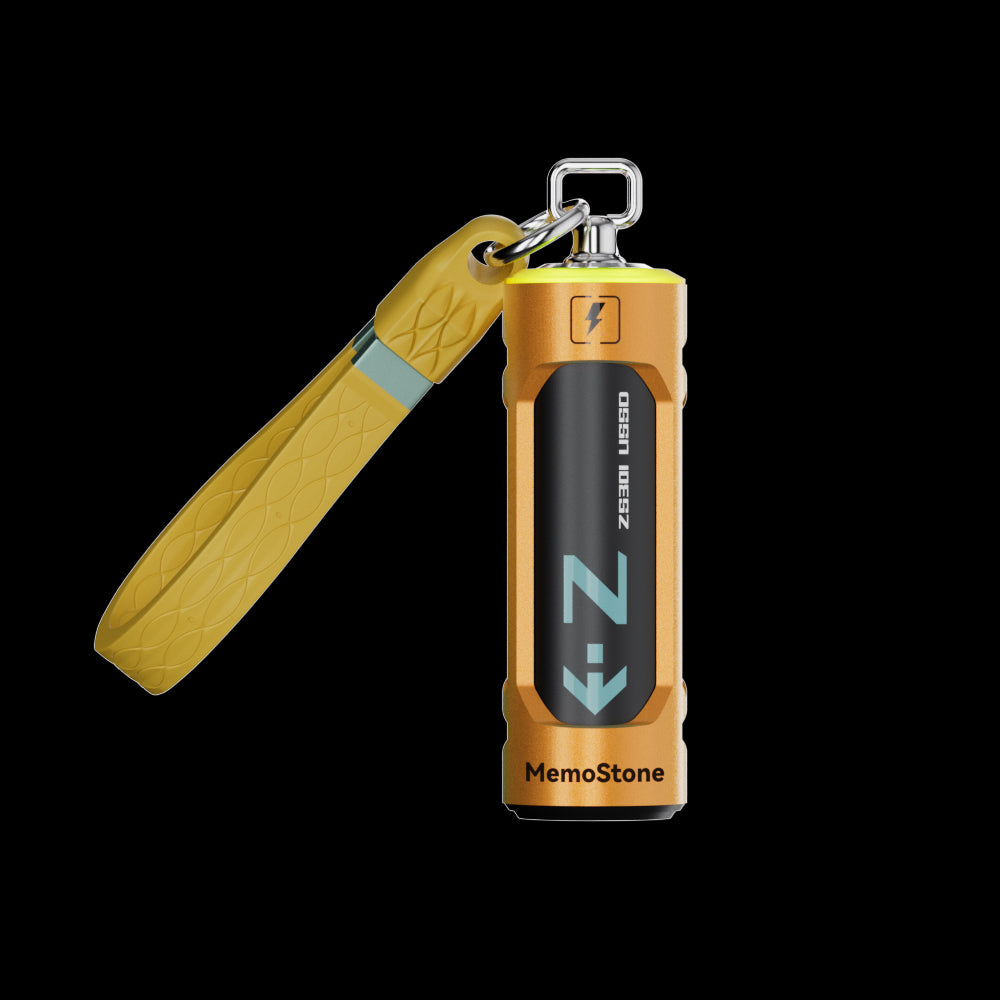
- Interface: USB 3.2 Gen2x2, 20Gbps
- Read Speed: Up to 1,900 MB/s
- Capacities: 256GB up to 2TB
- Design: Battery-shaped body with RGB glow
- Compatibility: PC, laptop, smartphone, tablet
- Warranty: 3 Years
A fast, separate drive for saving a disk image or recovered files off the corrupted card, exactly what the safety steps in this guide call for.
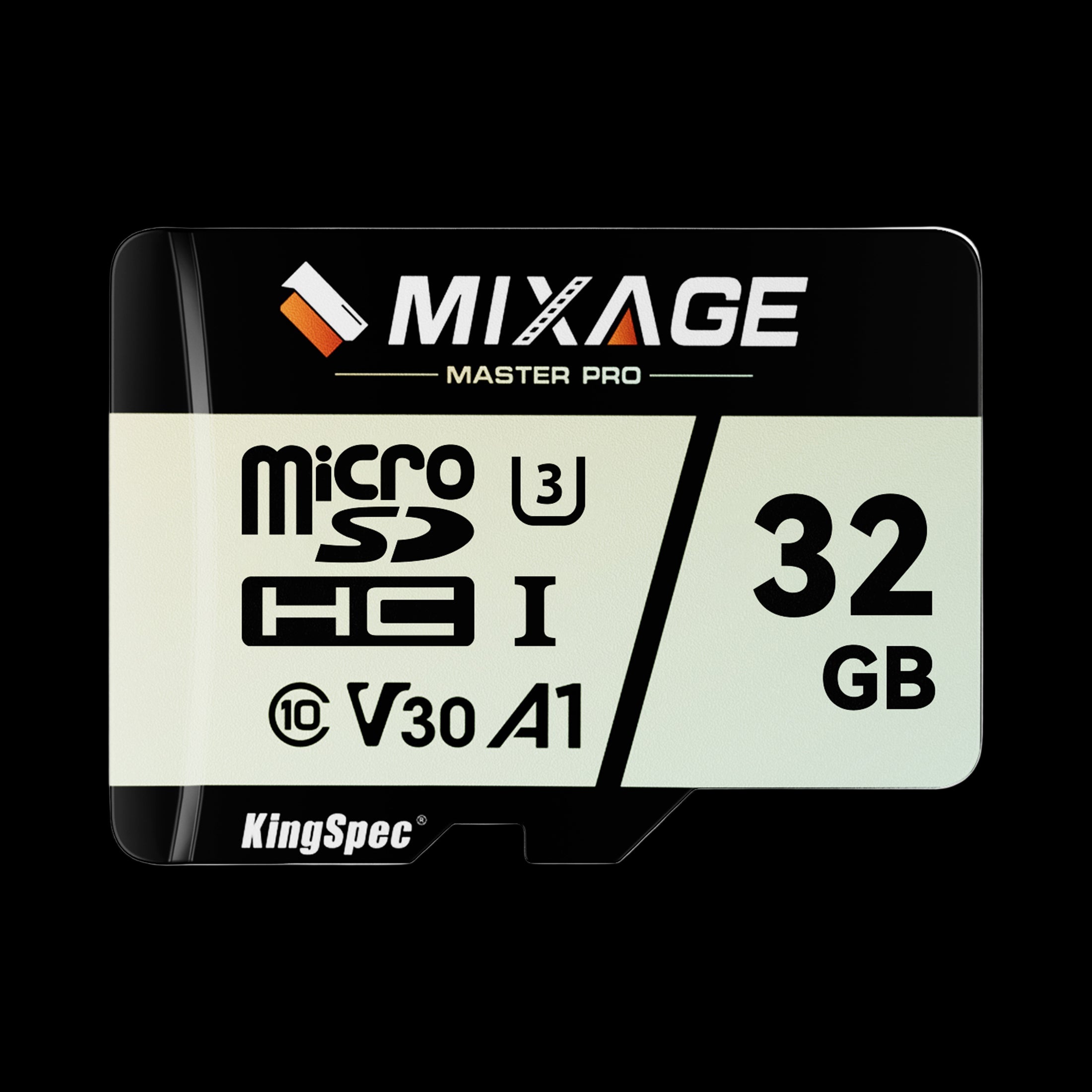
- Form Factor: microSD, includes SD adapter
- Read/Write: Up to 175 / 110 MB/s
- Capacities: 32GB up to 512GB
- Rating: Class 10, UHS-I, U3, V30
- NAND: 3D NAND
- Warranty: 3 Years
Counterfeit and low-quality cards are one of the causes of corruption covered in this guide. A branded replacement with a real warranty is worth the small price difference.
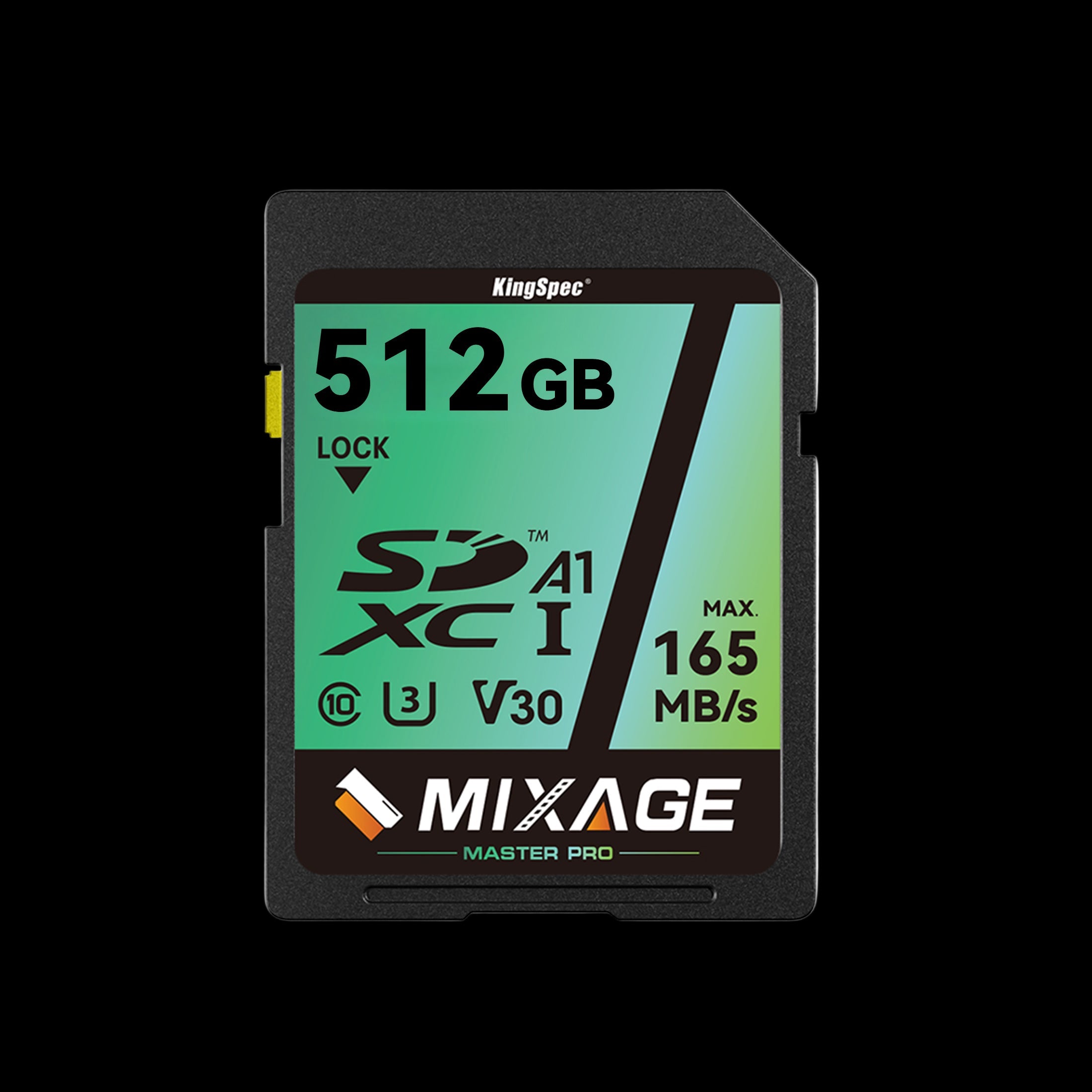
- Form Factor: Standard SD
- Read/Write: Up to 165 / 81 MB/s
- Capacities: 64GB up to 512GB
- Rating: Class 10, UHS-I, U3, V30
- NAND: 3D NAND
- Warranty: 10 Years
A dependable full-size SD replacement for cameras and camcorders once your recovered files are safely off the old card.
Repair a RAW SD Card Without Formatting
What RAW Actually Means
RAW means the operating system can't understand the card's file system. It doesn't always mean the files are permanently gone.
Safest Steps for a RAW SD Card
Stop using the card. Check that the correct card appears in Disk Management, and don't format or initialize it. Create a disk image if possible, then scan the image or card with recovery software and save recovered files to another drive. Attempt repair only after your files are safe.
Why Not to Run CHKDSK on a RAW Card
Don't run CHKDSK blindly on a RAW card. CHKDSK works best with a file system that Windows can recognize, while recovery software may be able to find files even when the original file system is damaged.
Fix a Corrupted SD Card on Mac Without Formatting
Mac users can try Disk Utility when the card is detected but has directory or file system errors. First Aid may repair minor problems without erasing the card. Open Disk Utility, select View and then Show All Devices, select the SD card volume, click First Aid, and review the result. If Apple recommends checking the container or physical device, follow the order shown by Disk Utility.
Don't click Erase. If the card doesn't appear in Disk Utility at all, test another reader, adapter, USB port, or Mac before assuming the worst.
Fix a Corrupted SD Card on Android Without Formatting
Android may display a message asking you to format an SD card when it can't mount or recognize it. Android's formatting options can erase the card and may change how it works with the phone.
Turn off the phone before removing and reinserting the card, then restart it. Test the card in a computer or another phone, check whether the card is supported by the device, and copy files away from the card if another device can read them. Don't select Format until recovery is complete.
If Android encrypted or adopted the card as internal storage, it may only be readable on the original phone or with the phone's encryption keys. The exact behavior depends on the Android version and device.
Why Do SD Cards Get Corrupted So Easily?
SD cards are commonly corrupted when data is being written or when the card is removed without being safely ejected. Other causes include sudden power loss, low camera or phone battery, malware, a nearly full card, unsupported file systems, faulty readers or adapters, counterfeit or low-quality cards, heat, water, dust, bending, and normal flash memory wear. Best SD Cards for Photography covers why sticking to trusted brands matters here specifically.
To reduce corruption, wait until transfers finish, safely eject the card, and keep backup copies of important files.
What to Do if the SD Card Still Does Not Work
If recovery tools can't detect the card, or if it repeatedly disconnects, stop trying different repair commands. Repeated scans can place more stress on a failing card.
Seek professional data recovery help when the card is cracked, bent, wet, or burned; shows zero capacity; has the wrong capacity; isn't detected by any computer or reader; or the files are impossible to replace. This applies to internal and external drives too, not just memory cards; SSD Not Showing Up? Here's How to Fix It covers the same detection problem on SSDs if that's part of your setup as well.
After recovering your data, format the card only if you plan to test it. Replace it if corruption returns, because formatting can't repair worn-out memory.
Conclusion
The safest way to fix a corrupted SD card without formatting is to protect the data first, test the card with another reader, and use repair tools only when the card is stable and readable. CHKDSK can help with simple Windows file-system errors, while RAW cards and physically damaged cards usually need data recovery before any repair attempt. If the card keeps failing, replace it instead of trusting it with important files.
For more helpful storage guides, troubleshooting tips, and advice for recreational activities such as photography and gaming, browse KingSpec's best-selling storage. Its product range includes memory cards, gaming storage, internal storage, external storage, SSDs, and DDR RAM built to support everyday devices and entertainment setups.
Browse Related Collections
Frequently Asked Questions
How do I fix a corrupted SD card without formatting it?
Stop using the card, test another reader or device, and check whether it receives a drive letter. If Windows recognizes the card, you may try CHKDSK after backing up your files. If it appears as RAW or disconnects, recover the data before attempting repairs.
Can a corrupted SD card be restored?
A card with logical file-system errors may be restored with a drive-letter change, CHKDSK, First Aid, or recovery software. A card with physical damage may not be safely restored for future use. Even after repair, replace the card if corruption returns.
How do I uncorrupt damaged files?
Copy any readable files to another drive first, then use software designed for the specific file type, such as photos, videos, or documents. Keep the original damaged files unchanged during the repair process.
Why does my SD card say it is corrupted?
The message usually means the device can't read the card's file system. It may be caused by unsafe removal, power loss, malware, a faulty reader, or failing memory. Testing another device can help identify the cause.
What is the lifespan of an SD card?
An SD card's lifespan depends on its quality, write frequency, temperature, and storage conditions. Cards used for constant video recording usually wear out faster than cards used occasionally. Replace a card after repeated errors instead of trusting it with important files.
How much does it cost to fix a corrupted SD card?
Basic recovery software may be free or relatively inexpensive. Professional recovery can cost hundreds or thousands of dollars, depending on the damage and the value of the data. The cost is usually based on the recovery work required rather than the card's price.

