
Formatting an SD card in your camera takes only a few minutes, but choosing the wrong card or pulling it out at the wrong moment can lead to errors and lost files. The safest method is almost always to format the card inside the camera instead of on a computer. DSLR and mirrorless cameras also need the right capacity, speed rating, and file system for smooth photo and video recording. Grab a compatible memory card and read on to learn how to format an SD card for a camera, choose the best settings, and fix the problems that come up most often.
Key Takeaways
- Back up all photos and videos before formatting
- Format the SD card inside the camera whenever possible
- Let the camera select the correct file system on its own
- FAT32 is common on SDHC cards, while exFAT is commonly associated with SDXC cards
- Choose a card speed that matches your camera and recording mode
- Check the card lock switch if the camera cannot format it
- Use a reliable memory card, such as a compatible KingSpec memory card, for everyday photo and video storage
Why Format an SD Card in the Camera?

Formatting in the camera prepares the card specifically for that camera model. It builds the folders and file system the camera actually uses to save photos and videos, which a generic computer format can't fully replicate.
Computer formatting can work in a pinch, but it may create compatibility problems if you pick the wrong file system. In-camera formatting is usually faster, simpler, and safer for normal camera use.
Formatting is not the same thing as deleting photos one at a time. Deleting individual files only removes what you selected; it doesn't rebuild the card's file system and can leave old folders or file-system quirks behind. Formatting erases the card's accessible files and should be treated as permanent data loss. Specialized recovery tools may sometimes bring files back after a format, so always back up your photos and videos before you tap that option.
Before You Format an SD Card for a Camera
A few quick checks can prevent lost files and a failed format. Work through these before you ever open the camera menu.
Back Up Your Photos and Videos
Copy the card's files to a computer, external drive, or cloud storage. Open a few of the backed-up files afterward to confirm the copy actually worked. A portable SSD makes a fast, reliable backup destination if you're shooting away from a computer.
Charge the Camera Battery
Make sure the camera battery has enough charge before you start formatting. If the camera loses power mid-process, the card or the camera itself can develop errors.
Check the SD Card Lock Switch
Full-size SD cards have a small lock switch on the side. Move it to the unlocked position before inserting the card into the camera, or the format option won't work at all.
Confirm Card Compatibility
Check the camera manual for its supported card types and maximum capacity. UHS-I and UHS-II are different bus types that affect transfer speed, separate from the capacity class below.
| Card Type | Capacity Range |
|---|---|
| SD | Up to 2GB |
| SDHC | More than 2GB up to 32GB |
| SDXC | More than 32GB up to 2TB |
| SDUC | More than 2TB up to 128TB |
Older cameras may not support SDXC cards or large storage capacities. SDUC cards are rarely supported by consumer DSLR and mirrorless cameras, so check the camera manual before buying one. For a full breakdown of the physical formats behind these capacity classes, see SD Card Dimensions: Size Guide for All Memory Card Formats.
How to Format an SD Card for a Camera
The exact menu names vary by camera, but the main process is similar across most DSLR and mirrorless models. When you format a compatible card in the camera, it normally applies a supported file system automatically, though the available options depend on the camera model.
Step 1: Insert the SD Card
Turn off the camera and insert the SD card in the correct direction. If the camera has two slots, note which slot contains the card.
Step 2: Open the Camera Menu
Turn on the camera and open the menu. Look under Setup, Settings, Storage, Tools, or Card Settings, depending on the brand.
Step 3: Select the Format Option
Choose an option named Format Card, Format Memory Card, or simply Format. On some cameras, it hides under a wrench or toolbox icon.
Step 4: Choose the Card Slot
If the camera has two card slots, select Slot 1 or Slot 2. Check the selected slot carefully, since formatting the wrong card erases its files with no warning beyond the confirmation prompt.
Step 5: Confirm the Format
Select Yes, OK, or Format when the camera asks for confirmation, then wait until the process finishes completely. Do not remove the card, open the battery door, or turn off the camera while it's formatting.
Step 6: Take a Test Photo
Take one photo and play it back on the camera. If you plan to record video too, capture a short clip and check that it saves correctly before you rely on the card for anything important.
Best Format Settings for DSLR and Mirrorless Cameras

The best setting depends on your camera, card capacity, and recording needs. In most cases, the camera's built-in formatter automatically chooses the correct option for a compatible card.
FAT32 for SDHC Cards
FAT32 is common on SDHC cards up to 32GB, and plenty of older cameras rely on it. The camera's manual determines which card and file-system combinations are actually supported. One real limitation: FAT32 usually can't store a single file larger than about 4GB, which matters when you're recording long or high-quality video.
exFAT for SDXC Cards
exFAT is commonly associated with SDXC cards larger than 32GB. It supports files larger than 4GB and works well for long recordings and high-bitrate video. Your camera has to support both SDXC and the card's specific capacity, or a large SDXC card may not work correctly at all. If you ever need to format a card manually on a computer instead of in-camera, How to Format SD Card on Mac & Windows walks through picking the right file system there too.
Avoid NTFS Unless the Camera Supports It
NTFS is generally not the correct format for DSLR and mirrorless camera SD cards. A card formatted as NTFS may work fine on a computer but fail to appear in the camera at all. For the safest results, format the card inside the camera instead of manually choosing NTFS, FAT32, or exFAT yourself.
Choosing the Best SD Card for Camera Use
Formatting can't fix a card that's too slow, damaged, or incompatible in the first place. Choose the card based on how you actually plan to use your DSLR or mirrorless camera.
For JPEG Photos
A Class 10 or U1 card is often enough for casual JPEG photography. A faster U3 or V30 card is the better choice if you shoot continuous bursts or transfer files often.
For RAW Photos
RAW files are much larger than JPEG files, so storage capacity matters more here. A fast sustained write speed can also help the camera clear its buffer during long burst sequences, depending on the camera body. See Best SD Cards for Photography for a deeper breakdown by shooting style.
For 4K Video
Many cameras require U3 or V30 for certain 4K recording modes, but the exact requirement depends on the camera's bitrate, codec, frame rate, and firmware. Some advanced recording modes require V60 or V90 cards instead. Check the camera manual for the required video speed class; a card with a high read speed may not have the sustained write speed video recording actually needs.
Understanding SD Card Speed Classes
U1 and U3 are UHS Speed Class ratings, while V30, V60, and V90 are Video Speed Class ratings. They indicate minimum sustained write speeds, not guaranteed performance in every camera.
| Speed Rating | Minimum Sustained Write Speed |
|---|---|
| U1 | 10MB/s |
| U3 | 30MB/s |
| V30 | 30MB/s |
| V60 | 60MB/s |
| V90 | 90MB/s |
Choose the rating your camera's recording mode actually requires, not just the highest advertised read speed on the packaging. SD Card Speed Classes: Which Class Do You Need? goes deeper into matching a rating to your specific gear.
For Dual-Slot Cameras
Check how the two slots are configured. Some cameras use the second card for backup, overflow storage, or a different file type entirely. Format each card separately and confirm your recording settings before a major shoot. Best Memory Card for Camera covers matching card type to slot across SD, microSD, and CFast systems.
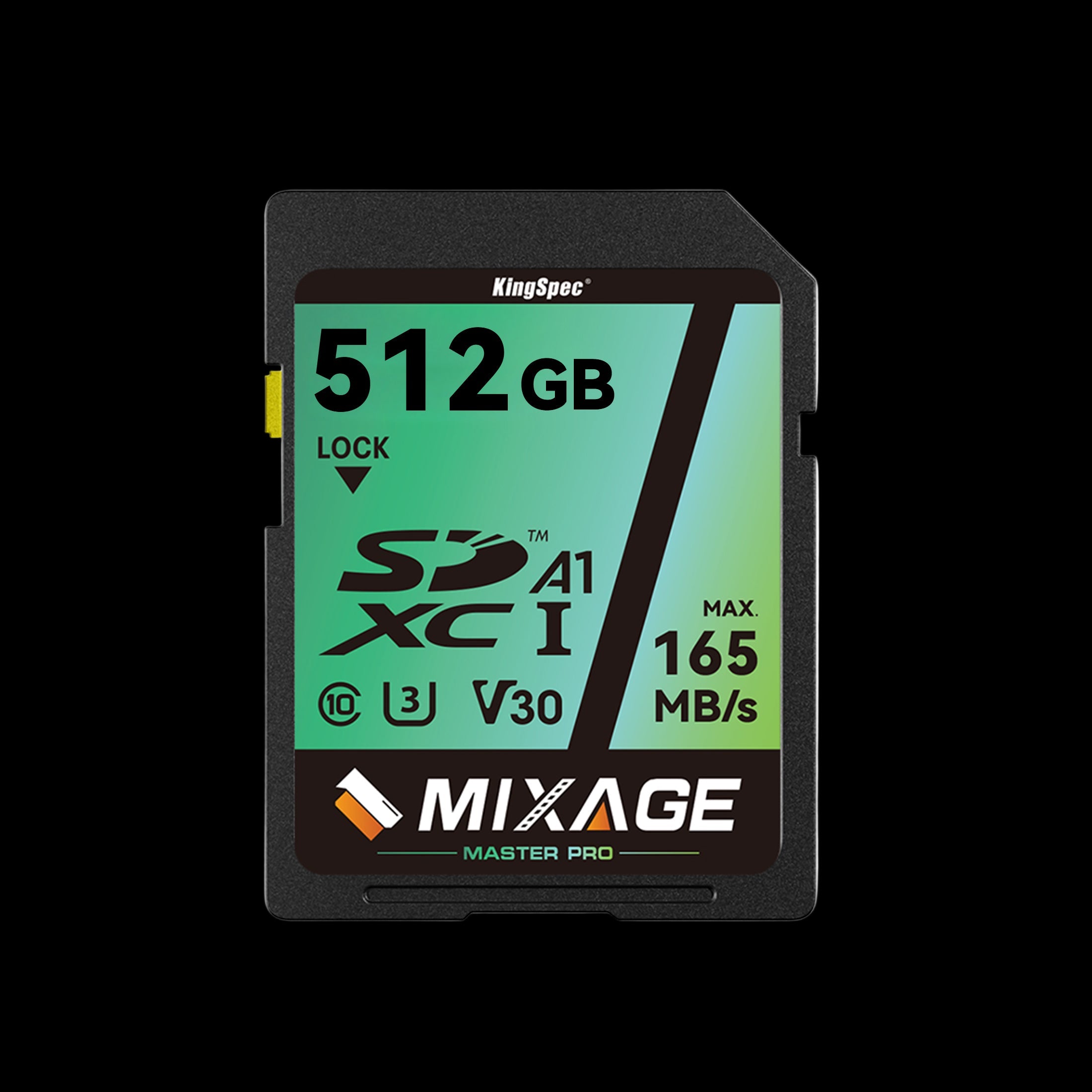
- Form Factor: Standard SD
- Read/Write: Up to 165 / 81 MB/s
- Capacities: 64GB up to 512GB
- Rating: UHS-I, U3, V30
- NAND: 3D NAND
- Warranty: 10 Years
Built for the full-size SD slot on most DSLR and mirrorless bodies. U3 and V30 ratings cover 4K video and continuous RAW bursts without dropping frames.
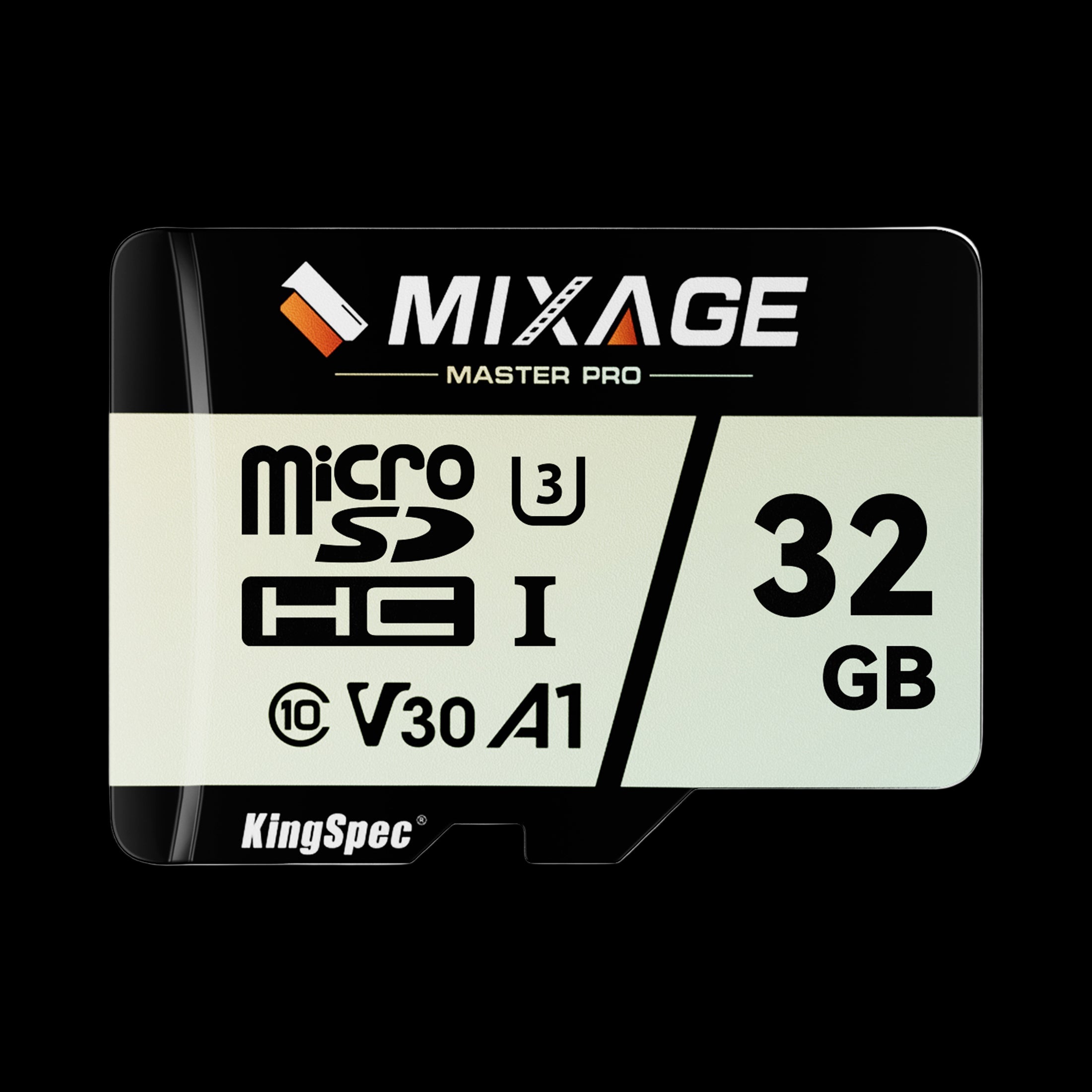
- Form Factor: microSD, includes SD adapter
- Read/Write: Up to 175 / 110 MB/s
- Capacities: 32GB up to 512GB
- Rating: UHS-I, U3, V30
- NAND: 3D NAND
- Warranty: 3 Years
The included adapter lets it drop straight into any full-size SD slot too, so one card can move between a drone, an action camera, and a DSLR body without trouble.
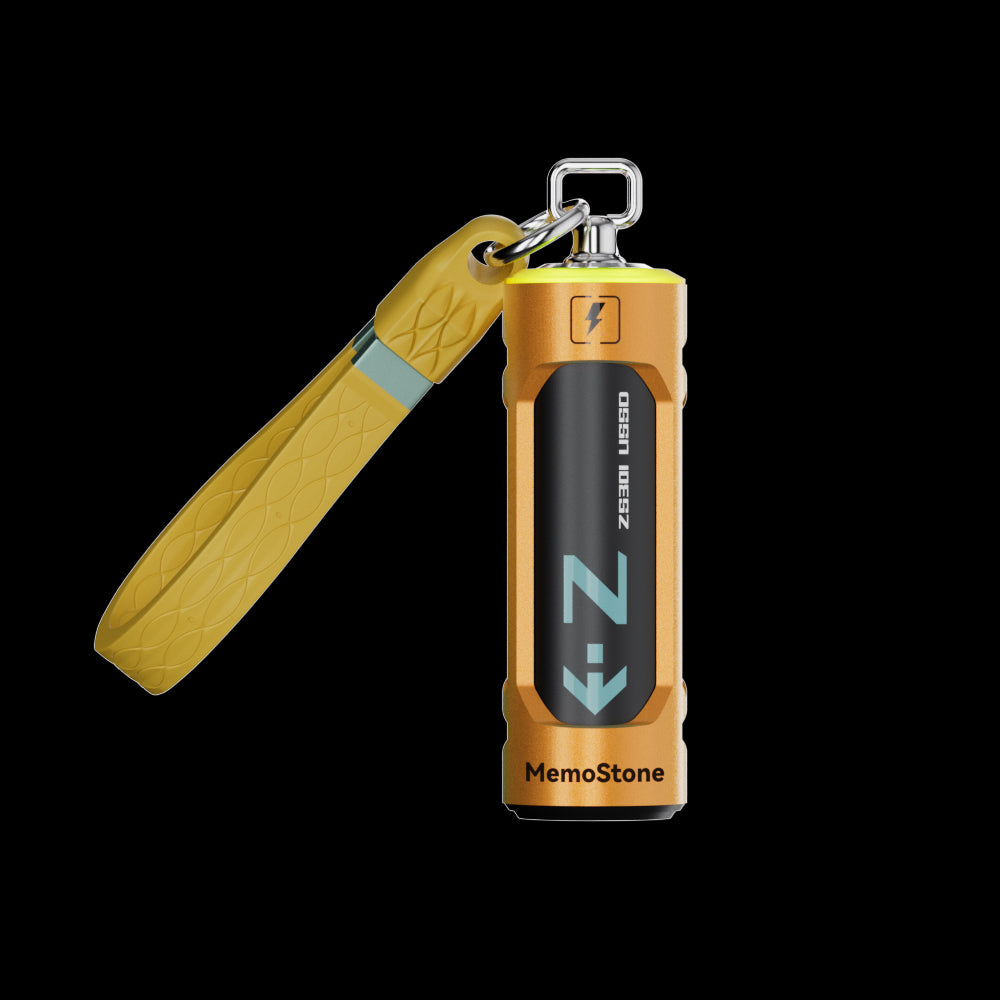
- Interface: USB 3.2 Gen2x2, 20Gbps
- Read Speed: Up to 1,900 MB/s
- Capacities: 256GB up to 2TB
- Design: Battery-shaped body with RGB glow
- Compatibility: PC, laptop, smartphone, tablet
- Warranty: 3 Years
Offload a full card of RAW files or 4K footage in the field before formatting, so you're never one accidental tap away from losing a shoot.
How to Format an SD Card on a Computer
In-camera formatting is preferred, but a computer can help when the camera can't recognize or format the card at all. What Is a TF Card: Guide to TransFlash Memory Storage is a useful primer if you're not sure which card format you're actually holding before you start.
Formatting an SD Card on Windows
- Back up any files that can still be opened
- Insert the card into a card reader
- Open File Explorer
- Right-click the correct SD card drive
- Select Format
- Choose the file system specified by the camera manufacturer
- Select Quick Format for a normal card
- Click Start and confirm
- Safely eject the card
- Insert it into the camera and format it again in-camera
Windows may not offer FAT32 for larger cards through File Explorer. Check the drive letter and storage capacity carefully, since formatting the wrong drive can erase files you actually wanted to keep.
Formatting an SD Card on Mac
- Insert the card into a card reader
- Open Disk Utility
- Select the SD card carefully
- Click Erase
- Choose the file system required by the camera
- Confirm the erase process
- Eject the card safely
- Format the card again in the camera
The available choices can vary by macOS version and whether you select the physical card or a volume. Follow the camera manufacturer's instructions before choosing a file system or partition option.
Why Is My Camera Not Detecting the SD Card?
Several simple issues can stop a camera from recognizing a card. Check each possibility before assuming the card is permanently damaged.
Check the Card Position and Lock Switch
Turn off the camera, remove the card, and insert it again firmly. Make sure the lock switch is unlocked.
Check Card Capacity and Type
An older camera may not support an SDXC card or a large storage capacity. Try a smaller, compatible SDHC card if the camera is several years old. microSD vs SD Card: Which Storage Card Is Right for You? breaks down which format actually fits which device.
Test Another Card
Insert a different compatible card into the camera. If the second card works, the first card may be damaged, counterfeit, worn out, or simply incompatible with that camera body.
Check the Camera Slot
Dust or damage inside the card slot can cause connection problems. Follow the camera manual for safe cleaning, and avoid inserting sharp objects into the slot under any circumstances.
Why Can't I Format My SD Card on the Camera?
A locked card is one of the most common causes. Move the card's side switch to the unlocked position and try again before troubleshooting anything else.
The card may also be damaged, too large for the camera, or formatted with an unsupported file system. If computer formatting doesn't solve the issue, replace the card and test another compatible one instead of repeatedly forcing the same one.
Recover Important Files Before Troubleshooting
If the card contains important photos, stop using it before attempting recovery. Don't format it repeatedly, record new files, or run repair tools until you've copied the data or consulted a recovery specialist. How to Recover Corrupted SD Card Safely covers the safe order of operations if the card is already showing errors. Don't keep using a card that repeatedly loses files or throws errors. For dependable storage going forward, use a trusted memory card built for your camera's speed and capacity needs, and check the card type, capacity, speed class, and camera manufacturer's requirements before buying.
Safe SD Card Practices for DSLR and Mirrorless Cameras

Good card habits reduce the risk of corrupted photos and videos over the long run.
- Back up files before formatting
- Format the card after transferring and checking your files
- Turn off the camera before removing the card
- Don't remove the card while the access light is blinking
- Keep the card away from water, heat, dust, and pressure
- Don't fill the card completely
- Use several cards for important events
- Replace cards that repeatedly show errors
- Buy memory cards from trusted sellers
SD Card Formatting Checklist
Run through this before a photo or video shoot:
- The card is compatible with the camera
- The lock switch is unlocked
- Photos and videos are backed up
- The camera battery has sufficient charge
- The correct card slot is selected
- The card is formatted in-camera
- A test photo has been taken
- A test video has been recorded when needed
- Enough storage space remains
- A spare card is available
Conclusion
The safest way to format an SD card for a camera is to back up your files, insert a compatible card, and use the camera's built-in Format Card option. FAT32 is common for SDHC cards, while exFAT is commonly associated with supported SDXC cards, but your camera should normally choose the correct setting automatically. Match the card's speed and capacity to your DSLR or mirrorless camera, then take a test photo before an important shoot.
For more storage built around real shooting needs, browse KingSpec's best-selling storage lineup, and check card type, capacity, speed class, and your camera manufacturer's requirements before buying.
Browse Related Collections
Frequently Asked Questions (FAQs):
Do I need to format a new SD card for a camera?
Formatting a new card in the camera is recommended before important use. The card may have been formatted by a computer, phone, or another camera already. In-camera formatting creates the folders and file system your camera actually expects.
What format should an SD card be for a camera?
The correct format depends on the camera and card type. FAT32 is common for SDHC cards, while exFAT is commonly associated with SDXC cards. The safest option is to let the camera choose the format through its built-in formatting menu.
What should I format my SD card to?
For most cameras, use the camera's own Format Card function rather than selecting a format manually. Avoid NTFS unless the camera manual specifically supports it. If you must use a computer, check the camera's documentation first.
How do I format an SD card for first-time use?
Insert a compatible card into the camera and turn it on. Open the setup or storage menu, select Format Card, choose the correct slot, and confirm. Take a test photo afterward to check that the card works properly.
What happens if I do not format my SD card?
The card may keep working, but old folders or file-system quirks can cause recording errors. Files from another device can also create compatibility issues. Formatting before a shoot gives the camera clean storage space, but remember it deletes all existing files.
How do I know if my SD card has been formatted?
The camera normally shows a message confirming that formatting is complete. You can also take a photo, play it back, and check the available storage. If the camera saves and displays the file correctly, the card is ready for use.
Can I format an SD card without losing my photos?
No, normal formatting deletes the files stored on the card. Copy the photos and videos to another location before formatting. If files are already missing, stop using the card and consider recovery software or professional help.
How often should I format a camera SD card?
Format the card after backing up a completed shoot or before an important session. There's no need to format it after every photo. Avoid repeatedly deleting individual files when you can safely back up and format the card instead.

