

To transfer photos from iPhone to a flash drive, plug the drive into your iPhone. iPhone 15 and later models connect over USB-C, while older models need Apple's Lightning to USB Camera Adapter.
Open Photos, select your pictures, tap the Share button, and choose Export Unmodified Original. Pick the drive under Locations and tap Save. The drive must have a single partition formatted as APFS, exFAT, FAT32, or macOS Extended. No computer is needed.
Key Takeaways
- iPhone Pro models and iPhone Duo support 10 Gbps over a USB 3 cable. The included cable runs at USB 2 speeds.
- Export Unmodified Original saves the original files, even for photos you've edited.
- Format the drive as exFAT so long videos over 4 GiB copy without errors.
- Pro iPhone models with USB-C support 10 Gbps transfers over a USB 3 connection. The included cable runs at USB 2 speeds.
- Check the files on the drive before deleting anything from your iPhone.
What You Need to Transfer Photos to a Flash Drive
You need a drive that fits your iPhone's port and uses a format iPhone can read. Apple lists the requirements in its guide to connecting external storage devices.
| Your iPhone | How to connect | Transfer speed |
|---|---|---|
| iPhone 15 Pro, 16 Pro, 17 Pro, 18 Pro models, and iPhone Duo | USB-C drive, or a USB-A drive with an adapter | Up to 10 Gbps over a USB 3 connection, such as a USB 3 cable |
| Other USB-C models, such as iPhone 15, 16, 17, and iPhone Air | USB-C drive, or a USB-A drive with an adapter | USB 2 speeds |
| Lightning models (iPhone 14 and earlier, iPhone SE) | Lightning to USB Camera Adapter or Lightning to USB 3 Camera Adapter | Depends on the adapter |
Apple lists USB 3 speeds of up to 10 Gbit/s only for the Pro models and iPhone Duo in its USB-C connector guide. The cable included with iPhone supports USB 2 speeds.
- Format: One data partition, formatted as APFS, APFS (encrypted), macOS Extended (HFS+), exFAT, FAT32, or FAT.
- Best format: exFAT. FAT32 can't hold a single file of 4 GiB or larger, and long 4K videos often exceed that.
- Power: Flash drives and small USB SSDs draw power from the iPhone. Apple notes that external hard drives often need their own power.
How to Transfer Photos From iPhone to a Flash Drive With the Photos App

The Photos app can export pictures and videos straight to a connected drive. These steps follow Apple's guide to importing and exporting photos and videos.
- Connect the flash drive to your iPhone's USB-C or Lightning port, using an adapter if needed.
- Open the Photos app.
- Tap Select, then tap each photo and video you want to copy.
- Tap the Share button, then tap Export Unmodified Original.
- Tap your drive below Locations. Open or create a folder if you want one.
- Tap Save and wait for the copy to finish before you unplug the drive.
Apple notes that edited photos and videos export as their unmodified originals. Photos in a locked Hidden album won't transfer. To include them, go to Settings > Apps > Photos and turn off Use Face ID, Use Touch ID, or Use Passcode.
Check the Transfer in the Files App

Open the Files app to confirm your photos landed on the drive. Tap Browse, then tap the drive's name below Locations.
- Open a few photos and play a video to make sure they copied correctly.
- Touch and hold the drive name to rename it, see its free space with Get Info, or erase it.
- When you're done, unplug the drive from your iPhone's port.
Transfer Photos From iPhone to a Flash Drive Using a Computer
A computer helps with very large libraries, or when the drive doesn't fit your iPhone. Copy the photos to the computer first, then drag them to the flash drive.
On a Mac
- Connect your iPhone to the Mac with a USB cable. Tap Trust on the iPhone if asked.
- Open Photos on the Mac and click your iPhone in the sidebar.
- Choose items and click Import Selected, or click Import All New Items.
- Select the imported photos and choose File > Export, then save them to the flash drive.
On a Windows PC
- Install the Apple Devices app from the Microsoft Store.
- Connect and unlock your iPhone, then tap Trust or Allow.
- Open the Photos app, select Import, and choose your iPhone.
- Choose where to save the photos. You can pick a folder on the flash drive.
These steps come from Apple's photo transfer guide and Microsoft's phone import guide. If iCloud Photos is on, download the full-resolution originals to your iPhone before importing.
Discover High-Performance Storage & Memory by KingSpec
Explore KingSpec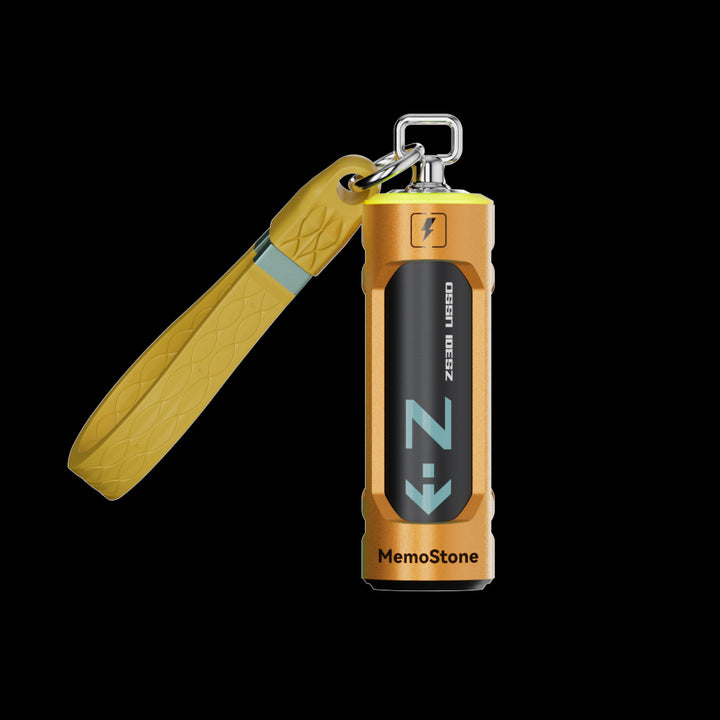
ZS301 Portable External USSD
USB 3.2 Gen 2x2 (20 Gbps) with Type-A and Type-C. Rated up to 1,900 MB/s read.
Shop now →
US5 Portable USB External SSD
USB 3.2 Gen 2x2 (20 Gbps) over Type-C. Rated up to 2,050 MB/s read, up to 2 TB.
Shop now →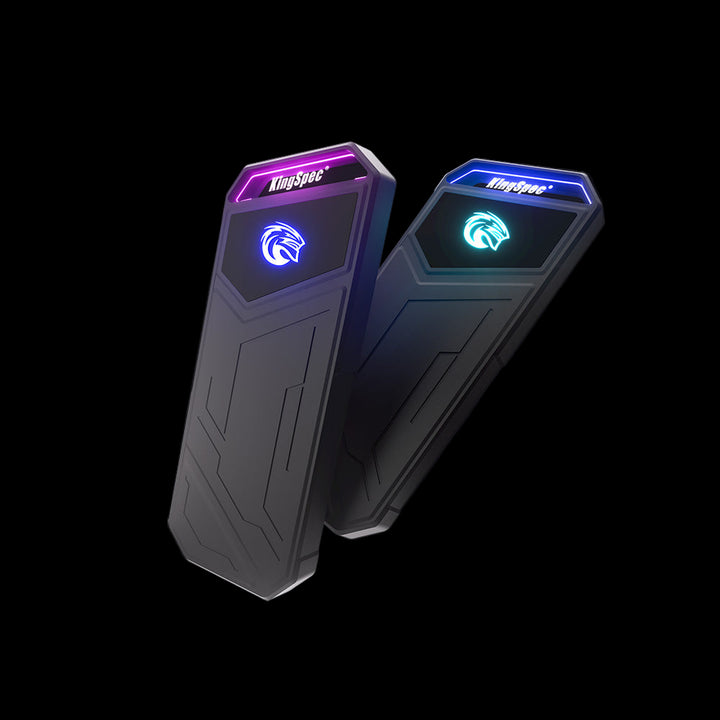
Z5 Series Portable External SSD
USB 3.2 Gen 2x2 (20 Gbps) over Type-C, up to 4 TB. Rated up to 1,850 MB/s read.
Shop now →HEIC or JPEG on Your Flash Drive?
Most iPhones save photos as HEIF (HEIC files) and videos as HEVC by default. Apple says these formats use less space than JPEG and H.264 at the same visual quality.
- Export from Photos to the drive: Export Unmodified Original keeps the original files, usually HEIC.
- Import to a computer over USB: Apple says photos may be converted to JPEG. To keep originals, go to Settings > Apps > Photos and tap Keep Originals.
- Future photos: To shoot JPEG and H.264 instead, go to Settings > Camera > Formats and tap Most Compatible.
Apple covers these settings in Using HEIF or HEVC media on Apple devices. Choose JPEG only if an older TV, photo frame, or PC can't open HEIC.
How Much Storage Do You Need?
Choose a drive with at least twice the space your photo library uses today. For example, a 128GB drive gives a 50GB library room to grow.
Check your current usage in Settings > General > iPhone Storage > Photos. If you use iCloud Photos with Optimize iPhone Storage, your full-resolution library may be larger than the amount shown.
Here is a quick guide to how many photos a 256GB drive can hold:
| Average Photo Size | Estimated Photo Count |
|---|---|
| 2MB HEIC | 128,000 |
| 5MB JPEG | 51,000 |
| 25MB RAW | 10,000 |
| 50MB RAW | 5,000 |
Actual capacity varies with file size, formatting, videos, and Live Photos. See how many photos 256GB can hold for more examples.
A dual-connector drive with USB-C and USB-A makes it easier to move photos between a compatible iPhone and a computer. Make sure the connector matches your iPhone’s port.
Keep a second backup on another device or in cloud storage, since two folders on the same drive will not protect against drive failure.
Troubleshooting iPhone Photo Transfers
| Problem | Likely cause | Fix |
|---|---|---|
| Drive doesn't appear under Locations | Unsupported format, more than one partition, or not enough power | Reformat as exFAT with one partition. Use a powered hub for hard drives. |
| Large videos fail to copy | Drive uses FAT32 | Back up, then reformat as exFAT |
| Some photos are missing | Hidden album is locked | Turn off the Face ID or passcode lock for Photos |
| Transfer is very slow | USB 2 model or cable | Use a USB 3 cable on Pro models, or split the export into batches |
| External hard drive won't work with a Lightning iPhone | Drive needs more power | Use the Lightning to USB 3 Camera Adapter connected to a USB power adapter |
On iOS 18 or later, you can reformat a drive in the Files app. Touch and hold the drive, tap Erase, and choose ExFAT. On a Mac, follow how to format a USB drive on Mac.
Common Mistakes to Avoid
- Deleting photos before checking the drive. Open a few files from the drive first.
- Using a FAT32 drive for video. Files of 4 GiB or larger won't fit.
- Unplugging during the export. Wait until the progress finishes.
- Keeping your only copy on one flash drive. Keep a second copy in iCloud, on a computer, or on another drive.
- Rushing an iCloud library. With Optimize iPhone Storage on, full-resolution originals live in iCloud, so allow extra time and stay online.
Frequently Asked Questions
Can I transfer photos from iPhone to a flash drive without a computer?
Yes. Connect the drive to your iPhone, select photos in the Photos app, tap Share, and choose Export Unmodified Original. Pick the drive under Locations and tap Save. iPhones with Lightning need Apple's Lightning to USB Camera Adapter or Lightning to USB 3 Camera Adapter.
Why isn't my flash drive showing up on my iPhone?
The drive likely uses an unsupported format or has more than one partition. iPhone needs one data partition formatted as APFS, exFAT, FAT32, FAT, or macOS Extended. Power can also be the problem with external hard drives. Reformat the drive as exFAT on a computer or in the Files app.
Do I need a special flash drive for iPhone?
No. Any drive that fits your iPhone's port, or connects through Apple's adapter, works when it's formatted correctly. A drive with both USB-C and USB-A plugs is handy because it also fits older computers. Pro models reach 10 Gbps only over a USB 3 connection.
Does transferring photos to a flash drive delete them from my iPhone?
No. Exporting copies the photos to the drive and leaves the originals in your library. You can delete them from your iPhone afterward to free space. Check the copies on the drive first, and keep a second backup somewhere else.
Will my photos lose quality on a flash drive?
No, not when you choose Export Unmodified Original. That option saves the original files at full resolution. If you use iCloud Photos with Optimize iPhone Storage, the originals are stored in iCloud, so allow extra time and keep your iPhone online during the export.
Final Thoughts
Learning how to transfer photos from iPhone to a flash drive takes a few minutes and no computer. Use an exFAT drive that fits your port, export unmodified originals from Photos, and check the files before you clear space on your phone. Keep at least one other copy of photos you can't replace.

