
Best SSD for Mini PC: Match the Slot Before You Buy
The best SSD for a mini PC is the drive that exactly matches its slot: M.2 2280 NVMe is common in newer performance systems, M.2 2242 appears in compact designs, and some models use M.2 SATA, mSATA, or a 2.5-inch SATA bay.
KingSpec carries each broad category, but the mini PC manual must decide the form factor and interface.
- M.2 describes shape; SATA and NVMe describe different interfaces.
- Check 2230, 2242, or 2280 length and the mounting point.
- Some mini PCs offer a second 2.5-inch SATA bay.
- Cooling and single-sided clearance matter in small enclosures.
- Back up and prepare recovery media before replacing the boot drive.
Recommended KingSpec Options
 KingSpec option
KingSpec M.2 2242 SSD Range
Includes compact SATA and NVMe models for systems that explicitly support 42mm drives.
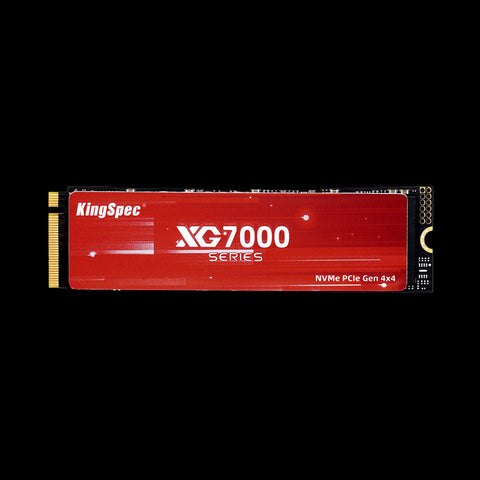 KingSpec option
KingSpec M.2 2280 NVMe Range
Standard-length PCIe NVMe options for compatible newer mini PCs.
 KingSpec option
KingSpec P3 2.5-inch SATA III SSD
A 2.5-inch SATA option for mini PCs with a supported bay, cable, and power connection.
Four SSD Formats You May Find in a Mini PC
| Format | Connection | Typical use | Main check |
|---|---|---|---|
| M.2 2280 NVMe | PCIe/NVMe | Modern primary storage | PCIe generation and clearance |
| M.2 2242 NVMe | PCIe/NVMe | Space-limited primary or secondary storage | 42mm mount and M-key support |
| M.2 SATA | SATA through M.2 | Budget and older compact systems | SATA support in the M.2 slot |
| 2.5-inch SATA | SATA cable | Secondary capacity | Bay, cable, and power connector |
Legacy mSATA is a fifth possibility and is physically different from M.2. Never force a drive into a connector or assume that a notched edge proves compatibility.
How to Check Your Mini PC
Find the complete model number, not just the brand. A Beelink, Minisforum, Intel NUC, or GMKtec family can include revisions with different boards. Read the storage section of the manual and note the supported M.2 length, interface, maximum tested capacity, and whether the slot shares lanes with another port.
If the system is already open, compare the mounting standoff with the manual. A 2280 drive is 80mm long; a 2242 drive is 42mm. Keying and interface still matter after length. Some M.2 slots accept both SATA and NVMe, while others accept only one.
Choosing KingSpec Performance and Capacity
For a compatible 2242 NVMe slot, KingSpec lists NE, NXM, and XG7000 options across PCIe generations. For M.2 2242 SATA, the NT Series is the relevant profile. Standard 2280 NVMe systems can use KingSpec's broader PCIe range after compatibility is confirmed.
Capacity should include the operating system, applications, local media, virtual machines, and free working space. 1TB is a practical general-purpose target; 2TB suits larger game or project libraries. A home server may prioritize endurance and thermals over peak sequential speed.
Cooling and Sustained Performance
Mini PCs have small fans and restricted airflow. A drive that performs well in a desktop benchmark can throttle during long transfers inside a compact chassis. Use the manufacturer-provided thermal pad or shield as directed, and do not install a tall aftermarket heatsink that presses against the cover.
Measure success with the real workload: boot time, application launches, project copies, game installs, or server writes. Short benchmark bursts are useful for detecting a wrong interface mode, but they do not predict every sustained workload.
Upgrade Checklist
- Record the exact mini PC model and firmware version.
- Confirm form factor, interface, keying, capacity, and single- or double-sided clearance.
- Back up important files and prepare cloning hardware or installation media.
- Disconnect power and follow ESD-safe service instructions.
- Secure the SSD at the correct standoff and replace thermal materials correctly.
- Verify detection in firmware, install the operating system, and monitor temperature.
Keep the original drive until the new system has completed updates, sleep and wake cycles, and several normal workloads.
Primary Drive or Secondary Drive?
Replacing the primary SSD affects the operating system, recovery partitions, applications, and user files. Adding a second drive is lower risk when the mini PC has an unused supported slot or bay. Check whether the second connector disables a SATA port, shares PCIe lanes, or supports only storage rather than wireless modules.
A primary-drive upgrade should include a tested recovery plan. Cloning is convenient when the old installation is healthy; a clean installation removes old software and partition clutter. For secondary storage, decide whether the drive will hold games, media, backups, virtual machines, or scratch data, because those uses have different capacity and endurance priorities.
PCIe Generation and Lane Limits
A PCIe 4.0 SSD can be backward compatible with a suitable PCIe 3.0 NVMe slot, but it operates within the host link. Some mini PCs provide fewer lanes to a secondary M.2 connector, reducing peak bandwidth. This is normal platform behavior and not necessarily a drive fault. The manual or a hardware-information tool can show the negotiated link after installation.
Everyday responsiveness depends on more than sequential throughput. Random access, queue depth, available free space, firmware, and thermal throttling all contribute. A balanced Gen 3 drive can be a better value for office work than a flagship Gen 4 model whose peak speed the system cannot reach.
Mini PC Storage for Servers and Media Centers
Always-on workloads deserve additional attention to cooling, endurance, and backup. A media server mostly performs large sequential reads, while containers and databases can create frequent small writes. Monitor temperatures inside the final enclosure, not only on an open bench. Dust buildup and a blocked intake can change behavior months after installation.
Do not use a second internal drive as the only backup of the first; one power event, theft, or board failure can affect both. Keep another copy on separate storage. For a living-room PC, consider acoustics and cable management too: an internal SSD is silent, while an added 2.5-inch drive must be secured so it cannot move against the chassis.
Compare KingSpec 1TB M.2 SSD options after identifying the exact interface and length.
How We Chose the Recommendations
This guide starts with compatibility because a fast component that does not fit or is not recognized has no value. We then consider sustained behavior, capacity, thermal conditions, power, and the actual workload. Product-page maximums are treated as laboratory or interface capabilities, not guaranteed results in every host.
For third-party devices, the device manufacturer's current manual and compatibility list take priority. Firmware revisions and hardware generations can change support. KingSpec specifications are used only for KingSpec product facts, while installation and platform requirements come from the relevant device documentation.
Practical Buying Checklist
- Write down the exact device model and hardware revision.
- Confirm physical format, interface, capacity limit, and required speed class.
- Choose capacity for the next several years, while preserving free working space.
- Check power, cooling, cable, and enclosure requirements.
- Plan backup, migration, formatting, and recovery before installation.
- Test the component under the real workload before trusting important data to it.
Compatibility note: Listings and firmware change. Recheck the linked live pages before publication and purchase.
How to Make the Final Choice
Turn the shortlist into a decision by writing down three non-negotiable requirements for best ssd for mini pc: confirmed compatibility, enough usable capacity, and stable performance in the intended workload. Eliminate any option that fails a required format, interface, or manufacturer limit even when its price or peak speed looks attractive. Compare remaining products by current capacity, warranty terms, installation needs, and the supporting equipment you may need.
Include the total cost of the change. An adapter, enclosure, card reader, cable, thermal pad, mounting hardware, cloning tool, or backup drive can change which option offers the best value. Delivery time and the ability to restore the original configuration also matter when the device is used for work. Avoid paying for interface performance that the host cannot use unless the drive will soon move to a faster system.
After Installation: Test Before You Trust It
A component appearing in the operating system is only the first check. Format it through the supported workflow, install current firmware where appropriate, and run a representative transfer or recording task. Restart or power-cycle the host, verify that capacity is reported correctly, and watch for connection resets, slow-media warnings, unusual temperatures, or file-system errors.
Keep the previous storage or memory configuration available until the new setup has passed normal use. Verify backups by opening files from the backup destination rather than assuming that a completed copy dialog proves recovery. For business, creative, server, or irreplaceable data, use an independent backup and document the exact model numbers and settings. That record turns future troubleshooting into a comparison against a known working state instead of guesswork.
Frequently Asked Questions
Is NVMe always better than SATA for a mini PC?
Can I put a 2280 SSD in a 2242 slot?
What SSD fits a Beelink mini PC?
How much storage should a mini PC have?
Final Answer
The best SSD for a mini PC is the drive that exactly matches its slot: M.2 2280 NVMe is common in newer performance systems, M.2 2242 appears in compact designs, and some models use M.2 SATA, mSATA, or a 2.5-inch SATA bay. KingSpec carries each broad category, but the mini PC manual must decide the form factor and interface.
Confirm the exact host requirements and current KingSpec specification before purchase. Back up important data before changing storage or memory hardware.
Related KingSpec Resources

