

In the exFAT vs NTFS choice, pick exFAT for an external SSD you share between Windows and Mac, and NTFS for a drive that only connects to Windows PCs. exFAT gives you cross-platform read and write access with no practical file size limit. NTFS adds journaling, file permissions, and BitLocker support, but Macs can only read it by default. Neither one is universally faster.
Key Takeaways:
- exFAT reads and writes natively on Windows, macOS, and modern Linux.
- NTFS is read-only on a Mac unless you add third-party software.
- NTFS journals its metadata, which helps it recover after crashes. exFAT does not.
- PS5 and PS4 accept exFAT or FAT32 for media USB drives. They reformat drives used for games.
- Drive speed depends far more on the SSD, the USB port, and the cable than on the file system.
What Is exFAT?
exFAT (Extended File Allocation Table) is a lightweight file system that Microsoft designed for flash storage. Its main job is to move very large files between different devices.
Microsoft describes exFAT as the successor to FAT32 in its exFAT specification. It keeps FAT's simple structure but uses 64-bit file sizes. That removes FAT32's 4 GiB single-file cap. Because the design is simple, cameras, TVs, game consoles, and phones can support it easily.
What Is NTFS?
NTFS (New Technology File System) is the default file system for Windows system drives. It is built for reliability and security on Windows PCs.
According to Microsoft's NTFS overview, NTFS keeps a transaction log so it can restore file system consistency after a crash. It also supports access control lists, BitLocker encryption, compression, and disk quotas.
Those features matter most on drives that stay inside a Windows environment.
Key Differences Between exFAT and NTFS
The core difference is portability versus features. exFAT trades advanced features for broad compatibility. NTFS trades compatibility for reliability and security tools.
| Criteria | exFAT | NTFS |
|---|---|---|
| Purpose | Portable flash storage shared across devices | Windows system and data drives |
| OS compatibility | Windows, macOS, and modern Linux read and write natively | Windows read/write. macOS read only. Linux read/write with the ntfs3 driver |
| Max file size | 16 EiB theoretical (264 minus 1 bytes) | Up to 8 PB, set by cluster size and Windows version |
| Max volume size | About 128 PiB theoretical | 8 PB on Windows 10 version 1709 and later. 16 TB with default 4 KB clusters |
| Journaling | No | Yes, metadata journaling |
| File permissions | No | Yes, access control lists (ACLs) |
| Encryption | No built-in file system encryption | EFS and BitLocker support |
| Cross-platform use | Excellent | Limited outside Windows |
| Typical uses | Portable SSDs, camera cards, media for TVs and consoles | Internal drives, Windows backup drives, Windows-only externals |
| External SSD suitability | Best for Windows plus Mac workflows | Best for Windows-only workflows |
Sources: Microsoft Learn File System Functionality Comparison, NTFS overview, and exFAT specification. Theoretical limits are far beyond any current external SSD.
File Size and Volume Limits
For any external SSD you can buy today, neither file system's size limit will get in your way. The numbers only matter when you compare them with FAT32.
- Theoretical limits come from the file system design. exFAT supports 64-bit file sizes and clusters up to 32 MB.
- Operating system limits come from each version of Windows or macOS. Microsoft notes that NTFS volumes reach 8 PB only on Windows 10 version 1709 and later, and only with large clusters. Default 4 KB clusters cap an NTFS volume at 16 TB.
- Practical limits come from your drive. A 4 TB portable SSD sits far below every ceiling above.
FAT32 is the format with a real-world limit. It cannot store any single file of 4 GiB or larger. Our guide on how to format a USB drive to FAT32 explains when that older format still makes sense.
exFAT and NTFS Compatibility by Platform

exFAT works almost everywhere without extra software. NTFS works fully only on Windows and on Linux with the right driver.
| Platform | exFAT | NTFS |
|---|---|---|
| Windows 11 and 10 | Read and write | Read and write |
| macOS | Read and write | Read only by default |
| Linux | Read and write (native kernel driver since 2020) | Read and write with the ntfs3 driver in kernel 5.15 and later |
| PS5 and PS4 media USB | Supported | Not listed by Sony |
| PS5 and PS4 game storage | The console formats the drive in its own format | |
| Xbox Series X and S game storage | The console formats the drive in its own format | |
| Xbox media and captures | Check Xbox Support for your use | Used in Xbox Support's capture and media guides |
Windows Compatibility
Windows reads and writes both formats natively. File Explorer and Disk Management can format a drive as either one at almost any size.
macOS Compatibility
macOS reads and writes exFAT natively. Apple states plainly that NTFS drives are read-only on Mac. You can open and copy files from an NTFS drive, but you can't save, edit, or delete files on it without third-party drivers. For a Mac-only drive, Apple's APFS is the better choice.
Linux Compatibility
Modern Linux distributions handle both. Microsoft published the exFAT specification in 2019, and a native exFAT driver followed in the Linux kernel. The ntfs3 kernel driver provides full NTFS read and write support, including journal replay. Older distributions may need extra packages.
Gaming Console Compatibility
Consoles treat media drives and game drives differently. For music and video on a USB drive, Sony says to format the drive as exFAT or FAT32 on PS5 and PS4. When you set a drive up for games, the PS5, PS4, or Xbox erases it and applies its own format. In that case, your exFAT or NTFS choice doesn't matter.
Which Is Faster for an External SSD?
Neither file system is faster in every case. On a portable SSD, the drive's controller, the USB standard, the cable, and the workload set the speed far more than the format does.
A few factors do differ:
- Metadata overhead. NTFS writes journal entries and security data. This can add small costs when you copy thousands of tiny files.
- Large sequential files. Both formats handle big video and game files efficiently. Differences, when they appear, tend to be small and vary by system.
- Windows removal policy. Windows uses Quick removal by default for external drives, which turns off write caching. This affects copy speed regardless of the file system.
- macOS and NTFS. Third-party NTFS write drivers on a Mac add their own performance and stability variables.
For more on why external drives behave differently from internal ones, see our internal vs external SSD guide.
Security Features and File Permissions
NTFS is the clear winner for security. exFAT has no file permissions and no built-in encryption.
- NTFS permissions let you control which Windows user accounts can read or change each file and folder.
- BitLocker works with NTFS volumes on supported Windows editions to encrypt the whole drive.
- exFAT lets anyone with the drive read every file. Anyone can open it on any computer.
Keep in mind that NTFS permissions travel with the drive but only matter on Windows. Another Windows administrator can take ownership. For portable privacy, whole-drive encryption is what protects your files.
Journaling and Reliability
NTFS is more resilient to sudden power loss or unplugging because it journals metadata. exFAT has no journal, so an unexpected disconnect during a write is more likely to leave errors.
That doesn't make exFAT unreliable for normal use. It means good habits matter more:
- Always eject the drive before unplugging it.
- Don't disconnect during a file copy.
- Run Error checking in Windows or First Aid in Disk Utility if the drive was removed unsafely.
- Keep backups on a second device, whatever the format.
Neither file system changes how long the SSD's flash memory lasts in any meaningful way for typical users. Endurance depends on the NAND, the controller, and how much data you write.

exFAT vs NTFS for Gaming and Large File Transfers
For Gaming
On a Windows gaming PC, both formats can hold a game library. NTFS is the safer default for a Windows-only game drive, because some launchers and games expect Windows file system features.
If you also move the drive to a Mac or Linux PC, exFAT is the practical option. Consoles reformat game drives automatically. Learn more in our guide to playing games on an external SSD.
For Large File Transfers
Both formats handle files far larger than 4 GiB. Choose exFAT when the files travel between Windows and macOS, such as 4K video projects or camera footage. Choose NTFS when they stay on Windows and you want journaling protection.
Which Format Is Better for Portable SSDs?
For most portable SSD owners, exFAT is the better choice, because a portable drive is usually meant to move between devices. Choose NTFS only when the drive never leaves Windows.
File system choice matters on portable storage because the format decides where the drive will work. A fast SSD in the wrong format becomes read-only on a Mac, or invisible to a TV. For step-by-step instructions, see how to format an external SSD.
Here is how the format choice applies to a few current KingSpec portable SSDs, based on KingSpec's published specifications:
Discover High-Performance Storage & Memory by Kingspec
Explore Kingspec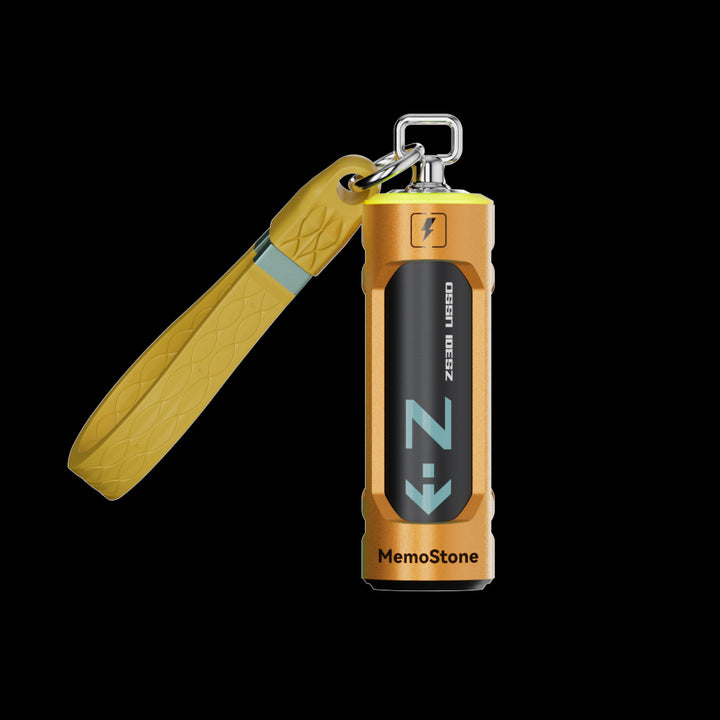
ZS301 Portable External USSD
USB 3.2 Gen 2x2 (20 Gbps) with Type-A and Type-C. Listed up to 2000 MB/s read. A fit for exFAT when you switch between PCs and Macs.
Shop now →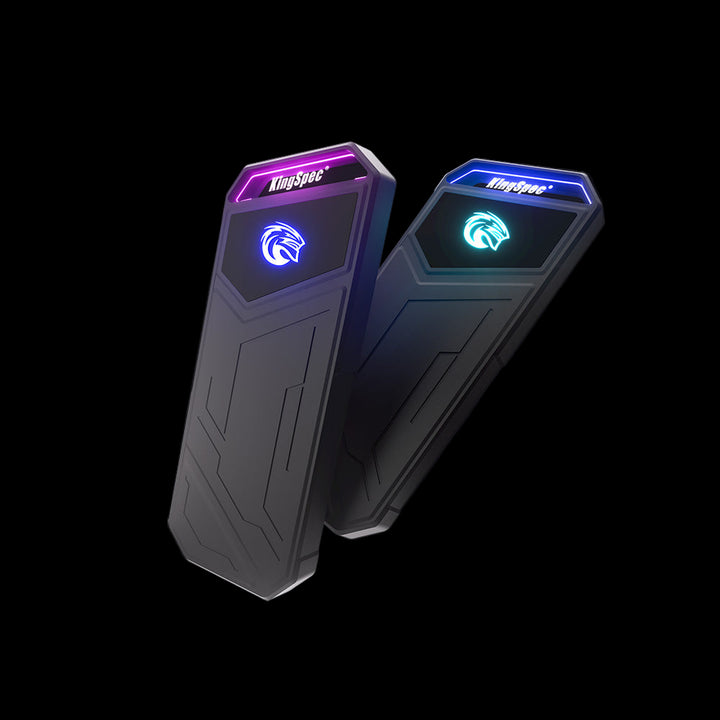
Z5 Series Portable External SSD
USB 3.2 Gen 2x2 (20 Gbps) over Type-C, up to 4 TB. Listed up to 2100 MB/s read. NTFS suits it if it stays on Windows.
Shop now →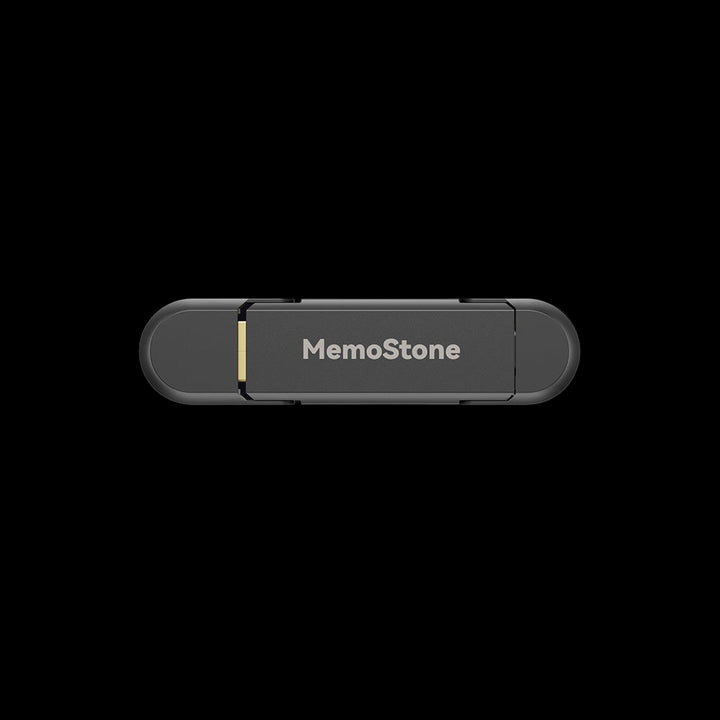
US4 Portable USB External SSD
USB 3.1 Gen 2 with Type-A and Type-C. Listed up to 540 MB/s read. exFAT keeps it readable on phones, tablets, and computers.
Shop now →Speeds are manufacturer ratings. Reaching 20 Gbps speeds requires a USB 3.2 Gen 2x2 host port and cable. KingSpec has not published file system benchmarks for these models.
How to Choose the Right File System
Answer these questions in order. The first "yes" gives you your format.
- Will a Mac need to write to the drive? Choose exFAT, or APFS if it's Mac-only.
- Will a TV, camera, or console play media from it? Choose exFAT, unless the device asks for FAT32.
- Is it a game drive for PS5, PS4, or Xbox? Let the console format it.
- Does it stay on Windows and hold important data? Choose NTFS for journaling, permissions, and BitLocker.
- Still unsure? Choose exFAT. It is the most flexible default for a portable SSD.
Common Mistakes to Avoid
- Formatting NTFS, then plugging into a Mac. You'll be able to read files but not save anything.
- Expecting the format to fix slow speeds. Check the port, cable, and USB standard first.
- Pulling an exFAT drive without ejecting. Without a journal, an interrupted write is more likely to cause errors.
- Treating exFAT as secure. Anyone can read an unencrypted exFAT drive.
- Reformatting without a backup. Changing file systems erases the drive.
Frequently Asked Questions
Should my external SSD be exFAT or NTFS?
Use exFAT if the SSD connects to both Windows and Mac, or to TVs and other devices. Use NTFS if it only connects to Windows PCs and you want journaling, permissions, or BitLocker. Most portable SSDs move between devices, so exFAT is the more common choice.
Is exFAT faster than NTFS?
Not consistently. Results depend on the SSD, the USB connection, the operating system, and whether you copy large files or many small ones. On a fast portable SSD, the interface usually limits speed more than the file system. Test with your own files if speed is critical.
Can a Mac write to an NTFS drive?
Not by default. Apple states that NTFS drives are read-only on Mac. You can open and copy files from the drive but can't save or delete files on it. Third-party drivers add write support, but reformatting to exFAT is the simplest fix if you can back up the data first.
Is NTFS more reliable than exFAT?
NTFS is more resilient after crashes or unsafe removal because it journals metadata. exFAT has no journal. With safe ejection and regular backups, exFAT works well for everyday portable use. Neither format replaces a backup.
What format should I use for PS5 or PS4 USB storage?
For music and video, Sony says to use exFAT or FAT32. For games, the console formats the drive itself as USB extended storage and erases existing data. A PS5 can format an extended storage drive back to exFAT from its storage settings.
Can I switch from NTFS to exFAT without losing data?
No. Windows has no built-in tool to convert NTFS to exFAT in place. Copy your files to another drive, reformat to exFAT, then copy them back. Plan for enough temporary space before you start.
Does the file system affect SSD lifespan?
Not in a meaningful way for typical use. SSD endurance depends mainly on the flash memory, the controller, and the total data written. Journaling adds a small amount of metadata writes, but everyday users are unlikely to notice any difference.
Final Thoughts
The exFAT vs NTFS decision is about where your drive goes. Choose exFAT for portable SSDs shared between Windows, Mac, and media devices. Choose NTFS for Windows-only drives that benefit from journaling, permissions, and BitLocker.
Let consoles format their own game drives. Then focus on the port and cable, because they shape real-world speed far more than the format.

