
The Mac mini is small, but its memory story is surprisingly complicated. Some Intel models take standard laptop-style RAM sticks, one needs a near-complete teardown to reach them, and every Apple silicon model has memory sealed inside the chip. For most current owners, adding a fast portable SSD is the practical upgrade, while a few older Intel owners can still swap in more RAM.
This guide explains which Mac mini models support a RAM upgrade, how much memory each can take, how to tell whether you actually need more, and what to do if yours can’t be upgraded.
Key Takeaways
- Apple silicon Mac minis (M1, M2, M2 Pro, M4, M4 Pro) can’t have their memory upgraded after purchase.
- The 2010 to 2012 Intel Mac minis use DDR3 SO-DIMM memory you can replace.
- The Late 2014 Mac mini has soldered memory that can’t be upgraded.
- The 2018 Intel Mac mini uses DDR4 SO-DIMM, but reaching it takes substantial disassembly.
- External storage adds file space, not RAM.
Mac Mini RAM Upgrade: Can You Upgrade Your Model?

Start by identifying your Mac mini’s exact model and processor. Upgradeability changes between generations, so a RAM kit labeled only “for Mac mini” isn’t enough to go on.
Check the Model, Year, and Chip
Open the Apple menu and select About This Mac. Depending on your macOS version, you’ll see the model name, year, chip or processor, and installed memory. For more detail, open System Information and select Memory. On models with removable RAM, it lists each slot with its size, type, and speed.
Keep those details handy. Two Mac minis that look alike can use different memory types and limits.
Understand the Difference Between RAM and Unified Memory
RAM is the short-term workspace your Mac uses while apps and files are open. Intel Mac minis use separate RAM chips or modules, such as DDR3 or DDR4. For background on how those generations differ, see this guide to what DDR RAM is.
Apple silicon Mac minis use unified memory, which is built into the chip package and shared by the processor and graphics. It isn’t a removable module, so it can’t be upgraded like RAM in a slot. That makes your memory choice at purchase especially important.
Mac Mini RAM Compatibility at a Glance
Use this overview as a starting point, then confirm your exact model’s specifications before buying RAM or opening the computer.
| Mac Mini Model | Upgradeable? | Memory Type and Notes |
|---|---|---|
| 2010 to 2012 (Intel) | Yes | DDR3 SO-DIMM, reached through the bottom cover |
| Late 2014 (Intel) | No | Memory is soldered to the logic board |
| 2018 (Intel) | Yes, with disassembly | DDR4 SO-DIMM, 2666MHz, up to 64GB |
| M1 | No | Unified memory in the chip |
| M2 and M2 Pro | No | Unified memory in the chip |
| M4 and M4 Pro | No | Unified memory in the chip |
Apple’s Mac mini memory-upgrade instructions cover the models that support it. The 2018 procedure involves removing the logic board to reach the memory, so it isn’t a simple panel swap. Don’t assume any Intel Mac mini is upgradeable just because it has an Intel processor.
How Much RAM Can You Put in a Mac Mini?
There’s no single maximum for every Mac mini. The limit depends on the model, and Apple silicon models are fixed at whatever configuration you bought.
Find Your Mac Mini’s Memory Limit
For an upgradeable Intel model, check the maximum supported memory, module type, speed, and number of slots for that exact Mac. The 2018 Mac mini, for example, has two slots and supports up to 64GB of 2666MHz DDR4 SO-DIMM memory. A module that fits physically can still be incompatible or exceed the supported capacity.
For Apple silicon, the maximum is set by the configurations Apple offered for that model. You can’t buy extra memory later and install it yourself.
Is 16GB Enough for a Mac Mini?
For browsing, schoolwork, email, video calls, and office tasks, 16GB is enough for most people, with room for moderate multitasking. More memory helps if you often edit video, work with large design files, run demanding music software, or keep many heavy apps open. Check Activity Monitor before deciding RAM is the cause of any slowdown.
Do You Need 24GB RAM on a Mac Mini?
A 24GB configuration suits people who multitask heavily or work on larger creative projects, and it gives extra room for future software if you’ll keep the Mac for years. Not everyone needs it, so weigh your apps, project sizes, and budget. On Apple silicon, choose carefully, because you can’t add memory later.
How to Check Whether Your Mac Mini Needs More RAM
A slow Mac doesn’t always need more memory. A full drive, an older processor, software problems, or one demanding app can also be to blame.
Open Activity Monitor, select the Memory tab, and use your Mac as you normally do. Watch Memory Pressure. If it stays green, RAM probably isn’t the main cause. Yellow or red during regular work suggests memory is under strain. Apple explains this indicator in its Activity Monitor guide.
Practical signs to watch for include:
- Apps reloading when you switch back to them.
- Slowdowns when several large apps are open.
- Frequent freezing during memory-heavy tasks.
- A clear improvement after closing unused apps.
These are clues, not proof. Check storage space, restart the Mac, and update your software before deciding on an upgrade.
Mac Mini RAM Upgrade: Tools, Parts, and Preparation
If your Mac mini supports a memory upgrade, get the right parts and instructions first. The opening method and tools differ by model.
- Confirm the exact model and its maximum supported capacity.
- Buy RAM that matches the required type, speed, and configuration.
- Read model-specific service instructions from a trusted source.
- Back up important files.
- Shut down the Mac mini and disconnect power and accessories.
- Work on a clean, stable surface and discharge static before touching parts.
The 2010 to 2012 models are the easiest, with memory under a twist-off bottom cover. The 2018 model needs substantial disassembly, and a mistake can damage the computer, so consider a qualified repair provider if you’re unsure.
How to Upgrade RAM in a Compatible Mac Mini

Use these steps as a broad overview, and follow the service instructions for your exact model. Don’t force the case or a module if it doesn’t fit easily.
- Shut down and disconnect the Mac mini, then let it cool.
- Open the case according to your model’s instructions, using the right tools.
- Locate the memory modules, removing other parts first if your model requires it.
- Release the clips and remove the existing modules.
- Line up the notch on each new module and press it in until it’s fully seated.
- Reassemble the Mac mini, making sure cables and covers are back in place.
- Reconnect and start the Mac, then check About This Mac to confirm the new memory.
Important: If the new RAM isn’t recognized or the Mac won’t start, shut it down and check the fit and compatibility. If problems continue, reinstall the original modules or ask a repair professional.
Mac Mini RAM Upgrade or Storage Upgrade?
RAM and storage do different jobs. RAM supports the apps you’re using right now, while storage holds macOS, applications, photos, and videos.
If your Mac is running out of space, an external SSD helps far more than a RAM upgrade. And when memory runs short, macOS uses the internal drive for swap, so keeping that drive from filling up helps performance too. If apps slow down during heavy multitasking and Activity Monitor shows sustained pressure, more RAM may help, but only on an upgradeable Intel model. Before using a new external drive on your Mac, this guide shows how to format an external SSD on Windows and Mac.
Recommended KingSpec Upgrades for Mac Mini
What fits depends on your Mac mini’s generation. KingSpec doesn’t make DDR3 memory for the 2010 to 2012 models, but it does offer the DDR4 SO-DIMM format the 2018 model uses, a SATA SSD for older Intel models, and fast external storage that works with every Mac mini. Confirm every spec against your exact model before you buy.
Best Upgrades for Intel Mac Minis
The 2018 Mac mini takes DDR4 SO-DIMM modules, the same format KingSpec offers as DDR4 laptop RAM. The 2010 to 2012 models have a 2.5 inch drive bay that suits a SATA SSD.
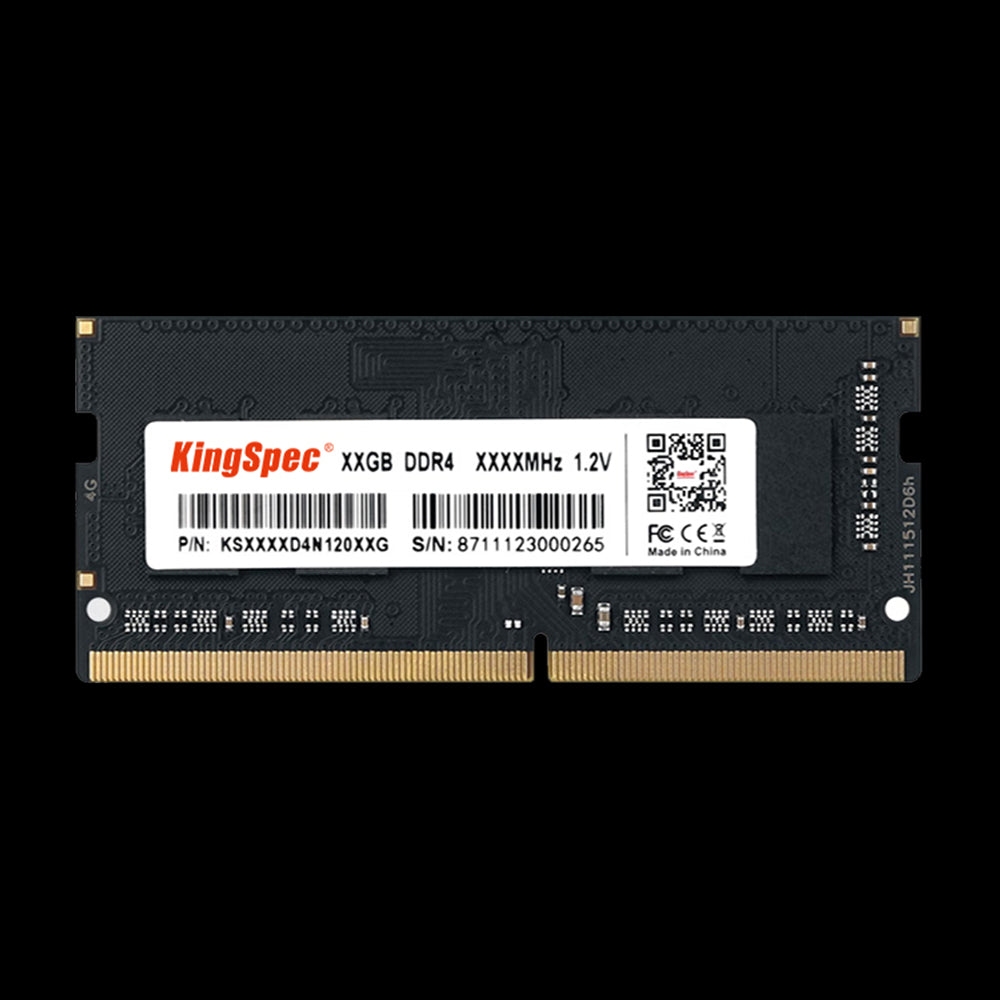
- Type: DDR4 SO-DIMM, 260-pin
- Rated Speed: 3200MT/s
- Capacities: 8GB, 16GB, 32GB
- Voltage: 1.2V
- Warranty: 3 Years
Matches the 2018 Mac mini’s DDR4 SO-DIMM format, and two 32GB modules reach its 64GB maximum. Faster DDR4 modules normally run at the computer’s supported speed, which is 2666MHz on this Mac, but confirm compatibility before buying, since KingSpec doesn’t list Macs on its product page.
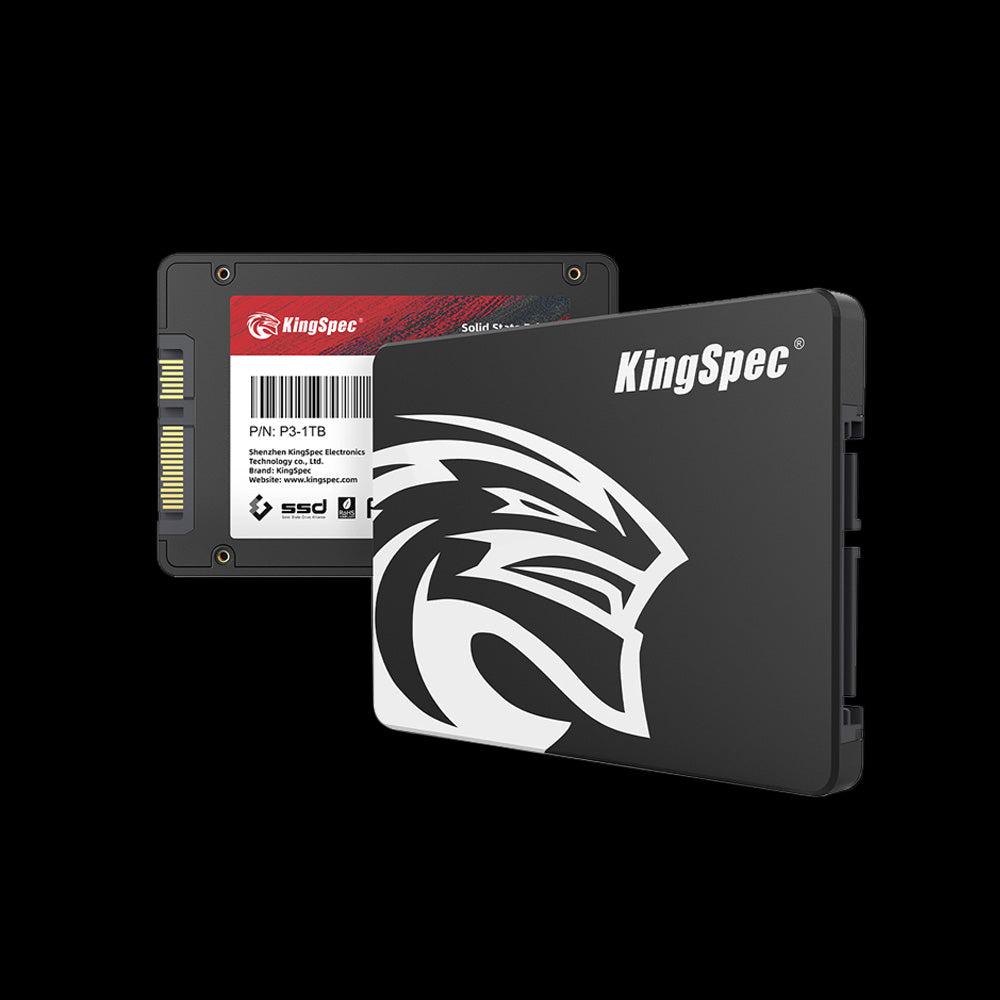
- Interface: SATA III (6Gb/s)
- Read Speed: Up to 560 MB/s
- Write Speed: Up to 530 MB/s
- Form Factor: 2.5 inch
- Warranty: 3 Years
Swapping the original hard drive for an SSD is often the single biggest speed boost for an older Mac mini, even more than extra RAM. The drive swap is more involved than the memory swap, so follow a model-specific guide.
Best External SSDs for Apple Silicon Mac Minis
With fixed memory and storage, an Apple silicon Mac mini gets the most from fast external drives. Mac USB ports run external drives at up to 10Gbps. For more choices ranked by speed, see the fastest portable SSDs.
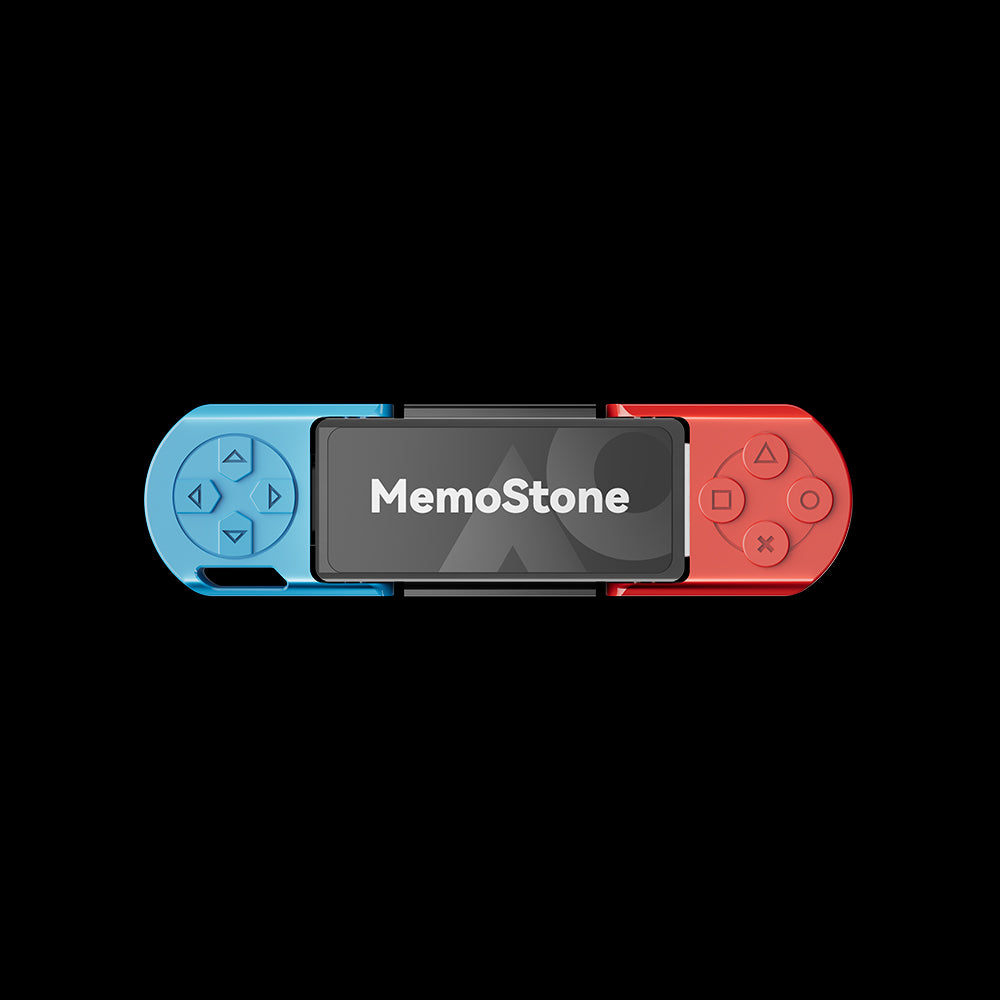
- Interface: USB Type-C and Type-A
- Read Speed: Up to 1,030 MB/s
- Write Speed: Up to 990 MB/s
- Capacities: 256GB to 1TB
- Warranty: 3 Years
Its rated speed matches what a Mac’s 10Gbps ports can deliver, and both plugs are built in, so it works with the USB-C and USB-A ports on the back of a Mac mini.
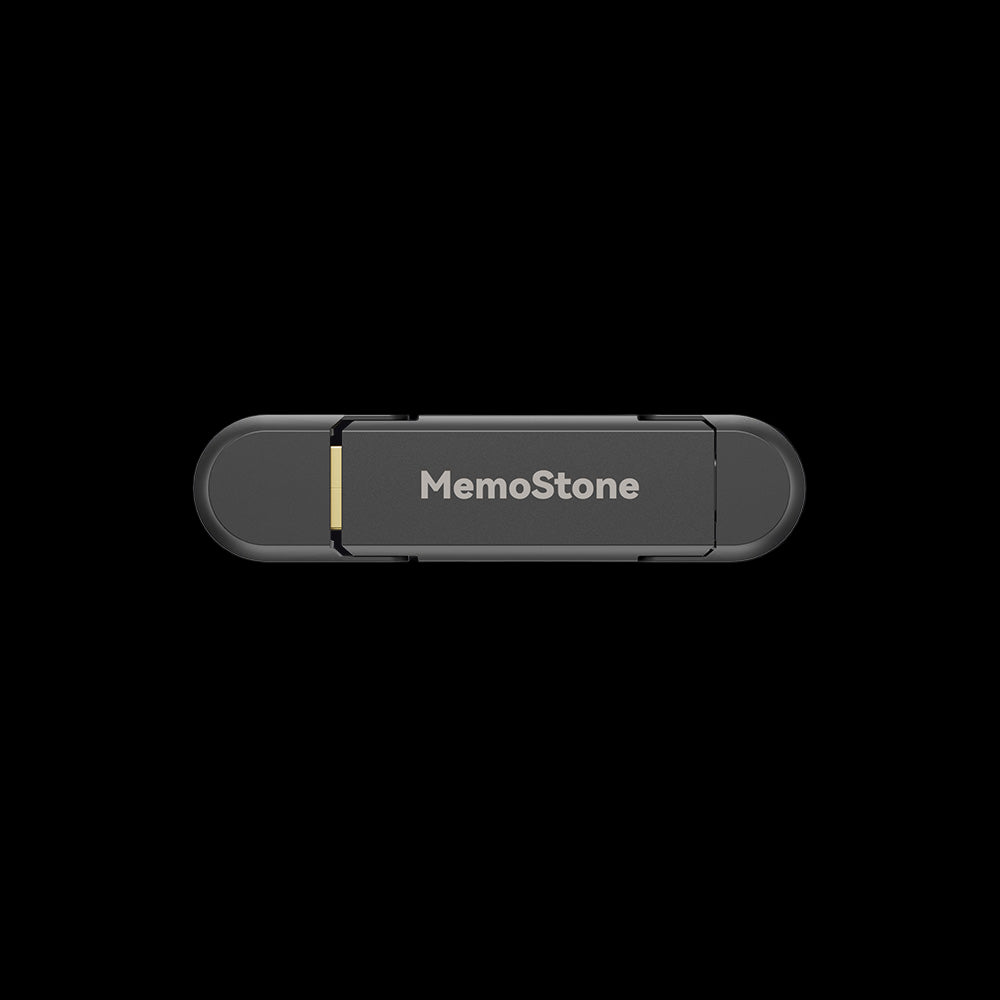
- Interface: USB Type-C and Type-A
- Read Speed: Up to 540 MB/s
- Write Speed: Up to 480 MB/s
- Capacities: 128GB to 2TB
Up to 2TB of extra space in a slim stick, ideal for photo libraries, downloads, and archived projects on a Mac mini with a small internal drive.
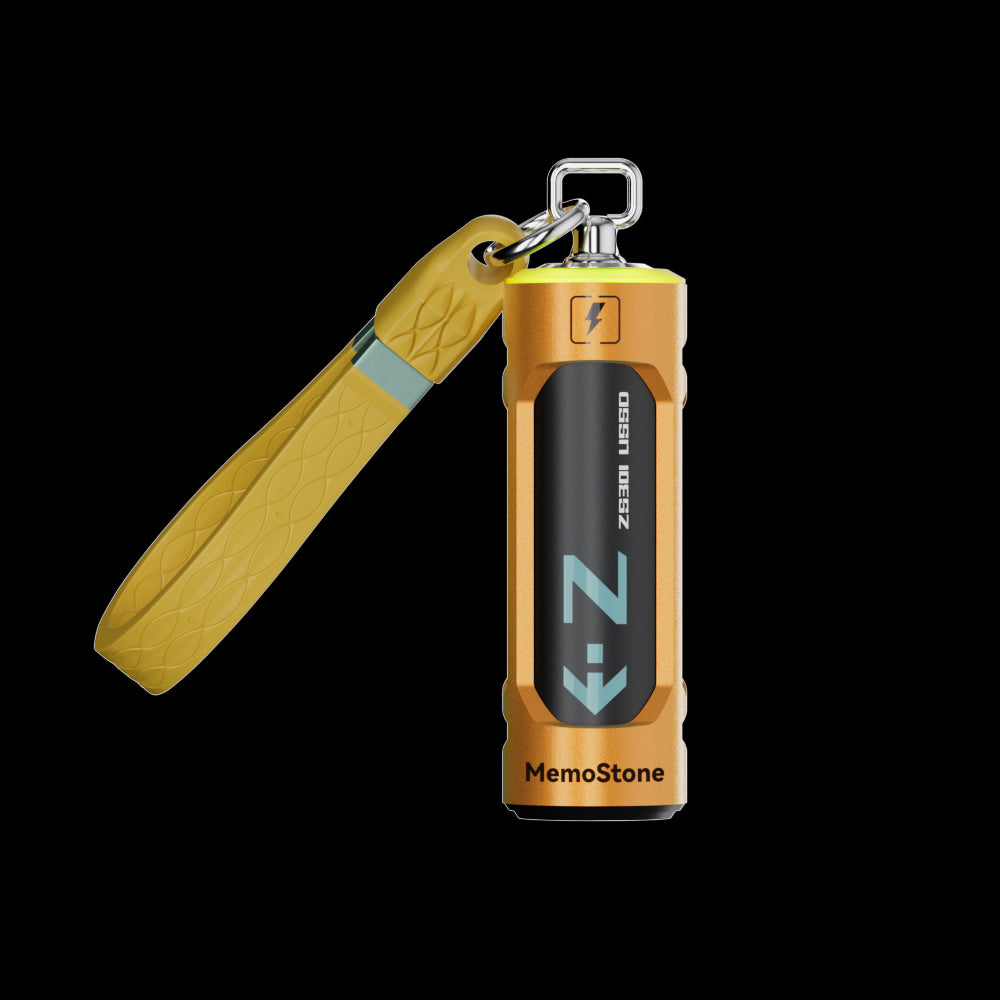
- Interface: USB 3.2 Gen2x2, 20Gbps
- Read Speed: Up to 1,900 MB/s
- Capacities: 256GB to 2TB
- Warranty: 3 Years
A good fit if you also use a Windows PC. On a Mac mini it runs at the port’s 10Gbps limit, and on a PC with a USB 3.2 Gen2x2 port it reaches full speed.
Which Upgrade Should You Choose?
Own a 2018 Mac mini that runs short on memory? A DDR4 SO-DIMM upgrade is your option, ideally done by a repair professional. On a 2010 to 2012 model, an SSD swap usually helps more than extra RAM. On any Apple silicon Mac mini, add a US201 for fast everyday storage, a US4 for capacity, or a ZS301 if you share files with a PC.
Wrapping Up: Know Your Model Before You Buy
A Mac mini RAM upgrade is only possible on certain Intel models, so check the model, year, and chip before buying memory or opening the case. If you own an Apple silicon Mac mini, choose enough unified memory at purchase, since you can’t add more later. For compatible Intel models, follow model-specific instructions and memory specs.
Need more room for files and projects? Browse the collections below for storage that works with your Mac mini.
Browse Related Collections
Frequently Asked Questions (FAQs):
Can the RAM in a Mac mini be upgraded?
Only on certain Intel models. The 2010 to 2012 Mac minis and the 2018 Mac mini have replaceable memory, while the Late 2014 model and every Apple silicon model don’t. Check your exact model before buying parts.
How much RAM can you put in a Mac mini?
It depends on the model. The 2018 Mac mini supports up to 64GB of DDR4. Older models support less, and Apple silicon models are limited to the configuration chosen at purchase.
What RAM does the 2018 Mac mini use?
The 2018 Mac mini uses 2666MHz DDR4 SO-DIMM memory in two slots. Reaching the slots requires removing the logic board, so many owners have a repair shop do the upgrade.
Is 16GB enough for a Mac mini?
It’s enough for everyday use, office work, and moderate multitasking. More memory helps with demanding creative work, large projects, or many heavy apps at once.
Do I need 24GB RAM on my Mac mini?
You may benefit from 24GB if you regularly run demanding apps, large projects, or heavy multitasking. For lighter tasks, a smaller configuration is often enough.
Can I use an external SSD as extra RAM?
No. An external SSD adds storage, not RAM or unified memory. It can still help by freeing up internal space that macOS uses for swap, and it’s great for projects, backups, and media.

