
A hard drive not showing up in Windows can interrupt work, delay projects, and raise concerns about stored files. In many cases, the drive is still functional but hidden due to setup, system, or connection issues.
Windows may fail to display a drive if it is uninitialized, missing a drive letter, or affected by BIOS or driver settings.
Understanding how Windows detects storage devices makes it easier to restore access and avoid repeated issues. Read on to identify the cause and apply the most effective fix.
Quick Answer: Open Disk Management (press
Win + X→ Disk Management). If you can see the drive listed there, you just need to initialize it, assign a drive letter, or format it. If it does not appear at all, check your BIOS and physical connections first.
Quick Fixes at a Glance
If you are in a hurry, here are the most common fixes ranked by how often they solve the problem:
| Fix | Time Required | Difficulty |
|---|---|---|
| Reseat cables / try different USB port | 2 minutes | Easy |
| Assign or change drive letter in Disk Management | 2 minutes | Easy |
| Initialize disk in Disk Management | 5 minutes | Easy |
| Update or reinstall storage drivers | 5–10 minutes | Moderate |
| Enable drive in BIOS/UEFI | 5 minutes | Moderate |
| Use DISKPART via Command Prompt | 10 minutes | Moderate |
| Run CHKDSK to fix file system errors | 15–30 minutes | Moderate |
| Data recovery software | 30+ minutes | Advanced |
| Professional recovery service | Days | Expert |
Start from the top and work your way down. Most users find a fix within the first three steps.
Understanding Why Your Hard Drive or SSD Is Not Showing Up

Hard drives and solid state drives depend on proper power delivery, correct connections, and system level recognition. When any part of this process fails, Windows may not list the device even though it is connected.
Common Reasons a Hard Drive Is Not Detected
Several system and hardware conditions can prevent detection:
• Loose or damaged SATA or USB cables
• Insufficient power to the drive
• Drive not initialized or formatted
• Missing or conflicting drive letter
• Disabled storage controller in BIOS
• Outdated chipset or storage drivers
• Corrupted or unsupported file system
Key Diagnostic Rule:
- Drive visible in BIOS but not Windows → Software or configuration issue
- Drive not visible in BIOS → Hardware, cable, or power issue
This distinction is the single most important first step and will save you significant troubleshooting time.
Discover High-Performance Storage & Memory by Kingspec
Explore Kingspec

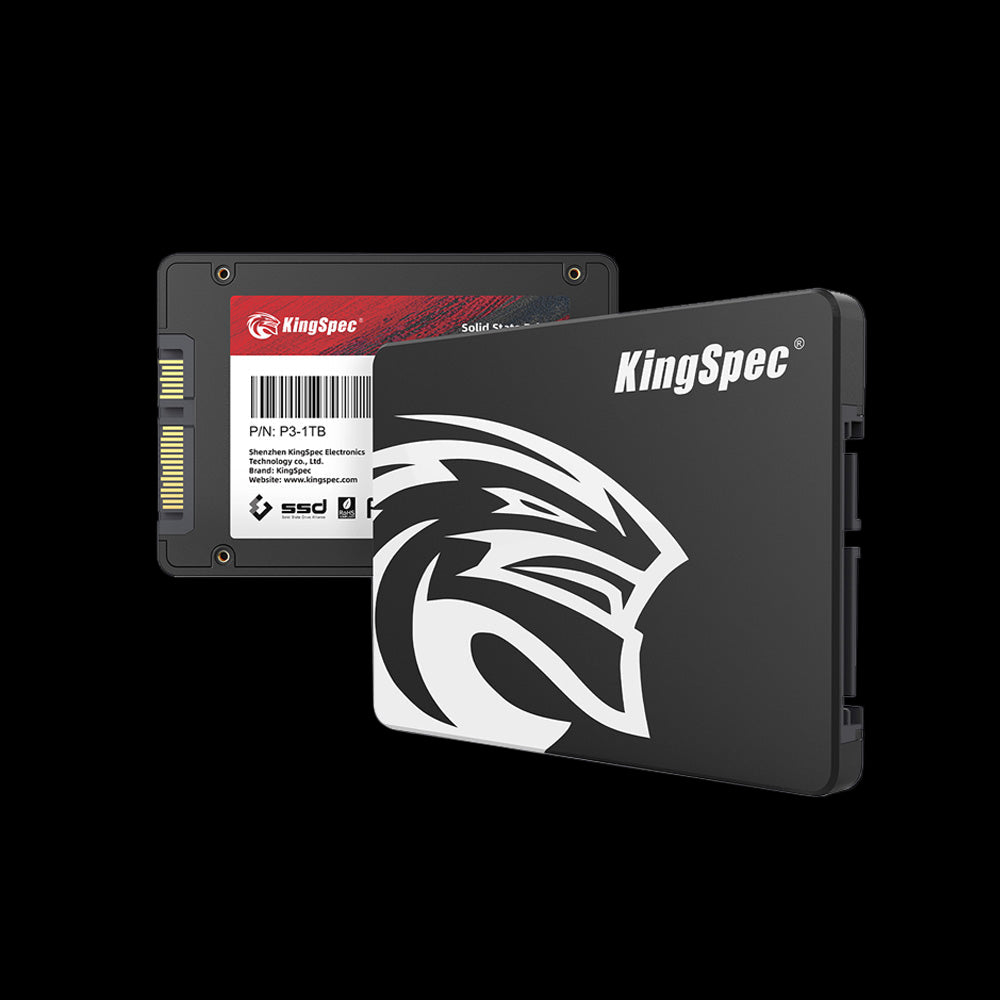
SSD and HDD Detection Differences
Different drive formats rely on different interfaces, which affects how the system detects them.
| Drive Type | Connection Method | Common Detection Issue |
|---|---|---|
| HDD | SATA data and power | Loose cable or bad port |
| SATA SSD | SATA data and power | AHCI disabled in BIOS |
| M.2 SATA SSD | M.2 slot using SATA | SATA lane disabled |
| NVMe M.2 SSD | PCIe lanes | BIOS or PCIe incompatibility |
| External HDD or SSD | USB | Power or driver issue |
⚠️ Important: Some motherboards share bandwidth between M.2 slots and SATA ports. Enabling one may automatically disable the other. Check your motherboard manual for slot priority settings.
📌 Not sure which drive format is right for your system? Browse M.2 SATA vs 2.5 SATA SSDs: Understanding the Form Factor Upgrade to understand how form factor affects compatibility and detection.
📌 Slow or missing drives can point to aging storage. Check out The Best Affordable Upgrade: How a Simple SSD Can Transform Your Slow Computer to see how an SSD can boost speed and stability. A faster drive often solves visibility and performance issues.
New Drive vs Existing Drive Not Showing Up
New drives ship unformatted and require preparation before Windows can use them:
| Issue | Why It Happens | Fix Needed |
|---|---|---|
| Not initialized | Drive has no partition table | Initialize in Disk Management |
| No partition | Drive initialized but empty | Create new simple volume |
| No file system | Partition exists but unformatted | Format as NTFS or exFAT |
| No drive letter | Formatted but not assigned | Assign letter in Disk Management |
All four of these steps can be completed in Disk Management without any third-party tools.
Previously Working Drive Suddenly Missing
When a drive that worked before suddenly disappears, the cause is typically one of the following:
| Possible Cause | Signs to Look For | Recommended Fix |
|---|---|---|
| Loose cable or power | Drive intermittently appears | Reseat cables |
| Windows Update conflict | Issue started after update | Roll back update or reinstall drivers |
| File system corruption | Drive shows as RAW | Run CHKDSK |
| Drive wear or failure | Clicking sounds, SMART errors | Professional recovery |
| Driver conflict | Device Manager shows error | Uninstall and reinstall driver |
Pro Tip: If your drive suddenly disappeared after a Windows Update, check Device Manager for any yellow warning icons under Disk Drives. A driver conflict is often the culprit and can be resolved by rolling back or reinstalling the storage driver.
📌 Understanding the drive type also matters. Don’t forget to browse M.2 SATA vs 2.5 SATA SSDs: Understanding the Form Factor Upgrade to pick the right format for your device. The correct fit helps avoid detection problems.
Initial Troubleshooting Steps

Basic checks should always come first. These steps confirm whether the drive is receiving power and recognized by system firmware.
Check Physical Connections and Power
For internal drives:
• Shut down the system
• Reseat SATA data and power cables
• Try a different SATA port
For external drives:
• Connect directly to the motherboard USB port
• Avoid USB hubs
• Test with another cable
If the drive shows no signs of power, hardware failure may be involved.
Check BIOS or UEFI Settings
Access BIOS during startup and verify the following:
| BIOS Setting | What to Check |
|---|---|
| Storage list | Drive is visible |
| SATA mode | Set to AHCI |
| M.2 slots | Enabled and not shared |
| Firmware version | Supports the drive model |
If the drive does not appear here, reseating or updating BIOS may be required.
If the drive is visible in BIOS, Windows based fixes are usually sufficient.
Fixing Drive Visibility in Windows
Once hardware detection is confirmed, Windows utilities can resolve most visibility problems.
Initialize and Format an Unrecognized Drive
Use Disk Management if the drive shows as Not Initialized or Unallocated.
Steps:
• Open Disk Management
• Right click the disk
• Select Initialize Disk
• Choose GPT for Windows 10 or 11
• Create a new simple volume
• Format using NTFS or exFAT
Always verify the correct disk before formatting.
Assign or Change a Drive Letter
A drive without a letter will not appear in File Explorer.
Steps:
• Open Disk Management
• Right click the partition
• Select Change Drive Letter and Paths
• Add or change the letter
This is one of the most common and effective fixes.
Update or Reinstall Storage Drivers
Driver issues can block proper recognition.
• Open Device Manager
• Expand Disk Drives
• Update the driver
• If needed, uninstall and restart
Keeping chipset and storage drivers updated reduces future detection issues.
📌 If your system still feels slow, storage speed may be the cause. Discover helpful tips in How to Make an Old Laptop Faster to improve performance and drive detection. Small upgrades can make a big difference.
Advanced Solutions and Data Recovery

Some drives remain inaccessible even after standard troubleshooting. In these cases, deeper recovery steps may be required.
Recovering Data From an Unseen Drive
Safe recovery actions include:
• Connecting the drive to another computer
• Using a SATA to USB adapter
• Assigning a drive letter manually
• Updating firmware with manufacturer tools
Formatting should be avoided until recovery attempts are completed.
Using Data Recovery Software Safely
Follow these best practices:
• Stop using the affected drive
• Install recovery software on a separate disk
• Scan for recoverable files
• Save recovered data to a different drive
| Recovery Tool | Best Use Case |
|---|---|
| EaseUS Data Recovery Wizard | User friendly recovery |
| Recuva | Quick file recovery |
| PhotoRec | Deep scan and raw recovery |
When Professional Recovery Is Necessary
Professional services are recommended when:
• The drive does not appear in BIOS
• Clicking or power failure is present
• Firmware damage prevents access
Specialists can recover data that software tools cannot.
Advanced recovery options help protect important data when standard methods fail.
Discover High-Performance Storage & Memory by Kingspec
Explore Kingspec

Storage Reliability and Upgrade Considerations

Drive detection issues are more common with aging or low quality storage hardware. Choosing reliable components reduces long term problems and improves system stability.
For users planning an upgrade or replacement, KingSpec offers internal SSDs, external storage, gaming storage solutions, and memory cards designed for consistent performance and dependable detection.
📌 Size compatibility also matters for upgrades. Browse 2230 vs 2242 SSD to understand which compact SSD fits your device. Choosing the right size helps avoid installation and detection issues.
Investing in reliable storage helps minimize future visibility and performance issues.
Conclusion
When a hard drive is not showing up, the cause is usually related to connections, initialization, drivers, or system settings rather than immediate data loss.
Checking BIOS visibility, using Disk Management, and updating drivers resolves most cases. Advanced recovery methods are available when standard fixes fail.
Maintaining reliable storage hardware and keeping systems updated reduces the likelihood of recurring detection problems and ensures continued access to important files.
Frequently Asked Questions
Why is the hard drive not being detected?
A hard drive may not be detected due to loose connections or missing power. It can also be uninitialized, disabled in BIOS, or missing a drive letter. Outdated drivers or file system errors may also prevent detection.
How do I fix an undetected hard drive?
Start by checking cables, power, and BIOS visibility. Then use Disk Management to initialize the drive or assign a drive letter. Update storage and chipset drivers if the issue persists.
How do I make my HDD visible in Windows?
Open Disk Management and locate the missing drive. Initialize and format the disk if required. Assign a drive letter so it appears in File Explorer.
Why is my hard drive not showing in File Explorer?
File Explorer does not display drives without a letter. Unsupported or corrupted file systems can also hide the drive. Disk Management will show whether the drive needs attention.
Why is my external hard drive not showing up in Windows 10 or Windows 11?
External drives may not receive enough power through certain USB ports. Driver issues or Windows updates can also block detection. Assigning a drive letter often restores visibility.

