
Your MacBook slows to a crawl with a dozen apps open, so more RAM seems like the obvious fix. Here’s the catch: almost every MacBook made in the last decade has memory you can’t change. Only some older Intel models have removable RAM, and for most owners, a fast external SSD and better memory habits are the realistic upgrade path.
This guide shows you how to check whether your MacBook supports a RAM upgrade, how to upgrade a compatible model safely, and what to do if its memory is fixed.
Key Takeaways
- Apple silicon MacBooks use unified memory built into the chip, so RAM can’t be upgraded after purchase.
- No MacBook Air has removable RAM.
- The last MacBook Pro with removable RAM was the non-Retina Mid 2012 model, which uses DDR3 SODIMM.
- An external SSD adds storage, not RAM, but it can free up space on a full internal drive.
- Check memory pressure in Activity Monitor before deciding RAM is the problem.
Can You Upgrade the RAM on a MacBook?

Whether a MacBook RAM upgrade is possible depends on the specific model, not just whether it’s an Air or a Pro. In most MacBooks, memory is built into the hardware, so you choose the amount when you buy the computer.
Why Most Newer MacBooks Can’t Be Upgraded
Current MacBooks use Apple silicon, such as the M-series chips. Their memory is called unified memory because the processor and graphics share it. It sits inside the chip package rather than in a separate, swappable module.
Most Intel MacBooks from 2012 onward also have RAM soldered to the logic board. Because the memory is physically attached instead of sitting in slots, adding RAM isn’t a normal upgrade. And no external SSD, memory card, or cloud storage plan can increase a MacBook’s RAM, since those store files rather than acting as working memory.
Which MacBooks Have Removable RAM?
Only certain older Intel models have memory slots. The best-known example is the non-Retina MacBook Pro, up to and including the Mid 2012 13 inch and 15 inch models, which use DDR3 SODIMM modules. Some older plastic and aluminum MacBook models also have removable memory.
Models from similar years can still differ, so don’t assume an older MacBook is upgradeable. Check the exact model identifier against Apple’s Mac specs before buying parts. To understand how DDR3 differs from the DDR4 and DDR5 memory used in newer PCs, see this guide to what DDR RAM is.
Why Model Names Aren’t Enough
A MacBook Pro may have upgradeable RAM in one generation and fixed memory in the next. The 2012 lineup is a good example: the non-Retina Mid 2012 MacBook Pro has memory slots, while the Retina MacBook Pro released the same year has soldered memory.
Check Your MacBook’s RAM and Model
Before planning an upgrade, find out exactly which MacBook you have and how much memory it contains. This quick check stops you from buying the wrong parts or opening a model with no upgradeable memory.
Find the Model Name and Year
Open the Apple menu and choose About This Mac. Depending on your macOS version, this shows the model name, year, chip or processor, and installed memory.
For more detail, open System Information by holding the Option key in the Apple menu, or search for it with Spotlight. Apple’s guide to Mac model details explains where to find the model identifier. If you’re checking a used MacBook, confirm these details on the device itself rather than trusting the listing.
Check the Installed Memory Type
In System Information, select Memory. On models with removable RAM, you’ll see each slot listed with its size, type (such as DDR3), and speed. On Apple silicon Macs, you’ll see the total unified memory without separate slots.
Check Whether the Memory Is Removable
Search Apple’s specifications using your exact identifier and confirm whether the RAM is soldered or removable. If it’s removable, verify:
- The type of RAM the model accepts, such as DDR3 SODIMM
- The supported memory speed
- The number of memory slots
- The maximum capacity per slot and in total
- Whether modules should be installed as a matched pair
Don’t buy RAM based on a general description like “MacBook Pro memory.” Two similarly named models can use different memory types and limits.
MacBook RAM Upgradeability by Model Type
There’s no single rule for every MacBook. Use these patterns to know what to check, then confirm with your exact model’s specifications.
| MacBook Type | Typical RAM Setup | Upgradeable? |
|---|---|---|
| Apple silicon MacBook Air | Unified memory in the chip package | No |
| Apple silicon MacBook Pro | Unified memory in the chip package | No |
| Intel MacBook Air | Soldered to the logic board | No |
| Retina Intel MacBook Pro (2012 on) | Soldered to the logic board | No |
| Non-Retina MacBook Pro (to Mid 2012) | Removable DDR3 SODIMM | Yes, within model limits |
Treat this as a starting point. Memory design can change between generations, even within one family.
MacBook Air RAM Upgrade
No MacBook Air is designed for a RAM upgrade. Apple silicon models use unified memory, and Intel models have memory fixed to the logic board. If your Air feels short on memory, your options are to manage your workload, free up storage, or choose more memory on your next Mac.
MacBook Pro RAM Upgrade
Non-Retina Intel MacBook Pro models up to Mid 2012 can take a RAM upgrade. Retina Intel models have soldered memory, and Apple silicon MacBook Pro memory is integrated with the chip. Look up your exact model and its memory limit before ordering modules or following an installation video.
Older MacBook Models
Some older non-Pro, non-Air MacBook models, including certain plastic and aluminum versions, have removable memory. The 12 inch Retina MacBook, by contrast, has soldered RAM. As always, the model identifier decides.
How to Upgrade RAM on a Compatible MacBook

If your MacBook has removable RAM, a careful upgrade can help it handle more apps at once. Steps vary by model, so follow instructions made for your exact MacBook.
Prepare Before Opening the Case
Back up important files first. Shut the MacBook down completely, unplug the charger and accessories, and let it cool. Gather the tools recommended for your model, and confirm the new modules match its specifications. If you’re unsure how to remove the case safely, a repair professional can reduce the risk of damage.
Install Compatible Memory
- Remove the bottom case using the screwdriver your model needs.
- Touch bare metal to discharge static, then locate the memory slots.
- Release the side clips and remove the existing modules.
- Insert the new modules at an angle, lining up the notch, and press down until the clips lock.
- Refit the bottom case and start the MacBook.
Important: Screw placement, clips, and module layout differ between models. Follow a trustworthy, model-specific guide, and never force a part that doesn’t move easily.
Confirm the Upgrade Worked
Open About This Mac or System Information and check that the total memory matches what you installed and stays within the model’s supported limit.
If the Mac won’t start, shuts down unexpectedly, or reports less memory than expected, turn it off and check that the modules are seated correctly, or contact a repair professional. Apple Diagnostics can also help identify a hardware problem.
What to Do If Your MacBook RAM Can’t Be Upgraded
A MacBook with soldered or unified memory can’t receive a standard RAM upgrade. Before replacing it, check whether low memory is really the cause of the slowdown.
Check Memory Pressure in Activity Monitor
Open Activity Monitor, select the Memory tab, and look at the Memory Pressure graph. Green generally means memory is being used efficiently, while yellow or red signals rising pressure. Apple explains how to check if your Mac needs more RAM.
Look at which apps use the most memory, too. Closing apps you aren’t using helps for a while but doesn’t add RAM. If one app always uses a lot, check for an update or a lighter alternative.
Free Up Internal Storage
RAM and storage do different jobs, but they’re connected. When memory runs short, macOS moves data to the internal drive as swap, and a nearly full drive leaves less room for that. Keeping at least some free space helps your Mac run smoothly.
Moving large files, photo libraries, or video projects to an external SSD frees that space without touching your RAM. Before you use a new drive, this guide shows how to format an external SSD on Windows and Mac.
Choose Enough Memory When Buying Your Next MacBook
Since most MacBooks can’t be upgraded later, think about the apps and projects you’ll use over the computer’s whole life. Consider your workload, budget, and how long you’ll keep it. More memory gives extra room for demanding work, but not everyone needs the largest configuration.
Choosing MacBook Memory for Your Workload
There’s no single right amount. The best choice depends on the apps you use, how many you run at once, and how demanding your projects are.
Everyday Use and Schoolwork
For browsing, video calls, documents, and light multitasking, a base memory configuration is often enough. If you keep many tabs open or switch between several apps, extra memory makes things more comfortable. Think about what you’ll need over the next few years, not just today.
Creative Work and Heavy Multitasking
Photo and video editing, music production, software development, virtual machines, and large design files use more memory. If these are part of your regular work, compare the memory options for the MacBook you plan to buy, and check the recommendations for the software you use.
Avoid Buying Memory Based on a Number Alone
A bigger RAM figure doesn’t automatically make a MacBook the right choice. The chip, storage capacity, software, and workload all affect performance. List the apps you rely on and the tasks you run together, then compare configurations against those needs and your budget.
Recommended KingSpec Storage for MacBook Owners
KingSpec doesn’t sell DDR3 SODIMM memory for older upgradeable MacBooks, and newer MacBooks can’t take RAM upgrades at all. What KingSpec can do is give your Mac more room to breathe. Fast external storage frees up the internal drive, holds Time Machine backups, and keeps big projects off your startup disk.
Best External SSDs for MacBooks
Each of these connects over USB-C. Apple silicon MacBooks run USB drives at up to 10Gbps, so drives rated at that speed or higher will perform at their best within that limit. For more options ranked by speed, see KingSpec’s guide to the fastest portable SSDs.
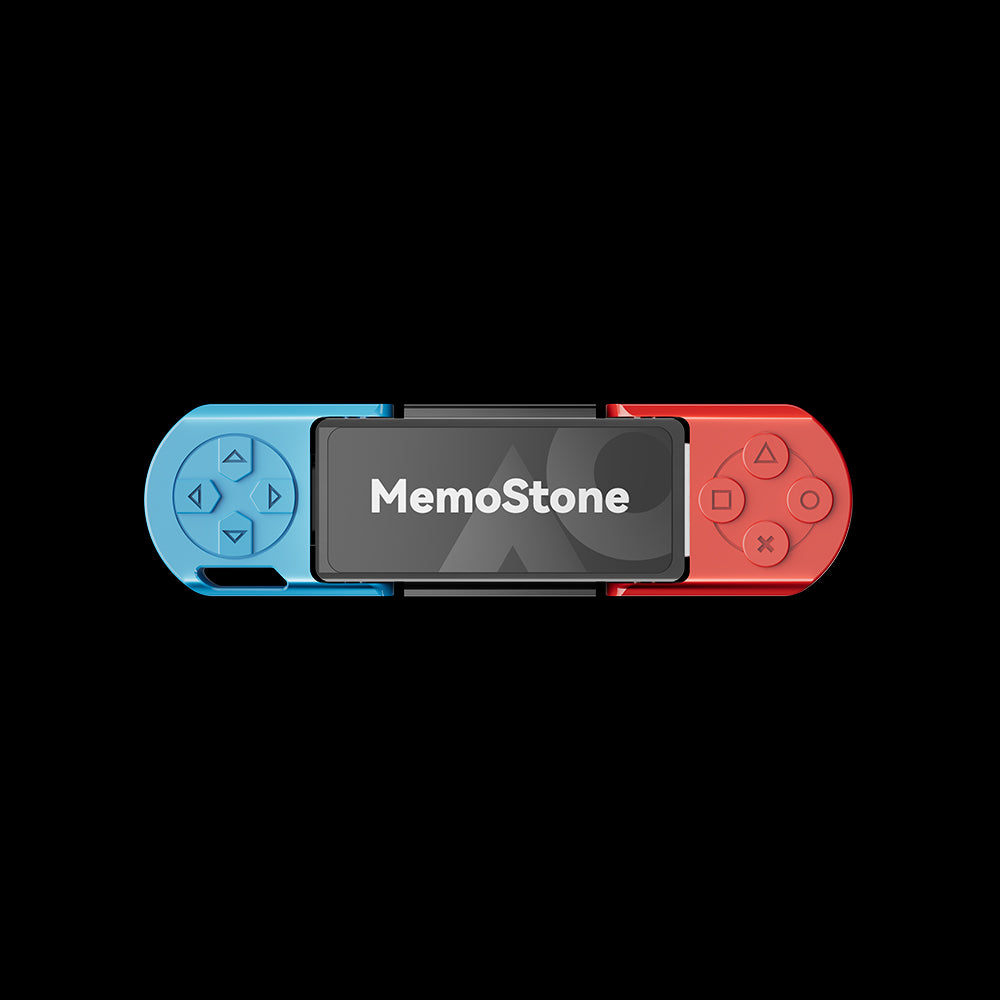
- Interface: USB Type-C and Type-A
- Read Speed: Up to 1,030 MB/s
- Write Speed: Up to 990 MB/s
- Capacities: 256GB to 1TB
- Warranty: 3 Years
Its rated speed lines up with what a MacBook’s 10Gbps USB-C ports can deliver, so you get close to full performance for the price. The built-in USB-A plug also works with older Intel Macs.
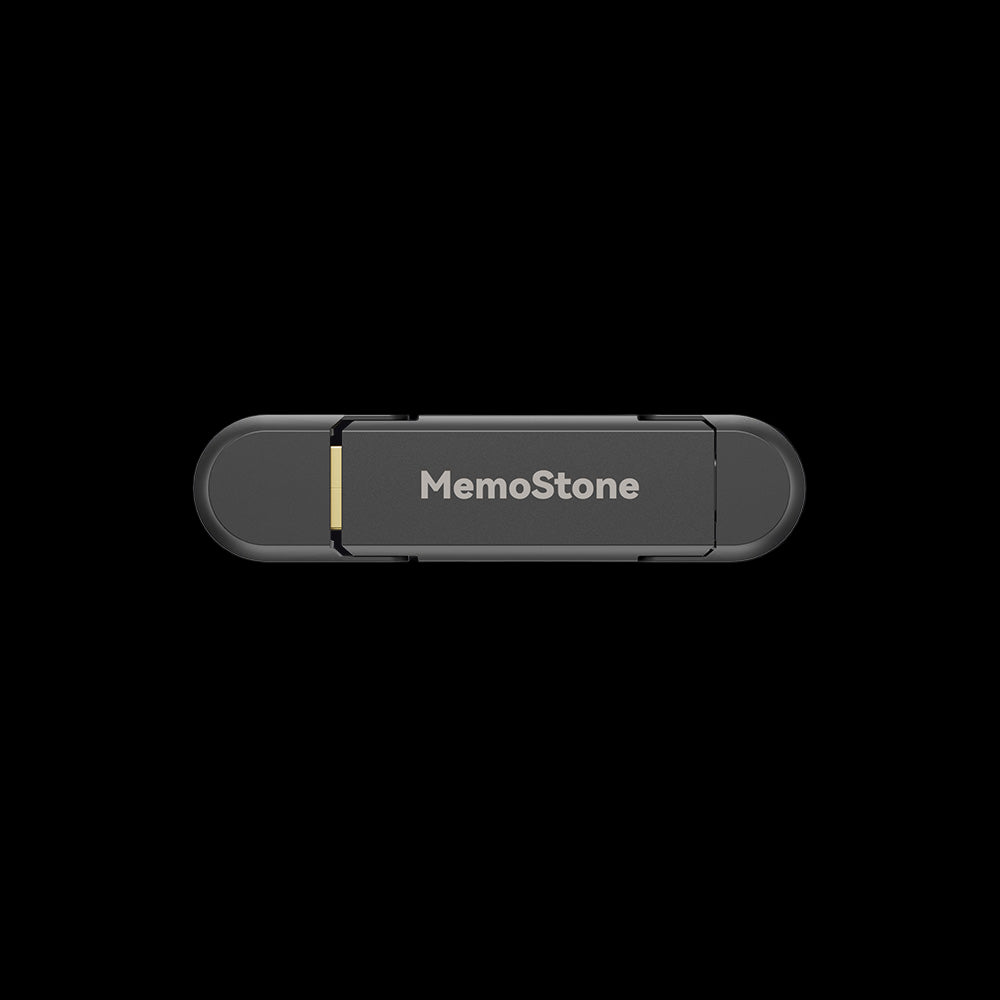
- Interface: USB Type-C and Type-A
- Read Speed: Up to 540 MB/s
- Write Speed: Up to 480 MB/s
- Capacities: 128GB to 2TB
A slim stick with up to 2TB of space for photo libraries and archived projects. A simple way to clear room on a MacBook with a small internal drive.
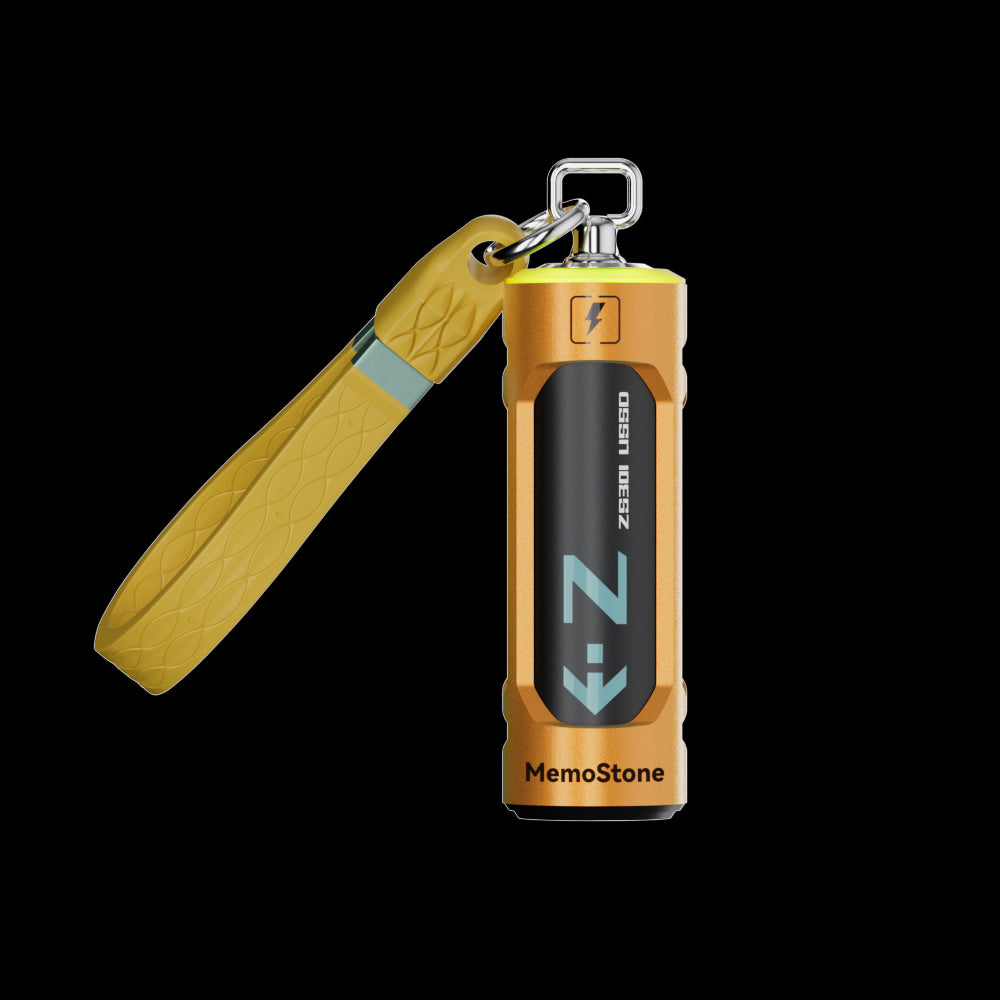
- Interface: USB 3.2 Gen2x2, 20Gbps
- Read Speed: Up to 1,900 MB/s
- Capacities: 256GB to 2TB
- Compatibility: PC, laptop, phone, tablet
- Warranty: 3 Years
A strong pick if you move between a MacBook and a Windows PC. On a Mac it runs at the port’s 10Gbps limit, and on a PC with a USB 3.2 Gen2x2 port it reaches its full rated speed.
Best SD Card for MacBook Pro Models With an SD Slot
Many MacBook Pro models, including the 14 inch and 16 inch versions from 2021 onward, have an SDXC card slot. A memory card gives you quick extra storage for photos and footage.
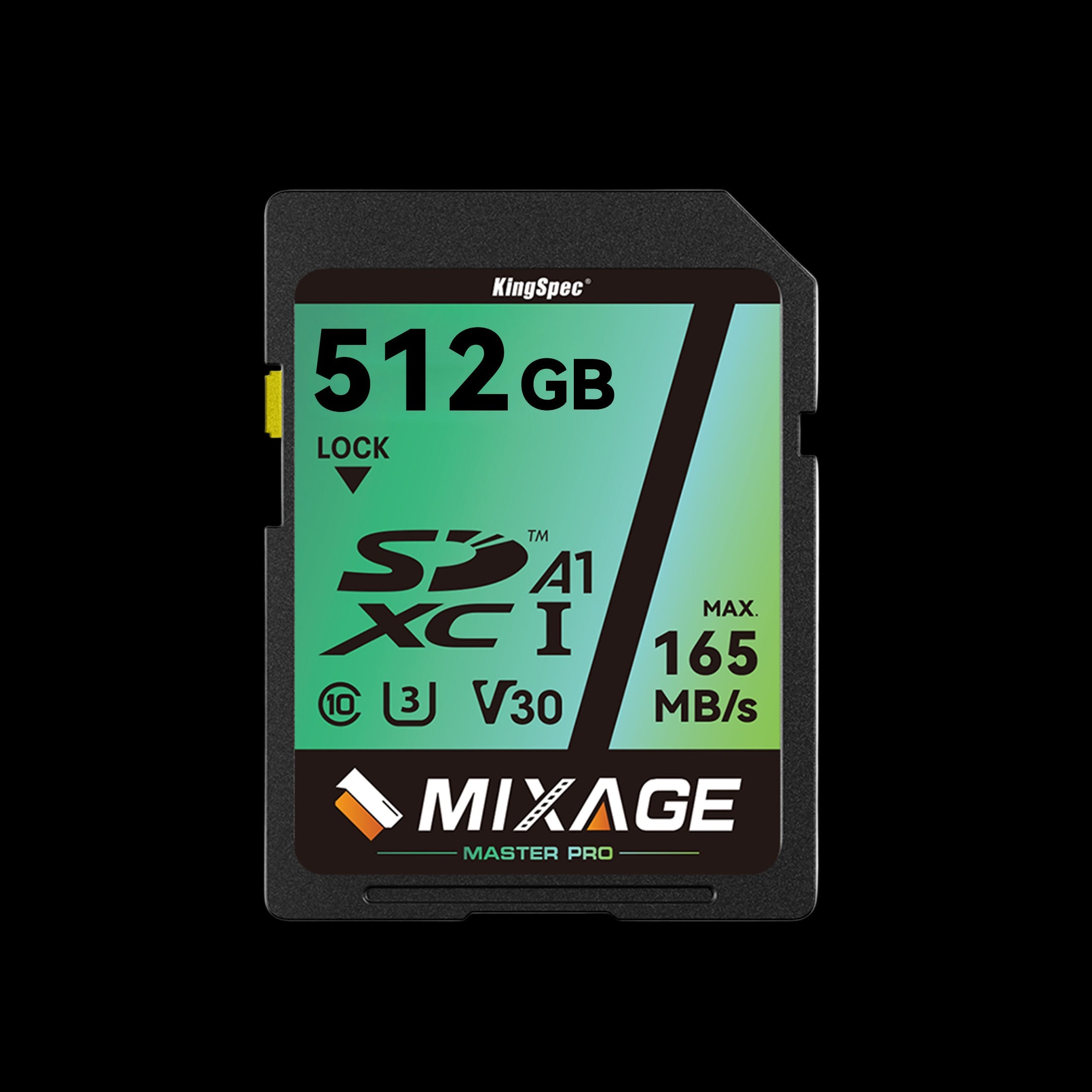
- Interface: UHS-I, U3, V30
- Read Speed: Up to 165 MB/s
- Write Speed: Up to 81 MB/s
- Capacities: 64GB to 512GB
- Warranty: 10 Years
Pop it straight into a MacBook Pro’s SD slot to move camera footage or carry extra files. The V30 rating also makes it a reliable card for 4K recording.
For everyday file storage and backups, the US201 offers the best balance of speed and price on a Mac. Choose the US4 for maximum capacity on a budget, the ZS301 if you also use a Windows PC, and the SD card if your MacBook Pro has an SD slot.
Wrapping Up: Check the Model Before You Buy Anything
A MacBook RAM upgrade is only possible on certain older models, so start with the exact model identifier and memory specifications. If your MacBook has removable RAM, use compatible modules and model-specific instructions. If its memory is fixed, check memory pressure and free up storage before deciding your next step.
Need more room on your Mac? Browse the collections below for portable storage that works with MacBooks.
Browse Related Collections
Frequently Asked Questions (FAQs):
Can I upgrade the RAM on a 2020 MacBook?
No. Every 2020 MacBook Air and MacBook Pro, whether Intel or Apple silicon, has memory that can’t be upgraded after purchase. Choose the memory you need when buying.
Can a MacBook Pro with Apple silicon be upgraded to more RAM?
No. Apple silicon memory is integrated with the chip package rather than installed as a removable module, so it can’t be increased after purchase.
What RAM does an upgradeable MacBook Pro use?
The non-Retina MacBook Pro models with memory slots use DDR3 SODIMM modules. The exact speed and maximum capacity depend on the model, so check its specifications before buying.
Will a MacBook RAM upgrade make the computer faster?
It can help an older, compatible MacBook if memory is limiting your work. It won’t fix every slowdown, since storage space, software, battery condition, and processor limits matter too. Check Activity Monitor first.
Can an external SSD add RAM to my MacBook?
No. An external SSD adds storage, not RAM. It can help indirectly by freeing up internal drive space that macOS uses for swap when memory runs short.
Can I add RAM to a MacBook with soldered memory?
No. Soldered memory isn’t designed for a normal upgrade. Replacing the logic board is a repair, not a practical way to add RAM.

