

To erase a flash drive so you can reuse it, format it. On Windows, right-click the drive in File Explorer, choose Format, and click Start. On a Mac, select the drive in Disk Utility and click Erase. A quick format only removes the file table, so old files may be recoverable.
To overwrite every sector, run a full format or the DiskPart clean all command. For sensitive data, know the limit. NIST says overwriting can't reach every memory cell in flash storage.
Key Takeaways
- Deleting files or running a quick format leaves old data behind until it gets overwritten.
- The Windows command
format /Pand DiskPart'sclean allwrite zeros across the drive. - Flash drives spread writes across spare cells, so even a full overwrite may miss some old data.
- For private files, encrypt the drive from the start. For highly sensitive data, physical destruction is the only sure method.
- Pick a new file system after erasing: exFAT for most drives, FAT32 for older devices.
Deleting, Formatting, and Wiping Aren't the Same
Each way of erasing a flash drive removes a different amount of data. Choose based on what happens to the drive next.
| Method | What it does | Old data recoverable? | Best for |
|---|---|---|---|
| Delete files | Removes file entries | Often, with recovery tools | Freeing space |
| Quick format | Deletes the file table and root directory | Often, with recovery tools | Reusing your own drive |
Full overwrite (format /P or clean all) |
Writes zeros to every addressable sector | Much harder, but spare flash cells may keep old data | Giving the drive to someone you know |
| Encryption from day one | Stores data in encrypted form | Leftover data stays encrypted | Drives that hold private files |
| Physical destruction | Destroys the memory chips | No | Highly sensitive data |
Quick format and overwrite behavior come from Microsoft's format command reference.
How to Erase a Flash Drive on Windows
Windows has three ways to erase a flash drive. File Explorer is the fastest, while the two commands overwrite the data instead of just hiding it.
Quick Erase With File Explorer
- Plug in the flash drive and open File Explorer.
- Right-click the drive under This PC and choose Format.
- Pick a file system. Choose exFAT for most drives, or FAT32 if an older device needs it.
- Enter a volume label and leave Quick Format checked.
- Click Start, then OK to confirm.
This takes seconds. It's fine for clearing your own drive, but recovery software can often find the old files.
Overwrite Every Sector With the Format Command
The /P switch tells Windows to write zeros to every sector of the volume before formatting. Open Terminal or Command Prompt as administrator, then run:
format E: /FS:exFAT /V:USB /P:0Replace E: with your flash drive's letter. A count of 0 means one zero pass with no extra random passes. Don't add /Q, because Microsoft notes that /Q overrides /P. Expect this to take a long time on large or slow drives.
Wipe the Whole Drive With DiskPart Clean All
DiskPart's clean all zeroes the entire disk, including the partition table. Use it when the drive has odd partitions or you want to start completely fresh.

- Open Terminal or Command Prompt as administrator and type
diskpart. - Type
list diskand find your flash drive by its size. - Type
select disk 2, using your drive's number instead of 2. - Type
clean alland wait. It can take a long time. - Type
create partition primary, thenformat fs=exfat quick, thenassign. - Type
exit.
Microsoft's clean command documentation says clean all sets every sector on the disk to zero. Selecting the wrong disk number erases the wrong drive, so check the size twice.
How to Erase a Flash Drive on Mac
Use Disk Utility to erase a flash drive on a Mac. Selecting the whole device, not just its volume, also rebuilds the partition map.
- Open Disk Utility and choose View > Show All Devices.
- Select the flash drive at the top of its hierarchy, then click Erase.
- Choose a Scheme. GUID Partition Map suits most uses.
- Choose a Format. ExFAT works on Mac and Windows, and APFS suits Mac-only drives.
- Enter a name and click Erase, then Done.
Apple's erase and reformat guide notes that Security Options for overwriting are only available for some storage devices. If the button is missing, Disk Utility can't do a secure erase on that drive. Recent versions of macOS also let you Control-click a drive in the Finder sidebar and choose Erase Disk.
How to Erase a Flash Drive From an iPhone
iPhone models with a USB-C port can erase and reformat a connected drive without a computer. Apple documents this in its Files app guide.
- Connect the flash drive and open the Files app.
- Tap Browse, then touch and hold the drive's name below Locations.
- Tap Erase, choose APFS, ExFAT, or MS-DOS (FAT), and tap Erase again.
Discover High-Performance Storage & Memory by Kingspec
Explore Kingspec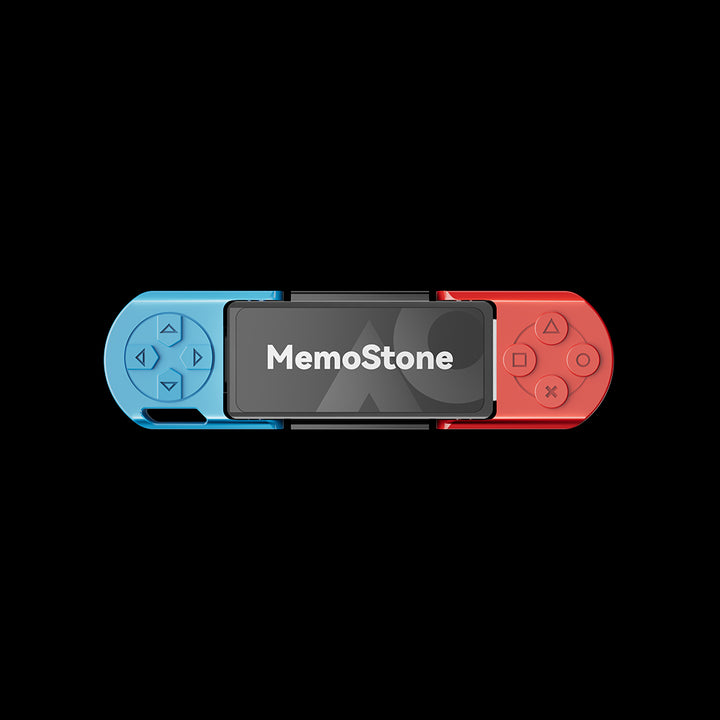
MemoStone US201 Portable External USSD
Stick-size USB 3.2 SSD with Type-A and Type-C plugs. Rated up to 1,030 MB/s read.
Shop now →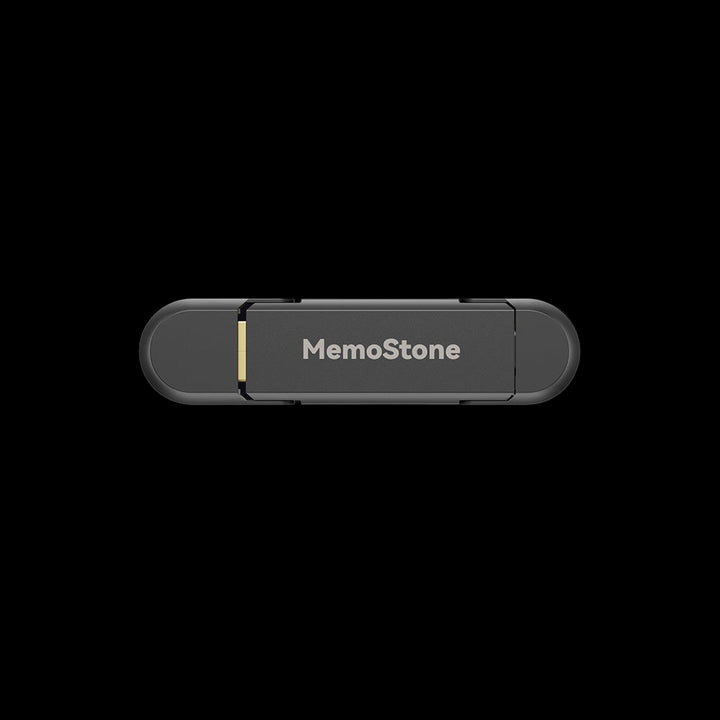
US4 Portable USB External SSD
USB 3.1 Gen 2 with Type-A and Type-C. Rated up to 540 MB/s read.
Shop now →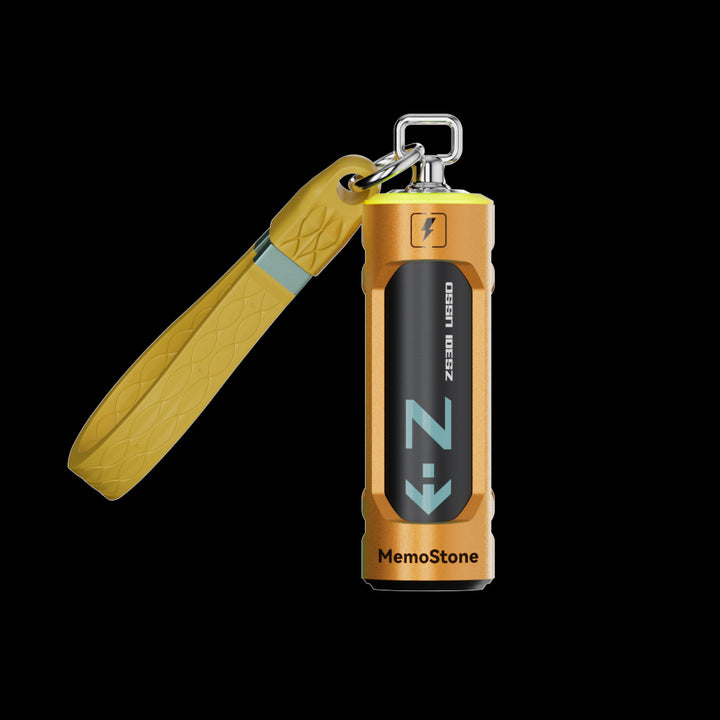
ZS301 Portable External USSD
USB 3.2 Gen 2x2 (20 Gbps) with Type-A and Type-C. Rated up to 2,000 MB/s read.
Shop now →Can You Securely Erase a Flash Drive?

Not completely with ordinary tools. Flash drives use wear leveling, which spreads writes across memory cells so no single cell wears out early. They also hold spare cells that the computer can't address directly.
NIST's media sanitization guidelines, SP 800-88 Rev. 2, say this makes it infeasible for a user to sanitize all previous data by overwriting. Some old data can survive in cells that a zero pass never touches.
- For everyday reuse: A full overwrite is a reasonable step before passing a drive to family or a coworker.
- For private files going forward: Encrypt the drive before you store anything, with APFS (Encrypted) on a Mac or BitLocker To Go on supported Windows editions. Anything left behind is then encrypted.
- For highly sensitive data: NIST's destroy method makes recovery infeasible even with laboratory techniques, and it ends the drive's use. Shred or disintegrate the drive, or use a certified destruction service.
Choose a File System After Erasing
Your format choice decides which devices can use the drive. For most flash drives, exFAT is the safest pick.
| Format | Pick it when | Watch out for |
|---|---|---|
| exFAT | You share the drive between Windows, Mac, and newer devices | No journaling |
| FAT32 | A TV, car stereo, or firmware updater requires it | No single file of 4 GiB or larger |
| NTFS | The drive stays on Windows PCs | Read-only on a Mac |
| APFS | The drive stays on Macs | Windows can't read it without extra software |
For the details, see how to format a USB to FAT32 and our exFAT vs NTFS comparison.
What to Do When a Flash Drive Won't Erase
A drive that refuses to erase is usually write-protected, in use, or failing. Check these in order.
- Lock switch: Some drives and SD adapters have a small physical switch. Slide it to unlocked.
- Open files: Close any app using the drive, then try again.
-
Read-only flag: In DiskPart, select the disk and run
attributes disk clear readonly. Microsoft documents this in the attributes disk reference. - Hardware failure: If the drive still can't be written, it may be worn out. Copy what you can and replace it.
Common Mistakes to Avoid
- Assuming a quick format is private. It leaves old data recoverable.
-
Selecting the wrong disk in DiskPart. Match the size before running
clean all. - Running many overwrite passes. NIST says multi-pass overwriting isn't needed, and it adds little protection on flash-based storage.
- Erasing before backing up. All of these methods are permanent.
- Pulling the drive out mid-erase. It can leave the drive unreadable until you erase it again.
Frequently Asked Questions
Can you erase a flash drive and reuse it?
Yes. Formatting erases the drive and leaves it ready to use again. On Windows, right-click it in File Explorer and choose Format. On a Mac, use Disk Utility's Erase button. Choose exFAT if you'll use the drive on both Windows and Mac.
How do I delete everything off a flash drive?
Format it. A quick format removes everything from view in seconds. To overwrite the data too, run a full format with format E: /P:0 on Windows, or DiskPart's clean all command. Back up anything you want to keep first, because none of these steps can be undone.
Does formatting a flash drive permanently delete data?
A quick format doesn't. It deletes the file table, so recovery tools can often rebuild files. A full overwrite makes recovery much harder. Even then, NIST notes that flash storage may keep old data in spare cells that overwriting can't reach.
How do I hard reset a USB flash drive?
The closest thing to a reset is DiskPart's clean all, followed by a new partition and format. It wipes the partition table and every addressable sector, which fixes most leftover partition problems. If the drive still fails after that, the hardware is likely failing.
Why can't I delete files from my USB drive?
The drive may be write-protected by a lock switch or a read-only flag. The file may be open in an app. If the drive uses NTFS and you're on a Mac, it's read-only by design. Clear the read-only flag in DiskPart, or reformat to exFAT after backing up.
Final Thoughts
How to erase a flash drive depends on where it's going next. A quick format is fine for your own reuse. A full overwrite with format /P or clean all is better before giving a drive away. For sensitive files, encrypt from day one or destroy the drive when you retire it.

