
Two laptop RAM sticks can look almost identical and still be completely incompatible. That’s the trap with DDR4 SODIMM: the right module can give an older laptop a real boost, but only if it matches what the system supports. If your laptop takes it, DDR4 laptop RAM is one of the cheapest ways to make multitasking smoother.
This guide shows you how to check compatibility, which specifications actually matter, how to install a module safely, and how to decide whether the upgrade is worth it.
Key Takeaways
- DDR4 SODIMM is compact DDR4 RAM for compatible laptops and small computers.
- Check your device’s memory type, capacity limit, speed, and free slots before buying.
- DDR4 SODIMM has 260 pins; DDR5 SODIMM has 262, and the two aren’t interchangeable.
- Some laptops have soldered memory that can’t be upgraded.
- More RAM helps when a computer is running short of memory, not in every case.
What Is DDR4 SODIMM?

DDR4 SODIMM is a small memory module used in many laptops and compact computers. It holds the short-term data your computer needs while programs are running.
What DDR4 and SODIMM Mean
DDR4 is a generation of computer memory. SODIMM, short for Small Outline Dual Inline Memory Module, is a smaller module format built for devices with limited space. For more on how memory generations differ, see this guide to what DDR RAM is.
SODIMM modules are shorter than the full-size DIMM sticks in desktop computers and have a different connector layout, so a standard desktop motherboard can’t take them. RAM is also temporary working memory, not storage. It doesn’t replace an SSD or hard drive, which keeps files when the computer is off.
How to Spot a DDR4 SODIMM
A DDR4 SODIMM is about 70mm long with 260 gold pins along one edge and a notch slightly off-center. Its label usually shows a PC4 rating, such as PC4-25600, which is the same as DDR4-3200.
| Module Type | Pins | Label Example |
|---|---|---|
| DDR3 SODIMM | 204 | PC3-12800 |
| DDR4 SODIMM | 260 | PC4-25600 |
| DDR5 SODIMM | 262 | PC5-38400 |
Where DDR4 SODIMM Is Used
You’ll find DDR4 SODIMM in many laptops and some mini PCs, all-in-one computers, and small-form-factor systems. Not every laptop has replaceable memory, though. Some have RAM soldered to the motherboard, and others combine soldered memory with one open slot.
Check your exact model before buying. The manufacturer’s specifications or service manual show which memory the system accepts and whether it can be upgraded.
Check DDR4 SODIMM Compatibility Before Buying
Compatibility is the most important part of choosing RAM. Confirm your computer’s requirements before you compare brands or prices.
Find Your Computer’s Memory Type
Start with the manufacturer’s support page or service manual, using your full model number. Look for the memory generation, form factor, maximum capacity, supported speed, and number of slots.
Windows Task Manager (under Performance, then Memory) and the BIOS or UEFI show your current capacity, speed, and form factor. They may not show the maximum supported amount or whether memory is soldered, so your laptop’s official specifications have the final say. This guide on how to get more RAM on a laptop walks through finding those limits.
| Compatibility Detail | What to Check |
|---|---|
| Memory generation | The computer must support DDR4 |
| Form factor | The system must accept SODIMM, not full-size DIMM |
| Maximum capacity | Total RAM must stay within the system’s limit |
| Slots | How many there are and how many are in use |
| Soldered memory | Some or all RAM may be permanently attached |
| Speed | The system must support the module’s data rate |
DDR4, DDR5, and Other Memory Types
DDR4 SODIMM won’t fit a DDR5 SODIMM slot. The two have different electrical designs and notch positions, so they aren’t interchangeable. DDR3 SODIMM is an older generation and won’t work in a DDR4 slot either.
Don’t choose a module by appearance alone. Match the memory generation and form factor listed in your computer’s documentation.
Check the Slot Layout and Maximum Capacity
A laptop may have one or two memory slots, or soldered memory with one upgradeable slot. If a slot is free, adding a module is usually simpler than replacing what’s installed. If every slot is full, you’ll need to replace one or more modules.
The advertised maximum usually applies to the whole computer, not each slot. Check both the total limit and the per-slot capacity before you choose.
DDR4 SODIMM Specifications That Matter

Once you know a module will fit, compare its capacity and speed. Other details can matter too, but compatibility always comes first.
Capacity: How Much RAM Do You Need?
Capacity is how much data RAM can hold while programs are open. Everyday browsing and schoolwork need less than large creative projects or many demanding programs at once. For most laptop users, 16GB total is a comfortable target, with 32GB for heavier work.
Consider how much is already installed, whether you see slowdowns with several apps open, and whether you’re adding or replacing a module. More RAM isn’t better if your system can’t support it or your tasks don’t need it.
Speed and Data Rate
DDR4 speed is often shown as a number like DDR4-3200. That’s a data rate measured in MT/s. Some listings call it MHz, but MT/s is the more precise term.
A higher number means more potential bandwidth, but only if your computer supports it. Otherwise, the module runs at a lower supported speed. Compare the module’s rating with your laptop’s specifications instead of chasing the highest number.
Voltage, Timings, and Module Configuration
Standard DDR4 runs at 1.2V. Voltage and timings describe how memory uses power and handles certain tasks, but for most laptop owners they aren’t the first things to compare. Follow the manufacturer’s recommended specs and skip paying extra for features your computer can’t use.
Some systems have limits on module organization or chip density. Most buyers can simply follow the laptop maker’s listed capacity and module requirements, but check for these limits if the manufacturer mentions them.
Single-Channel and Dual-Channel Memory
Many laptops can access memory through two channels. With compatible modules in the right slots, the system runs in dual-channel mode, which raises memory bandwidth. The benefit depends on the computer and the programs you use.
A matched pair makes setup easier, but two modules aren’t always required. Matching an added module’s capacity and specs helps avoid conflicts, though it doesn’t guarantee dual-channel operation.
Choosing the Right DDR4 SODIMM Upgrade
A good DDR4 SODIMM purchase fits your computer and meets your needs without paying for specs you can’t use. Compare the full module details, not just a brand or a “high speed” label.
| Buying Factor | Why It Matters |
|---|---|
| Generation and form factor | The module must match the computer’s slot |
| Capacity | It must fit within the total and per-slot limits |
| Speed | The computer may limit it to a lower supported speed |
| Number of modules | You need to know whether you’re adding or replacing RAM |
| Warranty and returns | These protect you if the module is faulty or incompatible |
| Seller information | Clear specs help prevent ordering the wrong part |
Installing DDR4 SODIMM RAM
Installing a SODIMM is usually simple on a laptop with accessible memory slots, but the process varies by model. Read the service instructions for your exact laptop before opening it.
Prepare the Laptop
Save your work, shut the computer down completely, and unplug the charger. Disconnect the battery if the manufacturer’s instructions say to. Handle the module by its edges and touch bare metal first to discharge static.
If opening the laptop could affect its warranty, check the terms or ask a qualified repair professional. Some models need several parts removed to reach the memory.
Insert the SODIMM Module
- Open the memory cover or access panel as the service manual describes.
- Locate the memory slot and check the notch on the module.
- Line up the notch and insert the module at a slight angle, about 30 degrees.
- Press the module down gently until the side clips lock it in place.
- Close the laptop and start the computer.
Important: Never force a module into the slot. If it won’t seat, stop and check the memory type and notch alignment, since forcing it can damage the module or the laptop.
Confirm the Memory Is Detected
Start the computer and check Task Manager, system information, or the BIOS to confirm the new total. If it doesn’t appear, shut down and reseat the module following the service instructions.
If the system still doesn’t detect it, confirm the module is compatible, then follow the manufacturer’s troubleshooting steps to rule out a faulty module or slot.
DDR4 SODIMM Price and Value
DDR4 SODIMM prices vary by capacity, speed, brand, seller, and location. Compare products with the same specifications, since a lower price may be for one module instead of a kit, or for a different capacity or speed than you need. Check the warranty and return policy too.
DDR4 is older than DDR5, but that doesn’t make it a poor buy. If your laptop supports DDR4 and otherwise works well, a compatible RAM upgrade is often far more practical than replacing the whole device.
Recommended KingSpec Upgrades for DDR4 Laptops
If your laptop has a free DDR4 SODIMM slot, KingSpec’s notebook memory is the direct fit. And because many older laptops also benefit from faster storage, there are SSD picks below too. Check each spec against your service manual before you buy.
Best DDR4 SODIMM for Laptops
KingSpec’s laptop memory uses the standard 260-pin DDR4 SODIMM format at the widely supported 3200MT/s speed.
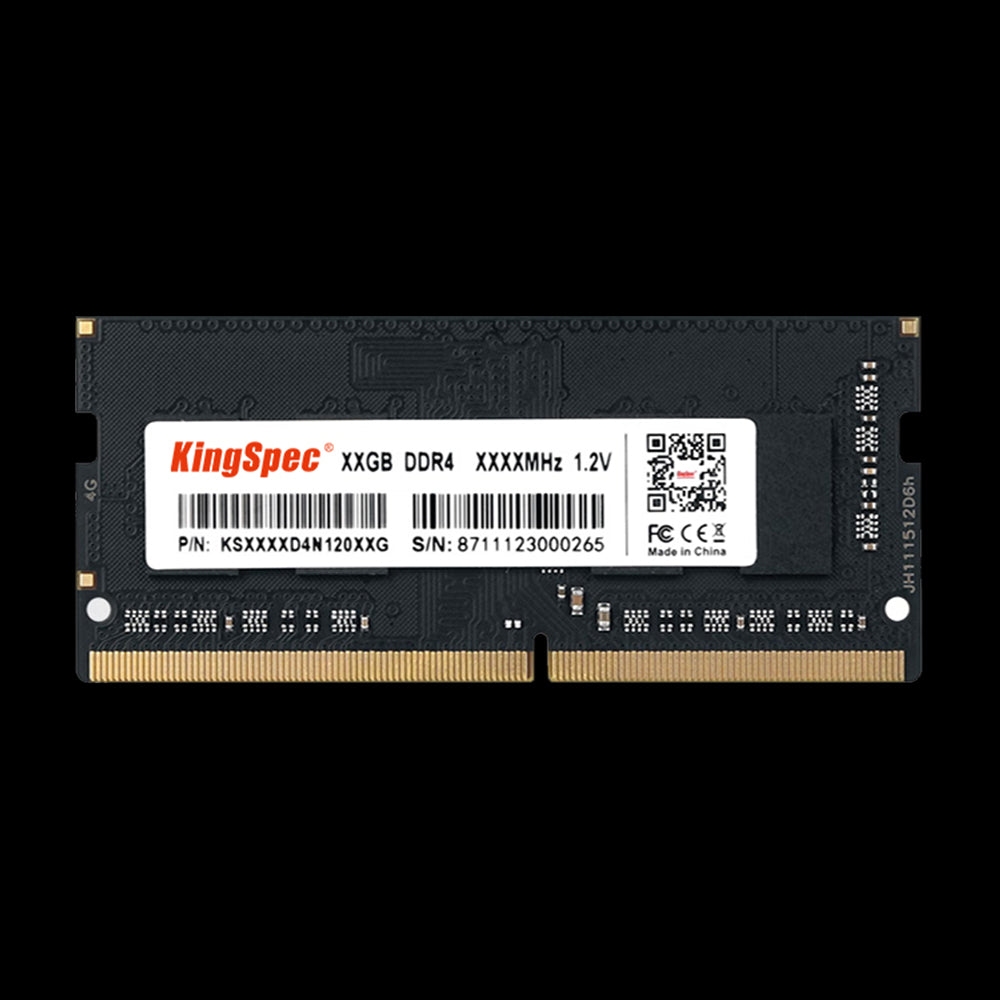
- Type: DDR4 SODIMM, 260-pin
- Speed: 3200MT/s (PC4-25600)
- Capacities: 8GB, 16GB, 32GB
- Voltage: 1.2V
- Platforms: Intel and AMD
- Warranty: 3 Years
The standard DDR4 laptop format at the common 3200MT/s speed, so it suits a wide range of DDR4 notebooks and mini PCs. If your laptop supports a slower speed, the module simply runs at that speed instead.
Best SSDs to Pair With a Laptop RAM Upgrade
RAM helps with multitasking, but an SSD speeds up startup and app loading. Check whether your laptop has a 2.5 inch bay or an M.2 slot, and whether that slot supports NVMe or SATA.
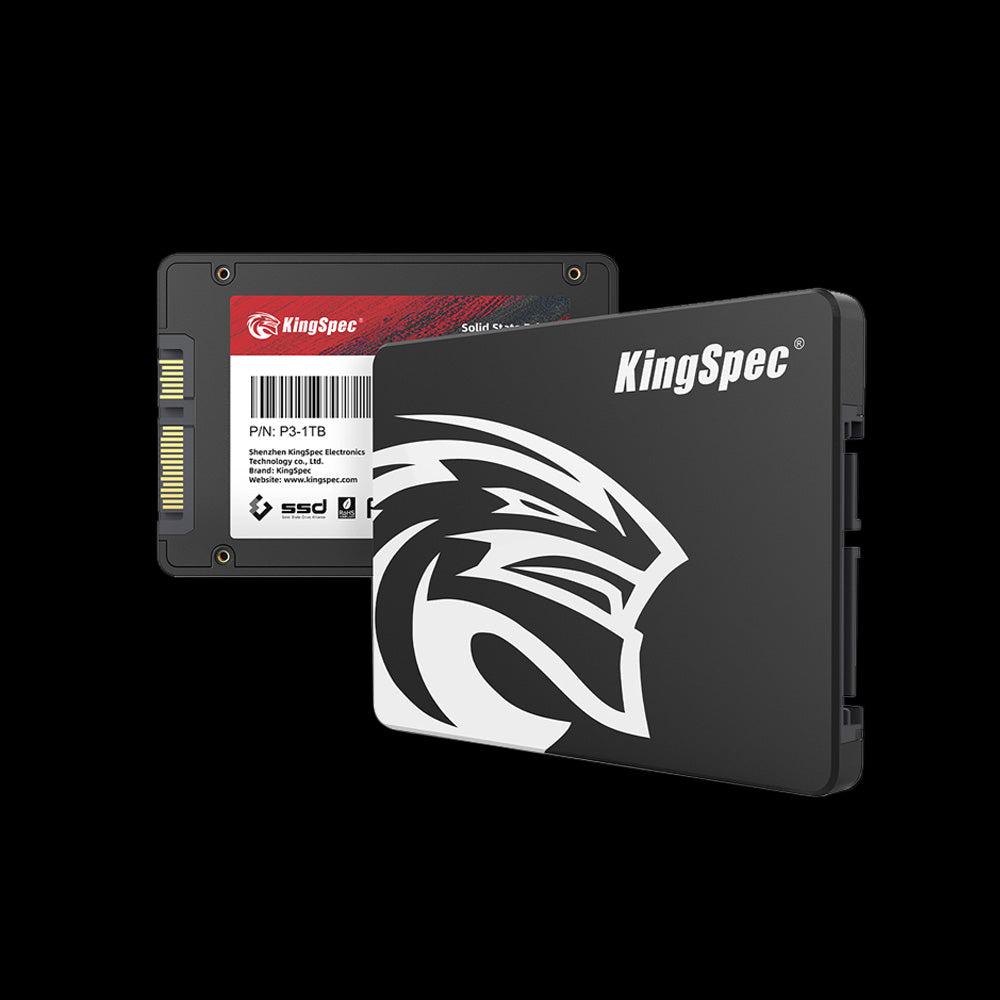
- Interface: SATA III (6Gb/s)
- Read Speed: Up to 560 MB/s
- Write Speed: Up to 530 MB/s
- Form Factor: 2.5 inch
- Warranty: 3 Years
The biggest speed jump for a laptop still running a hard drive. It uses the same SATA connection and drops into a 2.5 inch bay.
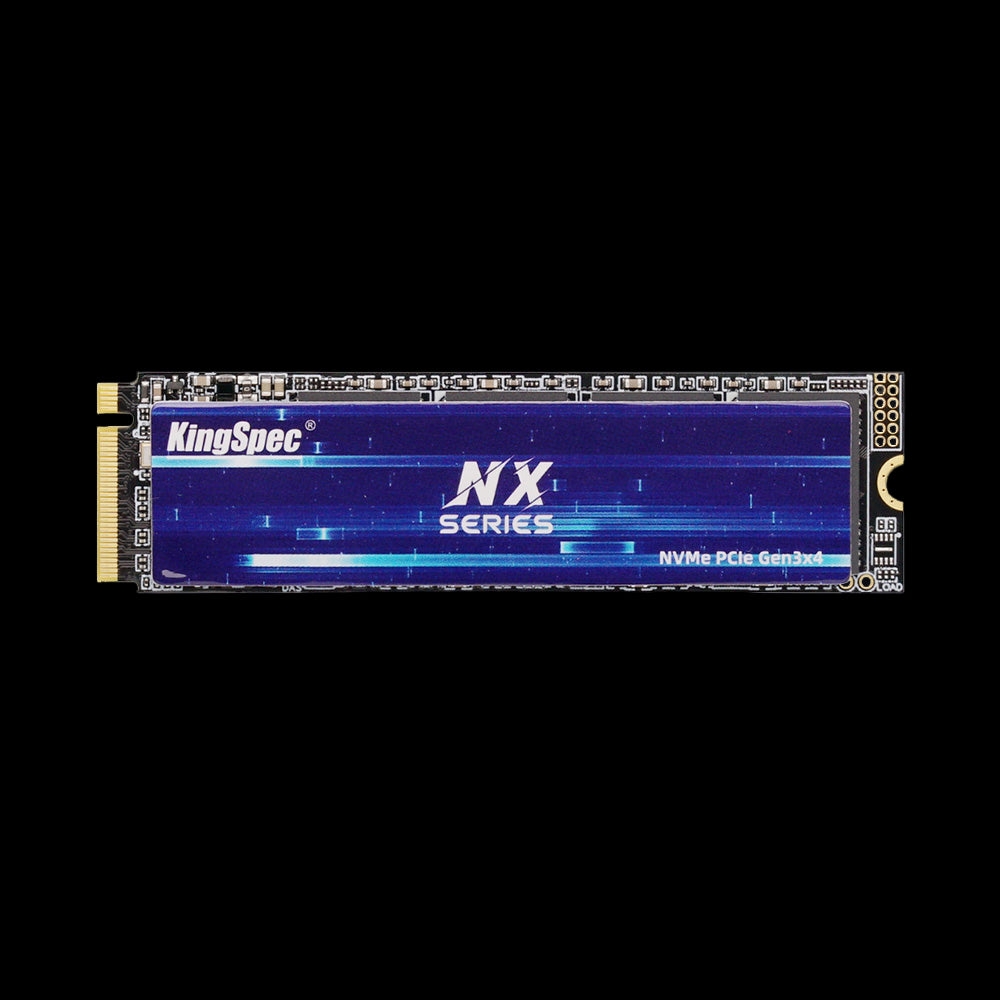
- Interface: PCIe Gen3 x4, NVMe
- Read Speed: Up to 3,500 MB/s
- Write Speed: Up to 3,000 MB/s
- Form Factor: M.2 2280
- Warranty: 3 Years
Affordable NVMe speed for laptops with an M.2 2280 slot, many of which are the same DDR4-era machines that take SODIMM memory.
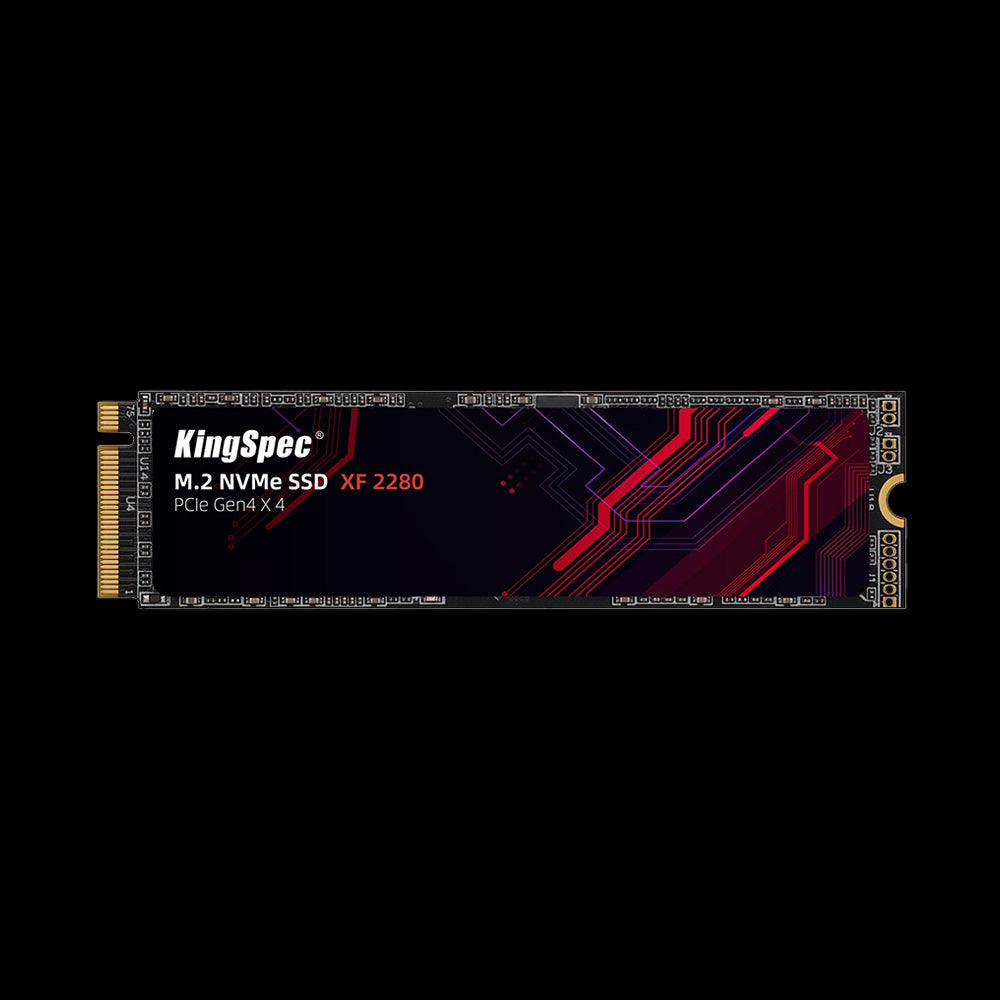
- Interface: PCIe Gen4 x4, NVMe
- Read Speed: Up to 5,100 MB/s
- Write Speed: Up to 4,600 MB/s
- Form Factor: M.2 2280, single-sided
- Warranty: 3 Years
A single-sided Gen4 drive for slim laptops with little room above the M.2 slot. It also runs in Gen3 slots at Gen3 speeds.
Which Upgrade Should You Choose?
If your laptop slows down with many apps or tabs open and has a free DDR4 SODIMM slot, start with the notebook RAM. If it’s slow to boot or still uses a hard drive, upgrade storage first. For a full storage walkthrough, see this laptop SSD upgrade guide.
Wrapping Up: Match the Module, Then Upgrade
Choosing DDR4 SODIMM starts with your laptop’s requirements. Confirm the memory generation, form factor, supported capacity, speed, and free slots before you buy or install a module. A compatible upgrade gives an older laptop more working room, while an unsupported module won’t solve anything.
Ready to upgrade? Browse the collections below for memory and storage that fit your laptop.
Browse Related Collections
Frequently Asked Questions (FAQs):
Is DDR4 SODIMM outdated now?
DDR5 is newer, but DDR4 is still very useful in computers designed for it. A DDR4 laptop handles everyday tasks well when it has enough memory. The two aren’t interchangeable, so follow your computer’s specifications.
Can DDR4 SODIMM work in a desktop PC?
Most desktop motherboards use full-size DIMM memory, so a SODIMM won’t fit. Some mini PCs and small-form-factor desktops use SODIMM, so check the system’s specifications before buying.
Can I put DDR4 SODIMM in a DDR5 laptop?
No. DDR4 SODIMM has 260 pins and DDR5 SODIMM has 262, with different notch positions and electrical designs. A DDR4 module won’t fit or work in a DDR5 slot.
Can I mix different DDR4 SODIMM modules?
Different modules may work together, but it isn’t guaranteed. The computer will use settings both modules support, which can mean a lower speed. Use matching modules when you can.
How can I tell if my laptop RAM is upgradeable?
Check the manufacturer’s specifications or service manual for the number of slots and whether memory is soldered. The exact model number matters, because similar versions of a laptop can have different designs.
Will adding DDR4 SODIMM RAM make my laptop faster?
It helps if the computer often runs out of memory with programs open, mainly by improving multitasking. It won’t fix every cause of slowness. A slow processor, a full drive, or an old hard drive may need a different upgrade.

