
Too little RAM and your computer stalls every time you switch tabs. Too much and you’ve paid for memory that sits idle. For most people, 16 GB is the practical sweet spot, while basic tasks can get by with less and demanding work needs more. If you’re planning a RAM upgrade, the right amount depends on the apps you use, how much you multitask, and what your computer supports.
This guide gives you clear recommendations for everyday use, gaming, school and office work, and creative projects, plus how to check what you have before you buy.
Key Takeaways
- 8 GB can work for basic tasks and light use.
- 16 GB suits most everyday users and many gamers.
- 32 GB gives more room for demanding games, creative apps, and heavy multitasking.
- 64 GB or more is usually for specialized, memory-heavy work.
- Check your computer’s RAM type and upgrade limits before you buy.
How Much RAM Do I Need? Quick Recommendations

The right amount depends on what you do, not just which computer you own. Use this table as a starting point, then check the requirements for the apps and games you use most.
| What You Do | Suggested RAM |
|---|---|
| Email, documents, and light browsing | 8 GB |
| Everyday multitasking, school, and office work | 16 GB |
| Gaming and creative apps | 16 to 32 GB |
| Video editing, 3D work, and large projects | 32 to 64 GB |
| Virtual machines and specialized workloads | 64 GB or more |
These are general guides, not fixed rules. One person may do fine with 8 GB for light work, while someone else runs short on 16 GB with many demanding apps open at once.
What RAM Does and Why It Matters
RAM is your computer’s short-term working memory. It keeps the data your open apps need ready to use, while an SSD or hard drive stores files long term. For a closer look at memory generations, see this guide to what DDR RAM is.
RAM in Simple Terms
Think of RAM as a desk. The bigger it is, the more books and papers you can keep open at once. When the desk gets crowded, you have to put things away and pull them back out later, which slows you down.
Your computer works the same way. More RAM lets it keep more apps and data ready. RAM isn’t storage, though, so adding it won’t give you more room for photos, videos, or installed games.
Signs Your Computer May Need More RAM
A computer short on RAM slows down when several programs are open. Browser tabs reload, apps take longer to respond, or a game stutters while other tasks run in the background.
These signs don’t always point to memory. A full drive, an older processor, too many background apps, or other hardware issues can cause the same symptoms. Check memory use during your usual tasks before deciding to upgrade.
How RAM Affects Speed
More RAM helps when your computer is running out of memory, letting you keep more programs open without slowdowns. But extra capacity won’t make every computer faster. If you already have enough for your usual tasks, adding more may change little. The processor, graphics card, storage, and software all affect overall speed.
RAM for Everyday Tasks
For everyday use, the main question is how much you multitask. Browsing, email, and documents use less memory than video calls, large spreadsheets, and dozens of open tabs.
4 GB: The Windows 11 Minimum
Microsoft lists 4 GB as the minimum RAM for Windows 11. That’s the floor to install and run it, not a recommendation for comfortable multitasking. Check the official Windows 11 system requirements alongside the needs of your apps.
8 GB for Basic Use
8 GB can be enough for basic use, such as email, web browsing, writing documents, and watching videos. It suits a computer used for one or two light tasks at a time.
It can feel tight if you keep many tabs open, join video calls, or switch between several apps. The operating system and background processes also take a share, leaving less for your work.
16 GB for Everyday Multitasking
For most people, 16 GB is comfortable for everyday use. It handles schoolwork, office apps, video calls, streaming, and browsing with other programs open.
If you’re choosing between 8 GB and 16 GB for a new computer, 16 GB gives you more room to multitask and more years of useful life, as long as the price and device support make sense.
RAM for Gaming
Gaming RAM needs depend on the game, your computer, and what else you run while playing. Check each game’s system requirements, and think about whether you stream, record, or keep other apps open.
16 GB for Most Gaming Setups
16 GB is enough for many gaming setups, especially when the game is the main thing running. Some newer games recommend 32 GB, so check the requirements for the games you actually play.
Background programs eat into what’s available. Voice chat, a browser, a game launcher, streaming software, and the game itself may all be open at once, so your total workload matters.
32 GB for More Gaming Headroom
32 GB is a good choice if you play demanding games while streaming, recording, or multitasking. It also gives memory-hungry games more room.
That doesn’t mean every gaming PC needs 32 GB. If you play one game at a time and everything runs smoothly, upgrading may not change much. The graphics card and processor have a big impact on gaming performance too.
RAM Speed and Gaming Performance
Having enough RAM helps games run smoothly, while too little can cause stutters when other programs are open. RAM speed matters on some systems, especially newer DDR5 platforms, but capacity comes first. This guide to the best DDR5 RAM covers speed choices once you know how much you need.
RAM for Work and Creative Apps

Project size often matters more than job title. A small photo edit may need less memory than a large design project, even in the same software.
School, Office Work, and Remote Meetings
For documents, email, spreadsheets, browsing, and video calls, 8 GB may be enough for light use, while 16 GB gives more room to multitask. If you keep large spreadsheets and many tabs open during meetings, the extra capacity helps.
Photo Editing, Design, and Music Production
Photo editing, graphic design, and music software use more memory as files, layers, effects, and plugins add up. 16 GB suits smaller projects, while 32 GB helps with larger files and more complex work. If a program regularly slows down, check its memory use and requirements before upgrading.
Video Editing, 3D Work, and Programming
Large video files, detailed 3D scenes, and complex software projects need more RAM. 32 GB is a good starting point for demanding work, and 64 GB or more suits larger workloads.
Programming needs vary widely. Basic coding runs well on 16 GB, but several development tools, virtual machines, or large datasets can need much more. Size your RAM to your tools and projects rather than to what sounds fastest.
RAM in Laptops
Laptop RAM needs follow the same guidelines as desktops. The difference is that many laptops have limited upgrade options.
Some laptops have removable SO-DIMM modules, while others have memory soldered to the board. Check the exact model’s specifications before buying. If the RAM can be upgraded, compatible laptop RAM is an affordable way to add capacity later. If it can’t, choose enough memory up front for the laptop’s whole working life.
Mac memory options vary by model, and many Macs can’t be upgraded after purchase. Check the official Mac specifications for the model you’re considering before you buy.
Choosing RAM for a New Computer or Upgrade
Before you buy RAM, check what your computer supports. The wrong type or capacity won’t work, and some devices have no upgrade path at all.
Check Your Current RAM Use
Watch memory use while you do your usual tasks. In Windows, open Task Manager, select Performance, then Memory. On a Mac, open Activity Monitor and select the Memory tab, then check the Memory Pressure graph.
One reading alone doesn’t prove you need an upgrade. Check during a normal session with your usual apps open, and watch for slowdowns. This guide on how to get more RAM on a laptop shows how to find your maximum supported capacity too.
Confirm Compatibility Before Buying
Check your manual or the manufacturer’s specifications for the supported RAM type, maximum capacity, and number of slots. Laptop and desktop modules are different sizes, and DDR4 and DDR5 aren’t interchangeable.
| Check | What to Look For |
|---|---|
| Form factor | DIMM for desktops, SO-DIMM for most upgradeable laptops |
| Generation | DDR4 or DDR5, matching your motherboard |
| Maximum capacity | The total your system supports, and per slot |
| Slots | How many there are and how many are free |
| Speed | The speed your processor and motherboard support |
Choose Capacity Before Speed
For most people, having enough RAM matters more than buying the fastest memory available. Pick the capacity first, then match the supported speed and use two matched sticks for dual-channel performance where your system allows it.
Recommended KingSpec RAM and Storage Upgrades
Once you know how much memory you need, these KingSpec picks cover DDR5 desktops, DDR4 desktops, and DDR4 laptops. Since RAM and storage often get confused, there are SSD picks below too for when you need more space rather than more memory. Match each one to your device’s specifications before you buy.
Best RAM for Desktops and Laptops
Pick the card that matches your computer’s memory slot type and generation.
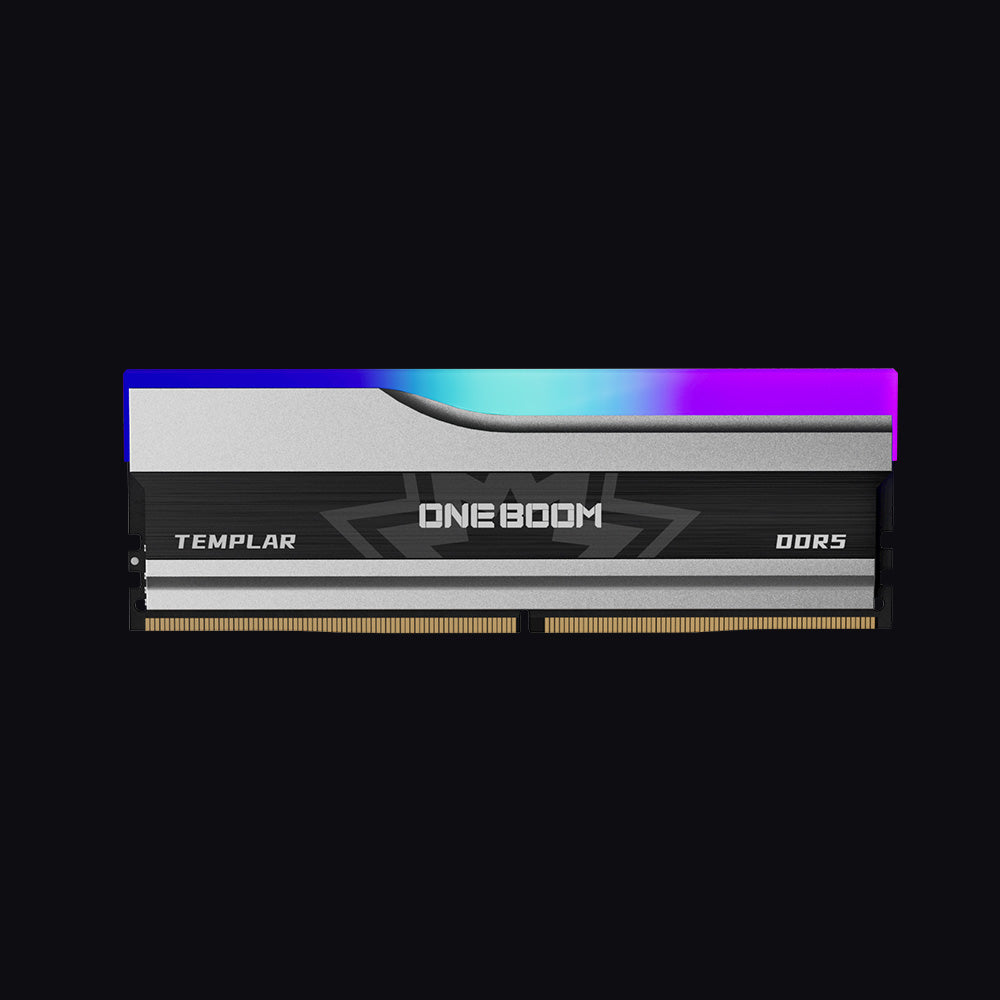
- Type: DDR5, 288-pin DIMM
- Speed: 5600 or 6000MT/s
- Capacities: 16GB or 32GB (2x16GB)
- Platforms: Intel and AMD
- Warranty: 3 Years
Covers the two most popular sizes in one product: 16GB for everyday use and light gaming, or a 32GB dual-channel kit for heavier gaming and creative work.
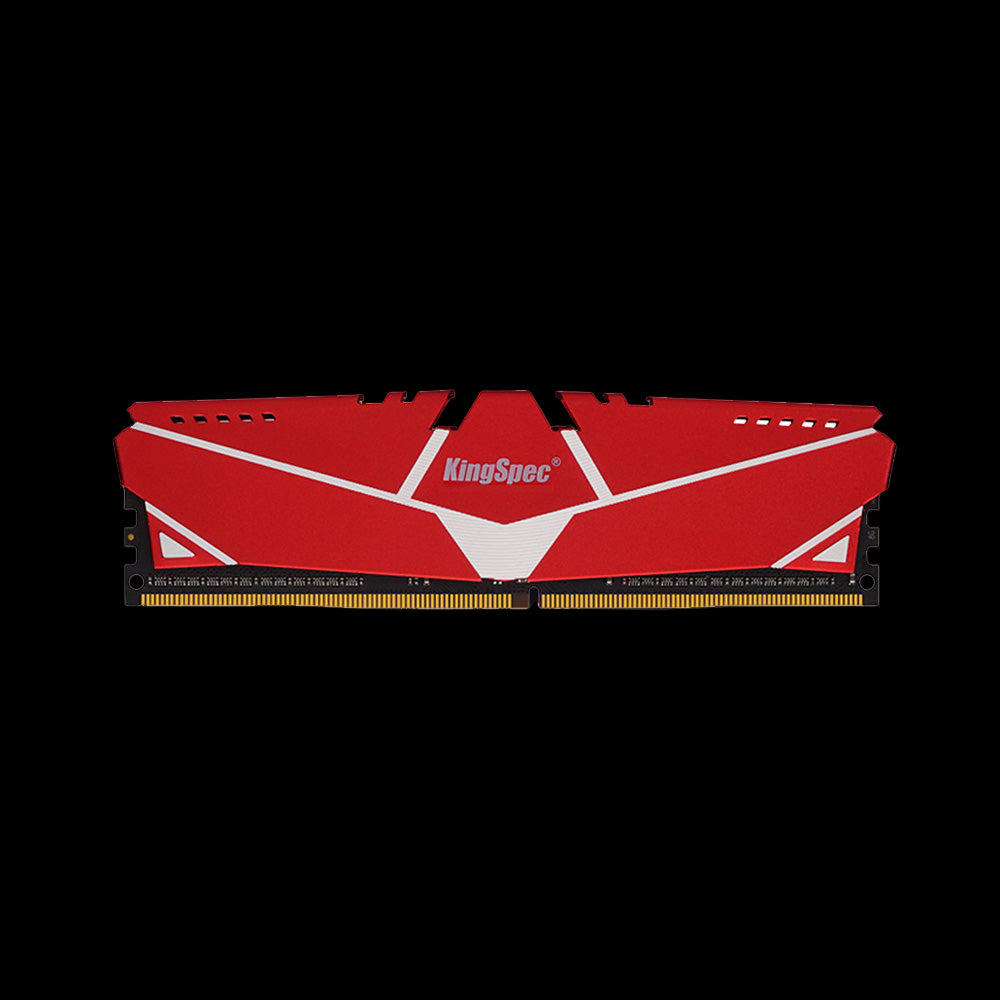
- Type: DDR4, 288-pin DIMM
- Speed: 3200MHz
- Cooling: Red aluminum heatsink
- Platforms: Intel and AMD
An affordable way to move an older DDR4 desktop from 8 GB to 16 GB or more. Install a matched pair for dual-channel performance.
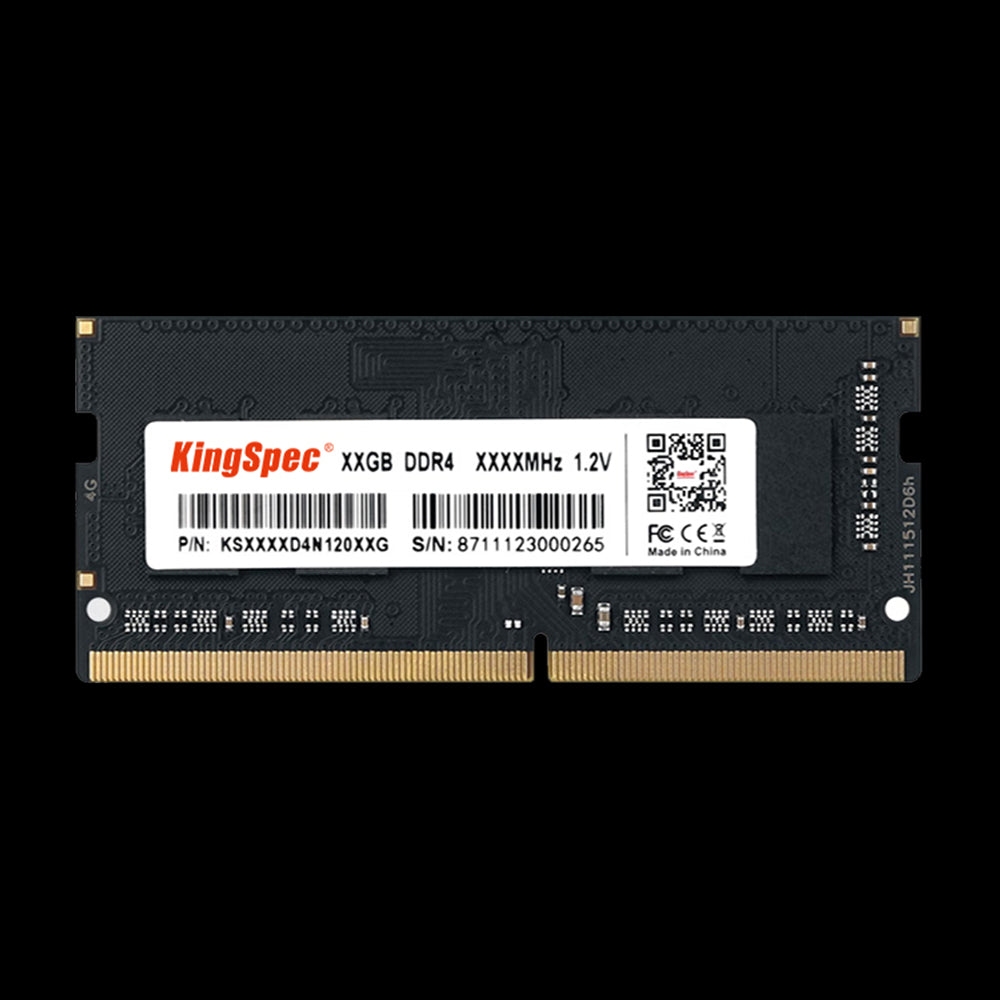
- Type: DDR4 SO-DIMM, 260-pin
- Speed: 3200MT/s
- Capacities: 8GB, 16GB, 32GB
- Voltage: 1.2V
- Warranty: 3 Years
The laptop-size module for notebooks with a free DDR4 SO-DIMM slot. A simple way to take an 8 GB laptop up to 16 GB or beyond.
Best SSDs When You Need Storage, Not RAM
If your problem is running out of space for files and games, or slow boot times, an SSD is the upgrade you need.
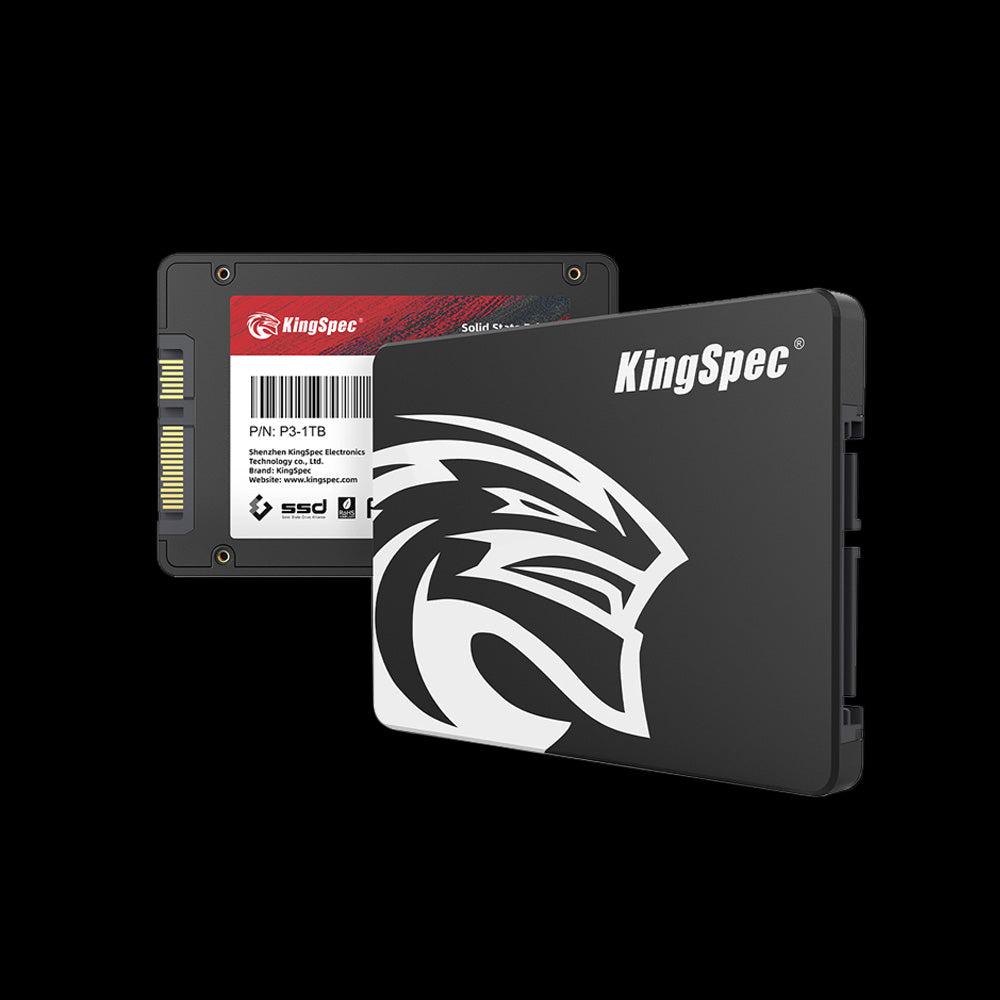
- Interface: SATA III (6Gb/s)
- Read Speed: Up to 560 MB/s
- Write Speed: Up to 530 MB/s
- Capacities: Up to 8TB
- Warranty: 3 Years
Replacing an old hard drive often makes a bigger everyday difference than adding RAM. It fits any 2.5 inch bay.
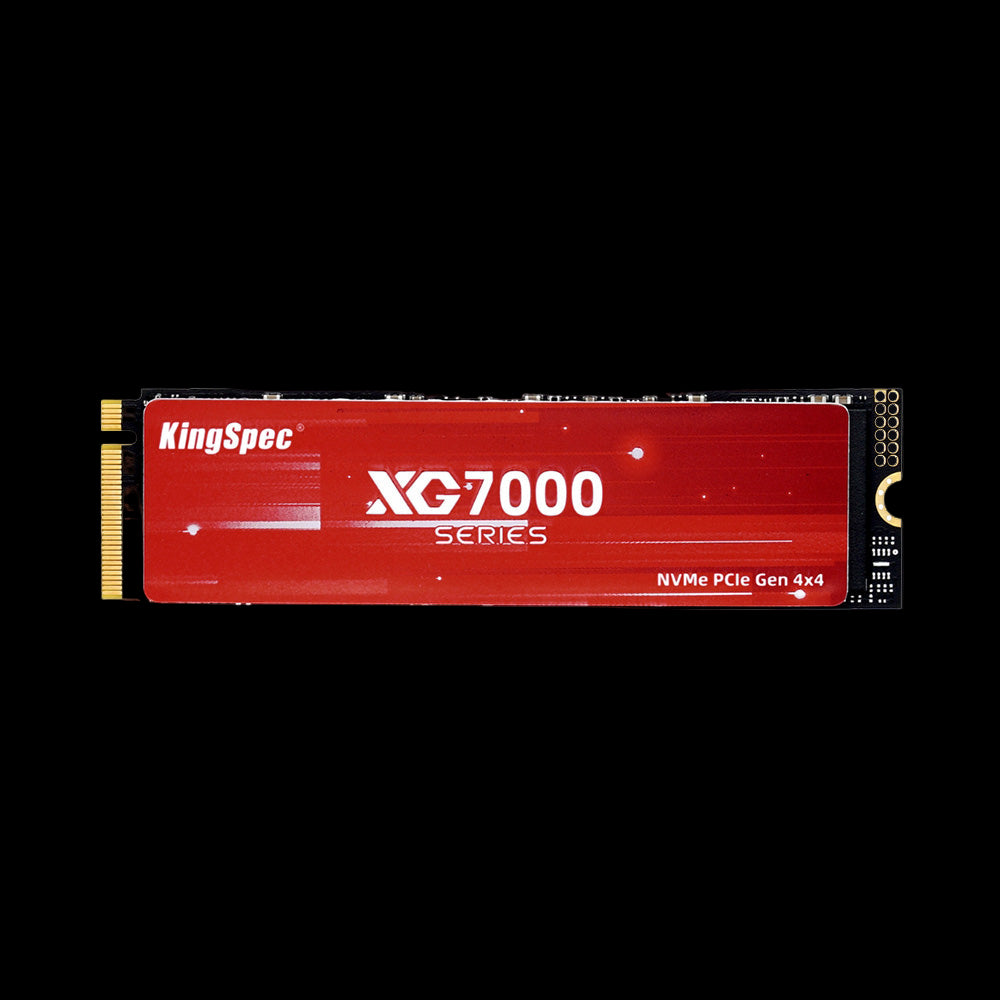
- Interface: PCIe Gen4 x4, NVMe 1.4
- Read Speed: Up to 7,400 MB/s
- Write Speed: Up to 6,600 MB/s
- Capacities: Up to 8TB
- Warranty: 3 Years
Fast PCIe 4.0 storage for big game libraries and large video or 3D projects, a natural partner for a 32 GB or 64 GB system.
Which Upgrade Should You Choose?
If memory use regularly sits near full, add RAM: the Templar for DDR5 desktops, the Red Heatsink for DDR4 desktops, or the Notebook module for DDR4 laptops. If your computer is out of space or slow to boot, start with an SSD instead.
Wrapping Up: Buy the RAM Your Day Actually Needs
For basic tasks, 8 GB may be enough, while 16 GB is the practical choice for most people. Go with 32 GB for heavier gaming, creative work, or multitasking, and consider 64 GB or more only when your workload calls for it.
Check how much RAM your computer supports and how much your apps use before you buy. Then browse the collections below for memory and storage that fit your setup.
Browse Related Collections
Frequently Asked Questions (FAQs):
Is 8 GB of RAM enough in 2026?
For email, browsing, and documents, yes. For gaming, video calls with many apps open, or creative work, 8 GB often feels tight, and 16 GB is the safer choice for a new computer.
Is 32 GB of RAM overkill?
For basic browsing, documents, and email, 32 GB is more than most people need. It’s useful for demanding games, creative apps, and heavy multitasking. Consider your usual workload before paying for the extra capacity.
Is 64 GB of RAM overkill?
For everyday use and gaming alone, 64 GB is usually more than necessary. It helps with large video or 3D projects, virtual machines, and other memory-heavy work.
Is 128 GB of RAM overkill for gaming?
For gaming alone, 128 GB is far more than needed. It only makes sense when the same computer handles specialized, memory-heavy work alongside gaming.
Is RAM the same as storage?
No. RAM is short-term working memory for the apps you have open. Storage, such as an SSD, holds your files, programs, and games long term. Adding RAM won’t give you more space, and adding an SSD won’t add memory.
How much RAM does Windows or macOS need?
Both use some memory just to run, and what’s left for apps depends on what else is open. Windows 11 lists 4 GB as its minimum, but comfortable everyday use usually takes 8 to 16 GB. Check the current requirements for your system and key apps.

