
A fast SSD can make your computer feel brand new. Apps open quicker, games load faster, and file transfers take less time. But even solid state drives can slow down over time if they are not set up or maintained properly. The good news is that learning how to improve SSD performance is easier than most people think.
Whether you use your computer for school, work, gaming, or creative projects, a few smart changes can boost speed right away. Keep reading to discover practical tips that can help your SSD run at its best.
⚡Key Takeaways
- •Keep at least 15 to 25 percent free space on your SSD
- •Make sure TRIM is enabled for better write performance
- •Update SSD firmware and drivers regularly
- •Avoid defragging your SSD
- •Monitor SSD health and temperature
- •Upgrade to NVMe if you need higher performance
What Affects SSD Speed and Why It Matters

Understanding what slows down an SSD helps you fix the problem faster. Small issues like low storage space or outdated firmware can have a big impact on speed.
How SSDs Work Compared to HDDs
An SSD uses NAND flash memory instead of spinning disks. This allows it to read and write data much faster than a traditional hard drive. The controller and firmware inside the SSD manage how data is stored and accessed.
There are also different types of SSDs:
- SATA SSD which is limited by older interface speeds
- NVMe SSD which uses PCIe lanes for much higher performance
If you want better results when learning how to improve SSD performance, it helps to know which type you have.
Common Reasons SSD Performance Drops
Several factors can slow your drive over time:
- Almost full storage
- Disabled TRIM feature
- Outdated firmware
- Too many background apps
- Overheating
- Incorrect BIOS settings such as IDE mode instead of AHCI
Fixing these issues can quickly restore lost speed.
How to Improve SSD Performance by Freeing Up Space
Storage space directly affects how well your SSD performs. When an SSD gets too full, it has less room to manage data efficiently.
Why Free Space Improves SSD Speed
SSDs use free space for background tasks like wear leveling and garbage collection. If your drive is more than 85 percent full, write speeds can slow down.
To improve SSD performance:
- Delete large unused files
- Uninstall apps you no longer use
- Empty the recycle bin
- Use built in disk cleanup tools
Try to keep at least 15 to 25 percent of your SSD free at all times.
Enable TRIM to Improve SSD Write Speed
TRIM is one of the most important features for SSD optimization. It helps the operating system tell the SSD which data blocks are no longer needed.
How TRIM Improves SSD Performance
When TRIM is enabled:
- The SSD can erase unused data blocks in advance
- Write speeds remain stable over time
- The drive experiences less unnecessary wear
Most modern systems enable TRIM automatically. You can check your system settings to make sure it is active. Keeping TRIM on is one of the simplest answers to how to improve SSD performance long term.
Update Firmware and Drivers for Better SSD Performance
Firmware controls how your SSD operates. Updating it can improve speed, compatibility, and stability.
Why Firmware Updates Matter
Manufacturers release updates to:
- Fix bugs
- Improve performance
- Enhance reliability
- Improve compatibility with newer operating systems
You can check the official website of your SSD manufacturer for firmware tools. Many manufacturers also provide dedicated utilities that help monitor SSD health and performance, including SMART status, directly from Windows.
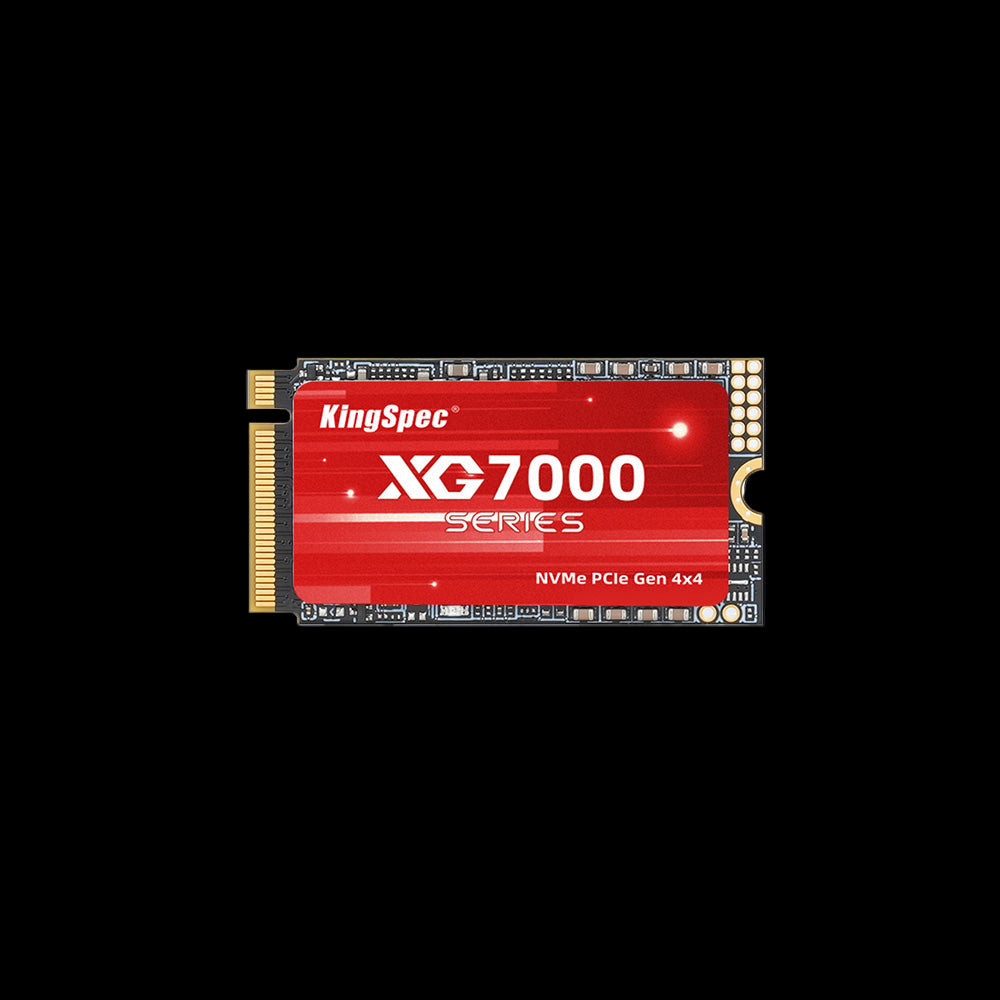
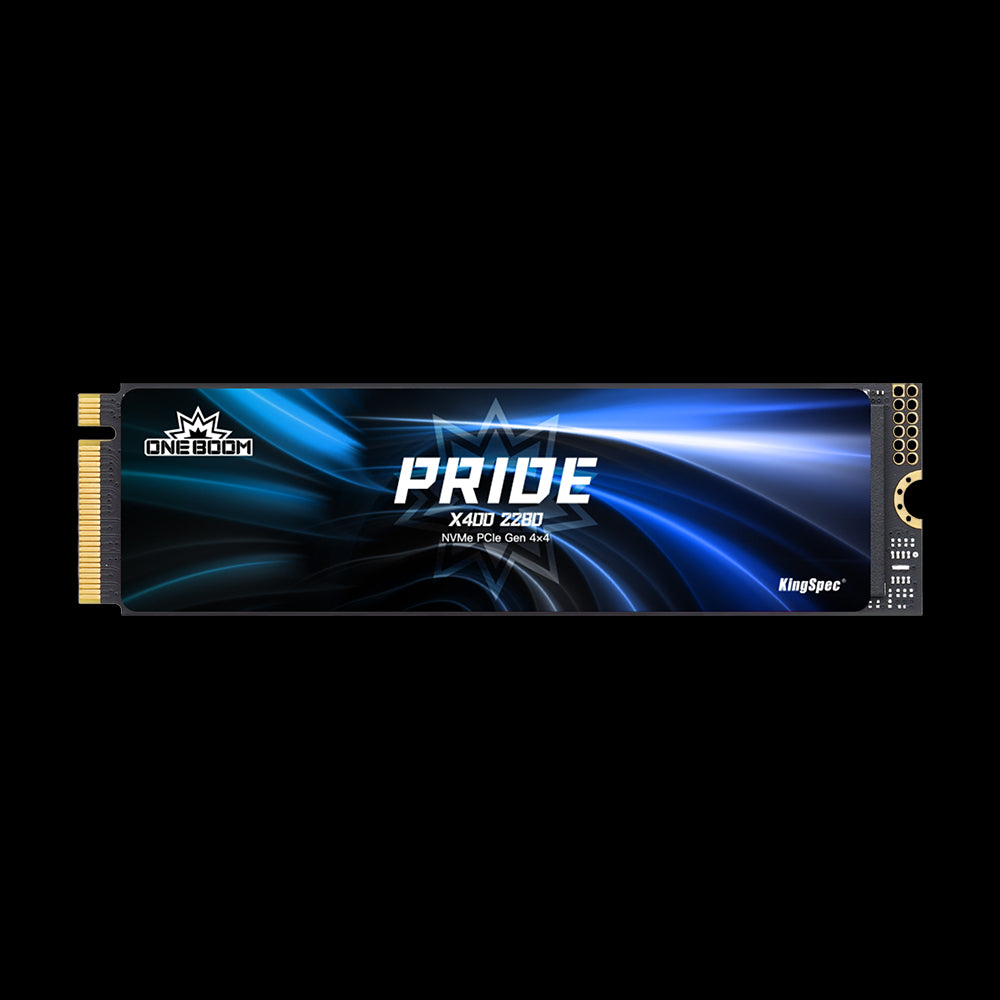
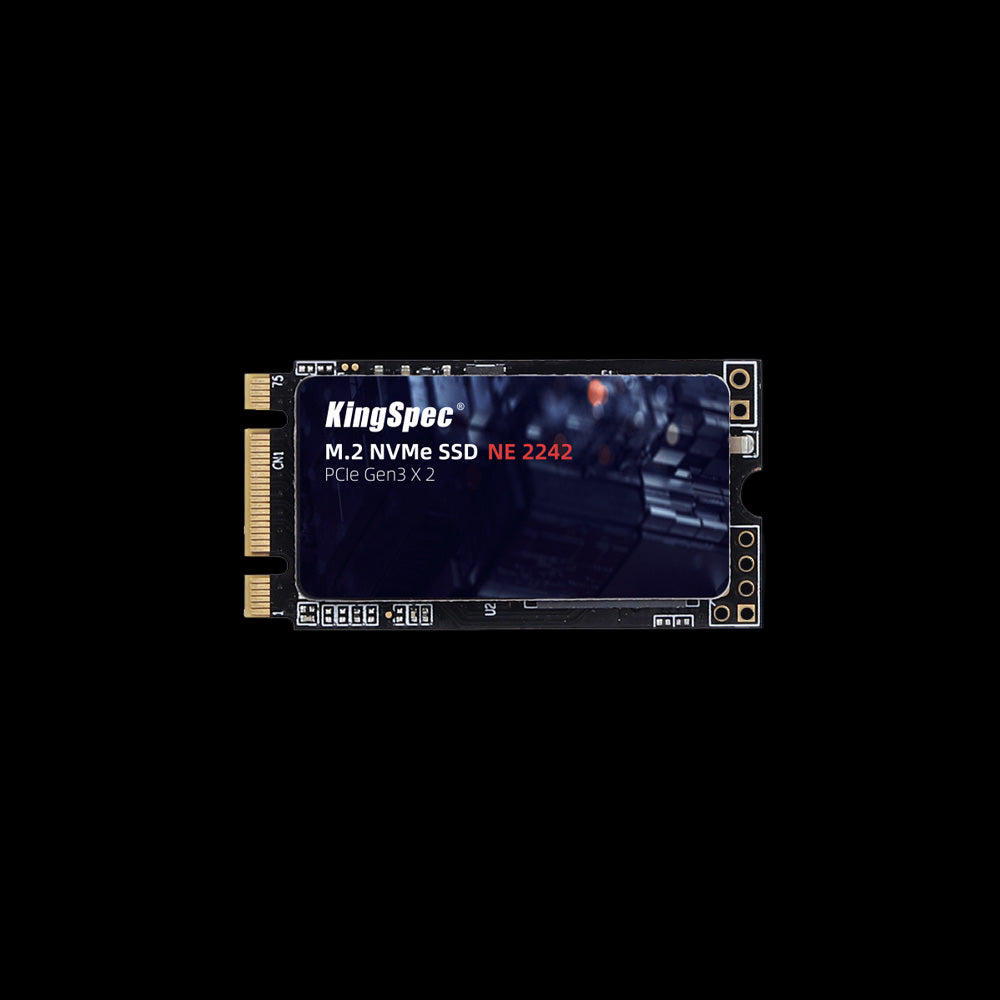
If you are upgrading or replacing your drive, choosing a reliable storage solution such as KingSpec SSDs or other storage products like internal and external storage solutions can help ensure consistent performance from the start.

Adjust Windows Settings to Improve SSD Performance

Your operating system plays a big role in how your SSD runs. A few setting changes can make a noticeable difference.
Enable AHCI Mode in BIOS
AHCI allows advanced storage features such as Native Command Queuing. If your system is set to IDE mode, performance may be limited. Check your BIOS settings to ensure AHCI is enabled before installing your OS.
Turn On Write Caching
Write caching allows the system to temporarily store data in memory before writing it to the SSD. This can improve performance, especially for small file transfers.
Choose a High Performance Power Plan
Power saving settings can slow down hardware. Switching to a high performance power plan can:
- Increase data transfer speeds
- Reduce latency
- Improve responsiveness
These small tweaks can have a big impact when learning how to improve SSD performance on Windows 10 or Windows 11.
Should You Defrag an SSD to Improve Performance
Defragmenting helps traditional hard drives but is not recommended for SSDs. SSDs access data instantly, so fragmentation does not slow them down in the same way.
Why SSDs Do Not Need Defragging
Defragging an SSD:
- Does not improve speed
- Causes unnecessary write operations
- Can shorten the lifespan of the drive
Modern operating systems automatically optimize SSDs using a process different from traditional defragmentation. Let the system handle it instead of running manual defrag tools.
Monitor SSD Health and Temperature
Heat and wear can affect performance over time. Checking your SSD’s health helps you catch problems early.
How Temperature Affects SSD Performance
If your SSD gets too hot:
- It may reduce speed to protect itself
- File transfers can slow down
- System stability can decrease
Keep your computer well ventilated and clean dust from fans regularly. Many tools allow you to check SMART data to monitor drive health and lifespan. You can use built in Windows tools or official manufacturer utilities to view SMART status and performance reports.
Upgrade Hardware to Improve SSD Performance
Sometimes the best way to improve speed is through an upgrade. If you are using an older SATA SSD, switching to NVMe can offer a big jump in performance.
SATA vs NVMe SSD Performance
SATA SSD:
- Maximum speeds around 550 MB per second
- Good for basic computing
NVMe SSD:
- Much higher read and write speeds
- Better for gaming, editing, and heavy workloads
If you work with large files, play modern games, or want faster boot times, upgrading your storage can significantly improve overall performance. The biggest speed improvements are usually noticeable during large file transfers, gaming, video editing, and other heavy workloads rather than simple web browsing.
How to Improve SSD Performance for Gaming
Gaming requires fast loading and quick data access. Your SSD plays a major role in this experience.
Reduce Game Load Times
To improve SSD performance for gaming:
- Install games on your fastest drive
- Keep enough free storage space
- Close background apps while gaming
If your motherboard supports it, newer technologies like DirectStorage can also reduce load times in supported games.
SSD Capacity and Performance
Many people wonder whether bigger SSDs are faster. The answer depends on how they are built.
Is 1TB SSD Faster Than 512GB
Larger SSDs often have more NAND chips and memory channels. This can allow them to process more data at once, resulting in slightly better performance.
However, the real world difference may be small for everyday tasks. The type of controller and interface matters more than just capacity.
How Long Will a 256GB SSD Last
SSD lifespan is measured in TBW which stands for terabytes written. For average users who browse the web, stream videos, and work on documents, a 256GB SSD can last many years.
Heavy workloads like constant video editing or large file transfers may reduce lifespan faster. Keeping enough free space and enabling TRIM helps extend durability.
How to Improve SSD Performance with Regular Maintenance
Simple maintenance habits can keep your SSD running smoothly for years. You do not need complex tools or technical skills.
Monthly SSD Performance Checklist
- Keep 15 to 25 percent free space
- Check for firmware updates
- Scan for malware
- Update your operating system
- Monitor drive health
These steps support long term speed and stability.
Keep Your SSD Fast and Reliable
Improving SSD speed does not require advanced skills or expensive tools. By freeing up space, enabling TRIM, updating firmware, and adjusting system settings, you can see noticeable improvements in performance. If you need even more speed, upgrading to a faster SSD type may be the right move.
For more helpful guides and tips about storage, performance, and other recreational tech activities, explore resources from KingSpec. You can also check out KingSpec products such as memory cards, gaming storage, internal storage, external storage, SSDs, DDR RAM, and more to support faster and smoother computing experiences.
FAQs About How to Improve SSD Performance
How do I make my SSD work faster?
You can make your SSD faster by freeing up space and keeping at least 15 percent of the drive empty. Make sure TRIM is enabled and update your firmware and drivers regularly. Switching to a high performance power plan and closing background apps can also improve speed.
How long will a 256GB SSD last?
A 256GB SSD can last many years for typical home or office use. Its lifespan depends on how much data is written to it each day. Regular tasks like browsing, streaming, and document editing usually do not wear out an SSD quickly.
Is 1TB SSD faster than 512GB?
A 1TB SSD can sometimes be slightly faster because it may have more memory chips working at the same time. This allows better parallel processing of data. However, the difference is often small for everyday use.
Do SSD drives need defragging?
SSD drives do not need traditional defragmentation. Defragging does not improve speed and can cause extra wear. Modern operating systems automatically optimize SSDs in a safe way.

