
You can open the files, but Windows won’t let you save, delete, or format anything. That’s what a write-protected USB drive looks like, and the cause can be a tiny lock switch, a Windows setting, a file-system error, or a drive that’s starting to wear out. If the drive turns out to be failing, a fast portable SSD makes a far more reliable replacement than another cheap flash stick.
The good news is that most write protection can be cleared without erasing anything. This guide shows you how to remove write protection from a USB drive safely, starting with quick checks, moving through Windows fixes like DiskPart, and ending with what to do if the drive stays locked.
Key Takeaways
- Check the USB drive or SD-card adapter for a physical lock switch first.
- Test the drive in another port or on another computer to see where the problem lives.
- Use DiskPart only after you’ve confirmed the correct disk number.
- Back up any files you can still open before you repair or format the drive.
- A drive that stays read-only on several computers may be failing and should be replaced.
What USB Write Protection Means

Write protection stops changes to a drive or the files on it. Depending on the cause, you may not be able to save new files, delete old ones, rename anything, or format the USB. You can usually still open and copy what’s already there.
A single file marked Read-only is a different problem from a whole drive being write-protected. If only one file is affected, right-click it, open Properties, and untick Read-only instead of changing any USB settings.
Before You Remove Write Protection From a USB
Start with checks that don’t erase anything. They often solve the problem outright, and they show whether the drive or the computer is to blame.
Check for a Physical Lock Switch
Some USB drives and SD-card adapters have a small lock switch on the side. Slide it to the unlocked position, reconnect the drive, and try saving a test file. Not every USB drive has a switch.
On an SD-card adapter, the card reader reads the switch position, so a worn adapter or reader can make a card look locked when it isn’t. This guide to what a write-protected memory card means covers card-specific fixes in more detail.
Try Another USB Port or Computer
Plug the drive into another USB port, ideally one directly on the computer rather than through a hub. If you can, test it on a second computer too. If it works there, settings on the first computer are probably blocking it.
Back Up Accessible Files
Copy any important files to your computer or another drive before you try repairs. Don’t format the USB while you still need what’s on it, because formatting erases everything.
How to Remove Write Protection From a USB in Windows
Work through these fixes in order. The steps are the same in Windows 10 and Windows 11, though some menus look a little different.
1. Clear the Read-Only Attribute With DiskPart
DiskPart is a built-in Windows tool that can view and change drive attributes. Microsoft documents the attributes disk command and its options.
- Connect the USB drive.
- Search for Command Prompt or Terminal, right-click it, and choose Run as administrator.
- Type
diskpartand press Enter. - Type
list diskand press Enter. - Compare the sizes to find your USB’s disk number.
- Type
select disk #, replacing # with the USB’s disk number. - Type
attributes disk clear readonlyand press Enter. - Type
exit, then try saving a file to the USB.
Important: Selecting the wrong disk can change another drive. Double-check the disk number, and never run the clean command unless you mean to erase the selected disk. Clearing the read-only attribute won’t override a physical lock or protection built into the drive’s firmware.
2. Check the Windows Registry Setting
A Registry value can block writing to removable drives. Back up the Registry before you change anything, because a wrong edit can cause problems.
- Press Windows + R, type
regedit, and press Enter. - Go to
HKEY_LOCAL_MACHINE\SYSTEM\CurrentControlSet\Control\StorageDevicePoliciesand look for a value named WriteProtect. - If it exists, open it and set its data to 0.
- Restart the computer and test the USB again.
This key isn’t on every computer, and changing it isn’t a guaranteed fix. If you can’t find it, leave the Registry alone rather than creating or editing unrelated entries.
3. Check Removable-Storage Policies
Some Windows policies block writing to removable drives, which is common on work and school computers. Microsoft’s removable-storage policy documentation lists the settings that can restrict access.
If the computer belongs to your workplace or school, ask your IT administrator to check its removable-storage policy. Don’t try to bypass a restriction your organization has set.
4. Check the USB for File-System Errors
File-system errors can make a USB drive act up, including refusing writes. Back up what you can before you scan it.
- Open File Explorer and select This PC.
- Right-click the USB drive and choose Properties.
- Open the Tools tab and select Check under Error checking.
- Follow the prompts Windows shows you.
You can also run chkdsk X: /f in an administrator Command Prompt, replacing X with the USB’s drive letter. Check the letter first so you don’t scan the wrong drive. The command may fail if Windows can’t access the volume or the drive has a hardware fault.
5. Format the USB If You Don’t Need Its Files
Formatting deletes everything and builds a fresh file system, so only do it after you’ve backed up what matters.
- Open File Explorer, right-click the USB drive, and choose Format.
- Pick a file system: exFAT works well across most newer computers and devices, FAT32 suits many older devices but can’t store a single file larger than 4 GB, and NTFS is a good fit for drives used mostly with Windows.
- Select Start and confirm the warning.
Check what your camera, console, or other device supports before you choose. If the drive is missing from File Explorer, try Disk Management instead. For a fuller walkthrough of each option, see this guide on formatting an external drive on Windows and Mac.
6. Update or Reinstall the USB Driver
A driver problem is more likely if the USB works fine on another computer. Open Device Manager, expand Disk drives, right-click the USB drive, and check for a driver update. You can also uninstall the device, restart the computer, and reconnect the USB so Windows sets it up again.
When USB Repair Software May Help
USB repair tools can sometimes fix file-system or partition problems, but none of them can fix every cause of write protection. Try Windows’ built-in tools or software from the drive’s maker before you download an unfamiliar program.
Be wary of tools that promise a guaranteed unlock. They can erase files, bundle unwanted software, or miss a drive that’s physically failing. And remember that a new drive won’t bring back files from a failing one, so back up first.
If the USB Is Still Write-Protected

Test the USB on another computer once you’ve tried the steps above. If it works there, the problem is likely a setting, policy, or driver on the first computer.
If it stays read-only everywhere, the drive may have a hardware-level lock or worn-out flash memory, though a lock switch, adapter, or shared restriction could still be involved. Use these signs to decide what to do next.
| What You Notice | Possible Cause | Next Step |
|---|---|---|
| Works on another computer | A setting, policy, or driver on the first computer | Check Windows settings, or contact IT if it’s a managed computer |
| Read-only everywhere | A drive-level lock, adapter issue, or failing drive | Check the switch and adapter, copy what you can, and test again |
| Disconnects or shows the wrong capacity | Drive damage or a connection problem | Back up files and try another port or computer |
| Formatting fails again and again | A lock, file-system issue, or hardware fault | Recheck the lock and settings, then replace the drive if it continues |
If the drive vanishes from File Explorer entirely, these fixes for a drive that isn’t showing up can help you rule out connection and setup problems before you give up on it.
Recommended KingSpec Storage to Replace a Write-Protected USB
When a USB drive locks itself into read-only mode on every computer, that’s often the flash memory protecting your data as it wears out. Rather than trusting it with new files, move to storage built to last. Each of these KingSpec picks plugs straight into USB or a card slot, and the USB drives are SSDs, so they’re much faster than a typical flash stick. For a full speed ranking, see KingSpec’s guide to the fastest portable SSDs.
Best USB Drives to Replace a Failing Flash Stick
These work like a regular USB stick but use SSD flash, so everyday copying and backups finish far sooner.

- Interface: USB Type-A and Type-C
- Read Speed: Up to 540 MB/s
- Write Speed: Up to 480 MB/s
- Capacities: 128GB to 2TB
- Design: Slim 2-in-1 dual drive
A slim, dark stick that feels like a normal flash drive but runs on SSD flash. Both plugs are built in, so it moves between laptops, desktops, and phones without an adapter, and capacities reach 2TB.
- Interface: USB Type-A and Type-C
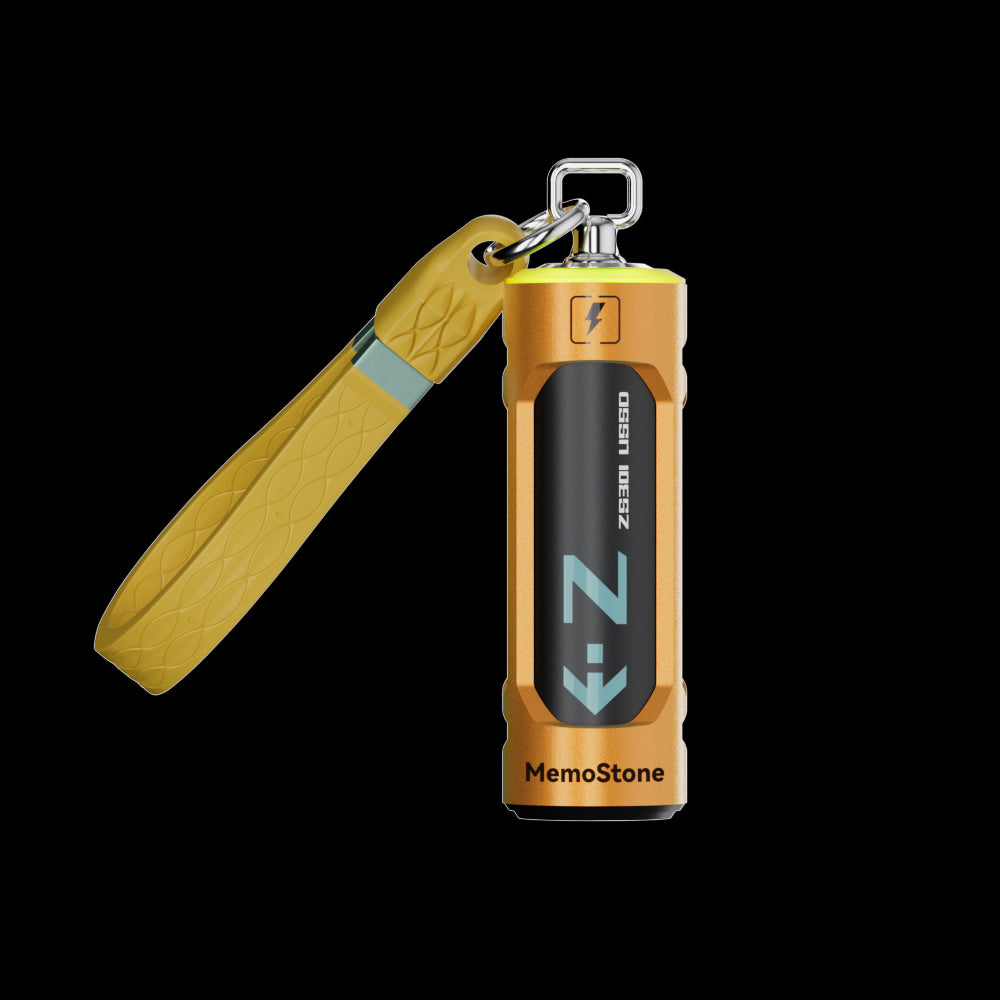
- Read Speed: Up to 1,030 MB/s
- Write Speed: Up to 990 MB/s
- Capacities: 256GB to 1TB
- NAND: 3D TLC NAND
- Warranty: 3 Years
Nearly twice as fast as the US4, with metal end caps that protect both connectors in a pocket or bag. A smart pick if your last flash drive died from being knocked around.
- Interface: USB 3.2 Gen2x2, 20Gbps
- Read Speed: Up to 1,900 MB/s
- Capacities: 256GB to 2TB
- Compatibility: PC, laptop, phone, tablet
- Warranty: 3 Years
The fastest pick here for rescuing and storing big folders of photos, video, or project files. It reaches top speed on a USB 3.2 Gen2x2 port and still works on slower ports.
Best Memory Card to Replace a Locked SD Card
If it was an SD card that kept locking up in your camera or reader, swap in a fresh card rated for the work you do.
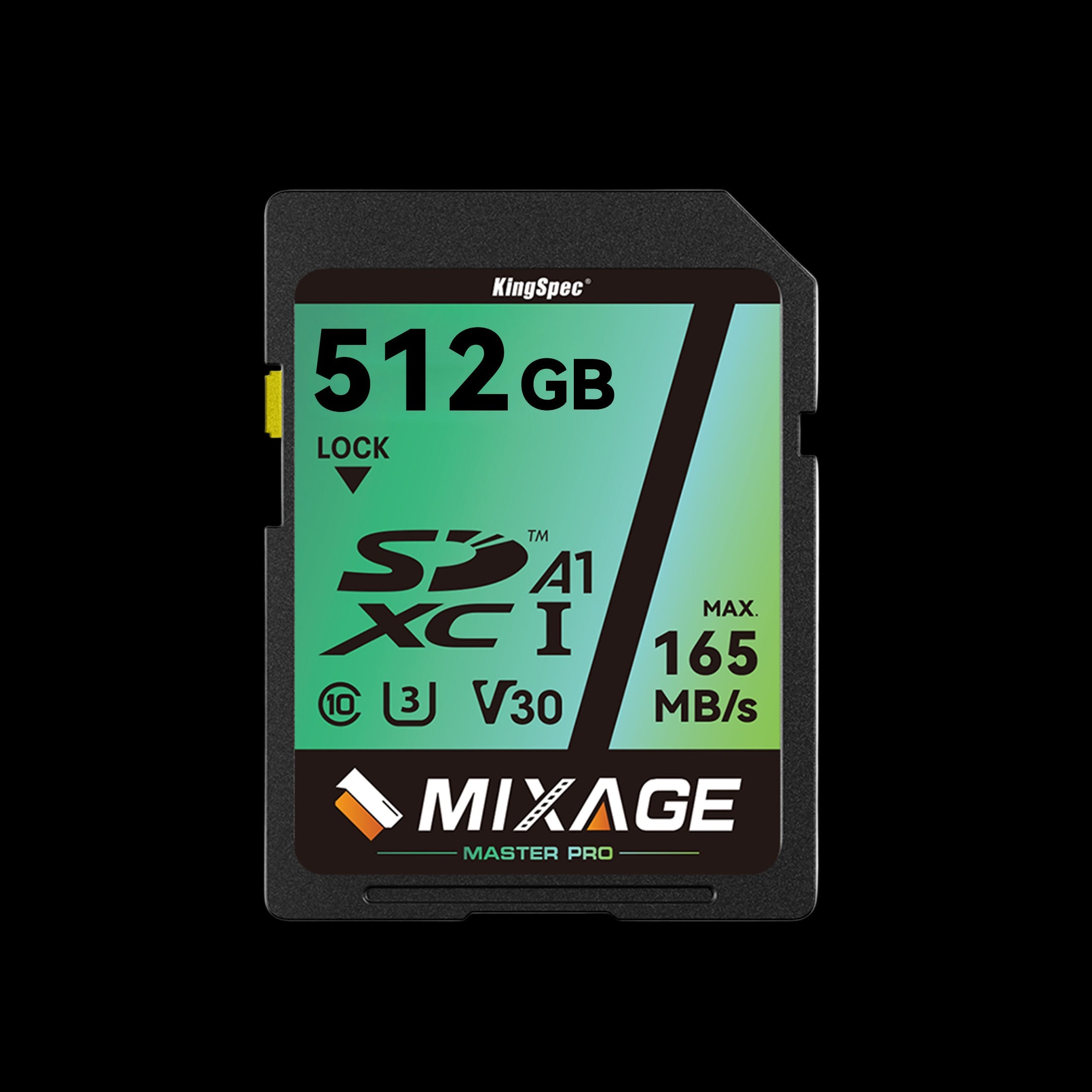
- Interface: UHS-I, U3, V30
- Read Speed: Up to 165 MB/s
- Write Speed: Up to 81 MB/s
- Capacities: 64GB to 512GB
- NAND: 3D NAND
- Warranty: 10 Years
Built for 4K video and high-resolution photos on Canon, Nikon, Panasonic, and Sony cameras. The V30 rating keeps recording smooth, and the 10-year warranty is a welcome change from a card that locked up on you.
Which Replacement Should You Choose?
For everyday files and moving documents between computers, the US4 is the easy, affordable swap for a dead flash drive. Pick the US201 if you want more speed and a tougher shell, or the ZS301 if you regularly back up large photo and video folders.
If the drive that failed was an SD card, the SDXC V30 card is the direct replacement for cameras and card readers.
Wrapping Up: Get Your USB Writing Again
To remove write protection from a USB drive, check the lock switch, test another port or computer, then work through Windows tools like DiskPart, the Registry, and error checking. Back up files before any repair, and format only when you’re ready to erase the drive.
If the USB stays read-only on every computer or shows signs of failure, retire it. Browse the collections below to find replacement storage that won’t leave you locked out of your own files.
Browse Related Collections
Frequently Asked Questions (FAQs):
How do I disable write protection on a USB drive?
Check for a physical lock switch, then test the USB in another port or computer. If the switch isn’t the cause, clear the read-only attribute with DiskPart. Back up important files before you repair or format the drive.
Why is my USB suddenly write-protected?
A lock switch, a Windows setting, or a removable-storage policy can block changes. File-system errors or worn-out flash memory can also force a drive into read-only mode. Testing it on another computer helps narrow down the cause.
Can I remove write protection from a USB without formatting it?
Yes, if the cause is a lock switch, a Windows restriction, or the read-only attribute. Try the non-destructive checks and settings first. Formatting isn’t needed for every write-protection problem, and it erases your files.
Why does my USB stay write-protected on every computer?
The USB may have a hardware-level lock, or its flash memory may be failing. If it stays read-only everywhere, copy any files you can still open and stop relying on it for new storage.
Does clearing the read-only attribute delete files?
No. Clearing the read-only attribute doesn’t erase anything; it only changes whether the drive can be written to. In DiskPart, make sure you’ve selected the correct disk before you change its attributes.
Is it safe to keep using a USB drive after removing write protection?
If the cause was a switch, setting, or one-off file-system error, the drive is usually fine to keep using. If write protection keeps coming back, treat it as a warning sign, keep a backup of everything on it, and replace the drive.

