
Running out of space on your PC can be frustrating. You try to download a game, save photos, or update Windows, and suddenly you see a low storage warning.
A full drive can also make your computer slower and less responsive. The good news is that learning how to upgrade storage on a PC is easier than most people think.
Keep reading to find the best way to add more storage, boost performance, and make your PC feel new again.
💾Key Takeaways
- •Upgrading PC storage can improve speed, performance, and available space.
- •You can upgrade storage by adding an SSD, replacing an old drive, or using external storage.
- •NVMe SSDs are the fastest option, while SATA SSDs offer a great balance of speed and cost.
- •Always check compatibility and back up your data before installing a new drive.
- •External drives are the easiest way to expand storage without opening your PC.
Upgrading Storage on a PC

Upgrading storage on a PC means increasing the amount of space your computer has to store files, programs, and the operating system. It can also mean replacing an old drive with a faster one.
There are two main goals when upgrading storage:
- Add more space for games, photos, videos, and apps
- Improve speed by switching from HDD to SSD
Storage is different from RAM. Storage keeps your files long term, while RAM helps your PC run programs smoothly in real time.
Signs You Need to Upgrade Storage on PC
If your computer feels slow or keeps warning you about low disk space, it may be time for an upgrade. Storage problems often show clear signs.
Common signs include:
- Low disk space warnings in Windows 10 or Windows 11
- Slow startup times
- Games taking too long to load
- Errors when installing updates
- Free space below 10 to 15 percent of total capacity
You can check your current storage by opening File Explorer and clicking on This PC. Look at your C drive to see how much space is left.
Types of Storage You Can Use to Upgrade PC Storage
Choosing the right type of storage is important before you start the upgrade process. Different drives offer different speeds and prices.
HDD vs SSD: Which Is Better?
HDD stands for Hard Disk Drive. It uses spinning disks to store data and is usually cheaper but slower.
SSD stands for Solid State Drive. It uses flash memory, which makes it much faster and more reliable.
There are two main types of SSD:
- SATA SSD which connects using a SATA cable
- NVMe M.2 SSD which connects directly to the motherboard and is much faster
Some M.2 slots support SATA only and not NVMe, so it is important to check your motherboard or laptop specifications before buying an NVMe SSD.
If speed matters, especially for gaming or heavy programs, NVMe SSD is the best choice. For everyday use, a SATA SSD still offers a big upgrade over an HDD.
Internal vs External Storage
Internal storage is installed inside your PC. It gives better speed and performance.
External storage connects through USB. It is easier to set up and does not require opening your computer.
Both options can help, depending on your needs and comfort level.
Can You Upgrade Storage on Any PC?
Most desktop computers can be upgraded easily. Many laptops can also be upgraded, but some ultra thin models have limited options.
How to Check Desktop PC Compatibility
Desktop PCs usually have extra drive bays and SATA ports. To check compatibility:
- Open your PC case and look for empty drive bays
- Check your motherboard manual for M.2 slots
- Make sure your power supply has extra connectors
Most desktops allow you to add a second drive without removing the old one.
How to Check Laptop Storage Upgrade Options
Laptops can be trickier. Some allow easy access to storage, while others have sealed designs.
To check:
- Search your laptop model online with the words storage upgrade
- Look for a removable bottom panel
- Check if it has a 2.5 inch drive bay or M.2 slot
If storage is soldered to the motherboard, it cannot be upgraded internally. In that case, external storage is the best solution.
How to Upgrade Storage on PC Step by Step
Upgrading storage may sound technical, but the process is simple if you follow each step carefully.
Step 1: Choose the Right Drive
Before buying a new drive, decide how much space you need.
- 500GB is good for basic use
- 1TB is ideal for gaming and media
- 2TB or more is great for heavy users
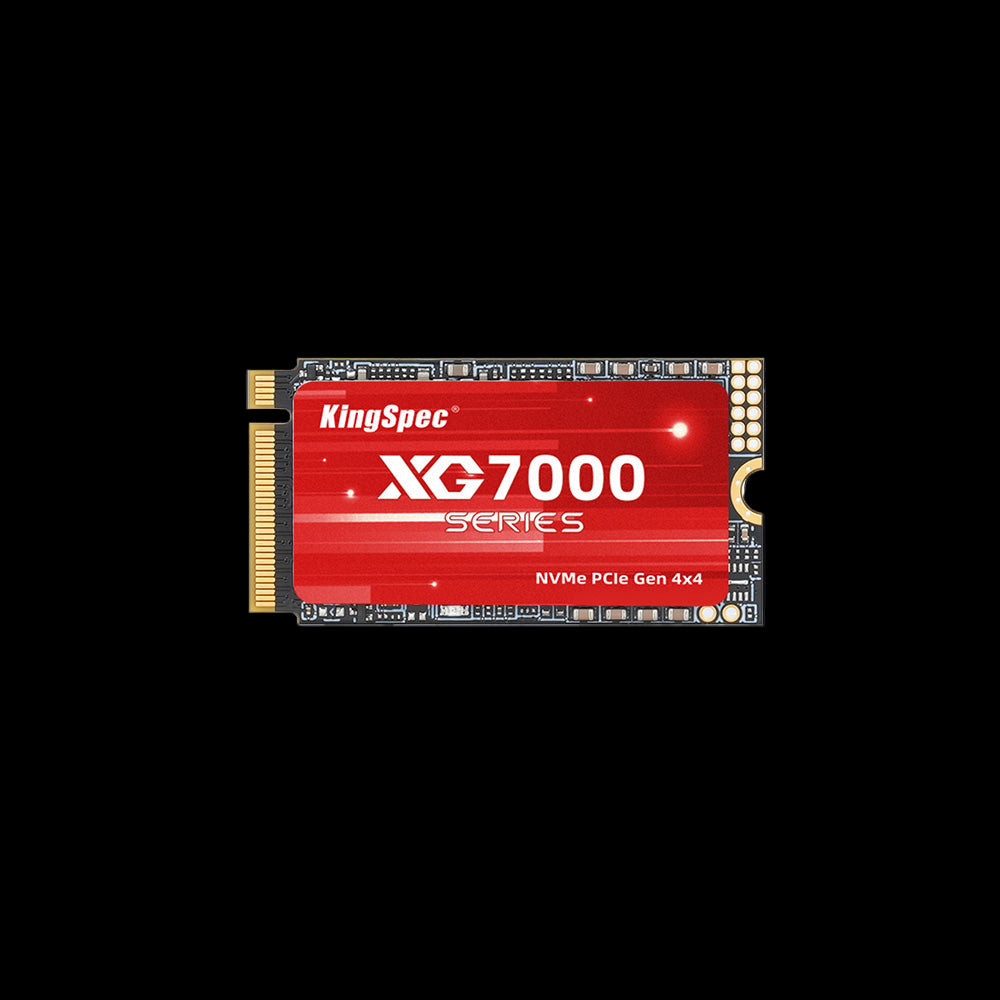
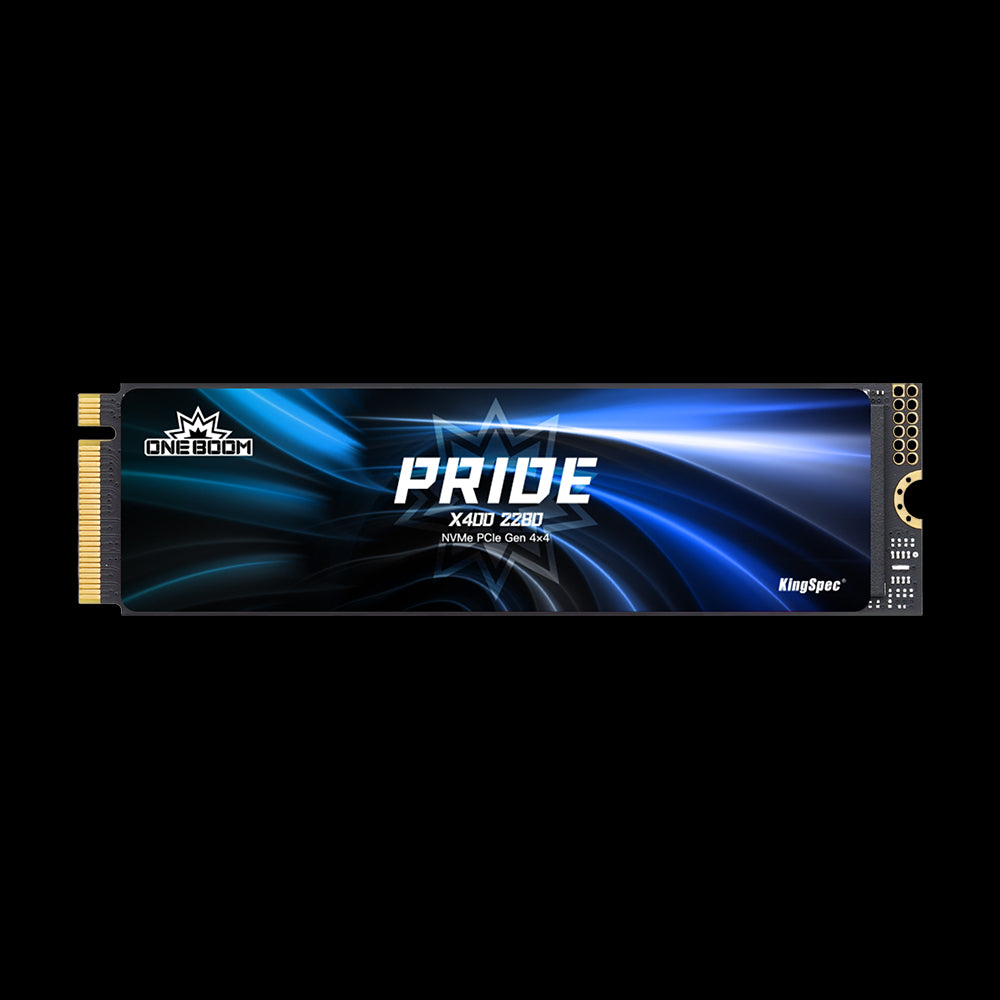
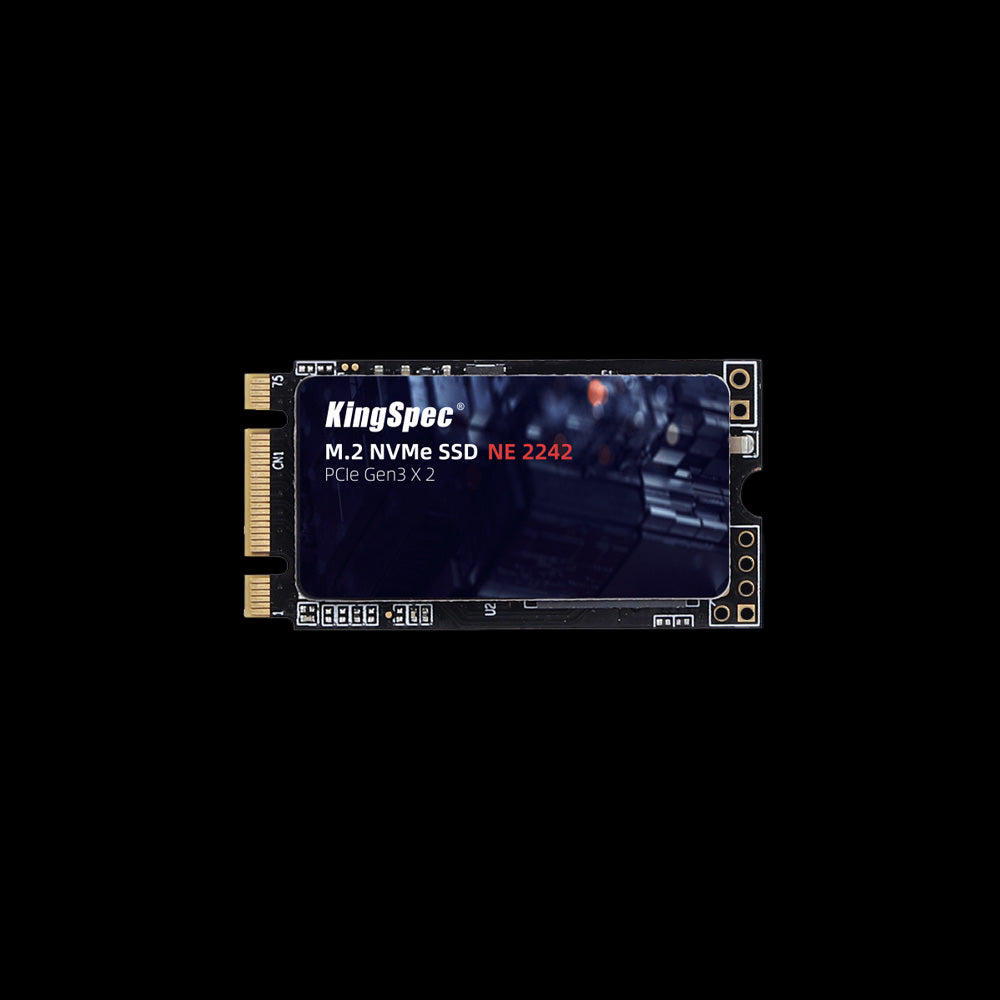
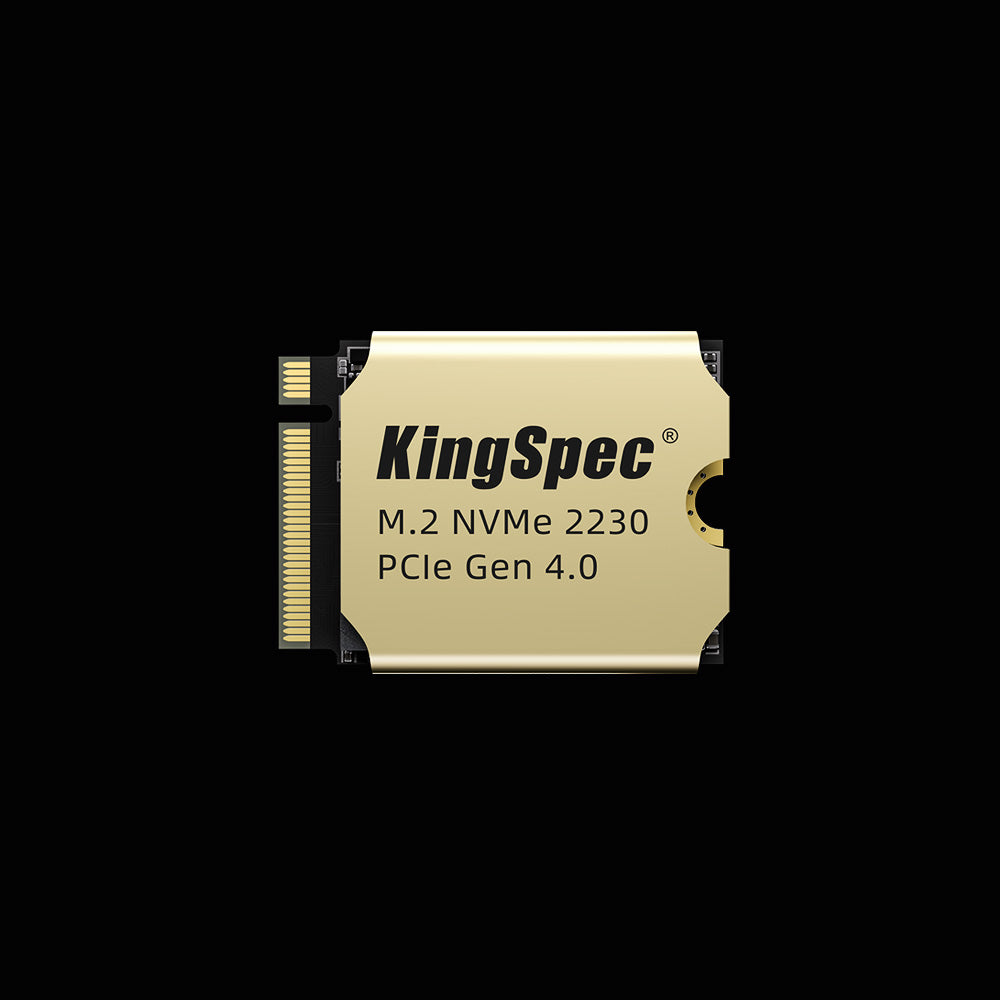
For reliable and high performance options, many users choose trusted storage solutions such as KingSpec internal SSDs or external storage for gaming and everyday use.
Step 2: Back Up Your Data
Backing up your files protects you from losing important data.
You can:
- Copy files to an external drive
- Use cloud storage
- Create a system image in Windows
Never skip this step before replacing your main drive.
Step 3: Install the New Storage Drive in a Desktop
Here is how to upgrade storage on PC for a desktop:
- Turn off and unplug your PC
- Open the side panel
- Insert the SSD into an empty drive bay or M.2 slot
- Connect SATA data and power cables if needed
- Close the case and plug everything back in
Make sure the drive is secured properly so it does not move.
Step 4: Install the New Storage Drive in a Laptop
For laptops:
- Turn off the device
- Remove the bottom screws
- Locate the storage slot
- Insert the new SSD carefully
- Reassemble the laptop
Always handle components gently to avoid damage.
Step 5: Initialize and Format the New Drive
After installing the drive, Windows needs to recognize it.
- Right click the Start button
- Select Disk Management
- Initialize the disk
- Create a new simple volume
- Format it as NTFS
For most modern systems that use UEFI firmware, GPT is the recommended partition style instead of MBR.
Once done, the new drive will appear in File Explorer.
Step 6: Transfer Windows to the New Drive
If you replaced your main drive, you need to move Windows.
You can:
- Clone your old drive using cloning software
- Perform a clean Windows installation
Cloning keeps your files and settings the same. A clean install gives you a fresh start.
How to Upgrade Storage on PC Without Opening It

Not everyone feels comfortable opening a computer. Thankfully, there are simple alternatives.
External storage is the easiest option:
- Plug in an external SSD using USB 3.0 or USB C
- Store games, videos, and backups on it
- Move large files off your main drive
Cloud storage can also help, especially for documents and photos. However, it depends on internet speed and may have storage limits.
External SSDs are fast and portable, making them a practical solution for laptops with limited upgrade options.
How to Free Up Space Before Upgrading Storage
Sometimes you can solve storage problems without buying new hardware. Cleaning up your drive can free up a surprising amount of space.
Ways to free up at least 20GB:
- Uninstall programs you no longer use
- Empty the Recycle Bin
- Use Disk Cleanup
- Delete temporary files
- Move large videos to external storage
To use Disk Cleanup:
- Type Disk Cleanup in the search bar
- Select your C drive
- Choose files to delete
- Confirm removal
This can quickly remove old system files and temporary data.
Common Mistakes When Upgrading PC Storage
Avoiding simple mistakes can save time and money. Planning ahead ensures a smooth upgrade.
Common errors include:
- Buying the wrong form factor such as confusing SATA and NVMe
- Forgetting to back up important files
- Not checking motherboard compatibility
- Failing to secure the drive properly
- Skipping BIOS settings when changing the boot drive
Always double check your PC specifications before purchasing a new drive.
How Much Does It Cost to Upgrade Storage on PC?
The cost depends on the type and size of the drive. SSD prices have dropped significantly in recent years.
General price ranges:
- 500GB SATA SSD is usually affordable
- 1TB NVMe SSD costs more but offers better speed
- External SSD pricing depends on capacity and brand
Upgrading storage is often cheaper than buying a new computer. It can extend your PC life by several years.
The Best Way to Upgrade Storage on PC
Learning how to upgrade storage on PC can make a huge difference in speed, space, and overall performance. Whether you choose an internal SSD for maximum speed or an external drive for convenience, the upgrade process is straightforward with the right steps. Always check compatibility, back up your data, and choose the storage size that fits your needs.
For more helpful guides and tips about PC upgrades and other recreational tech activities, check out KingSpec. They offer reliable solutions such as memory cards, gaming storage, internal storage, external storage, SSDs, DDR RAM, and more to help keep your devices running at their best.
FAQs About How to Upgrade Storage on PC
How would I add more storage to my PC?
You can add more storage by installing a new internal SSD or HDD, or by connecting an external drive through USB. Desktop PCs often allow adding a second drive without removing the old one. Laptops may require replacing the existing drive if there is only one slot. Always check compatibility before purchasing new hardware.
Can PC storage be upgraded?
Yes, most desktop PCs can be upgraded easily with additional or larger drives. Many laptops also allow storage upgrades if they have accessible drive bays or M.2 slots. Some ultra thin laptops have soldered storage, which cannot be upgraded internally. In those cases, external storage is a practical solution.
How to free up 20 GB of storage?
You can uninstall unused programs and delete large files like old videos or downloads. Running Disk Cleanup and removing temporary files can also free up several gigabytes. Moving photos and media to an external drive helps create more space. Emptying the Recycle Bin is another quick way to recover storage.
Can you expand your PC storage?
Yes, you can expand your PC storage by adding internal drives or using external storage devices. Internal upgrades usually offer better speed and performance. External drives are simple to set up and portable. Cloud storage can also expand available space for documents and photos.

