
Is your Steam Deck constantly displaying a "Low Disk Space" warning? If you bought the 64GB model, you know the pain of deleting games every week just to download a new update. The shader cache alone can fill up your drive fast. The best solution is a Steam Deck SSD upgrade.
Swapping out the internal drive is easier than you think. It instantly transforms your handheld into a powerhouse capable of holding your entire library.
In this guide, we will show you exactly what you need to get the job done safely using reliable KingSpec Internal SSDs. Stop juggling MicroSD cards and give your Deck the space it deserves.
The Key Takeaways
- The Drive: You strictly need an M.2 2230 NVMe SSD. A standard PC drive (2280) will not fit.
- The Tools: You need a screwdriver (Phillips #1 for LCD models, Torx T6 for some OLED models), a plastic pry tool, and tweezers.
- The Software: You need a USB-C flash drive (8GB+) to reinstall SteamOS after the swap.
- The Safety: Always put your Deck into "Battery Storage Mode" in the BIOS before opening the case.
- The Result: Faster load times and enough space for all your AAA games.
You May Want to Shop NVMe SSDs
Explore More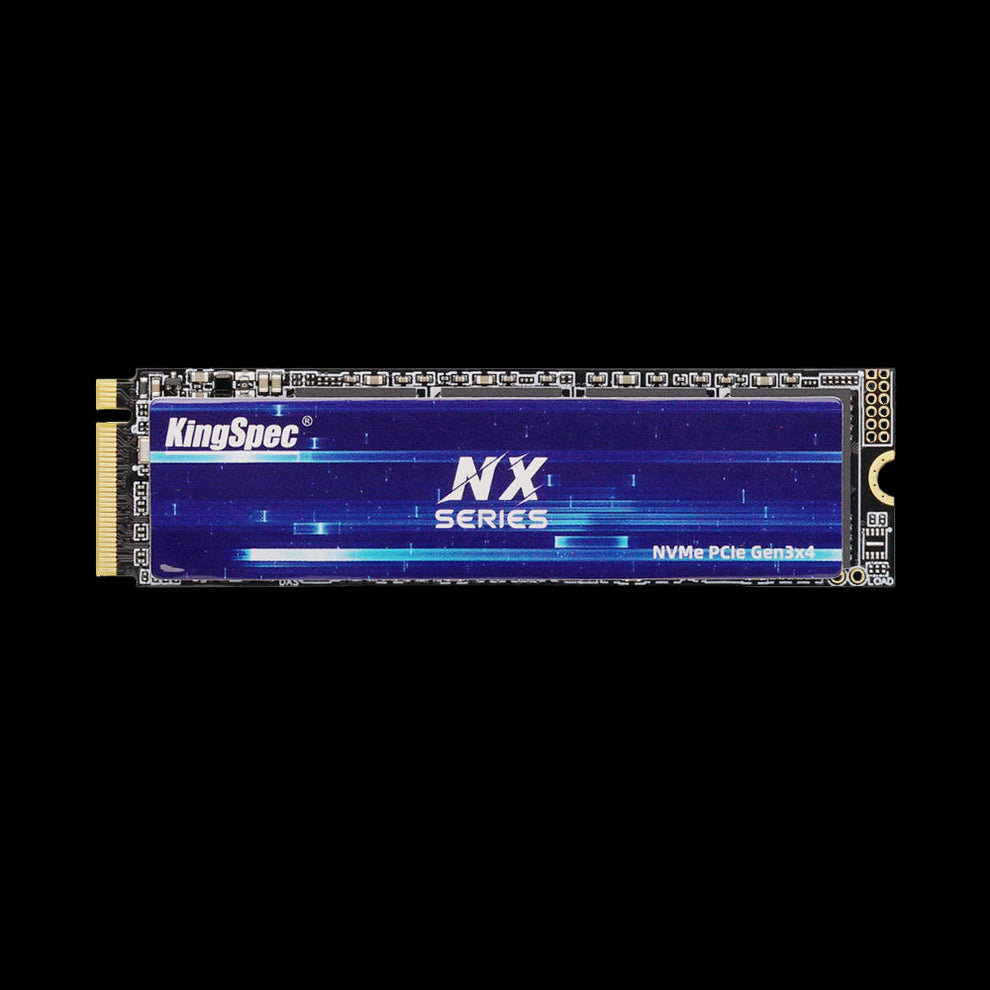


Why Upgrade Your Steam Deck SSD?
You might be wondering if it is worth the effort. Can't you just use a MicroSD card? While MicroSD cards are great for small indie games, they have serious limitations for modern gaming.
The "Shader Cache" Problem
This is the number one reason 64GB owners need to upgrade. Even if you install your games on a MicroSD card, the Steam Deck downloads "Shader Cache" files to the internal drive. These files help games run smoothly.
- For big games like Elden Ring or Apex Legends, these cache files can be gigabytes in size.
- Very quickly, your internal 64GB drive fills up with cache files, even if no games are installed on it.
- Once the drive is full, the Steam Deck crashes or fails to download updates.
- The Fix: A larger internal SSD gives you plenty of room for these essential system files.
Speed and Load Times
MicroSD cards are limited in speed (usually around 100MB/s). An internal NVMe SSD is significantly faster.
- KingSpec NX Series (PCIe 3.0): Runs up to 3500MB/s.
- KingSpec XF Series (PCIe 4.0): Runs even faster.
- Result: Games load 3 to 4 times faster on an SSD compared to a MicroSD card. Texture "pop-in" (where graphics look blurry for a few seconds) disappears.
Choosing the Right SSD (The 2230 Form Factor)
You cannot just use any SSD you find on sale. The Steam Deck is a compact device with very strict space requirements.
You need an M.2 2230 NVMe SSD.
- M.2: The connector type.
- 2230: The physical size. It is 22mm wide and 30mm long. It looks like a small square chip.
Most desktop PC drives are size "2280" (80mm long). These are too long. They will physically hit the battery and the fan. You must use the shorter 2230 size.
Top SSDs for Steam Deck Upgrades
At KingSpec, we specialize in these compact drives. Here are the best options for your upgrade:

KingSpec XF Series (PCIe 4.0)
If you have the new Steam Deck OLED or just want the fastest speeds possible, choose the XF Series M.2 NVMe 2230 PCIe 4.0 SSD.
Why it's great: It maximizes the bandwidth of the Steam Deck OLED and ensures games load instantly. It is also perfect if you plan to upgrade your ASUS ROG Ally with a 2230 M.2 NVMe SSD later, as that device also uses PCIe 4.0.

KingSpec NX Series (PCIe 3.0)
If you have the original Steam Deck LCD , this drive is the perfect match.
Why it's great: The NX Series M.2 NVMe 2230 PCIe 3.0 SSD offers incredible value. Since the LCD model uses a PCIe 3.0 slot, this drive hits the speed limit of the device without costing extra for speed you cannot use.
TO DO Before Upgrading your Steam Deck SSD
Do not just grab a screwdriver and start turning. You need to prepare the software side first. Remember that your new SSD is empty. It does not have SteamOS on it. You need to create a tool to install the operating system.
Step 1: Create a SteamOS Recovery Drive
- Get a USB Drive: You need a USB-C flash drive with at least 8GB of space. If you only have a USB-A drive, you will need a USB-C adapter.
- Download the Image: Go to the official Valve website on your computer and download the "Steam Deck Recovery Image."
- Download Rufus: This is a free tool for Windows that writes disk images to USB drives.
- Write the Image: Open Rufus. Select your USB drive. Select the SteamOS file you downloaded. Click "Start."
- Wait: This can take 10 or 15 minutes. Once it is done, set the USB drive aside. You will need it later.
Step 2: Update Your Steam Deck
Turn on your Deck and make sure it is updated to the latest stable firmware. This ensures the BIOS is ready for new hardware.
Step 3: Battery Safety (Crucial Step)
You should never work on electronics with a live battery.
- Unplug the charging cable.
- Turn off the Steam Deck completely.
- Hold down the Volume Up (+) button and press the Power button. Keep holding Volume Up until you hear a beep.
- You are now in the BIOS menu. Use the D-Pad to select Setup Utility.
- Go to the Power menu.
- Select Battery Storage Mode.
- Confirm the action. The Steam Deck will turn off.
- Note: The power button will now not work until you plug the charger back in. This confirms the battery is disconnected safely.
How to Install new SSD on Steam Deck: (Step-by-Step)
Clear off a table. Get good lighting. Put your screws in a small bowl so they don't roll away.
Step 1: Remove the Back Screws
- For LCD Models: There are 8 screws. Four short ones in the middle and four long ones on the corners. They are Phillips head.
- For OLED Models: There are 8 screws. They are usually Torx T6 screws.
- Action: Remove all 8 screws. Remember which ones go where.
Step 2: Remove the Back Plate
This is the scary part for beginners. The plastic clips are tight.
- Tool: Use a plastic guitar pick or a pry tool. Do not use a metal screwdriver, or you will scratch the plastic.
- Action: Start at the trigger buttons (R1/R2). Gently wedge the tool in the gap and twist. You will hear a loud click. This is normal. Work your way around the edges until the back plate pops off.
Step 3: Remove the Metal Shield
You will see a silver metal plate covering the motherboard.
- Hidden Screw: There is often a hidden screw underneath a silver foil sticker. Poke your screwdriver through the foil or peel it back to access the screw.
- Action: Remove the screws holding the shield. Lift the shield off and set it aside.
Step 4: Disconnect the Battery (Again)
Even though we used "Storage Mode," it is best practice to physically unplug the battery.
- Action: Look for the multi-colored cable coming from the battery. Use your fingernail or plastic tool to gently pull the connector out of the socket. Do not pull on the wires themselves. Pull on the plastic head of the connector.
Step 5: Remove the Old SSD
- Locate it: The SSD is located just below the fan. It is held down by a single screw.
- Action: Remove the screw. The SSD will pop up at an angle. Gently pull it out.
Step 6: Transfer the Foil Sleeve
You will notice the old SSD is wrapped in a foil sleeve. This is an EMI (Electro-Magnetic Interference) shield. It stops the SSD from interfering with the Wi-Fi card.
- Action: Slide the sleeve off the old drive. Slide it onto your new KingSpec M.2 2230 SSD. Be careful not to rip it.
Step 7: Install the New SSD
- Action: Insert the new KingSpec SSD into the slot at an angle. It only fits one way. Push it down gently and screw it back in.
Step 8: Reassemble
- Plug the battery connector back in.
- Screw the metal shield back on.
- Snap the back plate back on.
- Screw the 8 back screws in. (Remember: long screws on corners, short screws in the middle).
Reinstalling SteamOS (The Software)
You have physically installed the drive. Now you need to make it work.
Step 1: Plug in Power
Because we put the Deck in "Battery Storage Mode," the power button will not work yet. You must plug in the official USB-C charger. The charging light should turn on.
Step 2: Boot into Boot Manager
- Plug your USB Recovery Drive (the one you made in Part 3) into the USB-C port.
- Hold the Volume Down (-) button and press the Power button. Keep holding Volume Down until you hear the beep.
- You will see the Boot Manager screen.
- Select your USB drive from the list (it usually says "EFI USB Device").
Step 3: Reimage the Deck
The screen will go black, and the Steam Deck logo will appear.
- Patience: It can sit on this logo for 5 to 10 minutes. It feels like it is frozen. It is not frozen. The USB drive is slow. Just wait.
- Once the desktop environment loads, you will see four icons on the desktop.
- Double-click Reimage Steam Deck.
- Click "Proceed."
This will wipe the new SSD (which is already empty), format it, and install a fresh copy of SteamOS.
Step 4: First Setup
Once the installation finishes, the Deck will restart. You will go through the initial setup process just like when you first bought it (selecting language, Wi-Fi, and signing in).
Troubleshooting Common Issues on Steam Deck SSD Upgrade
Did something go wrong? Here are the fixes for the most common panic moments.
1. The Screen Stays Black After Installation
When you first turn on the Deck after disconnecting the battery, it goes through "Memory Training." This can cause the screen to stay black for up to 3 minutes.
- Fix: Plug in the charger. Turn it on. Wait at least 5 minutes. Do not panic unless it has been 15 minutes.
2. Wi-Fi Is Weak or Not Working
This usually happens because the foil sleeve on the SSD wasn't put back on, or the SSD is interfering with the Wi-Fi card (which sits right underneath the SSD).
- Fix: Open the Deck again. Ensure the foil sleeve is on the SSD. Also, check that you didn't accidentally bump the antenna wires on the Wi-Fi card while moving the SSD.
3. The "Reimage" Button Doesn't Work
Sometimes the USB drive is corrupted.
- Fix: Try a different USB flash drive. USB 3.0 drives are much better than old USB 2.0 drives for this. Re-make the recovery drive using Rufus.
What to Do with Your Old SSD?
You now have a spare 64GB or 256GB SSD sitting on your desk. Do not throw it away.
You can buy a cheap "M.2 2230 USB Enclosure" online for about $15. Put your old drive in it, and now you have a super-fast external USB drive.
- Use it to transfer files between your PC and your Deck.
- Use it as a backup drive for documents.
- Or keep it as an emergency backup in case you ever need to send your Steam Deck in for warranty repair (Valve requires the original parts).
Alternatively, if you need massive external storage for backups, check out our Solid State External Hard Drive collection.
You May Want to Shop Gaming External SSDs
Explore More


Conclusion
Performing a Steam Deck SSD upgrade is the best modification you can make to your handheld. It stops you from worrying about storage management and lets you focus on what matters: playing games.
By moving from 64GB to 1TB or 2TB, you can keep Cyberpunk 2077, Baldur's Gate 3, and GTA V installed all at the same time, with plenty of room left over for shader caches and updates.
Whether you choose the blazing-fast KingSpec XF Series or the reliable NX Series, upgrading your drive gives your Steam Deck a new lease on life.
Final Thought: Don't be intimidated by the hardware. The Steam Deck belongs to you. It was built to be opened and upgraded. With the right tools and this guide, you can double or quadruple your storage in less than 30 minutes.
Upgrade Your Setup Today
- Internal SSD Collection - Browse all our upgrade options.
- USB-C External SSD Storage - Perfect for docking stations.
- Portable SSDs - The easiest way to carry extra games.
FAQs on Steam Deck SSD Upgrade
Will upgrading my SSD void my warranty?
Valve has explicitly stated that opening the Steam Deck does not automatically void the warranty. They support the "Right to Repair." However, if you break something during the process (like snapping the battery cable or stripping a screw hole), that specific damage is not covered by warranty. Proceed with care and use the correct tools.
Can I use a 2280 SSD in a Steam Deck?
No. Absolutely not. A standard 2280 SSD is 80mm long. It will physically hit the battery and thermal components. You cannot cut the SSD, and you cannot cut the plastic shell of the Deck. You must use a 2230 SSD (30mm). Using the wrong size can cause the battery to puncture and catch fire.
Does the KingSpec XF Series work on the LCD Steam Deck?
Yes. The XF Series is a PCIe 4.0 drive. The LCD Steam Deck uses a PCIe 3.0 slot. PCIe is backward compatible. This means the XF drive will work perfectly, but it will run at the maximum speed of the Steam Deck LCD (PCIe 3.0 speeds). It is a great choice because you can move it to a future Steam Deck 2 or an OLED model later.
Do I really need to take the battery out?
You do not need to physically remove the battery (which is glued down). You just need to disconnect the cable. This is a critical safety step. If you drop a metal screw onto the motherboard while the battery is connected, it can cause a short circuit and fry your motherboard instantly. Disconnecting the cable removes this risk.
Can I just use a MicroSD card instead?
You can, but it is not the same experience.
- Speed: MicroSD cards are much slower. Games take longer to load and install.
Shader Cache: Even with games on the SD card, the shader cache goes to the internal drive. If you have a 64GB model, you will still run out of space. For the best experience, an internal KingSpec SATA SSD (or NVMe in this case) is always superior to an SD card.

