

If your USB flash drive is not showing up, start with the hardware. Try a different port directly on the computer, skip any hub, and test the drive on a second computer.
On Windows, open Disk Management. A drive with no letter needs one assigned, and a RAW or unallocated drive needs formatting, which erases it. On a Mac, open Disk Utility, choose Show All Devices, then mount the drive or run First Aid. If no computer can see it, the drive is likely failing.
Key Takeaways
- Most missing USB drives come down to a bad port, a hub, a missing drive letter, or a file system the computer can't read.
- Disk Management on Windows and Disk Utility on Mac show drives that File Explorer and Finder hide.
- Never format or initialize a drive that holds files you need. Both steps erase it.
- A drive that no computer detects, even in Disk Management or Disk Utility, is usually a hardware failure.
- Back up anything important as soon as the drive shows up again.
Why Is My USB Flash Drive Not Showing Up?
A USB flash drive usually goes missing for one of three reasons. The computer can't power or talk to it, Windows or macOS sees it but hides it, or the drive uses a format the computer can't read. The symptom tells you which one you're dealing with.
| What you see | Likely cause | Where to start |
|---|---|---|
| No sound, no light, nothing anywhere | Port, hub, adapter, or a failed drive | Hardware checks below |
| Connection sound, but no drive in File Explorer | No drive letter, or the drive is offline | Disk Management |
| Drive listed as RAW | Damaged or unsupported file system | Recover files first, then format |
| Drive listed as Unallocated or Not Initialized | No partition, or a damaged disk signature | New Simple Volume or initialize (erases data) |
| Yellow warning in Device Manager | Driver or device problem | Uninstall the device and rescan |
| Works on Windows, not on Mac (or the reverse) | File system support differs | Check the drive's format |
Start With Quick Hardware Checks
Rule out the connection before you change any settings. Microsoft's own Disk Management troubleshooting guide lists these steps first, because ports, hubs, and cables cause many detection problems.
- Unplug the drive, wait a few seconds, and plug it back in firmly.
- Use a different USB port that's directly on the computer. Hubs and some front-panel ports may not supply enough power.
- Remove any USB-C adapter or dock and connect directly if you can.
- Restart the computer with the drive unplugged, then connect it again.
- Try the drive on a second computer. If it fails there too, the drive itself is the problem.
- Look for damage. A bent connector or a cracked case can break the connection inside.
How to Find a Missing USB Drive in Windows 11 and 10

Open Disk Management to see every drive Windows detects, including ones File Explorer hides. Right-click the Start button and choose Disk Management. If you just plugged the drive in, choose Action > Rescan Disks.
Find your drive by its size. A 64 GB flash drive appears as roughly 57 to 60 GB because Windows counts in binary units. Then look at the status shown on the drive.
Assign a Drive Letter
If the drive shows a healthy partition with a file system but no letter, Windows can see it but has nowhere to show it. Assigning a letter fixes this without touching your files.
- Right-click the drive's partition and choose Change Drive Letter and Paths.
- Click Add, or Change if a letter already exists.
- Choose Assign the following drive letter, pick an unused letter, and click OK.
These steps come from Microsoft's guide to changing a drive letter. If the option is grayed out, the drive is unallocated or needs to be initialized first.
If the Drive Shows as RAW or Unallocated
RAW means Windows can't read the file system. Unallocated means there's no partition at all. Both can be fixed by creating a new volume, but that erases the drive.
- RAW: If the drive is empty, right-click the partition and choose Format. If it holds files you need, stop and read the recovery section first.
- Unallocated: Right-click the space, choose New Simple Volume, and follow the wizard. Pick exFAT for drives you'll share between Windows and Mac.
- Mac-formatted drives: Windows doesn't read Mac formats such as APFS out of the box, so a Mac drive may look RAW. Read it on a Mac instead of formatting it.
If the Disk Says Not Initialized or Offline
Right-click an Offline disk and choose Online. That step is safe. A Not Initialized disk is different. Microsoft notes that this status often means the disk was never set up, its formatting is corrupted, or the disk is failing.
Initializing erases the disk, so only do it when the drive is empty or already backed up. Microsoft also notes that some USB drives can't be initialized at all. Those drives are only formatted and given a letter.
Check Device Manager
Device Manager shows whether Windows loaded a working driver for the drive. Right-click Start, choose Device Manager, and expand Disk drives and Universal Serial Bus controllers.
- Look for a device with a yellow warning icon.
- Right-click it and choose Uninstall device.
- Choose Action > Scan for hardware changes so Windows reinstalls it.
Discover High-Performance Storage & Memory by Kingspec
Explore Kingspec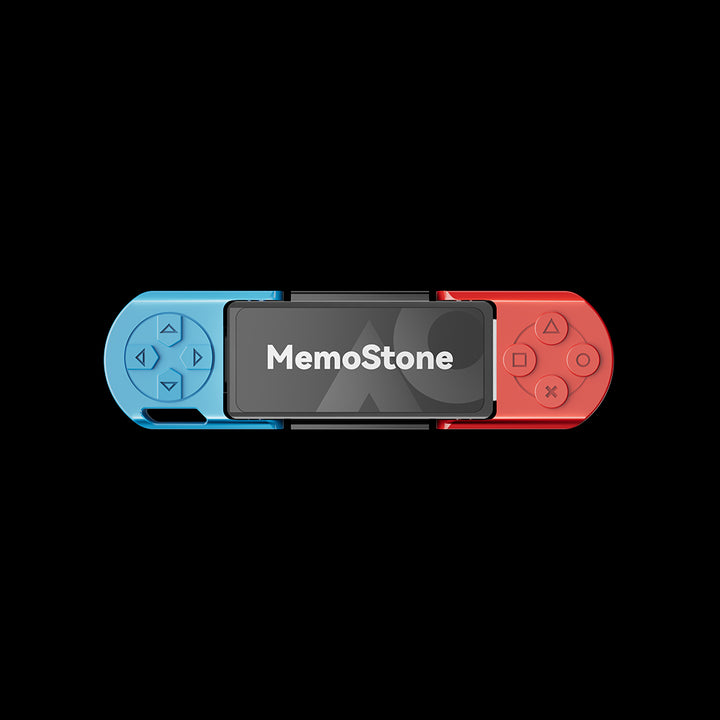
MemoStone US201 Portable External USSD
Stick-size USB 3.2 SSD with Type-A and Type-C plugs. Rated up to 1,030 MB/s read.
Shop now →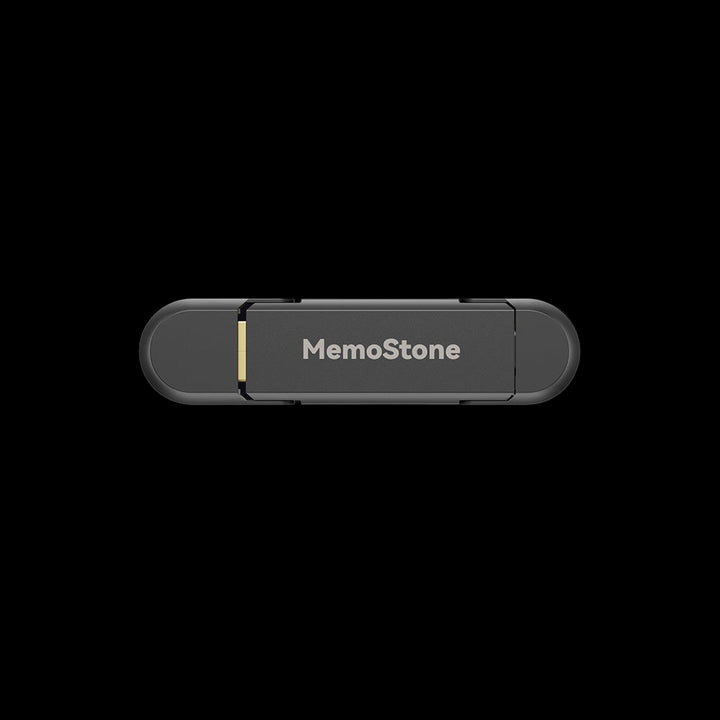
US4 Portable USB External SSD
USB 3.1 Gen 2 with Type-A and Type-C. Rated up to 540 MB/s read.
Shop now →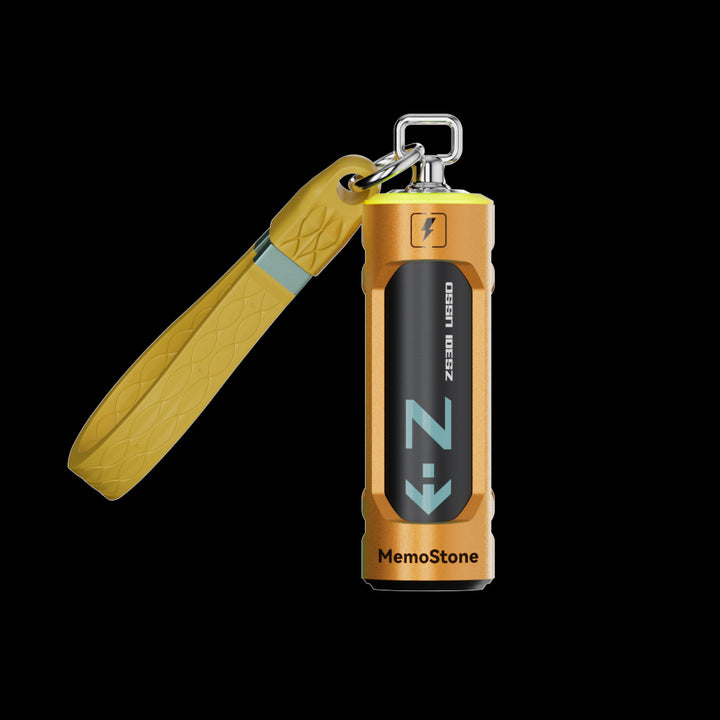
ZS301 Portable External USSD
USB 3.2 Gen 2x2 (20 Gbps) with Type-A and Type-C. Rated up to 2,000 MB/s read.
Shop now →How to Fix a USB Drive Not Showing Up on Mac

On a Mac, first check whether Finder is set to hide external drives. Then use Disk Utility, which lists every connected device even when Finder doesn't show it.
Show External Disks in Finder
In Finder, choose Finder > Settings. Under General, select External disks to show drives on the desktop. Under Sidebar, select External disks to list them below Locations. Apple explains these settings in See the devices connected to your Mac.
Mount the Drive in Disk Utility
- Open Disk Utility from Applications > Utilities.
- Choose View > Show All Devices.
- Select the USB drive's volume. A dimmed volume is not mounted.
- Click Mount in the toolbar.
Run First Aid
If the volume won't mount, First Aid can repair formatting and directory errors. Apple's Disk Utility repair guide says to start with the last volume on the device and work upward.
- Select the drive's last volume and click First Aid, then Run.
- Move up to the next item, such as the container, and run First Aid again.
- Finish with the physical device at the top of the list.
If Disk Utility reports errors it can't fix, Apple recommends erasing the disk. Copy off any files you can reach first. If the drive doesn't appear in Disk Utility at all, check the cable, connection, and power, then try another Mac.
When the Drive Shows Up but Files Won't Open
A drive can be detected but unusable when its file system doesn't match the computer. This is common with drives moved between Windows, Mac, cameras, and game consoles.
- NTFS on a Mac: Apple says NTFS drives are read-only on Mac. You can open files but not save new ones.
- APFS or Mac OS Extended on Windows: These are Mac formats. Windows may call the drive RAW or offer to format it.
- Console-formatted drives: A drive formatted as PS5 or Xbox game storage won't show files on a computer until you reformat it.
exFAT works for read and write on both Windows and macOS. Our exFAT vs NTFS comparison explains when each format makes sense.
Save Your Files Before You Format
Formatting and initializing both create a new, empty file system. Do them only after you've copied what you need, or decided the files don't matter.
- If the drive opens on any computer, even read-only, copy your files off right away.
- If it shows as RAW and the files matter, stop using it. Every new write can reduce what recovery can find.
- Microsoft notes that recovery apps or a professional data recovery lab are the remaining options for a failing disk.
Signs Your Flash Drive Is Failing
Some missing drives can't be fixed with software. These signs point to a hardware fault inside the drive:
- It doesn't appear in Disk Management or Disk Utility on any computer.
- It connects and disconnects repeatedly.
- Disk Management lists it as Unreadable, which Microsoft links to hardware failure, corruption, or I/O errors.
- Copies stall or fail partway through on every computer.
A drive that keeps failing is not a safe place for your only copy of anything. Replace it once your files are safe.
Common Mistakes to Avoid
- Clicking Format in the Windows pop-up. "You need to format the disk" is an offer to erase the drive, not a repair.
- Initializing a drive with data on it. Initialization erases the disk.
- Testing only through a hub. Always test a port directly on the computer.
- Running repeated formats on a failing drive. Recover files first.
- Pulling the drive out mid-copy. Eject it first to avoid corrupting the file system.
Frequently Asked Questions
Why does my USB make a sound but not show up?
The sound means Windows detected the device, but it has no drive letter or no readable volume. Open Disk Management and look at the drive. Assign a letter if the partition is healthy. If it shows RAW or Unallocated, the file system is damaged or missing, and formatting will erase the drive.
Why does my flash drive show in Disk Management but not File Explorer?
Usually it has no drive letter, or its file system isn't one Windows reads. Right-click the partition and choose Change Drive Letter and Paths. If Windows shows the volume as RAW, check whether the drive was formatted on a Mac or a console before you format it.
What should I do when Windows says I need to format the disk?
Click Cancel if the drive holds files you need. The message means Windows can't read the file system. Try the drive on another computer, or a Mac if it was formatted there. Format only after you've recovered your files or decided you don't need them.
Can a USB flash drive that isn't detected be fixed?
Often, yes, when the cause is a port, a drive letter, or the file system. Those fixes take minutes. If no computer detects the drive in Disk Management or Disk Utility, the hardware has likely failed. A recovery lab may still retrieve files, but the drive itself shouldn't be trusted again.
Why does my USB drive work on one computer but not another?
The two computers may differ in file system support, port power, or drivers. A drive formatted as NTFS works fully on Windows but is read-only on a Mac. A Mac-formatted drive may look unreadable on Windows. Reformatting as exFAT, after backing up, usually fixes this for good.
Final Thoughts
When a USB flash drive is not showing up, work from simple to serious. Check the port and a second computer, then use Disk Management or Disk Utility to see what the system detects.
Assign a letter, mount the volume, or run First Aid before you consider formatting. If you need a replacement, look for a drive with both USB-A and USB-C plugs so it works with more computers.

