
Open a 4K timeline, a few dozen browser tabs, a game, and a stream, and 32GB of memory can fill up faster than you’d expect. That’s where a 64GB DDR5 RAM kit earns its place. Before you add one to your cart, though, check what your system supports, because the best kit is the one your motherboard and processor can actually run. Start by comparing DDR5 desktop memory against your board’s limits.
More memory isn’t automatically faster. Capacity, speed, timings, and the number of sticks all matter. This guide covers whether 64GB is right for you, what to check before buying, how to install it, and how to fix the most common problems.
Key Takeaways
- 64GB DDR5 RAM suits heavy multitasking, creative work, virtual machines, and modded or streamed gaming.
- Check motherboard, processor, and laptop support before you buy.
- A matched 2x32GB kit is the most common and easiest 64GB setup for desktops.
- Rated speeds usually need XMP (Intel) or EXPO (AMD) turned on in BIOS.
- Pick a speed your system can run reliably instead of paying for the highest number.
What 64GB DDR5 RAM Means

“64GB DDR5” tells you the memory’s capacity and generation. It doesn’t tell you the speed, latency, stick layout, or whether it will work in your computer.
Capacity and Kit Layout
Most 64GB desktop kits come as two 32GB sticks or four 16GB sticks. A matched kit is sold and tested as a set, which makes it simpler and safer than combining separate kits.
| Layout | Advantages | Trade-Offs |
|---|---|---|
| 2x32GB | Leaves slots free for later and runs high speeds more easily | Higher cost per stick |
| 4x16GB | Can build on sticks you already own | Fills every slot and may need a lower speed to stay stable |
Four DDR5 sticks put more load on the memory controller, so many systems run them below the speed they’d reach with two. The exact result depends on the processor, motherboard, BIOS, and memory.
DDR5 Speed and Timings
RAM listings show a data rate, usually in MT/s, and timings such as CL (CAS latency). In general, a higher data rate moves more data each second, while lower timings reduce delay. How much you’ll notice depends on the processor, the workload, and your settings.
DDR5 vs. DDR4 Compatibility
DDR5 and DDR4 aren’t interchangeable. The notch sits in a different spot, so a DDR5 stick won’t fit a DDR4 slot. DDR5 works on newer platforms, such as Intel 12th Gen Core and later with a DDR5 motherboard, and AMD Ryzen 7000 series and later.
Is 64GB DDR5 RAM Right for You?
64GB helps when your usual work runs out of the memory you have. Check your memory use before you upgrade, since many everyday tasks don’t come close.
| Use | Does 64GB Help? |
|---|---|
| Gaming | 32GB covers most games. 64GB helps with heavy mods, streaming, or many apps open while you play. |
| Creative work | Often yes, for 4K video editing, 3D rendering, large photo projects, and music production. |
| Professional tasks | Often yes, for virtual machines, software development, data work, and heavy multitasking. |
| Basic use | Rarely. Browsing, schoolwork, video calls, and office apps don’t need 64GB. |
Open Task Manager while you work. If memory use regularly sits near 100% and things slow down, more capacity will help. If it rarely gets close, a bigger kit won’t make your PC feel faster. Gamers building a new rig can find a matched setup in KingSpec’s gaming performance range.
How to Choose a 64GB DDR5 RAM Kit
Start with compatibility, then compare speed, timings, layout, and price. Advertised specs only matter if your computer can use them.
Check Your Motherboard and Processor
Confirm that your motherboard uses DDR5, supports 64GB or more, and has enough slots. Check the processor’s memory specifications too, since it sets the maximum officially supported speed.
For a laptop, look up the exact model before ordering. Some laptops have soldered memory, while others have SO-DIMM slots that only accept certain capacities or speeds. This guide on how to get more RAM on a laptop walks through those checks.
Choose the Right Speed and Profile
Many DDR5 kits advertise a speed above the computer’s default memory setting. To reach it, you’ll usually turn on XMP for Intel systems or EXPO for AMD systems in the BIOS. The system has to support the profile, and stability at that speed isn’t guaranteed for every configuration.
Don’t assume the highest number is the best buy. Your processor and motherboard may run the kit slower anyway, and a faster kit can cost more without a difference you’d notice. For a speed-by-speed comparison, see this guide to the best DDR5 RAM.
Check the Kit Layout and Physical Fit
For most desktop builds, 2x32GB is the practical 64GB choice. Use the motherboard manual to find the right slots for two sticks, usually the second and fourth from the CPU. If a large CPU cooler sits close to the memory slots, check the RAM’s height before buying.
Compare the Features That Matter
Compare capacity, speed, timings, XMP or EXPO support, warranty, and price. RGB lighting and heatsink style are personal choices that don’t change performance.
Best 64GB DDR5 RAM for Different Builds
There’s no single best kit for every PC. Match the kit to your system and workload, and compare current specs before you buy.
| Build or Need | What to Look For |
|---|---|
| Gaming PC | A matched kit with a good balance of speed, timings, and price |
| AMD system | DDR5 with an EXPO profile your motherboard and processor support |
| Intel system | DDR5 with an XMP profile your motherboard and processor support |
| Compact PC | Low-profile RAM that clears the CPU cooler |
| Workstation | Capacity and speed suited to your software and project size |
| Laptop upgrade | DDR5 SO-DIMM memory supported by the exact laptop model |
How Much Does 64GB DDR5 RAM Cost?
The price of 64GB DDR5 RAM changes with speed, timings, brand, RGB lighting, and local availability. Two kits with the same capacity can cost very different amounts because their specs differ.
Compare complete matched kits rather than single sticks from separate listings. A higher price doesn’t always mean a difference you’ll notice, so weigh the extra cost against your real workload.
Installing and Setting Up 64GB DDR5 RAM

A careful install helps your system detect the full capacity and run the memory correctly. Follow your motherboard or laptop instructions, since layouts vary.
- Turn off the computer and disconnect power.
- Check the manual for the correct memory slots.
- Line up the notch and press each stick in firmly until the clips lock.
- Start the computer and confirm in BIOS or system information that it detects 64GB.
- If supported, turn on the kit’s XMP or EXPO profile in BIOS.
- Check the reported speed, then run a memory test to confirm stability.
Good to know: DDR5 systems often take longer than usual to start the first time after a memory change, because the motherboard is training the new RAM. Give it a few minutes before assuming something is wrong.
Common 64GB DDR5 RAM Problems
The usual issues are a PC that won’t start, memory running below its rated speed, or the system showing less than 64GB. Try these simple checks before assuming the kit is faulty.
- The PC won’t boot: Wait for memory training to finish, then reseat the RAM and confirm each stick is in a recommended slot.
- The speed looks too low: Check whether XMP or EXPO is on. The default speed is often lower than the kit’s rating.
- Only part of the capacity shows up: Make sure every stick is fully seated and supported by the motherboard or laptop.
- The system becomes unstable: Go back to default memory settings, then check for BIOS updates and compatibility details.
Mixing different RAM kits can cause problems even when both are DDR5. The system may lower their speed or become unstable, so one matched kit is the safer route.
Recommended KingSpec Upgrades for a 64GB DDR5 Build
A 64GB build usually means big projects, big games, or both, and the right memory and storage keep everything moving. Check every spec below against your motherboard manual before you buy.
Best KingSpec DDR5 Memory
The Templar is KingSpec’s DDR5 desktop memory. On the KingSpec store it comes in 16GB and 32GB (2x16GB) kits. Two identical 32GB kits make 64GB as a 4x16GB setup on boards with four slots, though four sticks may need a lower speed to stay stable.
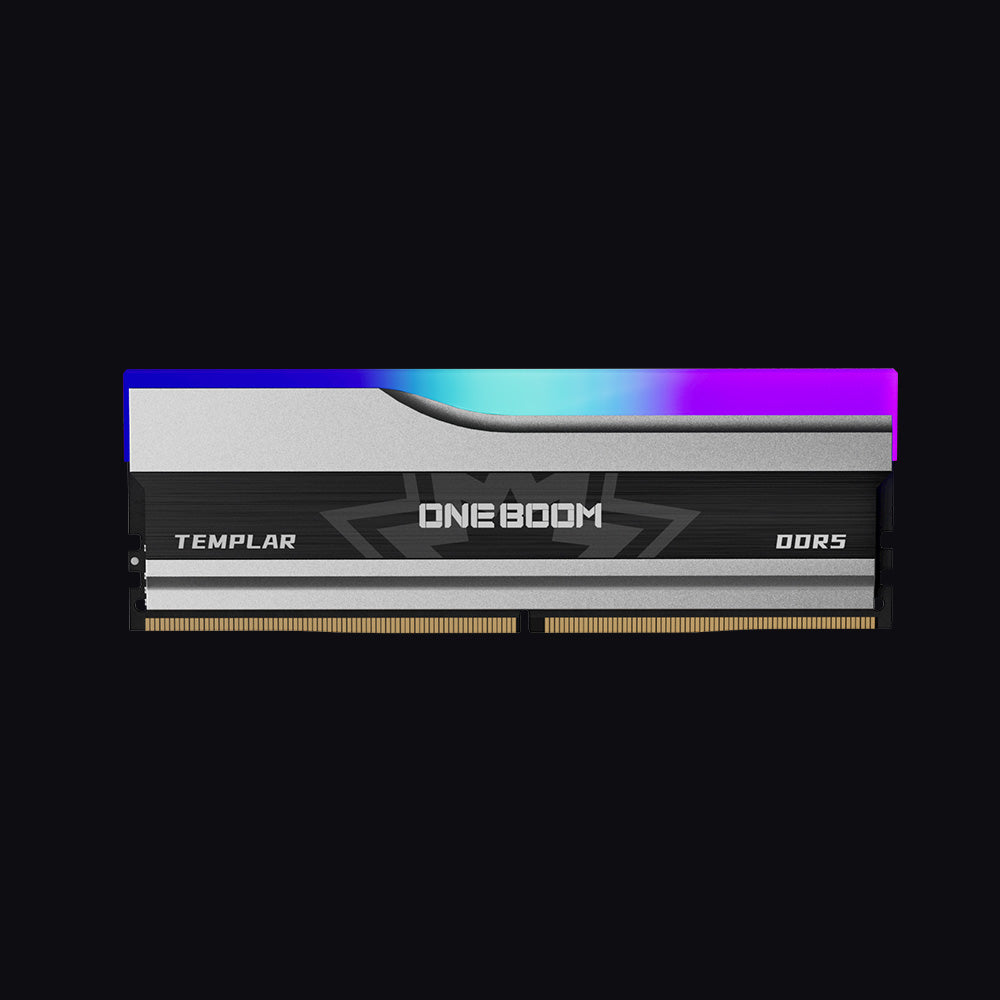
- Type: DDR5, 288-pin DIMM
- Speed: 5600 or 6000MT/s
- Capacities: 16GB or 32GB (2x16GB)
- Platforms: Intel and AMD
- Cooling: Aluminum heatsink
- Warranty: 3 Years
Fast DDR5 with an aluminum heatsink and customizable RGB lighting for current Intel and AMD platforms. The 6000MT/s option hits a popular speed for modern gaming builds, and on-die ECC adds reliability inside each chip.
Best Storage to Pair With 64GB of RAM
Large RAM pools work best with fast storage, so your projects and game libraries load as quickly as your memory can handle them. A fast NVMe drive matters most here; this guide explains how NVMe compares with SATA.
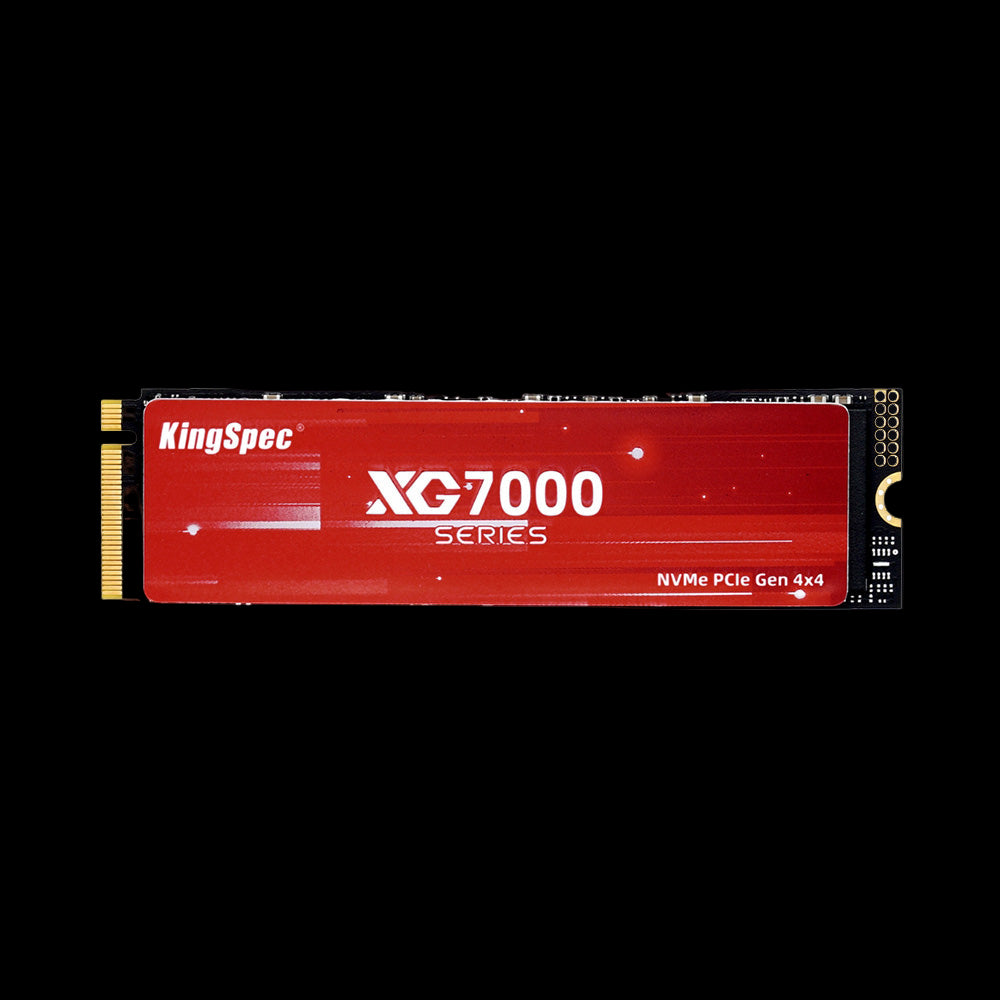
- Interface: PCIe Gen4 x4, NVMe 1.4
- Read Speed: Up to 7,400 MB/s
- Write Speed: Up to 6,600 MB/s
- Form Factor: M.2 2280
- Capacities: Up to 8TB
- Warranty: 3 Years
The natural partner for a 64GB build. Large video files, 3D scenes, and game libraries load fast, and up to 8TB means your projects can all live on one drive.
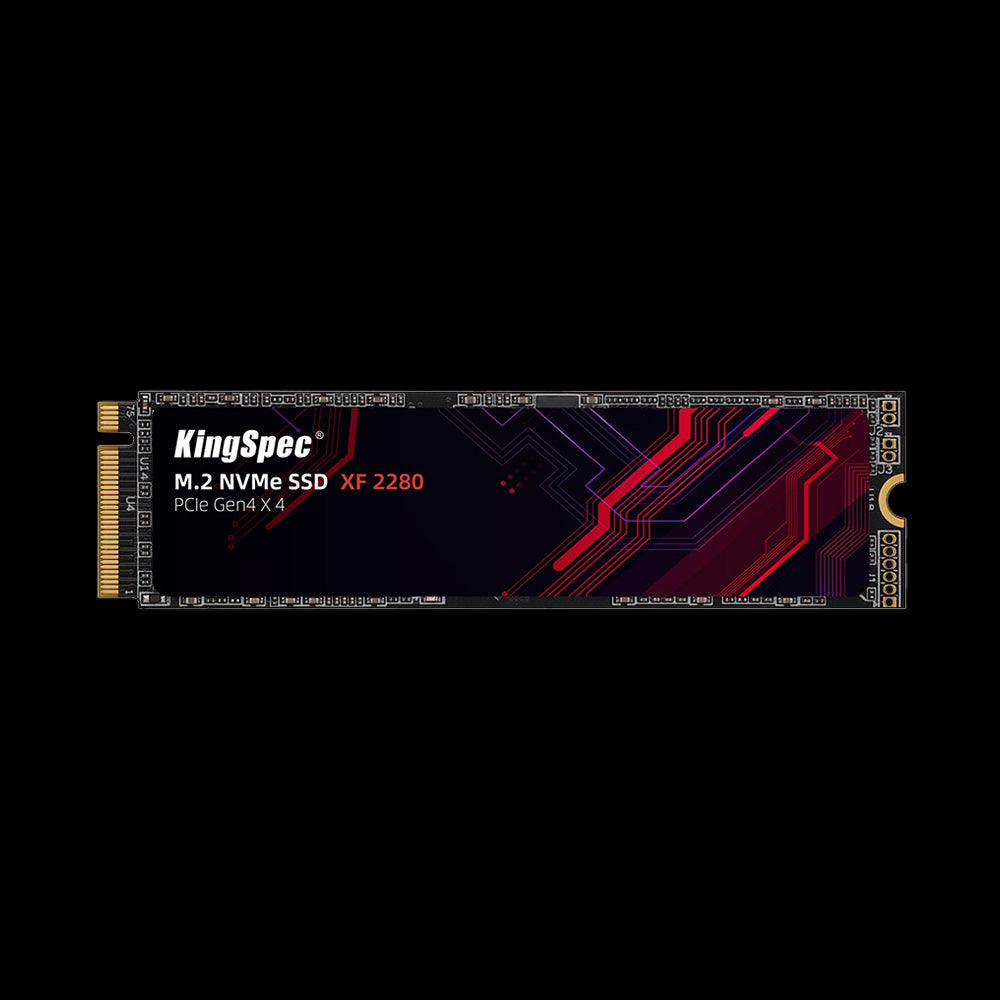
- Interface: PCIe Gen4 x4, NVMe
- Read Speed: Up to 5,100 MB/s
- Write Speed: Up to 4,600 MB/s
- Form Factor: M.2 2280, single-sided
- Capacities: 512GB to 2TB
- Warranty: 3 Years
Gen4 speed at a lower price, with a single-sided design that also suits laptops with 64GB DDR5 upgrades. A smart second drive for scratch files or extra games.
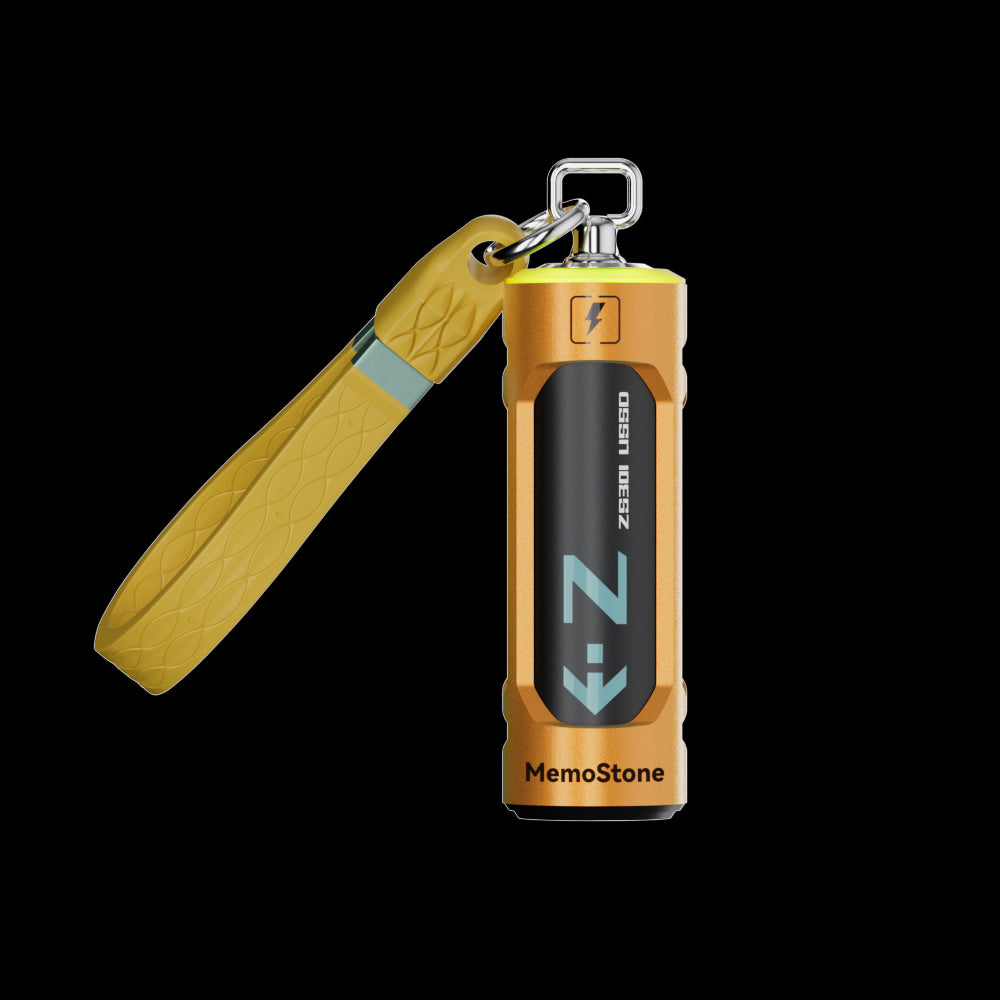
- Interface: USB 3.2 Gen2x2, 20Gbps
- Read Speed: Up to 1,900 MB/s
- Capacities: 256GB to 2TB
- Compatibility: PC, laptop, phone, tablet
- Warranty: 3 Years
Carry large project folders between your workstation and laptop, or back up finished work quickly. Top speed needs a USB 3.2 Gen2x2 port.
Which Upgrade Should You Choose?
If your memory use regularly maxes out, start with RAM and pick the Templar at a speed your platform supports. If your RAM is fine but projects and games load slowly, the XG7000 is the bigger upgrade, with the XF as the budget Gen4 pick. Add the ZS301 if you move large files between machines.
Wrapping Up: Buy for Your Workload, Not the Biggest Number
64GB DDR5 RAM is a strong upgrade if you run memory-heavy games, creative software, virtual machines, or lots of apps at once. Check compatibility first, then compare kit layout, speed, timings, and price.
Ready to upgrade? Browse the collections below for memory and storage that fit your build.
Browse Related Collections
Frequently Asked Questions (FAQs):
Is 64GB DDR5 RAM overkill?
It can be more than you need if you mainly browse, study, or use office apps, and many gaming PCs run well with 32GB. Choose 64GB if your games, projects, or multitasking regularly fill the memory you have.
What is the best 64GB DDR5 RAM?
The best kit is one your motherboard and processor support at a reasonable price. Compare layout, speed, timings, XMP or EXPO support, and warranty, and check your system’s limits before choosing on advertised speed alone.
Is 2x32GB or 4x16GB better for 64GB?
For most desktops, 2x32GB is the better choice. It leaves two slots free for future upgrades and usually reaches higher speeds more easily than four sticks.
Can I mix two different DDR5 RAM kits?
You can try, but different kits aren’t guaranteed to work well together. The system may run them slower or become unstable. A single matched kit is the more reliable option.
Does 64GB DDR5 RAM make games run faster?
Not necessarily. If a game already has enough memory, more RAM won’t raise frame rates. It helps when a game, mods, streaming, or other apps are using up the memory you have.
Why does my PC take so long to boot after installing DDR5?
DDR5 systems train new memory on the first boot after a change, which can take a few minutes. If the PC still won’t start after waiting, reseat the sticks and check the recommended slots.

