
Can I use a PCIe 3.0 SSD in a 4.0 slot? Yes, absolutely. PCIe is backward compatible, so a Gen3 drive works safely in a Gen4 slot with zero hardware risk. The SSD simply runs at PCIe 3.0 speeds rather than Gen4 speeds. For most users, gamers, students, and everyday PC builders, the real-world difference is smaller than you might expect.

This guide covers everything you need to know: how PCIe backward compatibility actually works, what speeds to expect, which system factors matter, and when it makes more sense to upgrade to a Gen4 drive instead. You will also find KingSpec's best PCIe 3.0 SSD options if you are shopping for a reliable, cost-effective upgrade right now.
Key Takeaways
- Yes, a PCIe 3.0 SSD works in a PCIe 4.0 slot because PCIe is backward compatible by design
- The drive will operate at Gen3 speeds (up to 3,500 MB/s), not Gen4 speeds
- For gaming, everyday computing, and general productivity, the performance difference is minimal
- Lane configuration, CPU support, and chipset routing can all affect actual speeds
- PCIe 3.0 SSDs are still a strong, cost-effective choice in 2026 for most workloads
How PCIe Backward Compatibility Works
PCIe stands for Peripheral Component Interconnect Express. Each generation doubles the bandwidth per lane, but the physical connector and communication handshake stay the same across generations. This is what makes backward and forward compatibility possible.
When you insert a PCIe 3.0 SSD into a PCIe 4.0 M.2 slot, here is what happens during startup:
- The motherboard detects the installed drive and reads its supported PCIe generation
- Both the slot and the drive negotiate to the highest speed they share
- The system settles on PCIe 3.0 speeds automatically, with no manual configuration needed
- No risk of damage, no incompatibility errors, and no performance penalty beyond the Gen3 speed cap
This same logic applies in reverse. A PCIe 4.0 SSD installed in a PCIe 3.0 slot will also work, just limited to Gen3 speeds. For a full breakdown of how the two generations compare in real-world use, see: PCIe 4.0 NVMe SSD: Speed and Performance Guide.
NVMe, M.2, and PCIe: Clearing Up the Terms
These three terms are related but different, and mixing them up causes a lot of confusion:
- PCIe is the interface standard (the communication lane between the SSD and CPU)
- NVMe is the storage protocol that modern M.2 SSDs use to communicate over PCIe
- M.2 is the physical form factor, the slot and connector shape on the motherboard
If your motherboard has a PCIe 4.0 M.2 slot, it will accept any PCIe 3.0 NVMe SSD as long as the physical key type (M-key) and size match. The most common sizes are 2280 (80mm) for desktops and 2230 (30mm) for compact devices like the Steam Deck. Always check your motherboard manual to confirm supported form factors before installing.
Performance: What Speed Will You Actually Get?

Installing a PCIe 3.0 SSD in a Gen4 slot does not increase the drive's speed. The slot acts as a highway; the drive determines how fast it can travel on that highway.
| PCIe Generation | Max Bandwidth (x4 slot) | Typical Sequential Read | Typical Sequential Write |
|---|---|---|---|
| PCIe 3.0 x4 | About 4 GB/s | Up to 3,500 MB/s | Up to 3,000 MB/s |
| PCIe 4.0 x4 | About 8 GB/s | Up to 7,400 MB/s | Up to 6,600 MB/s |
| PCIe 5.0 x4 | About 16 GB/s | Up to 14,000 MB/s | Up to 13,000 MB/s |
A PCIe 3.0 SSD in a 4.0 slot will hit its Gen3 ceiling of about 3,500 MB/s. That is still significantly faster than a SATA SSD (550 MB/s) and perfectly capable for the vast majority of use cases.
Real-World Impact for Gaming and Daily Use
In everyday tasks, the gap between PCIe 3.0 and 4.0 is much smaller than spec sheets suggest:
- Windows boot times on Gen3 and Gen4 are nearly identical for most users
- Game loading screens differ by one to two seconds at most in most titles
- Web browsing, office apps, and general multitasking feel the same on both
- The real gap appears in large sequential transfers: 4K or 8K video editing and moving massive project archives
For gaming, streaming, and school work, PCIe 3.0 is still more than fast enough. The biggest real-world jump comes from moving off a SATA SSD or a spinning hard drive, not from moving from Gen3 to Gen4.
KingSpec PCIe 3.0 SSD Options: Which One Fits Your Build?
If you are installing a Gen3 SSD into a Gen4 slot, or looking for a reliable budget-friendly NVMe upgrade, KingSpec's NX Series covers the most common form factors.
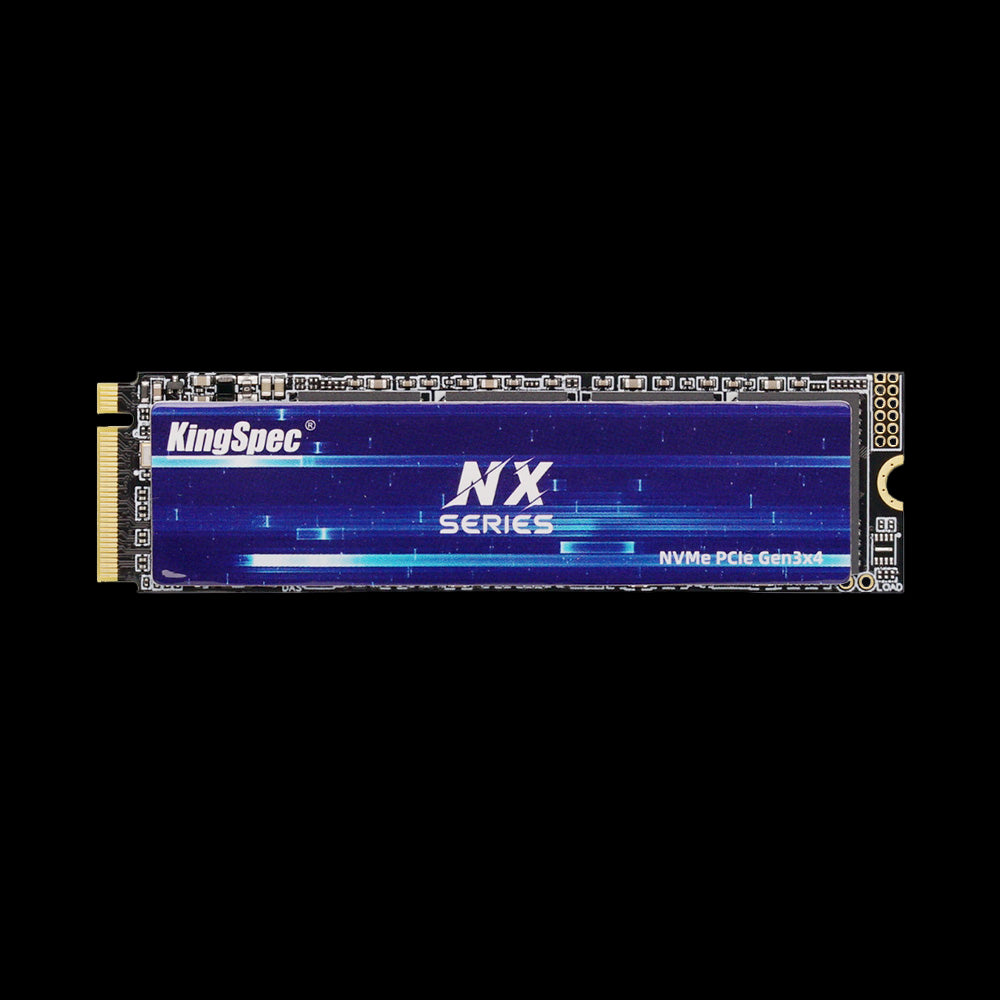
- Read: Up to 3,500 MB/s
- Write: Up to 3,000 MB/s
- Interface: PCIe Gen3 x4, NVMe
- Form Factor: M.2 2280
- Capacities: 256GB, 512GB, 1TB, 2TB
- Cooling: Ultra-thin graphene heatsink label
- Warranty: 3 Years
The standard desktop and laptop Gen3 choice. The 2280 form factor fits virtually every desktop motherboard and most laptop M.2 slots. Graphene thermal label keeps temperatures stable. Available up to 2TB for large game libraries or project storage.
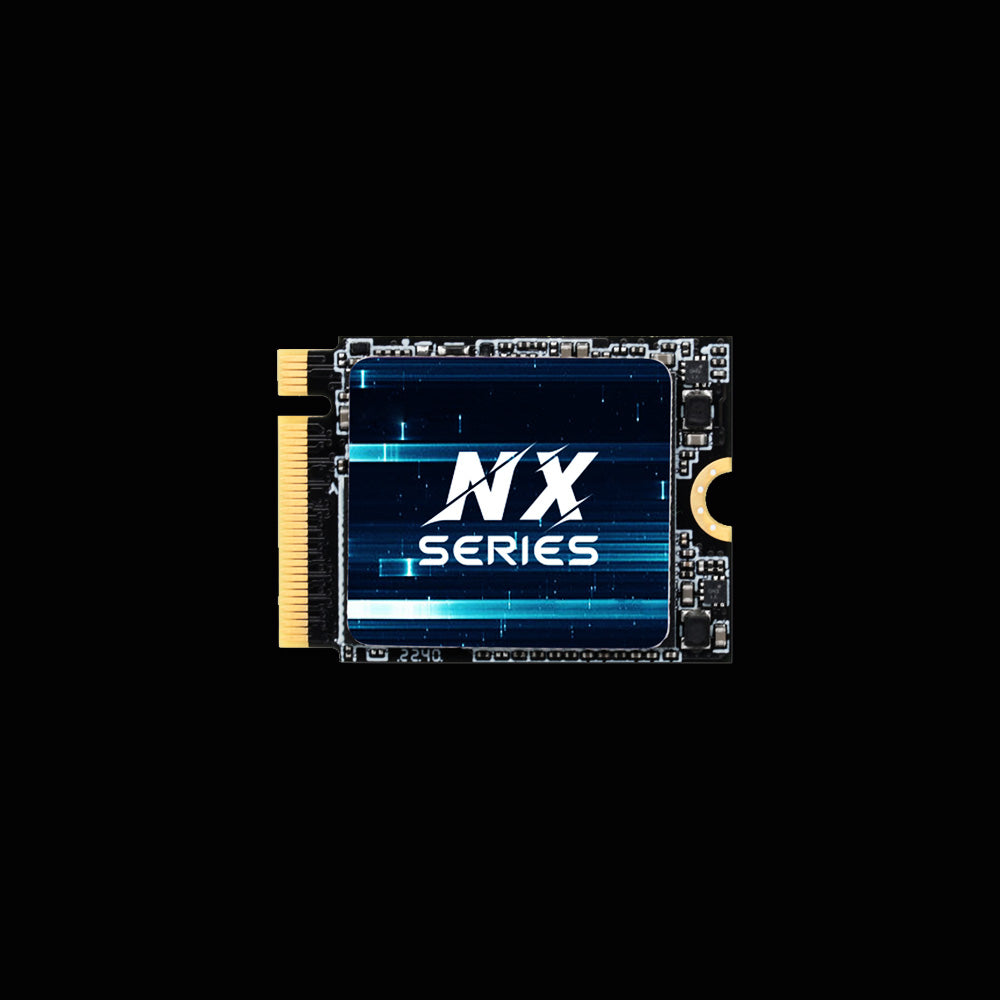
- Read: Up to 3,500 MB/s
- Write: Up to 2,500 MB/s
- Interface: PCIe Gen3 x4, NVMe 1.3
- Form Factor: M.2 2230
- Capacities: 512GB, 1TB
- TBW: 500TB / 1,000TB
- Warranty: 3 Years
Built for compact systems that use the shorter 2230 form factor, including the Steam Deck, ultrabooks, and mini PCs. Delivers full Gen3 speed in a space-saving design with efficient cooling and reliable 3D NAND.
Technical Factors That Affect Using a PCIe 3.0 SSD in a 4.0 Slot
Even though the setup is fully compatible, a few system-level details can affect how your drive actually performs. These are worth checking before you install.
PCIe Lane Configuration: x4 vs x2
Most NVMe SSDs, including all KingSpec NX Series drives, use x4 lanes for full Gen3 bandwidth. However, not every M.2 slot on every motherboard provides x4 lanes:
- Some secondary M.2 slots only offer x2 lanes, which halves available bandwidth
- Slots sharing bandwidth with SATA ports or other peripherals may have reduced throughput under simultaneous load
- Your primary M.2 slot (usually closest to the CPU) is almost always x4 and direct-to-CPU
Always install your primary NVMe drive in the first M.2 slot listed in your motherboard manual for full lane access.
CPU and Chipset Support
Some motherboards advertise PCIe 4.0 support, but the actual slot generation depends on both the board and the CPU:
- Older CPUs on newer boards may limit certain slots to Gen3 speeds regardless of board spec
- Chipset-connected M.2 slots (vs CPU-connected) may have lower effective bandwidth under heavy multi-device loads
- Some boards require a BIOS update to correctly recognize and negotiate Gen4 speeds
If you are unsure, check both your motherboard spec sheet and your CPU's supported PCIe generation before purchasing.
Thermal and Power Behavior
One advantage of running a PCIe 3.0 SSD in a Gen4 slot is thermals. Gen3 drives run cooler than Gen4 drives under sustained load, so heavy-duty heatsinks are rarely needed:
- Desktop installations generally have no heat concerns with Gen3 drives
- Laptops with tight thermal budgets benefit from a Gen3 drive's lower heat output
- Good case airflow remains important for any NVMe drive during sustained workloads
When Using a PCIe 3.0 SSD in a 4.0 Slot Makes Sense
There are plenty of practical situations where sticking with Gen3 is the smart move, even when your motherboard supports Gen4:
| Scenario | PCIe 3.0 SSD a Good Fit? | Reason |
|---|---|---|
| Reusing an existing SSD in a new build | Yes | Works at Gen3 speeds with zero compatibility issues |
| Budget gaming PC build | Yes | Gen3 is fast enough for all current games; save money on GPU or RAM instead |
| Upgrading from SATA or HDD | Yes | The SATA-to-NVMe jump is far larger than the Gen3-to-Gen4 jump |
| Secondary storage or game library drive | Yes | Gen3 speeds are more than sufficient for a second drive |
| Frequent 8K video editing or large file transfers | Consider Gen4 | The doubled Gen4 bandwidth measurably reduces wait time |
| AI/ML workloads with large dataset loading | Consider Gen4 or Gen5 | Higher bandwidth reduces data pipeline bottlenecks |
If you are building a budget PC, upgrading a laptop, or expanding storage for gaming and productivity, a PCIe 3.0 SSD installed in your Gen4 slot is a perfectly valid and cost-effective choice. Explore the full PCIe 3.0 SSD collection to find the right capacity and form factor for your system.
When You Should Consider PCIe 4.0 Instead

PCIe 4.0 SSDs double the sequential bandwidth of Gen3. For most users, this only matters in specific heavy-duty scenarios:
- Frequently transferring very large video, audio, or RAW photo files
- Professional content creation with 4K or 8K timelines in Premiere Pro or DaVinci Resolve
- Building a new high-end system and wanting to fully use your Gen4 platform
- Future-proofing for DirectStorage gaming or AI-assisted creative tools
If any of these describe your workload, browse the PCIe 4.0 SSD collection for Gen4 options across the full capacity range.
Conclusion
Can I use a PCIe 3.0 SSD in a 4.0 slot? Yes, without any hardware risk and without any setup needed. The drive negotiates Gen3 speeds automatically, and for gaming, everyday productivity, and budget builds, that performance level is excellent. The upgrade that matters most for most users is moving off SATA or a hard drive, not chasing the latest PCIe generation.
KingSpec's NX Series covers the most common Gen3 form factors, from standard desktop 2280 drives to compact 2230 options for the Steam Deck and ultrabooks. For users ready to step up to Gen4, KingSpec's full NVMe SSD collection covers PCIe 3.0, 4.0, and 5.0 in one place, alongside memory cards, portable SSDs, and DDR RAM for complete system upgrades.
Browse Related Collections
Frequently Asked Questions
Can a Gen3 SSD work in a Gen4 slot?
Yes. PCIe is backward compatible by design, so a Gen3 SSD installs and runs in a Gen4 slot without any issues. The motherboard automatically detects the drive's generation and negotiates to Gen3 speeds. There is no risk of damaging the drive or the slot when installing correctly.
What speed will a PCIe 3.0 SSD get in a PCIe 4.0 slot?
A PCIe 3.0 SSD will run at Gen3 speeds regardless of the slot it is installed in. For x4 NVMe drives like the KingSpec NX Series, that means up to 3,500 MB/s read and up to 3,000 MB/s write. The slot does not accelerate the drive beyond its own internal capabilities.
Is PCIe 3.0 compatible with a 4.0 slot physically?
Yes. The M.2 connector, key type (M-key), and slot dimensions are identical across Gen3 and Gen4. As long as the form factor matches, 2280 for standard builds, 2230 for compact systems, the drive will seat and install normally. No adapter or modification is needed.
Can you use both PCIe 3.0 and PCIe 4.0 SSDs in the same system?
Yes, as long as the motherboard has more than one M.2 slot. Each drive operates at its own supported generation independently. One drive does not slow down or interfere with the other. Just confirm which slots support which PCIe generation in your motherboard manual, since secondary slots are sometimes chipset-connected and may be limited to Gen3 even on a Gen4 board.
Is PCIe 3.0 SSD obsolete in 2026?
No. PCIe 3.0 SSDs still deliver excellent performance for gaming, everyday computing, and productivity in 2026. The speed difference between Gen3 and Gen4 is minimal for most users, and a Gen3 drive is a significant upgrade over any SATA SSD or hard drive. Unless you regularly work with very large files or AI datasets, PCIe 3.0 remains a practical and cost-effective storage choice.
Do I need a heatsink for a PCIe 3.0 SSD?
A heavy heatsink is generally not required for Gen3 SSDs since they run cooler than Gen4 or Gen5 drives under load. KingSpec's NX Series includes an ultra-thin graphene heatsink label for passive thermal management. In most desktop and laptop setups with reasonable airflow, this is sufficient to prevent throttling during sustained workloads.

