
Choosing the best SSD for workstation use can completely change how your system handles demanding tasks. Whether you edit video, work in CAD, run simulations, develop software, or manage large datasets, your storage drive directly affects loading speed, file transfer times, and overall responsiveness. A powerful processor cannot perform well when storage is the bottleneck.

This guide covers what makes a workstation SSD different from a standard drive, how to choose between NVMe and SATA, PCIe 4.0 and 5.0, and which KingSpec models perform best across different professional workloads.
Key Takeaways
- NVMe SSDs are the best choice for workstation builds due to higher bandwidth and lower latency
- PCIe 4.0 covers most professional workloads; PCIe 5.0 suits extreme throughput demands
- 1TB is a practical minimum; 2TB or more is recommended for creators and data professionals
- Endurance (TBW) and sustained write performance matter as much as peak speed
- TLC NAND outperforms QLC NAND for heavy sustained write workloads
- Keeping 10 to 20 percent of drive capacity free maintains consistent long-term performance
What Makes the Best SSD for Workstation Different from a Regular Drive
Workstations run rendering software, editing tools, simulations, and business applications for hours at a time without long breaks. A standard consumer SSD is optimized for light daily use. The best SSD for workstation environments is optimized for something different: consistent performance under sustained load, high endurance, and large enough capacity to avoid constant storage juggling.
The NAND type is a key differentiator. Most high-performance workstation SSDs use TLC (Triple-Level Cell) NAND, which offers better endurance and more consistent sustained write speeds compared to QLC (Quad-Level Cell) NAND. QLC drives are cheaper but can slow down significantly during long, continuous write sessions, making them a poor fit for professional environments. For a deeper look at what drives the performance differences, read: PCIe 4.0 NVMe SSD: Speed and Performance Guide.
| Feature | Standard SSD | Workstation SSD |
|---|---|---|
| Primary Workload | Light daily use | Heavy sustained professional use |
| Speed Profile | Good peak speed | High sustained throughput |
| Endurance (TBW) | Basic rating | High TBW for write-heavy tasks |
| Capacity Range | 256GB to 1TB | 1TB to 4TB or more |
| NAND Type | TLC or QLC | TLC for consistency |
NVMe vs SATA: Which Interface Fits a Workstation?
The interface determines how fast your SSD communicates with the rest of your system. For workstation use, this choice matters more than it does for casual computing.
SATA SSD
SATA SSDs top out around 550 MB/s. They are significantly faster than hard drives and suitable for basic office tasks, document management, and email. They are also a good fit for budget-constrained secondary storage where you need capacity over speed.
NVMe SSD
NVMe drives communicate directly over PCIe lanes, delivering several times the bandwidth of SATA. For workstation use involving video editing, 3D rendering, software compilation, engineering simulations, or large data processing, NVMe is the clear choice. PCIe 4.0 NVMe drives reach up to 7,400 MB/s; PCIe 5.0 drives push past 14,000 MB/s.
A DRAM cache further improves workstation performance. SSDs with onboard DRAM maintain faster data mapping, particularly during random file access and heavy multitasking. If you are using your workstation for OS operations alongside active project files, a DRAM-equipped NVMe drive keeps both running smoothly.
PCIe 4.0 vs PCIe 5.0: Choosing the Right Generation for Your Workload

Both generations are capable workstation drives. The right one depends on your motherboard platform and the scale of your daily workloads.
| Feature | PCIe 4.0 | PCIe 5.0 |
|---|---|---|
| Max Sequential Read | Up to 7,400 MB/s | Up to 14,000 MB/s |
| Best For | Creators, developers, most professionals | AI/ML, 8K editing, extreme datasets |
| Thermal Output | Moderate (heatsink recommended) | Higher (heatsink required) |
| Platform Requirement | Intel 11th Gen+, AMD X570+ | Intel 12th Gen+, AMD AM5 |
| Cost vs Value | Excellent balance | Premium for demanding workloads |
Thermal throttling is a real concern with Gen5 drives. When an SSD exceeds 70°C without adequate cooling, it reduces its own speed to protect against heat damage. Both KingSpec Gen5 options ship with integrated heatsinks to address this. For Gen4 drives, the graphene thermal label included on KingSpec models handles passive cooling for most desktop environments.
Best SSD for Workstation: KingSpec Product Recommendations
KingSpec offers four purpose-built options that cover the full range of professional workstation needs, from high-performance primary drives to team-based shared storage.
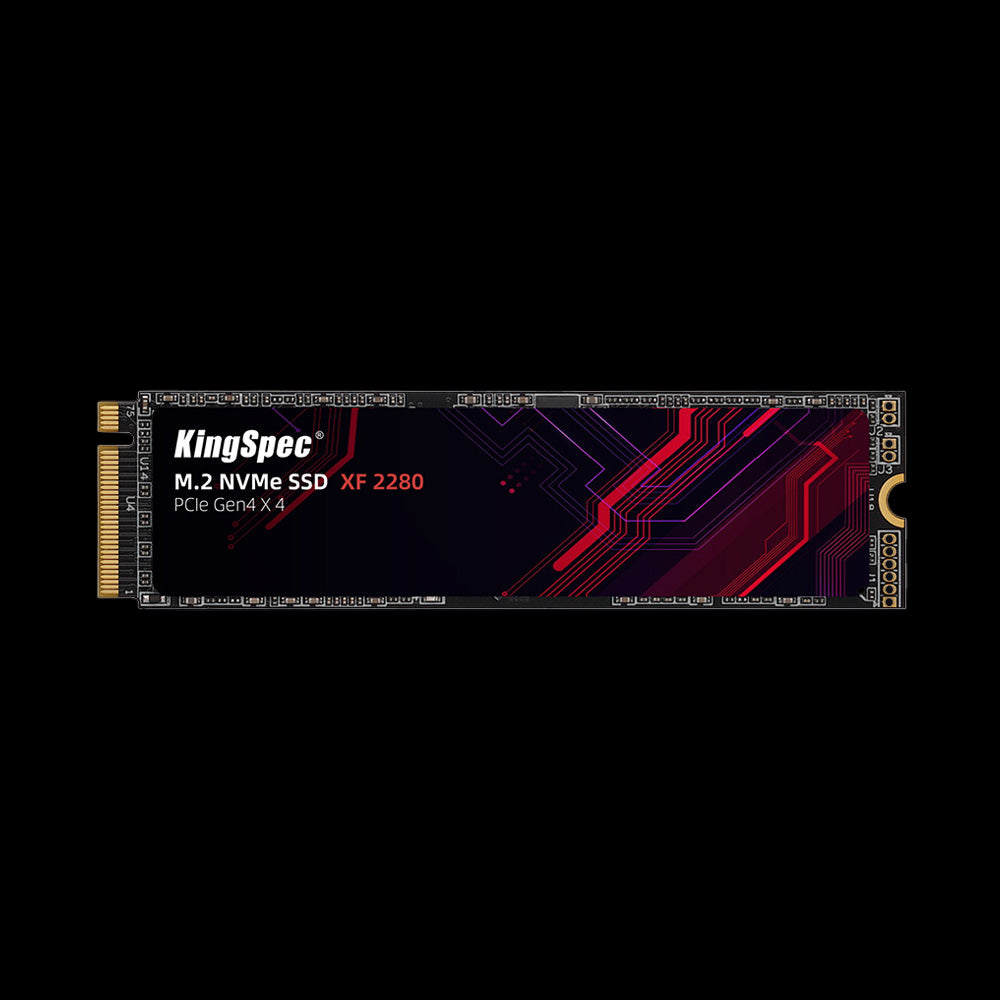
- Interface: PCIe Gen4 x4, NVMe
- Read: Up to 5,100 MB/s
- Write: Up to 4,600 MB/s
- Form Factor: M.2 2280
- Capacities: 512GB, 1TB, 2TB
- Cooling: Graphene heatsink label
- Warranty: 3 Years
The smart PCIe 4.0 entry point for most professionals. Strong sustained performance, excellent value, and compatible with virtually every modern workstation board. Ideal primary drive for OS plus active software environments for designers, developers, and business users.
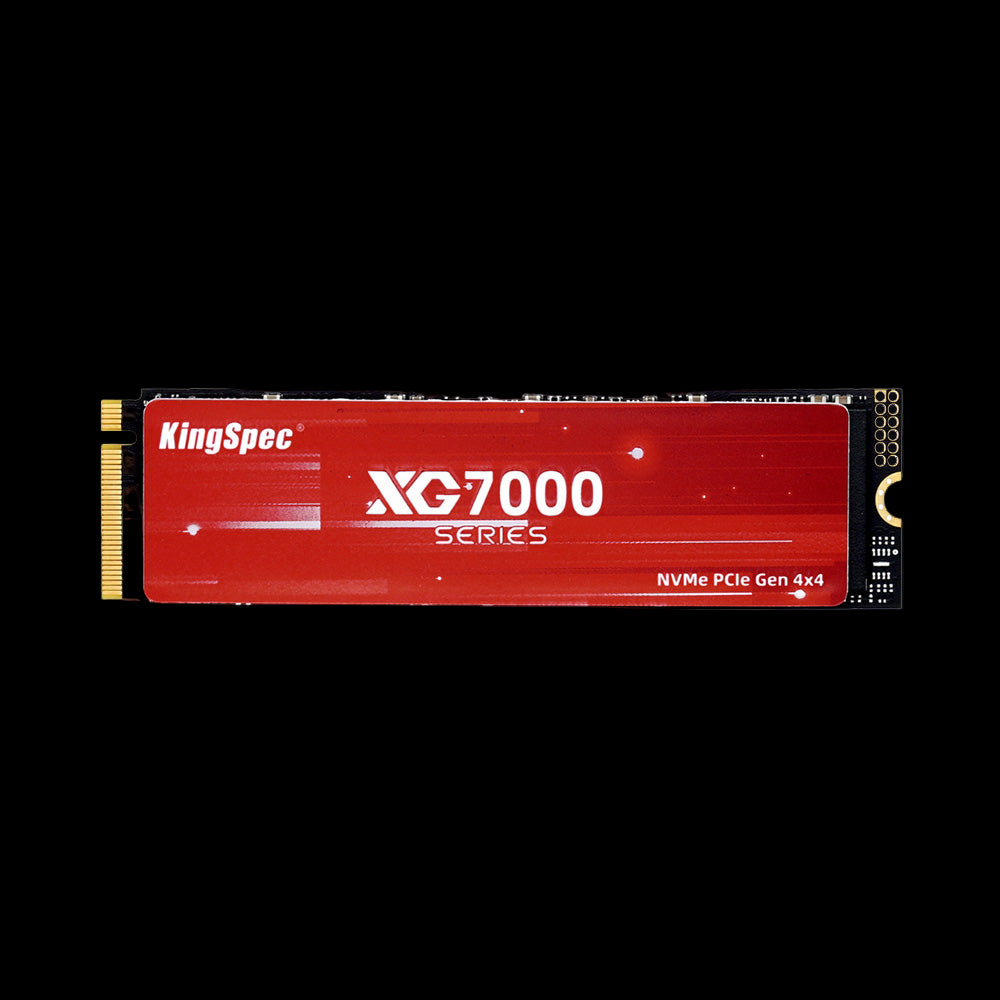
- Interface: PCIe Gen4 x4, NVMe
- Read: Up to 7,400 MB/s
- Write: Up to 6,600 MB/s
- Form Factor: M.2 2280
- Capacities: 512GB, 1TB, 2TB, 4TB, 8TB
- Cooling: Ultra-thin graphene heatsink label
- Warranty: 3 Years
Flagship Gen4 speed with up to 8TB capacity in a single drive. The rare combination of maximum Gen4 throughput and enough storage to hold an entire active project library, game collection, and system files without compromise. Perfect for creatives and data-heavy professionals.
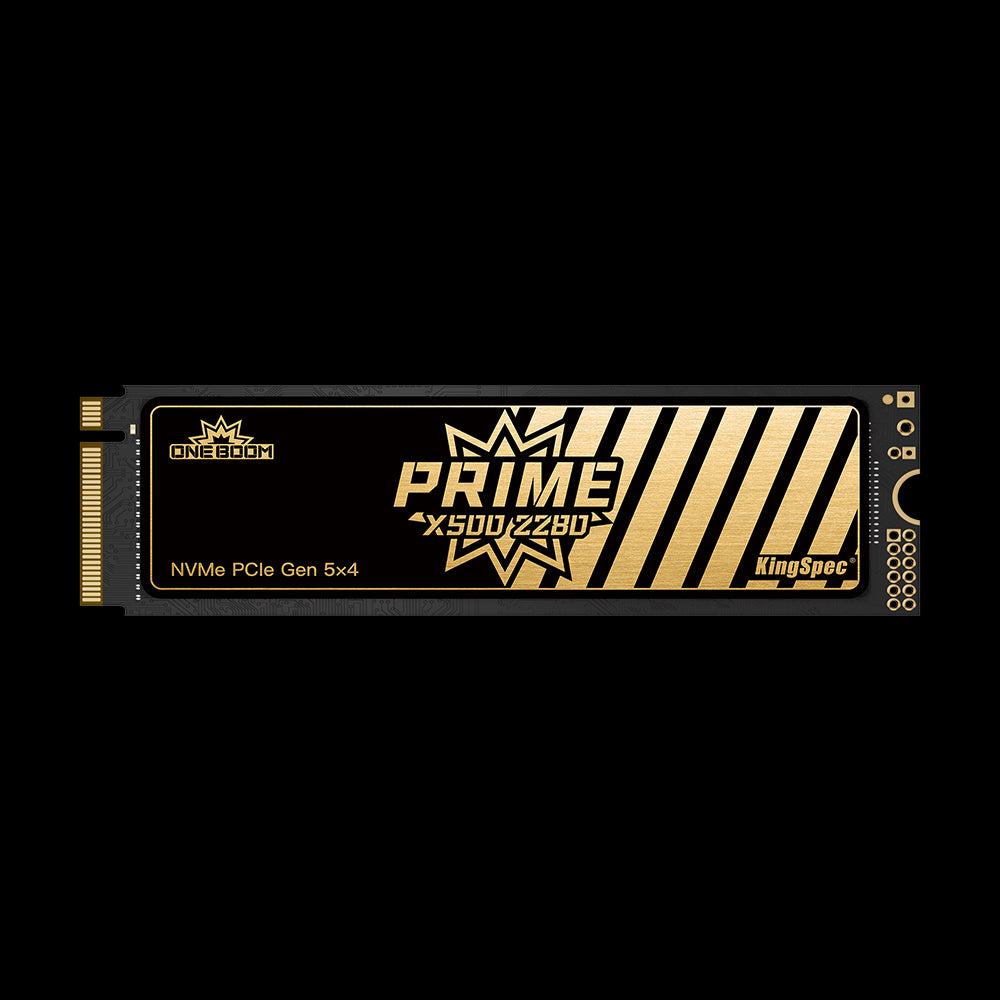
- Interface: PCIe Gen5 x4, NVMe 2.0
- Read: Up to 14,000 MB/s
- Write: Up to 13,000 MB/s
- Form Factor: M.2 2280
- Capacities: 1TB, 2TB, 4TB
- Cache: Independent DRAM + SLC
- IOPS: 2,000K Read/Write
- Warranty: 3 Years
Gen5 performance at a competitive price, backed by an independent DRAM cache for 2,000K random IOPS. Purpose-built for 4K and 8K video workflows, large project file handling, and advanced professional multitasking on Gen5-capable platforms.
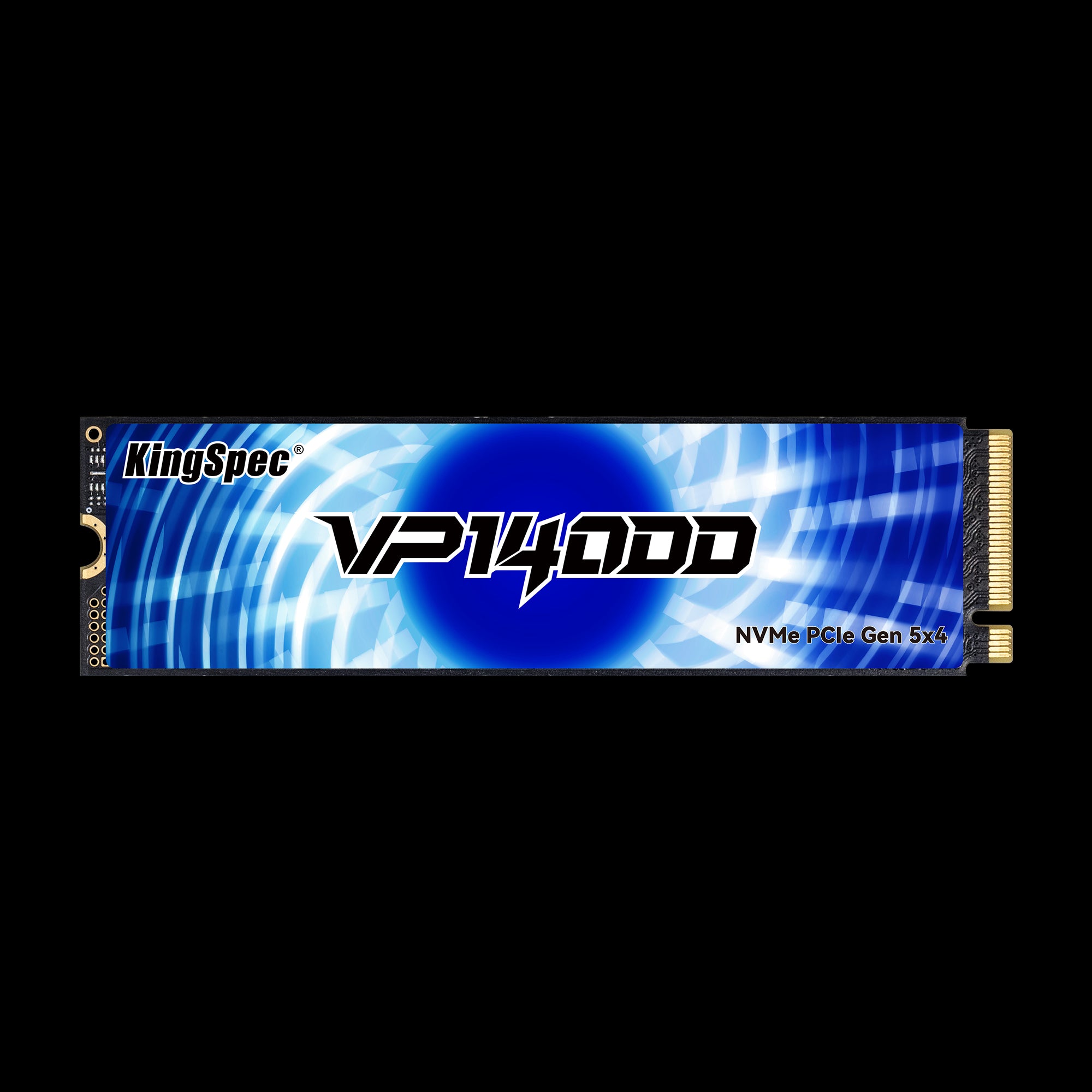
- Interface: PCIe Gen5 x4, NVMe 2.0
- Read: Up to 14,000 MB/s
- Write: Up to 13,000 MB/s
- Form Factor: M.2 2280
- Capacities: 1TB, 2TB, 4TB
- Cooling: Built-in heatsink
- TBW: 600 / 1,200 / 2,400 TB
- Warranty: 3 Years
Maximum available NVMe performance for AI model training, heavy 3D rendering, enterprise-scale datasets, and large-scale professional environments where storage throughput directly limits productivity. Built-in heatsink prevents thermal throttling under sustained extreme load.
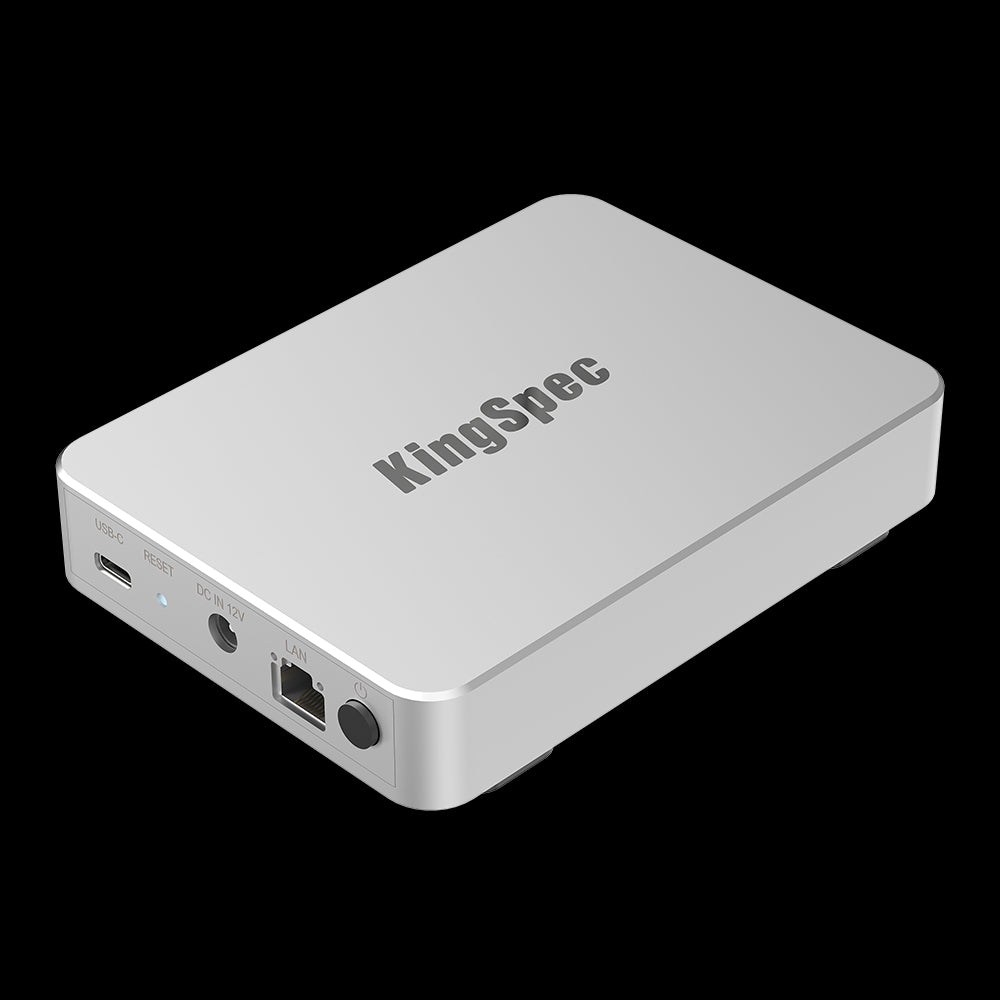
- Interface: 2.5" SATA SSD built-in
- Capacity: Up to 4TB
- Design: Fanless, near-silent operation
- Setup: 3-minute QR code bind
- Connectivity: Multi-device sync + USB portable mode
A centralized personal cloud NAS for office teams and small businesses. Near-silent fanless design, automatic multi-device sync, and offline USB portable mode. Ideal for shared project storage, document management, and secure internal backup without relying on third-party cloud services.

- Interface: PCIe Gen4 x4, NVMe 1.4
- Read: Up to 7,400 MB/s
- Write: Up to 6,800 MB/s
- Form Factor: M.2 2280
- Capacities: 512GB, 1TB, 2TB, 4TB
- Cache: External DDR4 DRAM
- Cooling: Aluminum metal heatsink vest
- Warranty: 3 Years
The DRAM-equipped step up from the standard XG7000. External DDR4 DRAM cache maintains faster data mapping under heavy random workloads, making it ideal for multitasking professionals and software developers who run multiple large applications simultaneously. The aluminum metal heatsink vest reduces temperatures by up to 57% versus no cooling, sustaining peak speeds longer during intensive sessions.
How Much Storage Does a Workstation Actually Need?
Capacity affects both daily productivity and long-term drive health. Filling an SSD past 80 to 90 percent of its capacity can slow write operations because the controller has less room to manage data placement efficiently. Plan for your current workload, then add headroom.
| Professional Workload | Recommended Capacity | Notes |
|---|---|---|
| Light office and documents | 512GB | Minimum for OS plus apps plus working files |
| Business multitasking, development | 1TB | Comfortable for multiple projects and tools |
| 4K video editing, photography | 2TB | Active project files plus media cache |
| 3D rendering, engineering, CAD | 2TB to 4TB | Large file sizes and simulation outputs |
| AI, machine learning, large datasets | 4TB or more | Training data sets can fill drives quickly |
Best Workstation SSD Setup: OS Drive Plus Project Drive
Many professionals get better long-term results from a dual-drive setup rather than a single large drive:
- Primary drive: OS, applications, and active software environments. A fast NVMe SSD here keeps boot times and app launches near-instant.
- Secondary drive: Project files, media, databases, and scratch cache. A high-capacity Gen4 drive like the XG7000 handles this role exceptionally well.
In NLE software like Premiere Pro, you can point the media cache to a dedicated secondary drive under Edit, then Preferences, then Media Cache. In DaVinci Resolve, set the cache location under Preferences, then Media Storage. This prevents the OS drive from being burdened with cache writes during heavy export sessions.
For workstations requiring shared team access to files, the KingSpec NAS N100 adds a third layer: centralized storage for collaborative projects, document archiving, and automatic backups, all without depending on external cloud services.
Internal vs External SSD for Workstation Workflows

Internal and external storage each serve a distinct role in a professional environment:
- Internal NVMe SSD: Best for active tasks, primary throughput, and OS operations. Installed directly on the motherboard for maximum bandwidth.
- External portable SSD: Best for file delivery, client transfers, on-site work, and offsite backup. KingSpec's portable SSD collection covers USB-C options for fast, reliable on-the-go storage.
Pairing your NVMe workstation SSD with sufficient DDR RAM also matters. RAM handles active in-memory workloads, while the SSD manages persistent storage. KingSpec's DDR RAM collection includes both DDR4 and DDR5 options compatible with modern workstation platforms.
Common Mistakes When Choosing a Workstation SSD
Avoiding these errors saves time and money:
- Ignoring endurance ratings and choosing a QLC drive for heavy daily write workloads
- Buying too little capacity and managing constant storage pressure
- Purchasing a PCIe 5.0 drive without confirming the motherboard has a PCIe 5.0 M.2 slot
- Judging only by peak sequential speeds rather than sustained throughput under load
- Skipping cooling on Gen4 or Gen5 drives and accepting thermal throttling as normal
- Filling the drive past 85 percent capacity, which reduces write efficiency over time
Conclusion
The best SSD for workstation use combines the right interface, sufficient endurance, appropriate capacity, and reliable thermal management.
For most professionals, a PCIe 4.0 NVMe drive such as the KingSpec XF Series or XG7000 delivers everything needed at excellent value. Users working with 8K footage, AI model training, or enterprise-scale projects benefit from the doubled throughput of PCIe 5.0 options like the X500 or VP14000. Teams and office environments benefit from adding the NAS N100 for centralized shared storage alongside individual workstation drives.
Beyond workstation SSDs, KingSpec offers a complete range of internal SSDs, external drives, DDR RAM, and memory cards to support demanding professional setups from every angle. For tips on keeping your SSD running at peak performance long-term, see: How to Improve SSD Performance: Simple Fixes to Make Your Drive Faster.
Browse Related Collections
Frequently Asked Questions
Which SSD is best for workstation use in 2026?
An NVMe PCIe 4.0 or PCIe 5.0 SSD is the best choice for most workstation builds. The KingSpec XG7000 covers the widest range of professionals with up to 8TB capacity and 7,400 MB/s read speeds. For extreme throughput needs such as AI workloads or 8K editing, the VP14000 and X500 Series deliver up to 14,000 MB/s. The right drive depends on your platform's PCIe generation support and your specific workload demands.
Which is better for a workstation: 1TB or 2TB SSD?
2TB is the better choice for most professionals. 1TB works for light office use or as a dedicated OS drive, but 2TB provides the room needed for active project files, application suites, and system updates without constant storage management. For creative professionals handling video or large design projects, 2TB is effectively the minimum comfortable capacity. Starting with more storage upfront avoids the cost and effort of an early upgrade.
What is the best SSD for an OS drive in a workstation?
A PCIe 4.0 NVMe SSD with DRAM cache is the best OS drive for a workstation. DRAM helps the SSD manage data mapping efficiently during heavy multitasking, keeping boot times fast and application launches snappy. A capacity of 1TB provides enough room for the OS, core applications, and updates without running close to the capacity limit. Keep a separate drive for project files to prevent the OS drive from handling large sequential writes during exports or renders.
Is SATA SSD good enough for a workstation?
SATA SSDs are sufficient for basic office tasks, document management, and email-focused workloads. They are also a practical choice for secondary storage or shared NAS environments where capacity matters more than raw speed. However, for any workload involving large file transfers, video editing, 3D rendering, or software compilation, NVMe SSDs offer significantly better throughput and responsiveness. Most modern workstations have M.2 NVMe slots available, making the upgrade straightforward.
How much free space should I keep on a workstation SSD?
Keep at least 10 to 20 percent of your total drive capacity free at all times. SSDs use available free space for write caching, wear leveling, and garbage collection. When a drive fills past 80 to 90 percent, the controller has less room to manage these operations, which can reduce sustained write performance noticeably. If you find your drive consistently near full, upgrading to a larger capacity model is a more effective fix than deleting files to recover headroom.
Does a workstation need a NAS in addition to an internal SSD?
Not always, but a NAS adds value in team environments or when managing large archival libraries. An internal NVMe SSD handles active work at maximum speed. A NAS like the KingSpec N100 handles shared file access for multiple users, automatic backups, and long-term project archiving without consuming space on your workstation's primary drive. The combination of a fast internal drive plus a shared NAS storage solution covers both individual performance and team collaboration efficiently.

