

To check RAM speed on Windows, press Ctrl + Shift + Esc to open Task Manager, select Performance, then Memory, and read the Speed line. That number is the speed your RAM runs at right now.
This guide shows you how to check RAM speed on Windows, Mac, and Linux, then compare it with the speed your RAM is rated for and fix it if the two don't match.
Key Takeaways
- Task Manager is the fastest way to check RAM speed on Windows 11 and 10.
- PowerShell shows both the rated speed and the speed your RAM is set to run at.
- The old
wmic memorychipcommand no longer works on current Windows 11, because Microsoft removed WMIC. - CPU-Z shows the real clock, which is half the advertised number for DDR memory.
- RAM that runs below its rating usually needs XMP or EXPO turned on in the BIOS.
How to Check RAM Speed in Task Manager
Task Manager shows your current RAM speed in a few clicks, with nothing to install.
- Press Ctrl + Shift + Esc to open Task Manager.
- Select the Performance tab. On Windows 11, it's the second icon in the left menu.
- Click Memory.
- Find Speed in the details below the graph.
The same panel lists Slots used and Form factor. Those tell you how many modules you have and whether they're desktop DIMMs or laptop SODIMMs.
Task Manager tells you what speed the RAM runs at. It doesn't tell you what speed the modules are rated for. Use PowerShell or CPU-Z for that.

Photo Source: Bleeping Computer
See Rated and Running Speed in PowerShell
PowerShell shows each module's rated speed and the speed it's set to run at, side by side. Open Terminal or PowerShell and run:
Get-CimInstance Win32_PhysicalMemory | Format-Table BankLabel, Manufacturer, PartNumber, Speed, ConfiguredClockSpeed- Speed: The speed the module reports as its rating.
- ConfiguredClockSpeed: The speed the system has set the module to run at.
- PartNumber: Search it online to see the module's full specs, including any XMP or EXPO rating.
If ConfiguredClockSpeed is lower than Speed, or lower than the speed on the box, your RAM isn't running at its full rating. Both values come from Microsoft's Win32_PhysicalMemory class.
wmic memorychip get speed. Microsoft says WMIC has been removed from currently supported versions of Windows 11, and it recommends PowerShell instead.Read the Real Clock in CPU-Z
CPU-Z is a free tool that shows your RAM's current clock, timings, and rated profiles. Download it from the developer's site, CPUID.
- Open CPU-Z and select the Memory tab.
- Read DRAM Frequency. Double it to get the advertised speed.
- Select the SPD tab and pick a slot to see that module's part number and rated profiles.
If DRAM Frequency shows 1600 MHz, your RAM is running at 3200 MT/s. Kingston explains why: DDR memory makes two transfers per clock cycle, so the data rate is double the clock.

Photo Source: BinaryTides
Find Memory Speed in the BIOS
The BIOS (also called UEFI) shows your memory speed before Windows loads. It's also where you change the speed.
- Restart the computer and press the setup key as it starts. The key appears on the startup screen and in your manual.
- Look on the main screen or under a memory or overclocking menu for DRAM Frequency or Memory Speed.
- Check whether XMP or EXPO is enabled.
- Exit without saving if you only wanted to look.
Menu names vary by motherboard brand. Laptop BIOS menus often show the speed but rarely let you change it.
Check Memory Speed on a Mac
On a Mac, use System Information. Apple's steps: press and hold Option, choose Apple menu > System Information, then click Memory under Hardware.
- Macs with memory slots: The Memory Slots pane lists each module's size, type, and speed.
- Apple silicon Macs: Memory is built into the chip, so there's no module speed to read. Apple lists memory bandwidth on each model's tech specs page instead. For example, the 15-inch MacBook Air with M5 lists 153GB/s.
Apple notes that if the Memory Slots pane doesn't appear, your Mac doesn't have upgradeable memory.
Check Memory Speed on Linux
On Linux, the dmidecode tool reads memory details from the system firmware. Open a terminal and run:
sudo dmidecode --type memoryLook at two lines for each module. Speed is the module's rating, and Configured Memory Speed is what it runs at. See the dmidecode manual for more options.
MHz vs MT/s and What the Numbers Mean
RAM is sold by its data rate in MT/s (megatransfers per second), even when the label says MHz. Kingston calls MT/s the more accurate measure, because DDR memory transfers data twice per clock cycle.
| Sold as | Real clock (CPU-Z DRAM Frequency) | Data rate |
|---|---|---|
| DDR4-2666 | 1333 MHz | 2666 MT/s |
| DDR4-3200 | 1600 MHz | 3200 MT/s |
| DDR5-4800 | 2400 MHz | 4800 MT/s |
| DDR5-5600 | 2800 MHz | 5600 MT/s |
| DDR5-6000 | 3000 MHz | 6000 MT/s |
The data rate is twice the clock for all DDR memory. Source: Kingston, MT/s vs MHz.
So "3200 MHz" RAM and "3200 MT/s" RAM are the same product. Our guide to how much memory frequency you need covers which speed to target.
Why Is My RAM Speed Lower Than Advertised?
RAM usually runs below its advertised speed because XMP or EXPO is turned off. Intel says XMP memory first boots at default JEDEC settings, a safe baseline speed, until you select the profile in the BIOS.
| What you see | Likely cause | Fix |
|---|---|---|
| DDR4-3200 kit shows a lower number, like 2133 or 2400 | XMP is off, so the RAM runs at its default speed | Enable XMP in the BIOS |
| DDR5-6000 kit shows a lower number, like 4800 | XMP or EXPO is off | Enable XMP (Intel) or EXPO (AMD) |
| CPU-Z shows half the speed | Not a problem. CPU-Z shows the real clock. | Double the number |
| Speed capped below the rating | The CPU, motherboard, or laptop supports a lower maximum | Check your platform's supported memory speed |
| Speed dropped after adding a module | Mixed modules run at the slower module's speed | Use a matched kit |
Sources: Intel XMP FAQ, AMD EXPO overview.
How to Enable XMP or EXPO
Turning on the memory profile sets the speed, timings, and voltage your RAM was tested at. Intel says XMP profiles are preset combinations of speed, timing, and voltage, tested by the memory maker for stability. AMD's version for Ryzen on socket AM5 is called EXPO.
- Restart and enter the BIOS.
- Find the memory profile setting. It's usually labeled XMP or EXPO, often on the main screen or in an overclocking menu.
- Choose Profile 1. It matches the speed on the box.
- Save and exit, usually with F10.
- Check the speed again in Task Manager.
Intel notes that running memory beyond specifications may void the processor warranty. Many laptops don't offer XMP, and Intel says to ask the laptop maker if you're unsure.
If the system won't boot afterward, reset the BIOS to defaults. For manual tuning, see how to overclock RAM.
Discover High-Performance Storage & Memory by Kingspec
Explore Kingspec
DDR5 RAM Memory RGB Templar
Desktop DDR5 288-pin DIMM with RGB. Offered at 5600 and 6000 MT/s in 16 GB and 32 GB kits.
Shop now →
DDR4 RAM Memory with Black Heatsink
Desktop DDR4 288-pin DIMM rated at 3200 MT/s, in 8 GB, 16 GB, and 32 GB.
Shop now →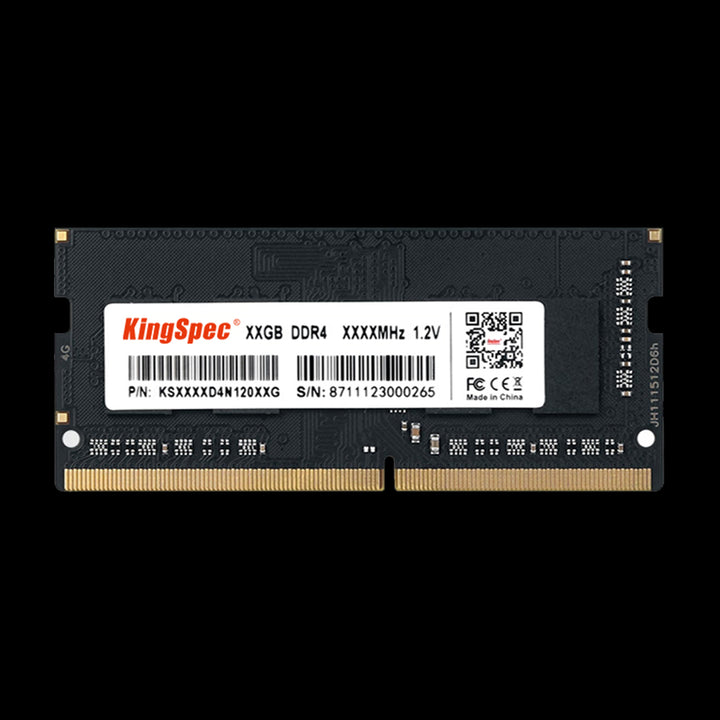
DDR4 RAM Memory for Notebook
260-pin DDR4 SO-DIMM for laptops at 3200 MHz, in 8 GB, 16 GB, and 32 GB.
Shop now →Common Mistakes to Avoid
- Reading CPU-Z as the full speed. DRAM Frequency is half the data rate. 1600 MHz means 3200 MT/s.
- Relying on WMIC commands. They fail on current Windows 11. Use the PowerShell command instead.
- Assuming the box speed is automatic. Rated speeds above the default usually need XMP or EXPO.
- Ignoring platform limits. RAM can't run faster than your CPU and motherboard support.
- Mixing kits to add capacity. The whole set drops to the slowest module.
Frequently Asked Questions
How do I know if my RAM is 3200MHz?
Check the rated speed in PowerShell or on the CPU-Z SPD tab, or search the module's part number. Then check Task Manager's Speed line to see what it runs at now. If the rating is 3200 but Task Manager shows a lower number, turn on XMP or EXPO in the BIOS. In CPU-Z, 3200 MT/s RAM shows a DRAM Frequency of about 1600 MHz.
How do I check if my RAM is running at full speed?
Compare the speed on the box or in the part number with Task Manager's Speed line. In PowerShell, compare ConfiguredClockSpeed with Speed. If the running speed is lower, XMP or EXPO is likely off, or your CPU or motherboard caps the speed. Enable the profile in the BIOS and check again.
Is 3200 MT/s the same as 3200MHz?
For buying RAM, yes. Both labels describe the same data rate. Strictly, MT/s is correct, because DDR memory makes two transfers per clock cycle. The real clock of DDR4-3200 RAM is 1600 MHz, which is why CPU-Z shows half the number.
Does RAM speed matter for gaming?
It can, especially in CPU-heavy games, though capacity and running in dual channel matter too. Running RAM at its rated speed with XMP or EXPO is an easy, free win. Our guide to whether RAM speed matters for gaming covers benchmark results.
Can I check RAM speed without opening my computer?
Yes. Every method in this guide works without opening the case. Task Manager, PowerShell, and CPU-Z work on Windows, System Information works on a Mac, and dmidecode works on Linux. You only need to open the computer to read the label on the module itself.
Final Thoughts
Learning how to check RAM speed takes a minute. Read Task Manager for the current speed, use PowerShell or CPU-Z for the rated speed, and compare the two. If your RAM runs below its rating, enable XMP or EXPO and check again. Remember that CPU-Z shows half the advertised number, and that's normal.

