
A laptop listing says “16GB memory.” A phone ad promises “256GB memory.” Those two numbers mean completely different things. In most computer specs, memory means RAM, the system RAM your device uses to run apps right now. But people and product pages often use “memory” loosely to mean storage too, which is where the confusion starts.
So is memory the same as RAM? Usually, yes, but not always. This guide explains what each term means, how RAM differs from storage, how to read device specs correctly, and how much RAM you may need.
Key Takeaways
- Memory usually means RAM in computer specifications.
- RAM is temporary working memory, while storage keeps files and apps.
- Phones often blur the terms, so check whether a number refers to RAM or storage.
- A memory card adds storage, not RAM.
- More RAM helps with multitasking, but it’s only one part of device speed.
What “Memory” Means on a Computer

“Memory” can refer to more than one thing, but in computer specifications it most often means RAM. Context tells you whether a number describes RAM, storage, or something else.
When Memory Means RAM
RAM stands for random-access memory. It’s the computer’s short-term working area, holding information the processor needs while programs are running.
That’s why a computer listing might say “16GB memory” instead of “16GB RAM.” In most cases, both mean 16 gigabytes of system RAM. Still, check the full specification before you buy, especially if it doesn’t clearly say “RAM” or “system memory.”
Why the Word Can Be Confusing
People often use “memory” to mean storage space. Someone might say a phone has “lots of memory” when they mean it can hold many photos and apps. That’s internal storage, not RAM.
How to Read the Labels
Product pages use terms differently, so look for these exact labels:
- RAM or system memory means working memory.
- Storage, internal storage, or SSD means space for files and apps.
- Memory card capacity means removable storage, not RAM.
How RAM Works
RAM handles the information your device is using right now. It’s built for very fast access, which keeps apps and tasks running smoothly. For a closer look at the DDR generations used in computers, see this guide to what DDR RAM is.
RAM as Short-Term Working Memory
Think of RAM as a desk. The files and tools you’re using now sit on the desk, within easy reach. Storage is the filing cabinet where you keep everything for later.
When you open a browser, a game, or a photo editor, the device loads what it needs into RAM. Open several apps at once, and they all share that space while they’re active.
Fast, Temporary Data Access
Standard system RAM is volatile, so its contents are lost when the device loses power. Your saved photos, documents, and installed apps survive because they live on a drive or other storage device.
That’s the key difference: RAM works with information now, while storage keeps it for later.
What Happens When a Device Runs Low on RAM
If open apps need more RAM than the device has, the operating system moves some data between RAM and storage. That keeps apps running, but storage is much slower than RAM.
The result can be slowdowns with many programs open, or apps that reload when you switch back to them. Other issues can cause these signs too, so low RAM isn’t the only possible explanation.
RAM and Storage Compared
RAM and storage both hold data, but they do different jobs. Knowing which one a spec describes helps you compare computers and phones accurately.
| Feature | RAM (Memory) | Storage |
|---|---|---|
| Main purpose | Holds information in active use | Saves files, apps, and the operating system |
| Keeps data after shutdown | No | Yes |
| Common examples | System RAM, DDR4, DDR5 | SSD, hard drive, memory card |
| Typical sizes | 8GB to 64GB | 256GB to several TB |
| More capacity helps with | Running more tasks at once | Keeping more files and apps |
RAM Compared With an SSD or Hard Drive
An SSD or hard drive is storage. It keeps your operating system, apps, games, photos, and documents when the computer is off. RAM temporarily holds what your active programs need.
A computer can have plenty of storage but too little RAM for its workload, or lots of RAM but little room for files. The two numbers describe different parts, so compare them separately.
Why Storage Speed Still Matters
Even though storage isn’t RAM, its speed affects how quickly your device starts, opens apps, and loads files. Moving from a hard drive to an SSD often makes an older computer feel far quicker. This guide explains how NVMe and SATA SSDs compare.
Phone Memory and Internal Storage
Phone listings are especially confusing, because both RAM and storage may be called “memory.” A phone might have 8GB of RAM and 128GB of internal storage, and those numbers describe different things.
Look for separate labels for RAM and storage. Adding a memory card gives you more storage space, not more RAM. Some phones also offer “virtual RAM,” which borrows storage and isn’t the same as physical RAM.
Understanding RAM Amounts in Device Specifications

When “memory” appears beside a computer’s system specs, it usually means RAM. A listing that just says “16GB” without explaining what it measures isn’t clear enough to rely on, so look up the exact model or ask the seller.
16GB of Memory and 16GB of RAM
These usually mean the same thing when the spec uses “memory” to mean system memory. Confirm that the listing says “RAM” or “system memory,” since “16GB storage” means something entirely different.
Choosing Between 16GB and 32GB of RAM
For most people, 16GB of RAM handles web browsing, schoolwork, video calls, office apps, streaming, and many games. Results depend on the specific apps and hardware, so check the requirements for the software you use.
32GB makes sense if you often run demanding programs, keep many apps open, or work with large media files. It helps with heavy multitasking, creative software, virtual machines, and memory-hungry games.
When 32GB May Be More Than You Need
For many everyday users, 32GB is more RAM than they need right now. For people who run demanding software or want room for future workloads, it can be worth it. Base the choice on how you actually use your device.
How RAM Affects Computer Speed
More RAM improves performance when a computer is running short of memory. If your device slows down with several apps open or reloads programs often, extra RAM can help, as long as the computer supports an upgrade.
But RAM is only one part of the picture. The processor, storage drive, software, cooling, and the task itself all matter, and more RAM won’t fix a slow internet connection, an old processor, or a full drive.
Some computers allow RAM upgrades, while others have memory built in that can’t be changed. Supported RAM type and maximum capacity vary by device too. For Windows, Microsoft explains how to find information about your Windows device. For laptops, this guide on how to get more RAM on a laptop covers the upgrade checks.
Other Types of Computer Memory
RAM isn’t the only kind of memory inside a computer. These related terms show up in specs and settings, but none of them is the RAM amount in a device’s main specifications.
RAM and Cache Memory
Cache is a small, very fast memory built into the processor to hold information it may need soon. It helps the processor work efficiently, but it isn’t the computer’s main RAM. For multitasking needs, focus on the system RAM amount.
RAM and Virtual Memory
Virtual memory is part of how an operating system manages memory. It can use storage when physical RAM is under pressure, but it’s much slower and doesn’t replace real RAM. Microsoft describes how virtual memory works in Windows.
ROM and Flash Memory
ROM holds firmware, the low-level instructions a device needs to start up. Flash memory is the non-volatile technology inside SSDs, USB drives, and memory cards. Both keep data without power, which makes them storage-like, so neither counts toward a device’s RAM.
Checking How Much RAM Your Device Has
Check the device settings or official specifications, and make sure the number is labeled as RAM.
- Windows PC: Open Settings, then System and About, or check Task Manager under Performance and Memory.
- Mac: Open the Apple menu and choose About This Mac to see the memory details.
- Phone or tablet: Check the official specifications or system settings, though some devices don’t show RAM in an easy-to-find place.
Don’t confuse free storage space with available RAM. Storage shows how much room remains for files, while RAM describes the working memory active tasks use.
Recommended KingSpec Memory and Storage
Now that you know the difference, here’s how KingSpec’s range splits between the two: RAM for running more at once, and storage for keeping more. Match any product to your device’s specifications before you buy.
Best RAM (Memory) Upgrades
These add working memory, so your computer can keep more apps and tabs open smoothly.
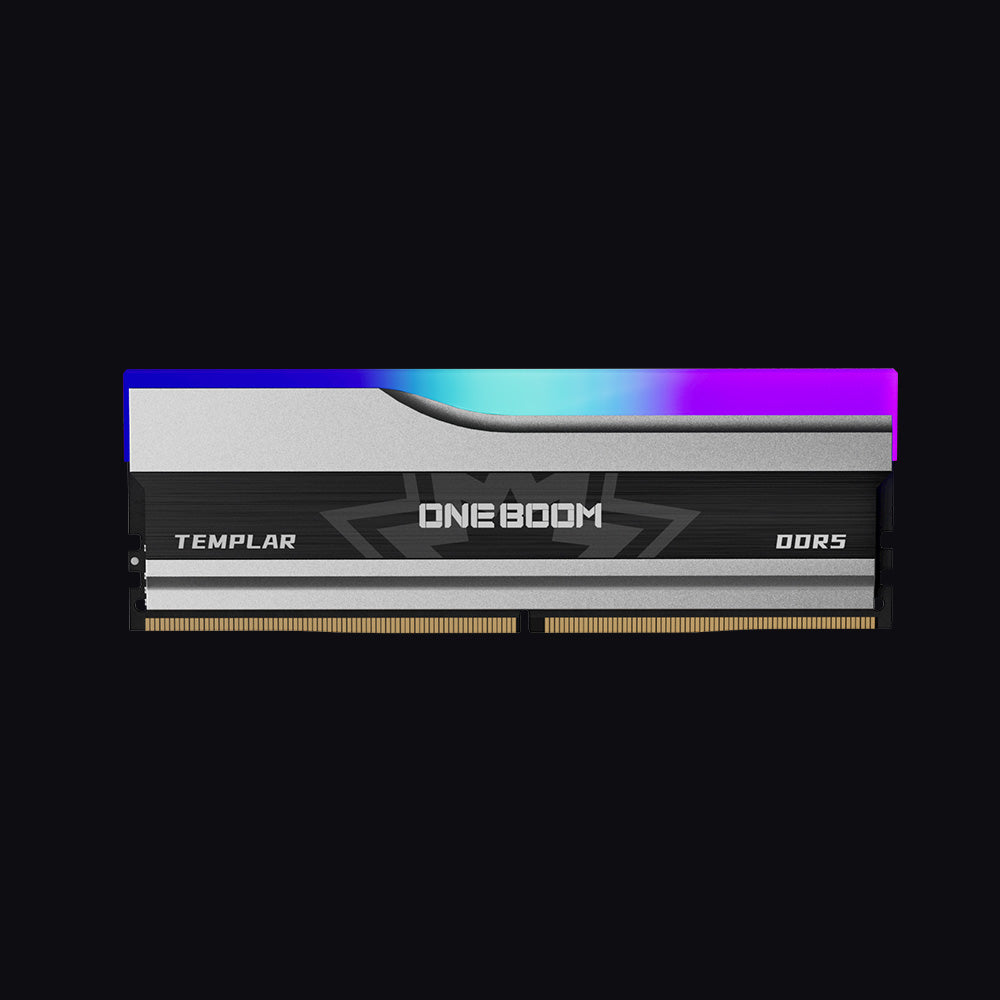
- Type: DDR5, 288-pin DIMM
- Speed: 5600 or 6000MT/s
- Capacities: 16GB or 32GB (2x16GB)
- Platforms: Intel and AMD
- Warranty: 3 Years
Fast DDR5 system memory for current desktops, in the two most popular sizes: 16GB for everyday use or a 32GB kit for heavier multitasking and gaming.
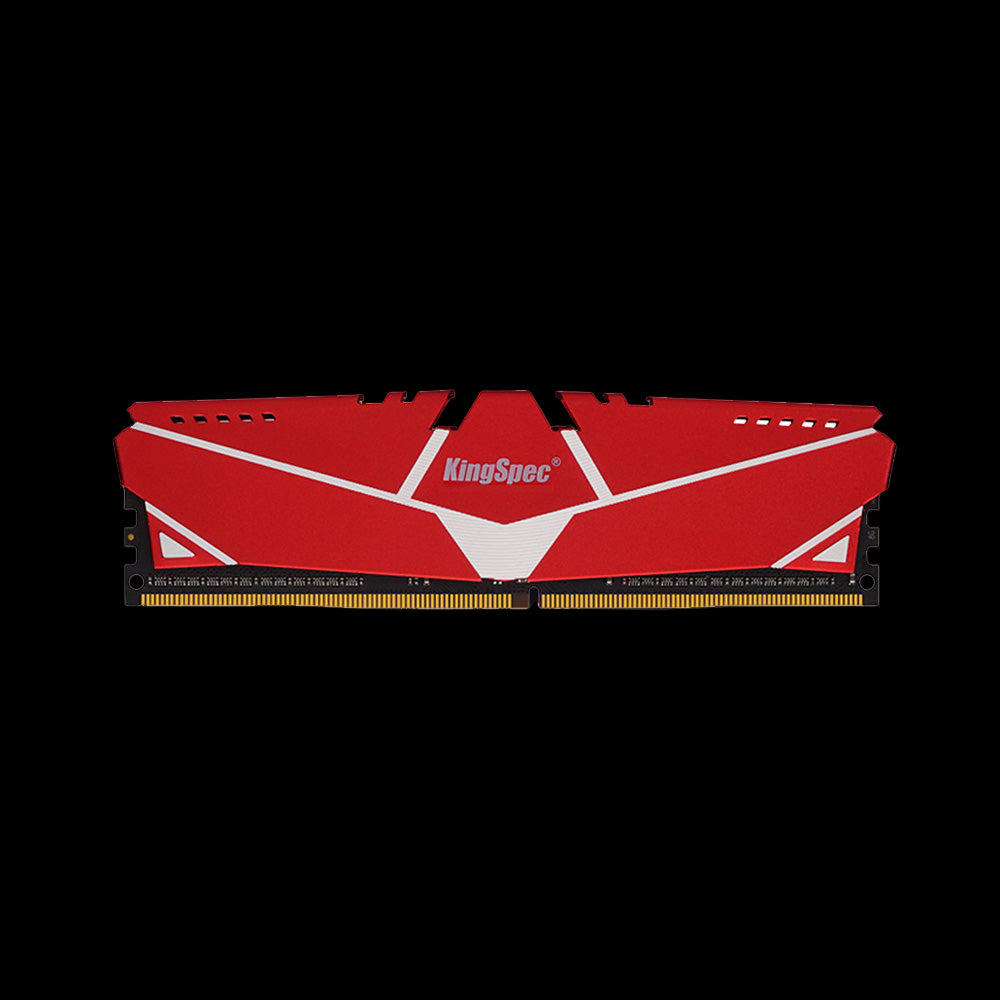
- Type: DDR4, 288-pin DIMM
- Speed: 3200MHz
- Cooling: Red aluminum heatsink
- Platforms: Intel and AMD
An affordable way to add system memory to a DDR4 desktop. Install a matched pair for dual-channel performance.
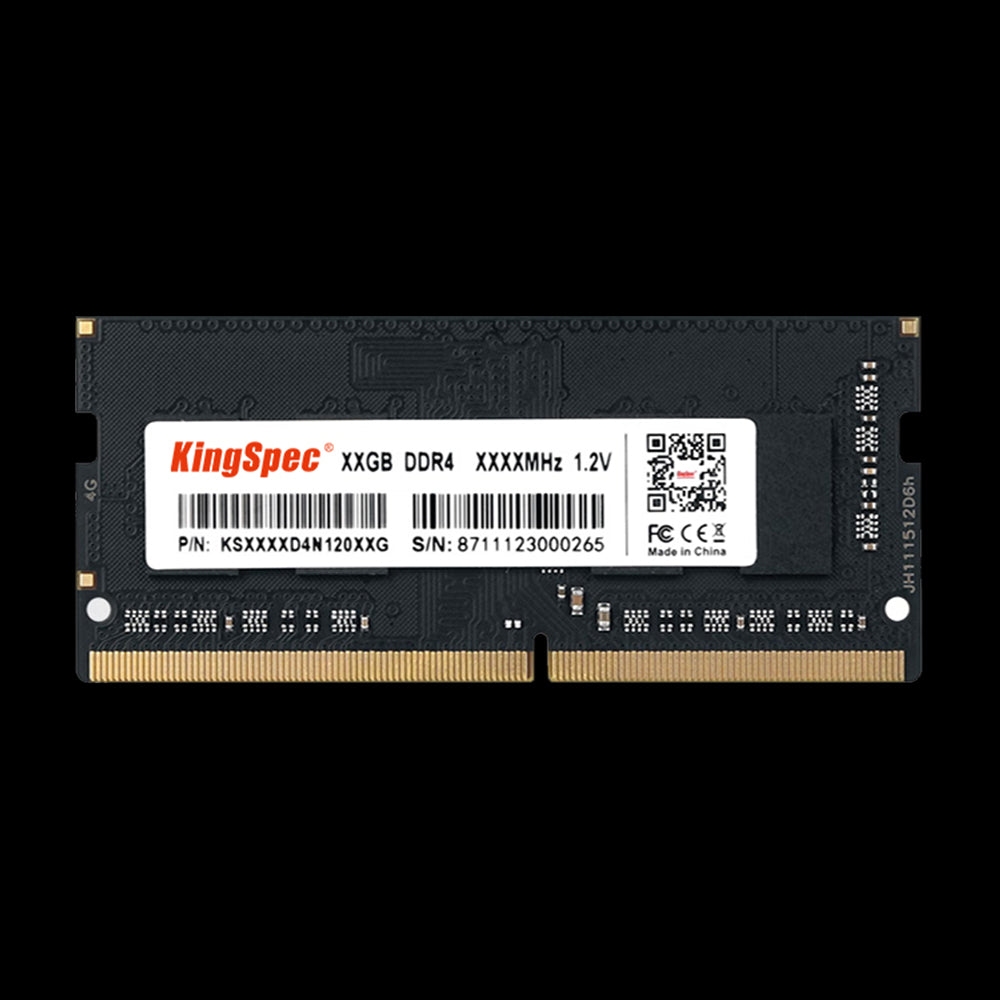
- Type: DDR4 SO-DIMM, 260-pin
- Speed: 3200MT/s
- Capacities: 8GB, 16GB, 32GB
- Voltage: 1.2V
- Warranty: 3 Years
Laptop-size system memory for notebooks with a free DDR4 SO-DIMM slot. Check that your model’s RAM isn’t soldered before you buy.
Best Storage Upgrades
These add space for files, apps, and games, and won’t change your RAM.
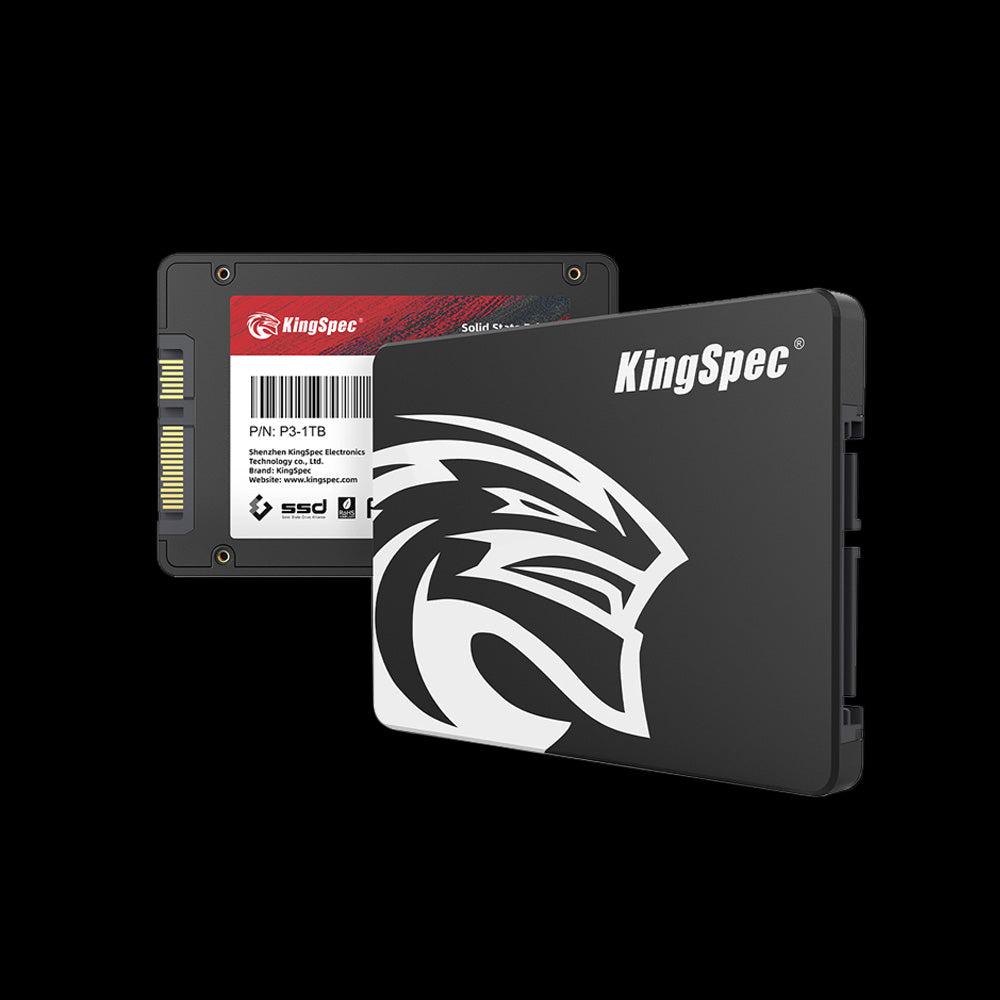
- Interface: SATA III (6Gb/s)
- Read Speed: Up to 560 MB/s
- Write Speed: Up to 530 MB/s
- Capacities: Up to 8TB
- Warranty: 3 Years
Swapping an old hard drive for this SSD speeds up startup and app loading, and adds plenty of room for files.
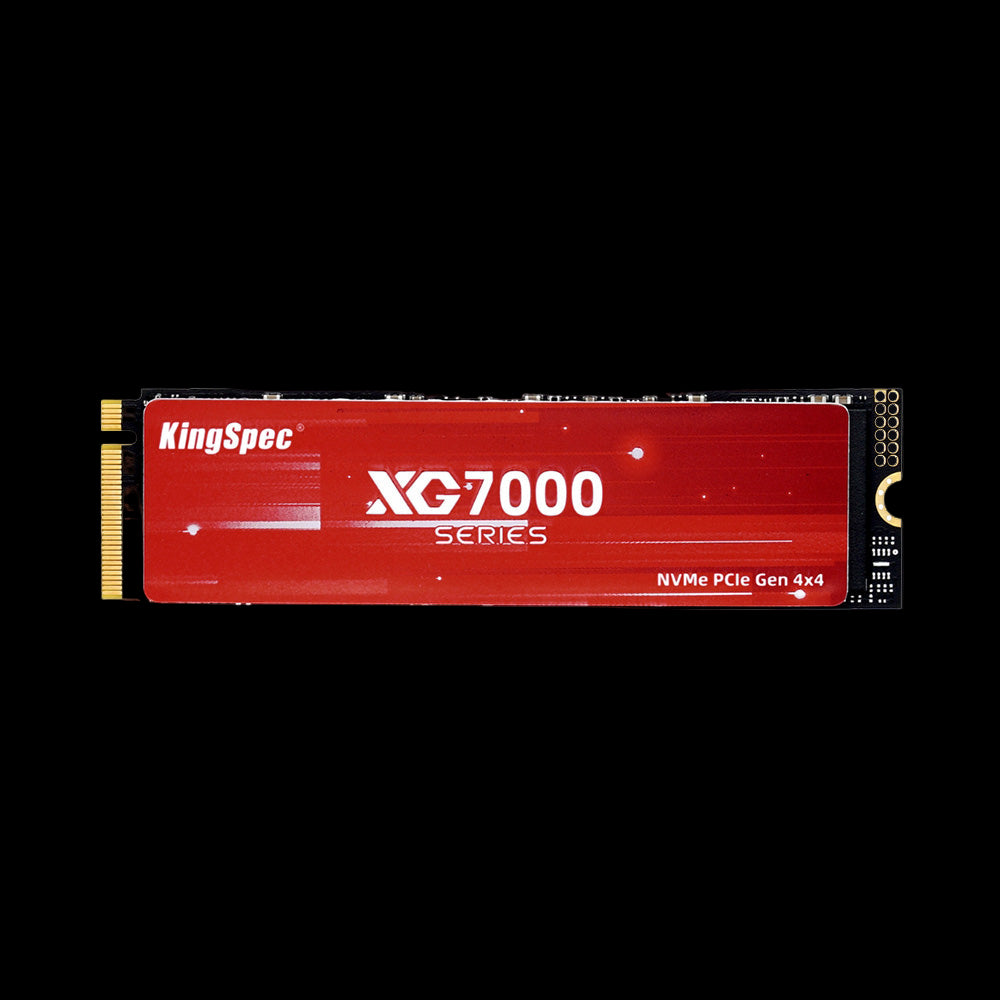
- Interface: PCIe Gen4 x4, NVMe 1.4
- Read Speed: Up to 7,400 MB/s
- Write Speed: Up to 6,600 MB/s
- Capacities: Up to 8TB
- Warranty: 3 Years
Fast PCIe 4.0 storage for games, creative projects, and large libraries in an M.2 2280 slot.
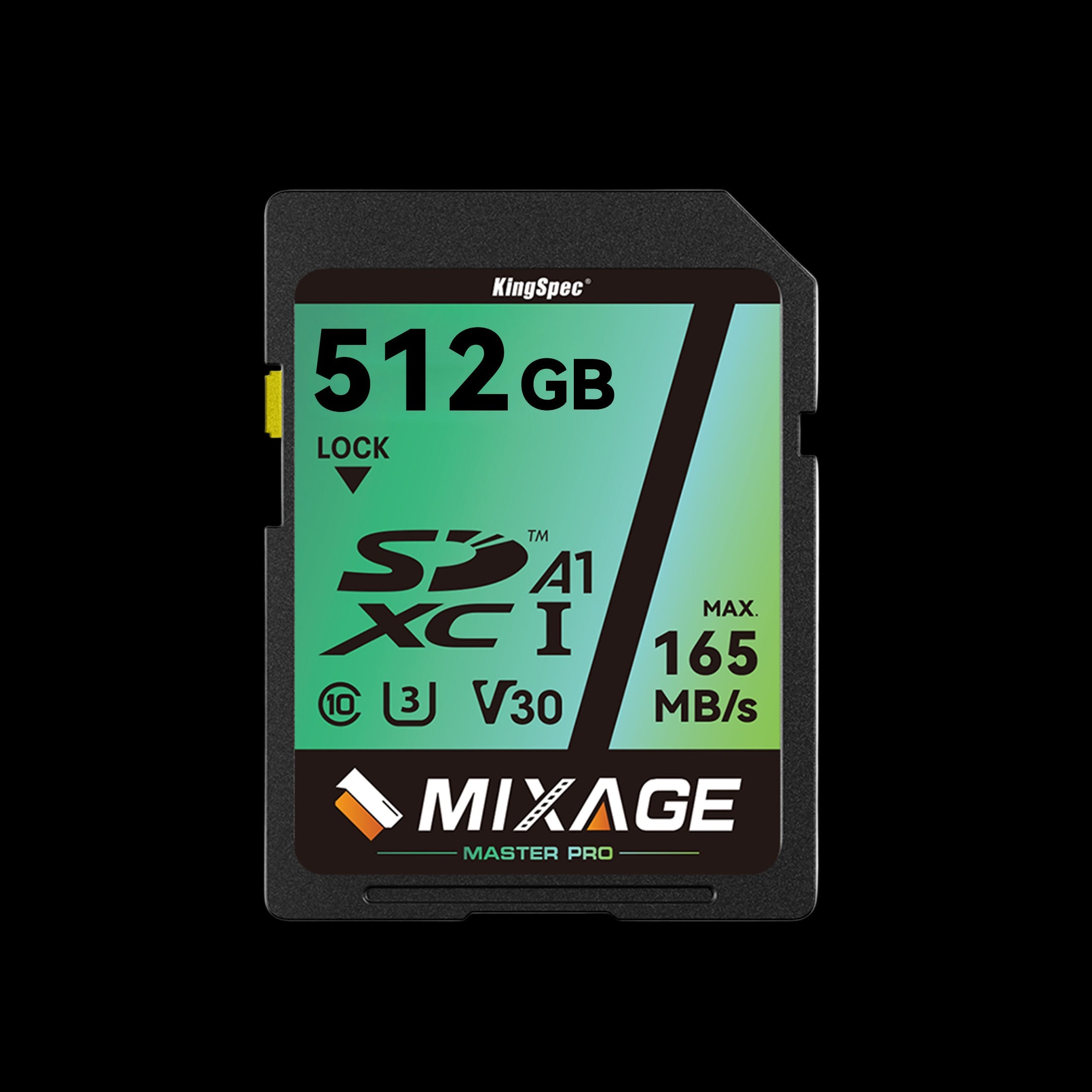
- Interface: UHS-I, U3, V30
- Read Speed: Up to 165 MB/s
- Write Speed: Up to 81 MB/s
- Capacities: 64GB to 512GB
- Warranty: 10 Years
Proof that a “memory card” is storage: extra space for photos and 4K video in cameras and card readers, with a 10-year warranty.
Which Upgrade Do You Need?
If your device slows down with many apps open, add RAM: the Templar or Red Heatsink for desktops, or the Notebook module for laptops. If you’re out of space or boot times are slow, upgrade storage with the P3 or XG7000, or add an SD card for cameras and card readers.
Wrapping Up: Read the Label, Not Just the Number
In computer specs, “memory” usually means RAM, but always check whether a capacity refers to RAM or storage. RAM holds what your device is using right now, while storage keeps files and apps for later.
Once you know which one you need, browse the collections below for upgrades that fit your device.
Browse Related Collections
Frequently Asked Questions (FAQs):
Is RAM or memory better?
In most computer discussions, “memory” means RAM, so the two terms refer to the same thing. If you mean RAM compared with storage, they do different jobs: RAM supports active tasks, while storage keeps files and apps.
Is phone memory the same as RAM?
Not always. Phone ads often use “memory” for internal storage, such as 128GB or 256GB. RAM is usually a much smaller number, such as 8GB or 12GB, listed separately in the specifications.
Is 32GB of RAM overkill?
It can be more than you need for everyday browsing, schoolwork, and basic office tasks. It’s useful for demanding software, heavy multitasking, or large creative projects. Consider your usual workload before deciding.
Does RAM store files permanently?
No. RAM is temporary working memory and clears when a device shuts down. Files you want to keep should be saved to storage, such as an SSD, hard drive, or memory card.
Can you add more RAM to any computer?
No. Some computers have replaceable RAM, while others have memory built in that can’t be upgraded. Check your exact model’s specifications before buying RAM or asking a repair shop about an upgrade.

