
Upgrading your computer with a new SSD is one of the fastest ways to boost speed and performance. But many people hesitate because they do not want to reinstall Windows, programs, and files from scratch.
Learning how to clone an SSD lets you copy everything exactly as it is to a new drive. That means your system looks and works the same, just faster.
Keep reading to see how to clone an SSD the right way and avoid common mistakes.
⚡Key Takeaways
- •Cloning an SSD copies your operating system, programs, and files to a new drive.
- •You can clone an SSD to a larger or smaller SSD if the used data fits.
- •Free SSD cloning software is available for most systems.
- •The new SSD becomes bootable after cloning.
- •KingSpec SSDs are a reliable choice when upgrading internal or external storage.
What It Means to Clone an SSD

Cloning an SSD means creating an exact copy of your current drive onto another SSD. The new drive becomes a bootable replacement with the same files, settings, and system structure.
How Cloning an SSD Works
When you clone an SSD, special software copies:
- The operating system
- Installed programs
- Personal files
- Hidden system and boot partitions
This is different from simply copying files. Cloning transfers everything needed to make the new SSD start your computer just like the old one.
Cloning is commonly used when upgrading to a larger SSD, replacing a failing drive, or moving from an older SATA SSD to a faster NVMe SSD.
Is Cloning an SSD a Good Idea?
Cloning is a smart option if you want:
- No reinstallation of Windows
- No need to reinstall programs
- All settings preserved
- Minimal downtime
A fresh install may be better if your system has serious errors or unwanted software. But for most upgrades, cloning is faster and easier.
What You Need Before You Clone an SSD
Before starting the cloning process, it is important to prepare your system and hardware properly. A few simple checks can prevent boot problems later.
Check SSD Compatibility
Make sure your new SSD:
- Matches your system type such as SATA or NVMe
- Has equal or larger capacity than the data you are using
- Fits your motherboard slot or laptop bay
You can clone a larger SSD to a smaller SSD only if the total used data is less than the new drive’s capacity.
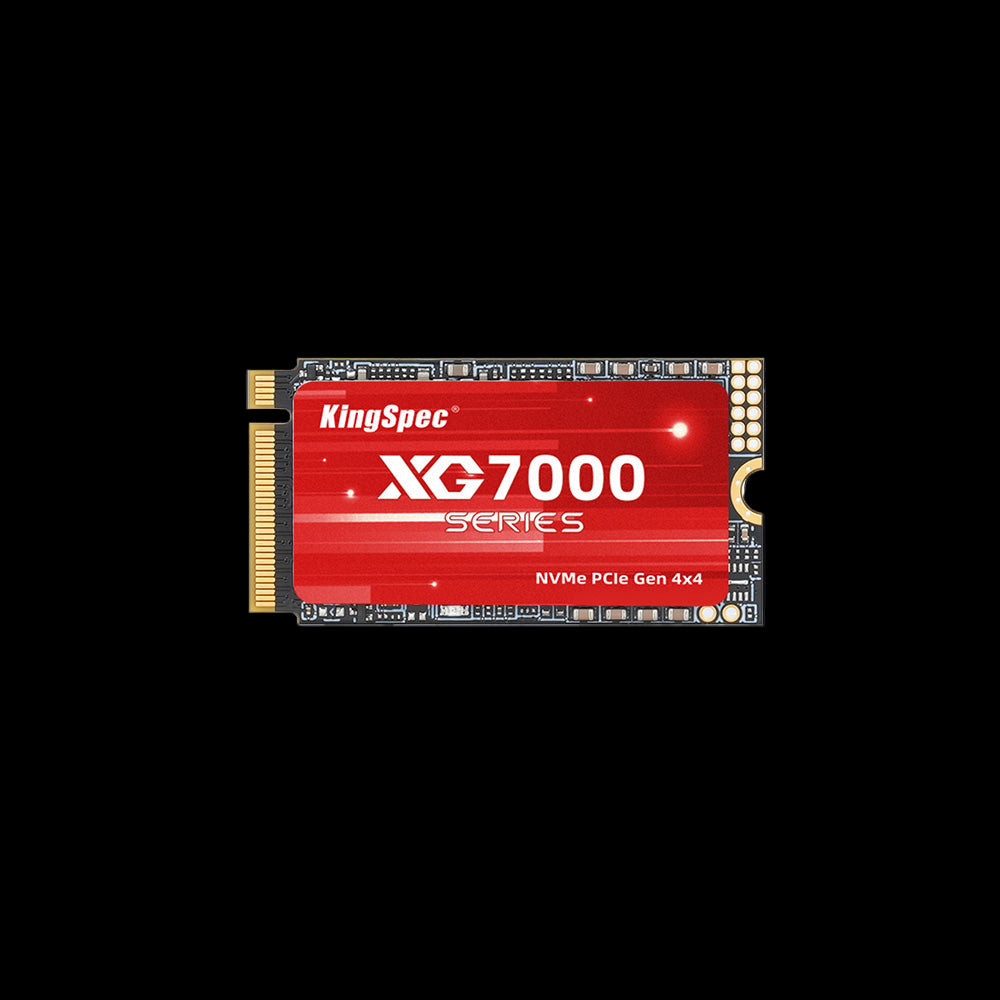
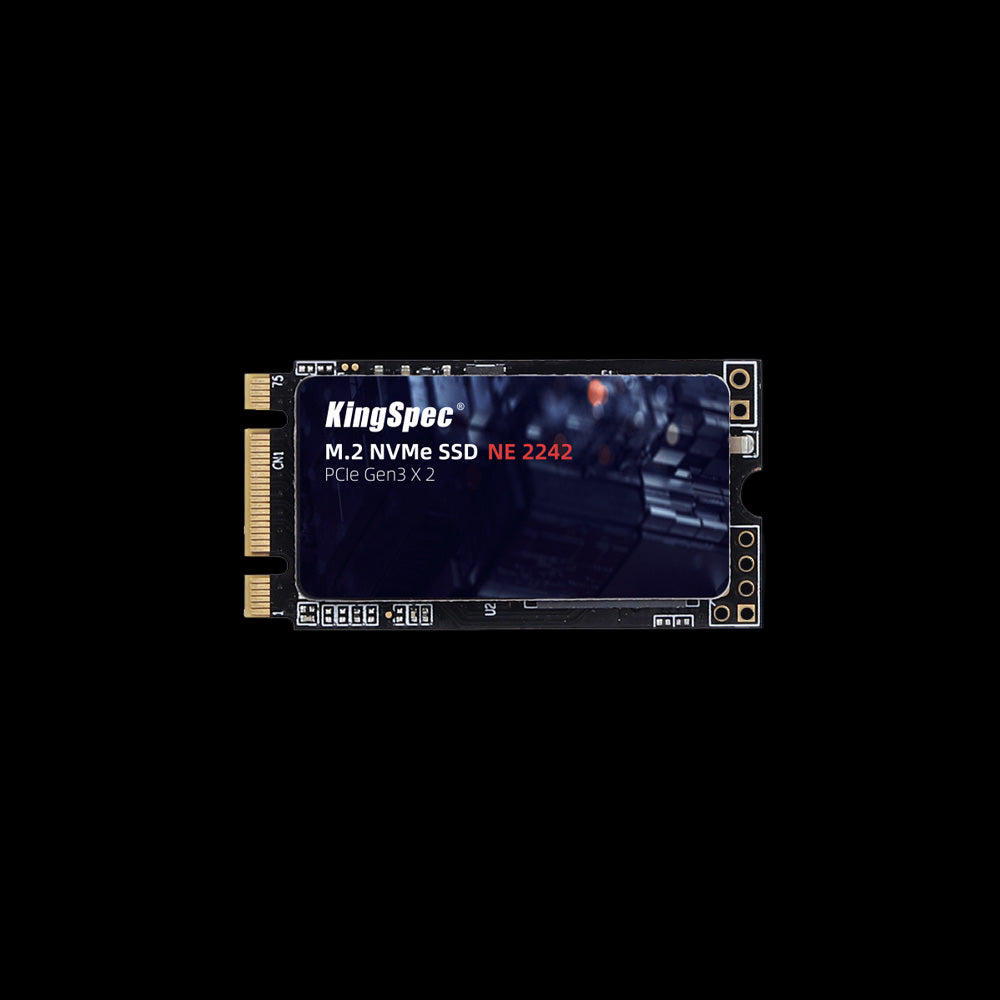
If you are upgrading storage, choosing a reliable SSD improves long term performance. KingSpec SSDs are a solid option for internal storage upgrades, gaming storage expansion, or even portable external storage needs.


Back Up Important Data
Cloning is generally safe, but backing up important files adds extra protection. Use an external drive or cloud storage before starting.
Connect the New SSD
You can connect the new SSD in two main ways:
- Install it internally if your system supports two drives
- Use a USB to SATA or NVMe adapter for temporary connection
Once connected, check Disk Management in Windows to confirm the new SSD is detected.
Do You Need to Format the New SSD Before Cloning?

In most cases, you do not need to format the new SSD. Cloning software usually handles partition formatting automatically.
Best Software for How to Clone an SSD
The right cloning software ensures your new SSD becomes bootable and error free. There are free and paid options depending on your needs.
Free SSD Cloning Software Options
Many tools allow you to clone an SSD at no cost. Free versions usually support:
- Basic disk cloning
- Partition resizing
- Bootable drive creation
These tools work well for most home users upgrading to a larger SSD.
Choosing the Right Cloning Method
There are two main cloning methods:
- Direct cloning within Windows
- Bootable USB cloning for systems that cannot start
If your current SSD is still working normally, cloning inside Windows is the easiest option. If your system fails to boot, a bootable USB cloning tool may be necessary.
How to Clone an SSD Step by Step
This section explains exactly how to clone an SSD from start to finish. Follow each step carefully to ensure a successful upgrade.
Step 1: Install and Open the Cloning Software
Download and install your chosen SSD cloning software. Launch the program and select the disk cloning option.
Step 2: Select the Source SSD
Choose your current SSD as the source drive. Double check that you selected the correct disk to avoid data loss.
Step 3: Select the Target SSD
Choose the new SSD as the destination disk. The software may warn you that all data on the target drive will be erased.
Step 4: Adjust Partitions
If you are cloning to a larger SSD:
- Expand the main partition to use the full space
- Ensure all system partitions are included
If cloning to a smaller SSD:
- Confirm used data fits the new drive
- Shrink large partitions if needed before cloning
Step 5: Start the Cloning Process
Click start to begin cloning. The time required depends on:
- Total data size
- SSD speed
- Connection type
Cloning may take anywhere from 15 minutes to several hours.
Step 6: Shut Down and Replace the SSD
After cloning finishes:
- Turn off the computer
- Remove the old SSD
- Install the new SSD in its place
If both drives remain installed, adjust the boot order in BIOS or UEFI settings.
Step 7: Boot From the New SSD
Turn on your computer and confirm it starts normally. Your desktop, files, and programs should appear exactly as before.
After You Clone an SSD
Once the cloning process is complete, a few quick checks ensure everything runs smoothly. These final steps confirm your new SSD is working properly.
Confirm the System Boots Properly
Restart your computer several times to verify stability. Make sure there are no boot errors or missing files.
Extend Unallocated Space
If your new SSD is larger and you did not expand the partition earlier:
- Open Disk Management
- Right click the main partition
- Select Extend Volume
This ensures you use the full storage capacity.
Keep or Wipe the Old SSD
You have several options for your old SSD:
- Keep it as a backup drive
- Use it as extra internal storage
- Convert it into portable external storage
- Securely erase it before selling
Common Problems When Learning How to Clone an SSD
Even when done carefully, issues can happen. Understanding common problems helps you fix them quickly.
The Cloned SSD Will Not Boot
This can happen due to incorrect boot order or missing system partitions. Enter BIOS and set the new SSD as the primary boot device. If needed, use system repair tools to fix the bootloader.
Cloning Fails or Freezes
Possible causes include:
- Faulty cables or adapters
- Bad sectors on the old SSD
- Insufficient power supply
Check connections and scan the source drive for errors before trying again.
New SSD Shows Less Space Than Expected
This usually means the main partition was not expanded. Use Disk Management to extend the partition and access the full capacity.
Conclusion
Learning how to clone an SSD makes upgrading your computer simple and stress free. Instead of reinstalling everything, you transfer your entire system to a faster or larger drive in one process. With the right preparation and careful steps, cloning is safe and efficient.
For reliable storage upgrades, KingSpec offers quality SSDs, memory cards, gaming storage, internal storage, external storage, SSDs, DDR RAM, and more. Visit KingSpec for more helpful guides, practical tips, and trusted storage solutions for your everyday tech and recreational needs.
Ready to upgrade your SSD?
For reliable storage upgrades, KingSpec offers quality SSDs, memory cards, gaming storage, internal storage, external storage, SSDs, DDR RAM, and more.
Frequently Asked Questions About How to Clone an SSD
Can I clone an SSD to another SSD?
Yes, you can clone one SSD to another SSD as long as the target drive has enough capacity for the used data. The cloning software copies the operating system, applications, and files. Once completed, the new SSD can replace the old one as your main boot drive.
Can you clone an SSD for free?
Yes, many cloning tools offer free versions that handle basic disk cloning tasks. These versions are usually enough for personal upgrades. Advanced features may require a paid upgrade, but basic cloning is often available at no cost.
Does cloning an SSD reduce its lifespan?
Cloning does not significantly reduce an SSD’s lifespan. The process involves standard read and write operations, which SSDs are designed to handle. Modern SSDs can manage large amounts of data transfer without issues.
Can I clone a larger SSD to a smaller SSD?
Yes, but only if the total used space on the larger SSD is smaller than the capacity of the new SSD. You may need to shrink partitions before cloning. The cloning software must support resizing partitions during the process.
What happens to Windows after cloning an SSD?
Windows remains installed and activated in most cases. Since the hardware stays the same except for the storage drive, activation usually continues without interruption. All settings, files, and applications stay intact.

