
An HP laptop that stutters with a dozen browser tabs open often isn’t slow, it’s short on memory. Adding laptop RAM is one of the cheapest ways to fix that, but only if your model actually has a memory slot and you buy a module it supports.
Before you spend anything, check your exact HP model, its memory layout, and its upgrade limit. This guide shows you how to do that, how to choose compatible RAM, how to install it safely, and how to confirm the HP laptop memory upgrade worked.
Key Takeaways
- Whether you can upgrade RAM depends on your exact HP product number, not just the model family.
- Check the memory generation, form factor, maximum capacity, speed, and free slots before you buy.
- Laptops use SO-DIMM modules; desktop DIMM sticks won’t fit.
- Fully soldered RAM can’t be upgraded, but some HP laptops pair soldered memory with one free slot.
- An SSD adds storage, not memory, though it’s often the best second upgrade for an older HP laptop.
HP Laptop Memory Upgrade: Can Your Model Be Upgraded?

An HP laptop memory upgrade is only possible if the model has upgradeable memory. That varies more than most people expect, even between laptops that share a name.
Find Your HP Laptop’s Exact Product Number
Your product number is the key to finding the right specifications and service manual. You’ll usually find it on a label on the bottom of the laptop, in Windows System Information, or in HP Support Assistant. The HP support site lets you look up model-specific documents with it.
Don’t rely on the product family name alone. Two versions of the same HP laptop can have different memory layouts and different upgrade limits.
Check Whether the RAM Is Soldered
The service manual or official specifications show whether memory is removable and how many slots the laptop has. Fully soldered RAM generally can’t be replaced or expanded. If the laptop has soldered memory plus one slot, you can usually add a module within the model’s limits.
Know the Three Common HP Memory Layouts
| Memory Layout | What It Means for Upgrades |
|---|---|
| Two removable slots | The most flexible setup. You can add a module to a free slot or replace both for a larger, matched pair. |
| Soldered memory plus one slot | You can add one module to the free slot, up to the laptop’s maximum supported capacity. |
| Fully soldered memory | The RAM can’t be changed. A faster SSD is usually the better upgrade. |
Check Your HP Laptop’s Current RAM and Upgrade Limit
Once you know your model, check how much memory is installed and how many slots are in use. Then confirm the maximum the laptop supports.
Check RAM in Windows
- Right-click the taskbar and open Task Manager.
- Select Performance, then Memory.
- Note the installed memory, the speed, the form factor, and Slots used, if shown.
Task Manager shows your current setup, but it can’t tell you the maximum supported memory or reliably show whether RAM is soldered. For a deeper walkthrough of finding those limits, see this guide on how to get more RAM on a laptop.
Find the Maximum Supported RAM
The service manual or HP’s official specifications list the maximum memory your laptop supports and how it’s split across slots. HP also explains how to find this in its RAM upgrade support article.
Confirm the Supported Memory Specifications
Check each of these before you buy RAM:
| Specification | What to Check |
|---|---|
| Memory generation | DDR4 or DDR5. They aren’t interchangeable, and the notch sits in a different place. |
| Form factor | Most upgradeable laptops use SO-DIMM modules. Desktop DIMMs won’t fit. |
| Maximum capacity | The most memory the laptop supports, in total and per slot. |
| Slots | How many there are and how many are already in use. |
| Speed | The speed the laptop supports, such as 3200MT/s for many DDR4 models. |
A module that looks similar can still be incompatible, so match every line, not just the capacity.
Choose Compatible RAM for an HP Laptop
With your laptop’s limits in hand, choosing a module comes down to matching what the manual says and planning around the memory already installed.
Match the Generation and Form Factor
Buy a SO-DIMM module in the same generation your HP uses. A DDR4 laptop needs a 260-pin DDR4 SO-DIMM, while a DDR5 laptop needs a DDR5 SO-DIMM. Speed can be equal to or higher than the laptop’s rating, since the memory will run at the speed the laptop supports.
Plan for Dual-Channel Memory
Matching module capacities can help support dual-channel operation on compatible systems, which can improve performance. Your laptop’s design still decides how memory runs, so follow the model’s recommendations rather than assuming every combination will work.
Can You Add 16GB RAM to an 8GB HP Laptop?
Possibly, but it depends on the free slots and the supported capacity. The existing 8GB may be removable, soldered, or split across two modules. Check the service manual to see whether you can add a 16GB module or need to replace the current RAM.
Prepare for an HP Laptop RAM Upgrade

A careful setup protects both the laptop and the new memory. Opening steps differ between HP models, so follow the instructions for yours.
- Back up important files.
- Shut down the laptop completely and unplug the charger.
- Disconnect or remove the battery only as the service manual directs.
- Use the correct screwdriver and work on a clean, static-safe surface.
- Read the manual’s cover-removal steps and safety notes before you start.
If you’re not sure how to open the laptop, a repair professional can do the install for you.
How to Upgrade RAM in an HP Laptop
Use the service manual as your main reference. The steps below are general, because the cover, battery, and RAM location vary by model.
- Shut down the laptop, unplug it, and disconnect power as the manual describes.
- Remove the bottom cover with the correct tools.
- Find the memory slots. If you’re replacing a module, gently spread the side clips to release it.
- Line up the notch on the new SO-DIMM with the key in the slot and insert it at an angle, as the manual shows.
- Press the module down until the clips lock it in place.
- Refit the cover and reconnect power.
Important: Never force a module into its slot. If it won’t seat, stop and check that you have the right memory type and orientation.
Confirm the HP Laptop Memory Upgrade Worked
Start the laptop and check the total RAM in Task Manager or in Settings under System and About. If the number looks wrong, check the BIOS or UEFI as well.
If the laptop shows less memory than expected, shut it down and reseat the module. If it won’t start, recheck compatibility, installation, and the supported capacity. Stop and get professional help if you’re not comfortable opening the laptop again.
Recommended KingSpec Upgrades for HP Laptops
The right upgrade depends on what your HP supports. If it has a DDR4 SO-DIMM slot, more memory is the direct fix for multitasking slowdowns. If the RAM is soldered, or you’re still running an old hard drive, a faster SSD is often the bigger win. Check every spec below against your service manual before you buy.
Best RAM for HP Laptops With DDR4 SO-DIMM Slots
This module is built for laptops, not desktops, so it’s the KingSpec memory to consider for a DDR4 HP. If your HP uses DDR5, check the full DDR RAM range for a matching SO-DIMM instead.
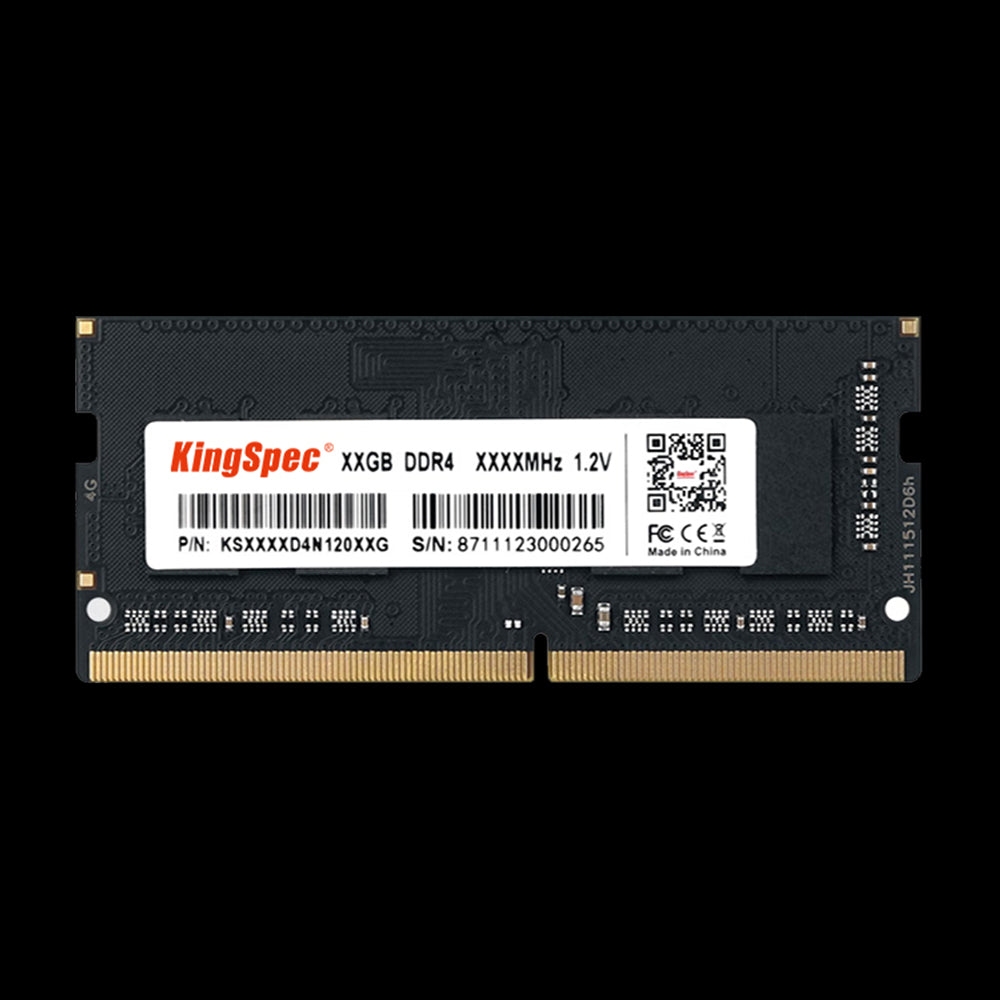
- Type: DDR4 SO-DIMM, 260-pin
- Speed: 3200MT/s
- Capacities: 8GB, 16GB, 32GB
- Voltage: 1.2V
- Platforms: Intel and AMD
- Warranty: 3 Years
The standard laptop memory format used by many DDR4 notebooks, at the common 3200MT/s speed. It installs in a free SO-DIMM slot with no tools beyond a screwdriver, and capacities up to 32GB cover everything from everyday multitasking to heavier creative work.
Best SSD Upgrades for HP Laptops
An SSD won’t add memory, but it makes boot times, app launches, and file loading far quicker. Check whether your HP has a 2.5 inch bay or an M.2 2280 slot, and whether that slot supports NVMe or SATA, before you choose.
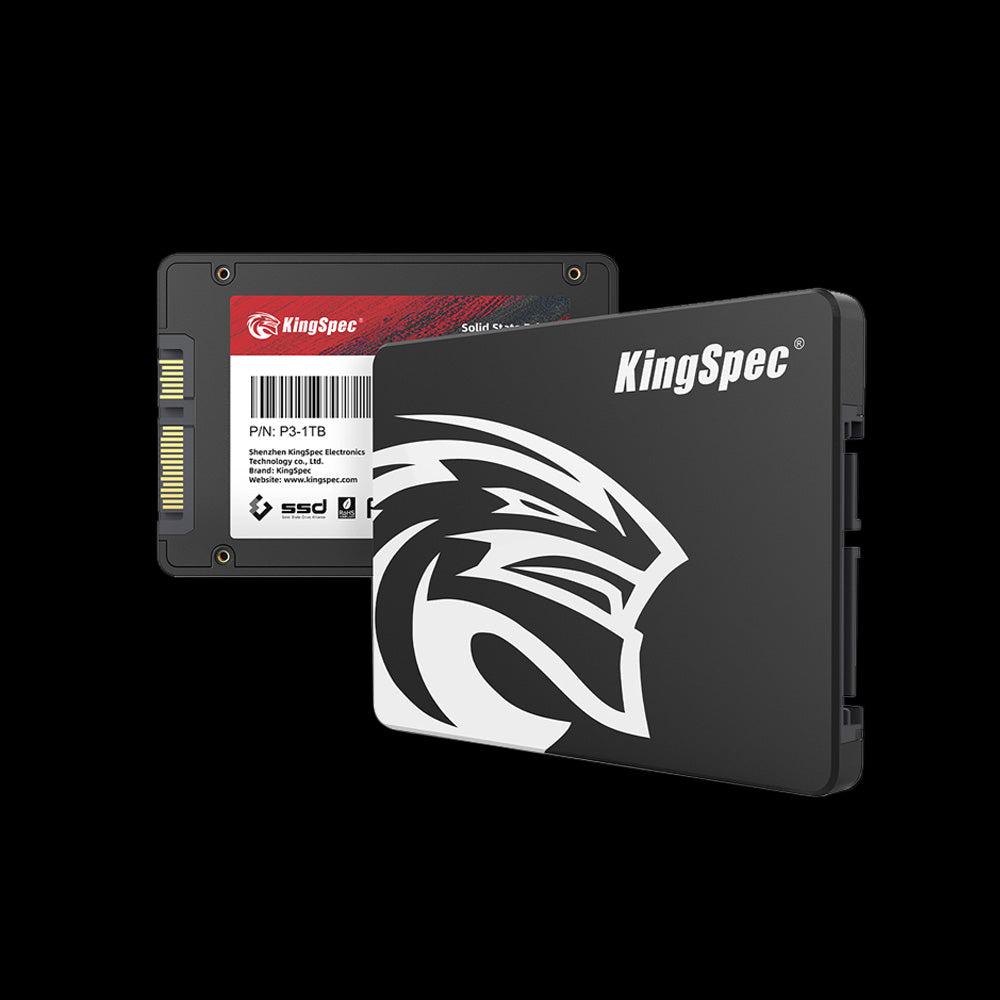
- Interface: SATA III (6Gb/s)
- Read Speed: Up to 560 MB/s
- Write Speed: Up to 530 MB/s
- Form Factor: 2.5 inch
- Capacities: Up to 8TB
- Warranty: 3 Years
The biggest speed jump for an older HP that still has a spinning hard drive. It uses the same SATA connection as the old drive, so it drops straight into a 2.5 inch bay.
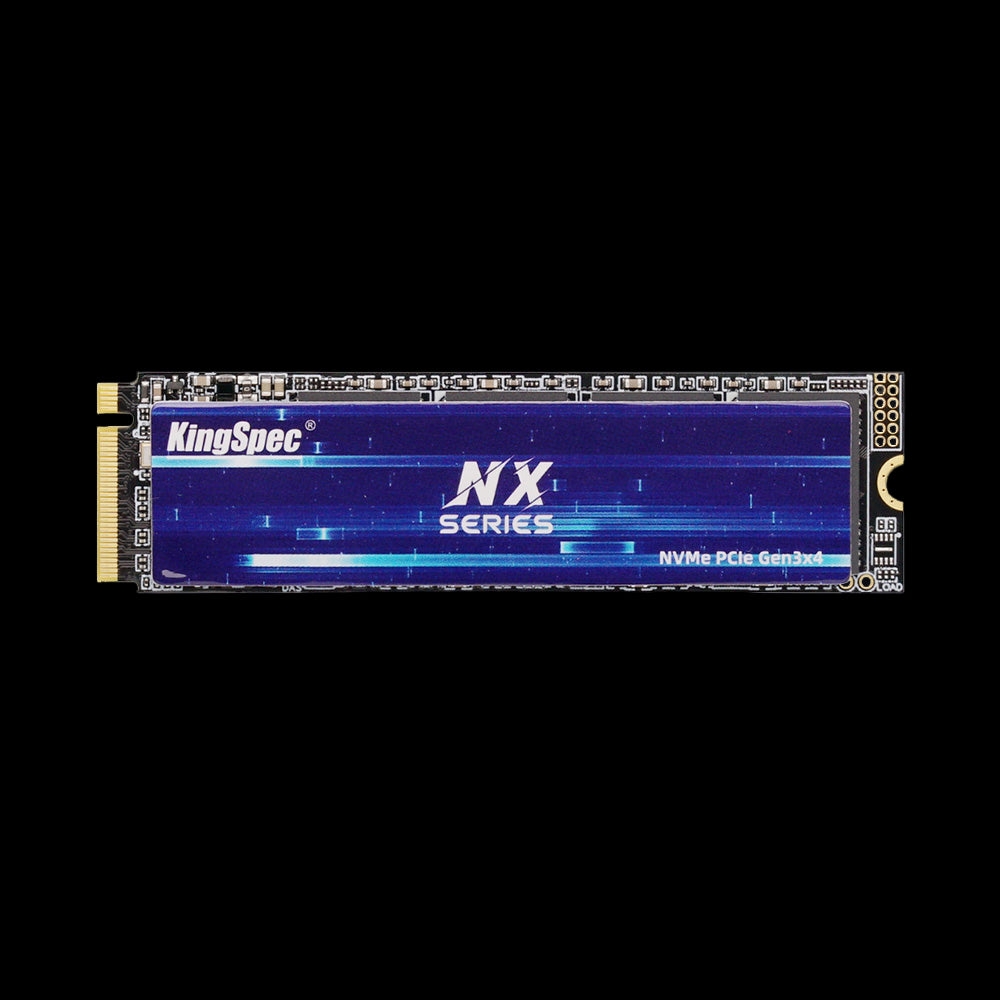
- Interface: PCIe Gen3 x4, NVMe
- Read Speed: Up to 3,500 MB/s
- Write Speed: Up to 3,000 MB/s
- Form Factor: M.2 2280
- Capacities: Up to 2TB
- Warranty: 3 Years
An affordable NVMe drive for HP laptops with an M.2 2280 slot. It works in Gen3 and Gen4 slots, and its thin graphene heatsink label suits the tight space inside a laptop.
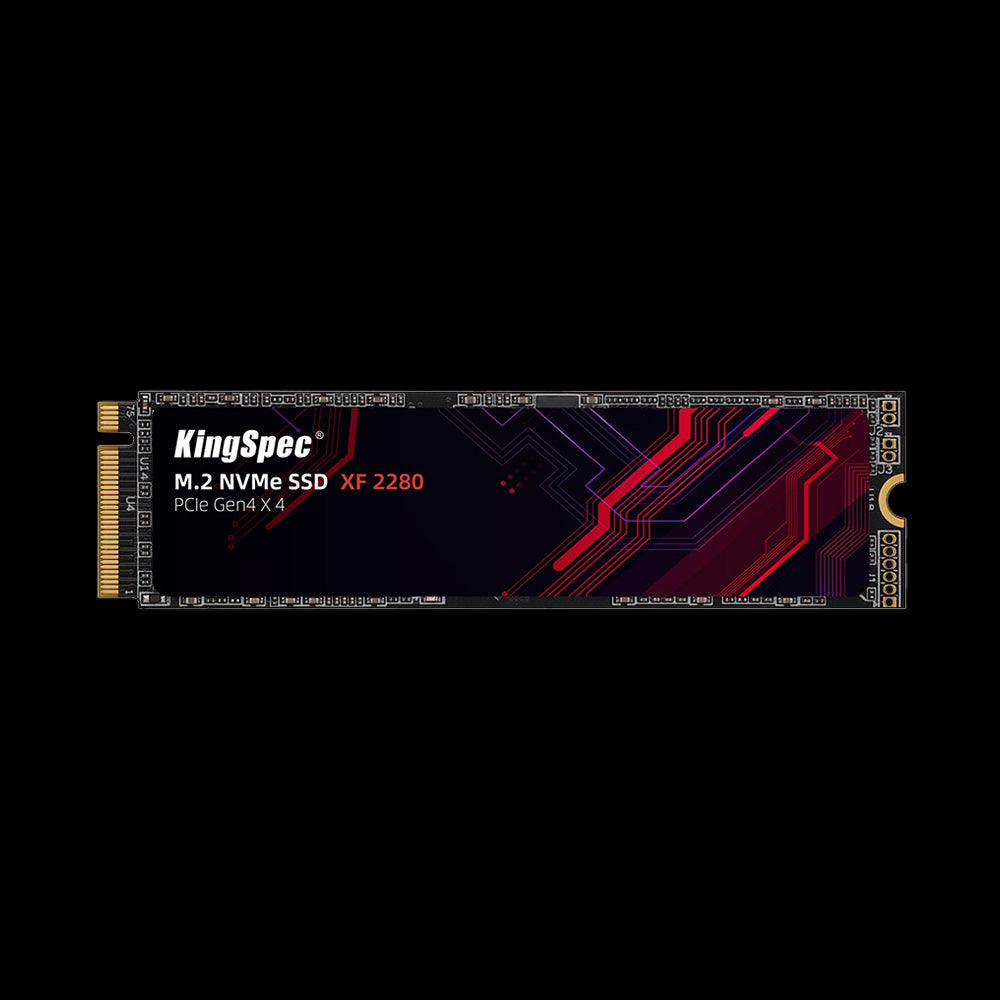
- Interface: PCIe Gen4 x4, NVMe
- Read Speed: Up to 5,100 MB/s
- Write Speed: Up to 4,600 MB/s
- Form Factor: M.2 2280, single-sided
- Capacities: 512GB to 2TB
- Warranty: 3 Years
A single-sided Gen4 drive built with thin laptops in mind, where there’s little room above the M.2 slot. A strong match for newer HP models with PCIe 4.0 support.
Swapping the drive takes about as long as a RAM upgrade. This guide shows how to install an internal SSD in a laptop, step by step.
Which Upgrade Should You Choose?
If your HP slows down with many apps or tabs open and has a free DDR4 SO-DIMM slot, start with RAM. If the RAM is soldered or the laptop takes ages to boot, upgrade the drive: the P3 for older laptops with a 2.5 inch bay, the NX for an M.2 slot on a budget, and the XF for newer models that support PCIe 4.0.
Doing both gives an older HP the biggest overall lift, as long as each part matches the service manual.
Wrapping Up: Give Your HP Laptop Room to Breathe
An HP laptop memory upgrade starts with the exact model, its memory layout, and its supported RAM specifications. Follow the service manual, install the module carefully, and confirm that Windows shows the full amount.
When you’re ready to shop, browse the collections below for SSDs and best sellers that pair well with your new memory.
Browse Related Collections
Frequently Asked Questions (FAQs):
How much does it cost to upgrade from 16GB to 32GB RAM?
The cost depends on the memory type your laptop needs and current prices. A shop may also charge for installation if you don’t do it yourself. Confirm compatibility before you compare prices.
Will a RAM upgrade make my HP laptop faster?
It helps if your laptop slows down when many apps or browser tabs are open. If it already has enough RAM for what you do, the upgrade may make little difference. The processor and storage drive affect speed too.
Can I use desktop RAM in my HP laptop?
No. Laptops use smaller SO-DIMM modules, while desktops use full-size DIMM sticks. A desktop module won’t fit a laptop slot, even if the generation and speed match.
Is upgrading RAM the same as upgrading an SSD?
No. RAM is temporary working memory used while apps are running. An SSD stores your files and programs, so it adds storage space and speed, not memory.
Can RAM be upgraded if it’s soldered?
Fully soldered RAM generally can’t be replaced or expanded. Some HP laptops pair soldered memory with a separate slot you can add to. Check the service manual for your exact model.

