
Upgrading your laptop with a solid state drive (SSD) is one of the best ways to speed up your device and give it more storage space.
If you have been thinking about making your laptop faster, quieter, and more reliable, upgrading to an SSD is a smart move. This laptop SSD upgrade guide will help you understand what you need, how to prepare, and step-by-step instructions for the upgrade process.
Keep reading to learn everything you need for a smooth and successful SSD upgrade.
How to Choose the Best SSD for Your Laptop SSD Upgrade Guide
Picking the right SSD for your laptop is the first important step in your upgrade journey. Not all SSDs are the same, and choosing the wrong one can lead to compatibility issues or wasted money.
This section will help you understand the types of SSDs available and how to find the best fit for your laptop.
There are mainly three types of SSDs you will encounter:
- SATA SSDs: These are the most common and usually cheaper. They fit into the same 2.5-inch slot as a traditional hard drive.
- NVMe SSDs: These are much faster but require a compatible M.2 slot and use the PCIe interface for data transfer.
- M.2 SATA SSDs: These use the M.2 form factor but connect via the SATA protocol, making them slower than NVMe SSDs but faster than traditional hard drives.
Remember, M.2 refers to the physical size and shape of the drive, while SATA and NVMe describe the communication protocols and speeds. To pick the right SSD, check your laptop’s manual or manufacturer’s website to see which SSD types it supports.
Also, decide how much storage you want. Most people find 512GB or 1TB SSDs to be the sweet spot for balancing space and price.
📌 If you want to explore the best DDR4 RAM for gaming to pair with your new SSD upgrade, check out the article How to Pick The Best DDR4 RAM for Gaming for ideas on boosting your laptop’s performance even more.
Best Kingspec SSDs to Supercharge Your Laptop Performance Today
Looking to give your laptop a powerful speed boost and reliable storage upgrade? Kingspec’s lineup of SSDs offers top-tier performance, durability, and value, perfect for taking your laptop to the next level.
Whether you want lightning-fast load times, longer battery life, or simply more space for your files and games, these SSDs deliver exactly what you need.
NX Series M.2 NVMe 2280 PCIe 3.0 SSD

- Blazing Fast Speeds: With PCIe Gen 3.0 technology and read speeds up to 2200MB/s, your laptop will boot quicker, launch apps faster, and transfer files in a flash.
- Energy Efficient: Designed to keep your laptop running cooler and longer with low power consumption, ideal for on-the-go users.
- Reliable & Durable: Built to last with strong endurance ratings, so you can trust it for years of daily use.
Ready for a smooth, budget-friendly upgrade? Shop the NX Series M.2 NVMe 2280 PCIe 3.0 SSD now and experience a noticeable speed boost today.
XG7000 M.2 NVMe 2280 PCIe 4.0 SSD

- Next-Level Performance: Harness the power of PCIe Gen 4.0 with blazing read speeds up to 5000MB/s, perfect for gamers, creators, and power users who demand the best.
- Advanced Cooling: Equipped with enhanced thermal controls to keep your SSD running cool even during intense workloads.
- Future-Proof Your Laptop: Compatible with the latest laptops, this drive ensures you stay ahead with the fastest storage technology available.
Don’t settle for slow, upgrade to the XG7000 M.2 NVMe 2280 PCIe 4.0 SSD and unlock your laptop’s full potential now.
P3 Series 2.5-Inch SATA III SSD
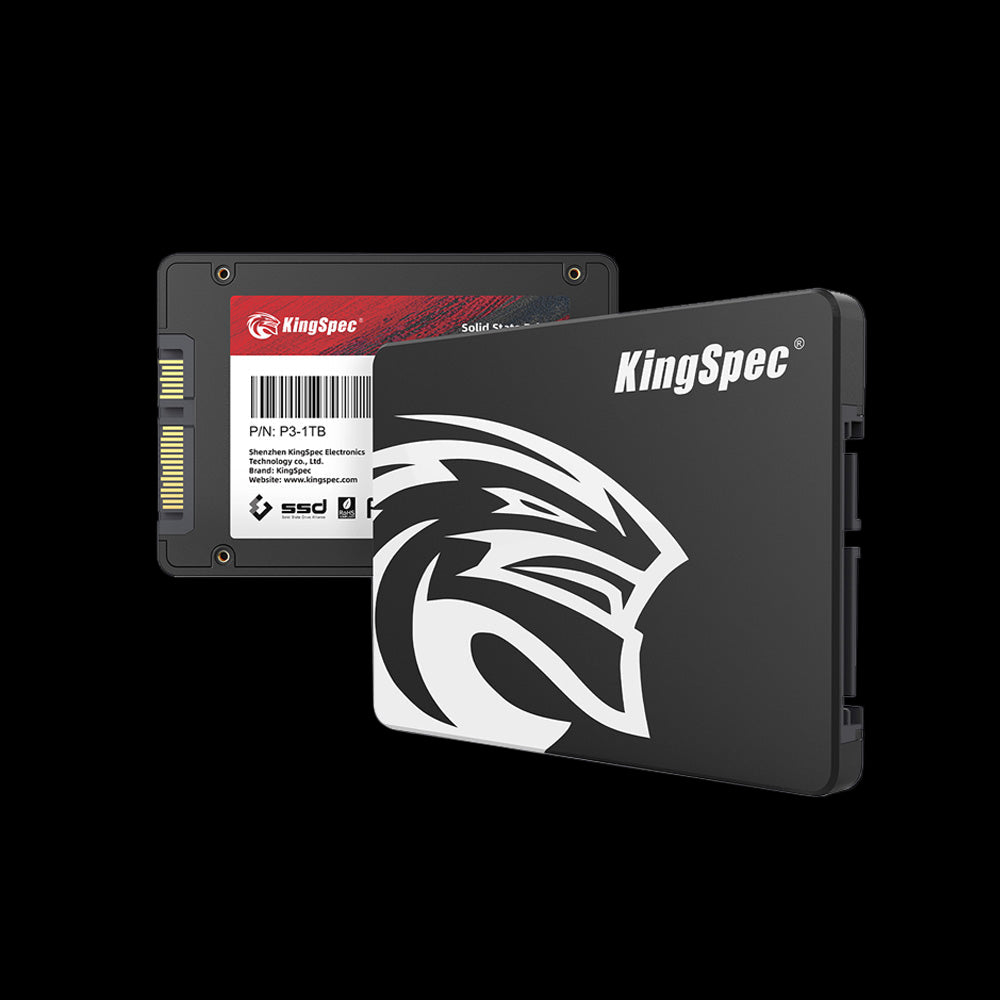
- Wide Compatibility: Perfect for laptops with a 2.5-inch bay, this SSD offers a straightforward upgrade path from traditional hard drives.
- Fast & Reliable: Enjoy read speeds up to 560MB/s and a shock-resistant design that protects your data on the move.
- Affordable & Effective: A great value choice if you want to boost performance without breaking the bank.
Looking for a simple, effective upgrade? Browse the P3 Series 2.5-Inch SATA III SSD and give your laptop a fresh new speed boost today.
Preparing Your Laptop for an SSD Upgrade
Before you open your laptop, some preparation is necessary to make sure everything goes smoothly. Taking the right steps now can save you time and prevent data loss.
Here are the key things to do before starting:
- Back up your data: Save important files to an external drive or cloud storage.
- Gather your tools: You will typically need a small screwdriver and possibly an external enclosure for your new SSD.
- Check your warranty: Opening your laptop might affect your warranty, so it is good to know this upfront.
-
Find your laptop’s service manual: This will show you how to open your laptop safely without damaging anything.
📌 Don’t forget to browse through the DDR5 RAM Speed for the Latest Intel CPUs article to understand how the latest RAM technology can complement your SSD upgrade for even better laptop speed.
Step-by-Step Laptop SSD Upgrade Guide
Upgrading your laptop’s SSD can seem tricky, but breaking it down into clear steps makes it manageable. Follow this simple step-by-step guide to replace your old hard drive or SSD with a new one.
- Turn off your laptop and unplug it from any power source.
- Remove the back cover carefully using the right screwdriver.
- Locate the current hard drive or SSD inside your laptop.
- Unscrew and disconnect the old drive gently.
- Insert your new SSD into the slot and secure it with screws.
- Put the back cover on and screw it back in place.
- Turn on your laptop and enter BIOS or UEFI (modern laptops use UEFI) to check if the new SSD is detected.
- Install your operating system or clone your old drive to the new SSD.
📌 If you want to learn more about SSD lifespan and how to take care of your new drive after installation, check out the article How Long SSD Lifespan Typically Last and How to Make It Last Longer? for helpful tips.
How to Transfer Your Data When Upgrading Your Laptop SSD

Moving your files and programs from your old drive to your new SSD is an important part of the upgrade process. You have two main options: cloning your old drive or doing a fresh install of your operating system.
- Cloning copies everything exactly as it is from your old drive to the new SSD. This saves time and keeps all your settings and files.
- Fresh install means installing a new operating system on the SSD and manually moving your important files. This can make your laptop feel even faster but takes more time.
To clone your drive, you will need cloning software and an external enclosure or adapter to connect the new SSD to your laptop before installation. After cloning, your laptop should boot from the new SSD without any problems.
Tips to Get the Most Out of Your Laptop SSD Upgrade
Once your new SSD is installed, there are a few things you can do to keep it running fast and healthy. Optimizing your SSD will help you enjoy the full speed boost and extend its life.
Here are some tips:
- Enable AHCI mode in BIOS or UEFI for better SSD performance.
- Update your SSD’s firmware regularly for improvements and bug fixes.
- Adjust your operating system settings to reduce unnecessary writes to the SSD.
- Avoid defragmenting your SSD since it is not needed and can wear out the drive faster. Modern versions of Windows automatically handle SSD optimization, so manual defragmentation is unnecessary.
Kingspec offers a variety of reliable internal SSDs and memory cards that can help you upgrade your laptop’s storage and speed with ease.
Troubleshooting Common Laptop SSD Upgrade Issues
Sometimes things don’t go as planned during an SSD upgrade. Knowing how to handle common problems can save you frustration.
If your laptop does not recognize the new SSD:
- Double-check the physical connection and seating of the SSD.
- Make sure BIOS or UEFI settings are correct and the SSD is enabled.
- If the SSD is detected in BIOS but not in Windows, check Disk Management to initialize and format the drive.
- Try updating your BIOS or UEFI firmware if the SSD still does not show up.
If you encounter issues cloning your drive or installing the operating system, consider seeking help from a professional or using online forums for guidance.
Conclusion
Upgrading your laptop’s SSD is a fantastic way to improve speed, storage, and overall experience. This Laptop SSD Upgrade Guide covered everything from choosing the right SSD to step-by-step installation and tips for maintaining your new drive.
For more helpful guides and tips about SSD upgrades and other tech topics, be sure to visit Kingspec.
They offer a great selection of products including memory cards, gaming storage, internal and external SSDs, DDR RAM, and more to help you get the most out of your devices.
Frequently Asked Questions About Laptop SSD Upgrades
Can upgrading SSD improve battery life?
Yes, upgrading to an SSD can improve your laptop’s battery life. SSDs use less power than traditional hard drives because they have no moving parts. This means your laptop can run longer on a single charge, especially during tasks like web browsing and document editing.
How to upgrade SSD and RAM together for the best boost?
Upgrading both your SSD and RAM is a great way to improve your laptop’s overall speed and multitasking ability. First, upgrade your SSD to get faster storage and quicker load times. Then, increase your RAM capacity to help your laptop handle more programs at once without slowing down.
How to increase your laptop’s speed with an NVMe M.2 SSD upgrade?
Switching to an NVMe M.2 SSD can dramatically increase your laptop’s speed compared to traditional SATA drives. NVMe SSDs use a faster connection and transfer data more quickly, which means faster boot times and quicker file transfers. Just make sure your laptop supports NVMe M.2 drives before buying.
How to move everything to a new SSD easily?
To move everything to a new SSD, use disk cloning software that copies your entire system, including files and settings. Connect the new SSD to your laptop with an external adapter, run the cloning program, and then swap the drives. This way, your system will work exactly as before but much faster.
How to find the right SSD for specific laptop models?
To find the right SSD for your laptop model, check your laptop’s manual or manufacturer website for supported SSD types and sizes. You can also search online forums or product reviews for others who have upgraded the same model. Compatibility is key to a successful upgrade.

