
Building a new PC is exciting. However, looking at the spec sheet for a new motherboard can be confusing. You see terms like "Gen4" and "Gen5" everywhere. The biggest question most builders face today is PCIe 4.0 vs 5.0.
Is the newer version actually worth the extra money? Or is it just marketing hype?
PCIe (Peripheral Component Interconnect Express) is the connection standard that connects your high-speed components like graphics cards and SSDs to your processor. Think of it like a highway. The higher the number, the faster the speed limit.
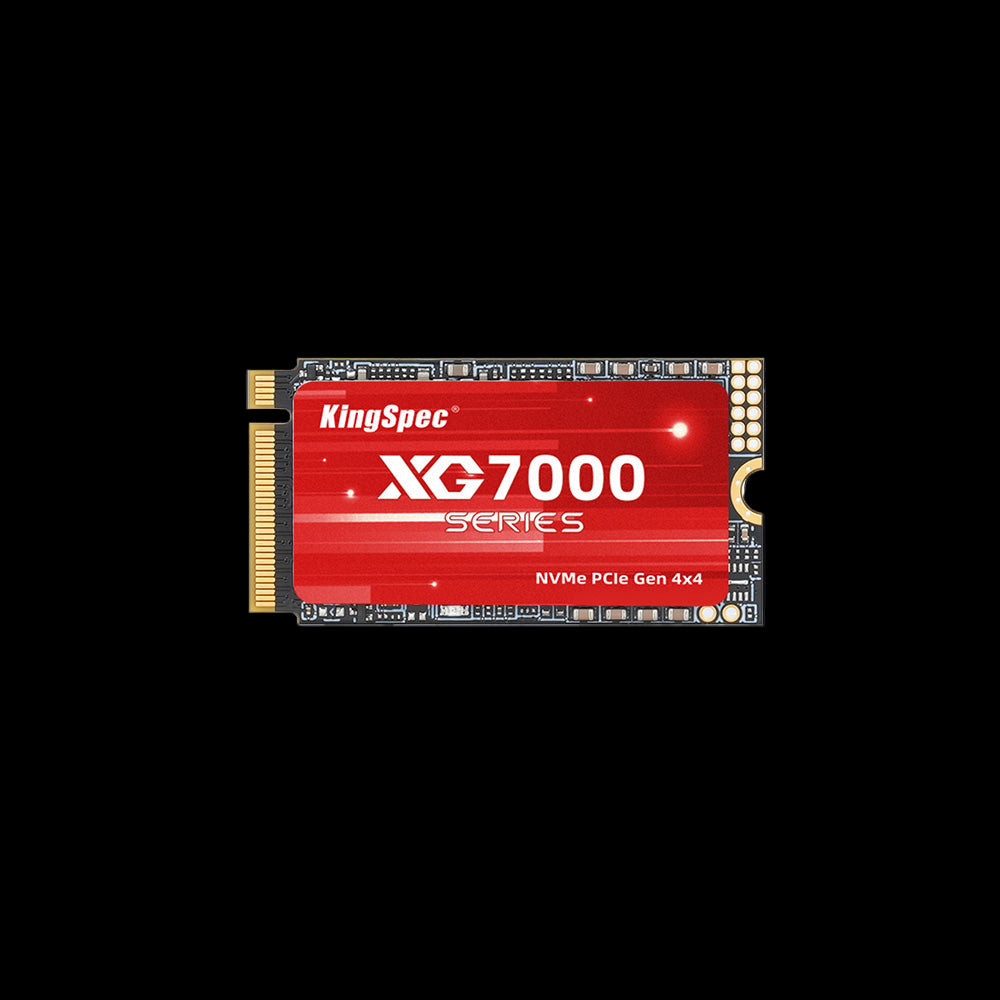
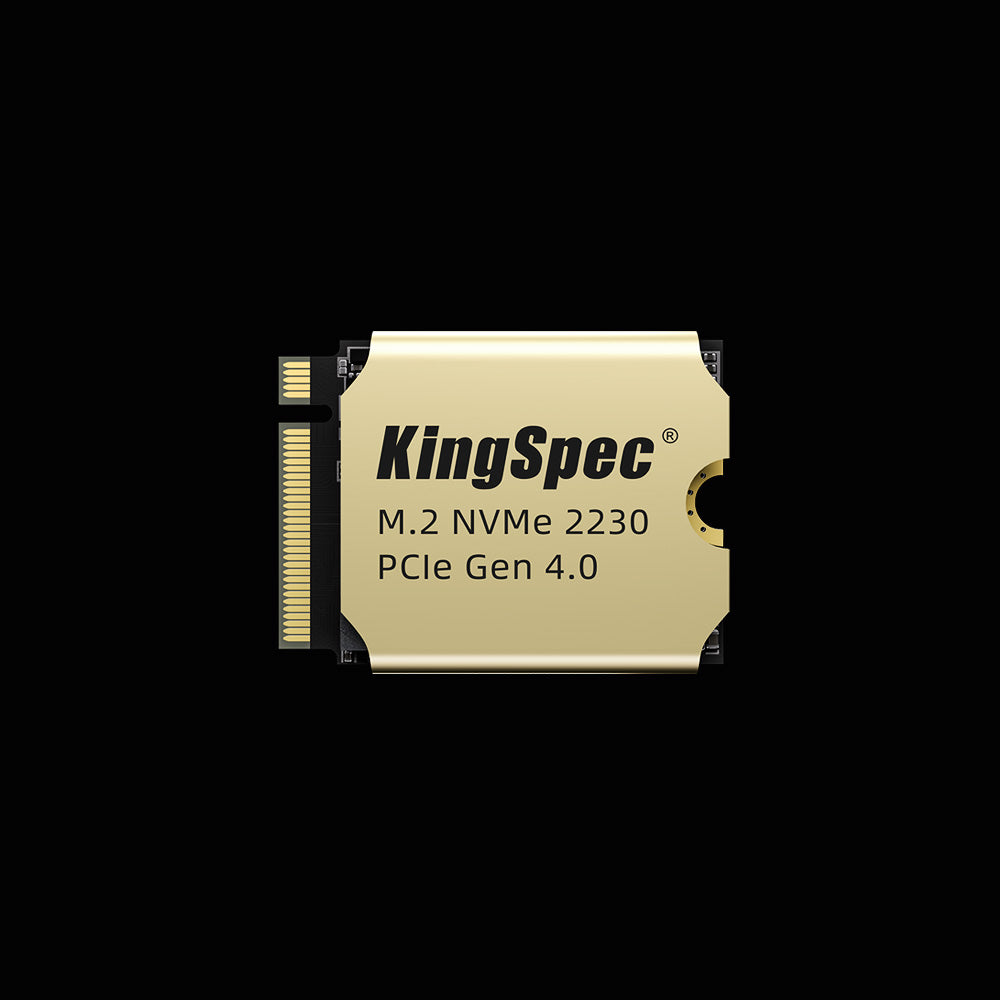
Whether you are looking for a reliable KingSpec PCIe 4.0 SSD for gaming or trying to future-proof your workstation, this guide will break down the differences simply and help you decide if you need the cutting-edge speed of Gen5 or the proven value of Gen4.
Key Takeaways
- Speed: PCIe 5.0 is effectively twice as fast as PCIe 4.0 in raw bandwidth
- Gaming: Currently, there is almost zero difference in FPS or load times between Gen4 and Gen5
- Heat: PCIe 5.0 SSDs run extremely hot and usually require massive heatsinks or tiny fans
- Compatibility: They are backward compatible — a Gen4 drive in a Gen5 slot works perfectly
- Verdict: PCIe 4.0 is still the sweet spot for 99% of gamers and everyday users

What is PCIe?
To understand the difference between 4.0 and 5.0, you first need to understand what PCIe actually is. Think of your computer motherboard as a city. The CPU is the Mayor's office. The SSD is the Library. The GPU is the Art Museum.
PCIe is the highway system connecting all these buildings.
- Lanes (x1, x4, x16): An SSD usually uses 4 lanes (x4). A graphics card usually uses 16 lanes (x16).
- Generation (4.0, 5.0): This refers to the speed limit of the highway.
The Speed Limit Change
- PCIe 3.0 was like a standard city street
- PCIe 4.0 doubled the speed limit and turned the street into a highway
- PCIe 5.0 doubles it again into a futuristic super-speedway
When we talk about an SSD being "Gen4" or "Gen5," we are talking about how fast it is allowed to travel on this highway. If you are currently using an older computer with a hard drive or SATA SSD, moving to any form of NVMe PCIe is a massive upgrade.
PCIe 4.0 vs. PCIe 5.0: Speed and Bandwidth
Let's look at the raw data. On paper, PCIe 5.0 looks like a massive leap forward.
PCIe 4.0 (Gen4)
- Released: 2017
- Max Speed per Lane: 2 GB/s
- Max Speed for an SSD (x4): ~8 GB/s (real world ~7,400 MB/s)
- Status: The current gold standard for high-end gaming PCs and the PlayStation 5
PCIe 5.0 (Gen5)
- Released: 2019 (available in consumer parts around 2022)
- Max Speed per Lane: 4 GB/s
- Max Speed for an SSD (x4): ~16 GB/s (real world ~14,000 MB/s)
- Status: Enthusiast tier for professionals and data servers
Gen5 effectively doubles the bandwidth. However, just because the highway is wider doesn't mean your car can drive faster. Your software has to actually use that speed.
Does it Matter for Gaming?
The short answer is no. Higher FPS does not come from switching to Gen5.
The Load Time Test
Loading a massive game level shows the real picture:
- SATA SSD: loads in 20 seconds
- PCIe 3.0 SSD: loads in 13 seconds
- PCIe 4.0 SSD: loads in 12 seconds
- PCIe 5.0 SSD: loads in 11.5 seconds
Going from SATA to NVMe saves you 7 seconds — that is huge. Going from Gen4 to Gen5 saves half a second, which is barely noticeable.
Why Is the Difference So Small?
Games are limited by the CPU's ability to decompress the data. The SSD sends data so fast that the CPU cannot unpack it quickly enough. The bottleneck is no longer the storage — it is the rest of the computer.
DirectStorage
DirectStorage allows the graphics card to pull data directly from the SSD, bypassing the CPU. In theory this makes Gen5 drives better, but current Gen4 KingSpec NVMe SSDs are already fast enough to saturate this technology. No game yet requires Gen5 speeds to work properly.
If you are building a gaming rig, invest in a higher-end graphics card or check out the guide to the Best DDR4 RAM for Gaming to ensure your memory keeps up with your system.
PCIe 4.0 vs. PCIe 5.0: The Heat Problem
There is a catch with PCIe 5.0 that marketing teams do not like to talk about: heat. Moving data at 14,000 MB/s generates a massive amount of friction and electrical heat. When an SSD gets too hot, it throttles down intentionally to prevent damage.
PCIe 4.0 Cooling
A standard KingSpec PCIe 4.0 SSD runs reasonably cool with a thin metal sticker or the simple heatsink included on most motherboards. It is silent and efficient, making it perfect for laptops and compact PCs.
PCIe 5.0 Cooling
Gen5 drives run extremely hot. To keep them cool, manufacturers use extreme measures:
- Massive heatsinks up to 2 inches tall that can block your CPU cooler or graphics card
- Tiny active fans that add noise and are another moving part that can break
For most users who want a quiet PC, the heat and noise of Gen5 are a dealbreaker. A cool-running internal SSD that does not sound like a jet engine is usually the better choice for daily use.
Who Is PCIe 5.0 Actually For?
PCIe 5.0 is designed for professionals and enterprise servers.
1. Video Editors (8K RAW)
Working with 8K RAW footage creates gigantic files. The double bandwidth of Gen5 allows you to scrub through the timeline instantly without any lag.
2. Data Scientists and AI
Training AI models involves moving terabytes of data constantly. For a data scientist, cutting a transfer time from 4 hours to 2 hours saves money.
3. Server Farms
Servers handling cloud computing or database management need to serve thousands of users at once. The massive throughput of PCIe 5.0 is essential here.
PCIe Compatibility and Motherboards
One of the best things about the PCIe standard is backward compatibility.
- Gen4 SSD in a Gen5 slot: works perfectly at Gen4 speeds
- Gen3 SSD in a Gen5 slot: works perfectly at Gen3 speeds
- Gen5 SSD in a Gen4 slot: works, but slows down to Gen4 speeds — wasted money
Motherboard Selection
- Intel: Most Z690 and Z790 motherboards have at least one PCIe 5.0 slot for the SSD
- AMD: The AM5 platform (Ryzen 7000/9000) heavily supports PCIe 5.0
You can buy a future-proof motherboard today that supports Gen5, but save money by installing a KingSpec PCIe 4.0 SSD right now. In a few years, when Gen5 drives are cheaper and cooler, you can upgrade easily.
PCIe 4.0 vs. PCIe 5.0: The Cost of Speed
- 1TB PCIe 4.0 SSD: typically $60 to $80
- 1TB PCIe 5.0 SSD: typically $150 to $180
You are paying double the price for a drive that loads your games 0.5 seconds faster and makes more noise. The smarter strategy: instead of buying a 1TB Gen5 drive, buy a 2TB Gen4 drive for the same money. Double the storage is infinitely more valuable than a slightly higher theoretical top speed.
If you are upgrading an older machine, a best SATA SSD is still a massive upgrade over a mechanical hard drive.


Conclusion
The battle of PCIe 4.0 vs 5.0 comes down to value. PCIe 5.0 is an impressive technology and undoubtedly the future of computing. However right now, it suffers from the early adopter tax. It is expensive, it runs hot, and it offers little real-world benefit for 99% of users.
PCIe 4.0 remains the king of value and performance. It is fast enough for the most demanding games, cool enough to fit in laptops and PlayStation 5 consoles, and affordable enough to allow you to buy high capacities.
Don't get caught up in the hype of big numbers. Unless you are using your computer to make money editing 8K video, you do not need Gen5 yet. Save your money. Buy a larger Gen4 drive. Enjoy your games.
Upgrade Your Storage Today
Ready to boost your PC performance? Browse these collections to find the right fit:
- PCIe 4.0 Collection — the gold standard for modern gaming PCs
- PCIe 3.0 Collection — perfect for budget builds and upgrades
- USB-C External SSDs — high-speed backups for your data
- Internal SSD Collection — reliable upgrades for every budget
FAQs: PCIe 4.0 vs. PCIe 5.0
Can I put a PCIe 5.0 SSD in a PCIe 4.0 slot?
Yes, it will fit physically because the connector is the same shape. However, the speed will be limited to the PCIe 4.0 maximum (around 7,400 MB/s). You will be paying for expensive Gen5 speed but only getting Gen4 performance. It is generally a waste of money unless you plan to upgrade your motherboard very soon.
Do I need a special motherboard for PCIe 5.0?
Yes. To get the full speeds, both your motherboard and CPU must support PCIe 5.0. Intel 12th, 13th, and 14th Gen processors support it. AMD Ryzen 7000 and 9000 series processors support it. Check your motherboard manual to see if the specific M.2 slots are rated for Gen4 or Gen5 — sometimes only the top slot is Gen5.
Will PCIe 5.0 make my computer boot faster?
Probably not. Boot times are mostly limited by the time it takes your motherboard to initialize hardware. The actual loading of Windows from a fast Gen4 SSD is already nearly instantaneous. Moving to Gen5 saves maybe a fraction of a second — not noticeable without a stopwatch.
Is PCIe 5.0 necessary for the RTX 4090?
Surprisingly, no. Even the most powerful graphics cards like the NVIDIA RTX 4090 utilize the PCIe 4.0 interface. They don't even saturate the full bandwidth of Gen4 yet. We are likely a few years away from graphics cards strictly needing Gen5 to run at full power.
Does the PlayStation 5 support PCIe 5.0?
No. The Sony PlayStation 5 supports PCIe 4.0 M.2 SSDs. A Gen5 drive might work, but it will run at Gen4 speeds. More importantly, the massive heatsink on a Gen5 drive probably will not fit inside the PS5's expansion slot. Stick to a high-quality Gen4 drive for console gaming.

