

USB 3.0 speed is 5 Gbps (gigabits per second), which is 625 MB/s before overhead. After USB 3.0's 8b/10b encoding, the ceiling for data is 500 MB/s, and real file transfers land lower still. USB 3.0 is the same speed later renamed USB 3.1 Gen 1, USB 3.2 Gen 1, and now "USB 5Gbps."
This guide explains the units, the names, and why your transfers may be slower than expected.
Key Takeaways
- USB 3.0 signals at 5 Gbps. Divide by 8 to get 625 MB/s, then subtract encoding overhead for 500 MB/s.
- USB 3.0, USB 3.1 Gen 1, USB 3.2 Gen 1, and USB 5Gbps all mean the same speed.
- A USB-C connector doesn't guarantee speed. Some USB-C ports run at USB 2.0 speed.
- Slow transfers usually come from the port, cable, drive, file type, or a hub.
- A fast external SSD needs a matching port to reach its rated speed.
What Is USB 3.0?
USB 3.0 is the USB standard that introduced "SuperSpeed" data transfer at 5 Gbps in 2008. It was about ten times faster than USB 2.0's 480 Mbps.
USB 3.0 Type-A ports often have a blue insert, though color isn't a requirement. Some ports carry the SuperSpeed "SS" logo instead.
USB 3.0 also added separate send and receive wire pairs, so data can move in both directions at the same time.
What Is the Maximum Theoretical Speed of USB 3.0?
USB 3.0's nominal signaling rate is 5 Gbps. That's the raw speed of the electrical link, not the speed you'll see when copying files.
USB 3.0 Speed in Mbps, Gbps, and MB/s

The confusion starts with bits and bytes. Network and USB speeds use bits. File sizes and copy dialogs use bytes. One byte equals 8 bits.
| Measure | Value | What it means |
|---|---|---|
| Nominal signaling rate | 5 Gbps = 5,000 Mbps | Raw link speed in bits per second |
| Raw rate in bytes | 625 MB/s | 5,000 Mbps ÷ 8 bits per byte |
| After 8b/10b encoding | 500 MB/s | 8 of every 10 bits carry data |
| Real file transfers | Below 500 MB/s | Protocol overhead, controllers, and the drive reduce it further |
8b/10b encoding sends 10 bits on the wire for every 8 bits of data. It keeps the signal reliable, but it uses 20% of the link. The USB 3.2 specification defines this encoding for 5 Gbps operation. Faster USB modes use a more efficient 128b/132b scheme.
For more on these units, see our guide to Mbps vs Gbps.
USB 2.0 vs USB 3.0
USB 3.0 is roughly ten times faster than USB 2.0 by signaling rate. USB 2.0 runs at 480 Mbps, which is 60 MB/s before overhead.
- Speed: 480 Mbps vs 5 Gbps.
- Data flow: USB 2.0 sends one direction at a time. USB 3.0 can send and receive at once.
- Compatibility: USB 3.0 devices work in USB 2.0 ports, but only at USB 2.0 speed.
That last point matters most. Plugging a fast drive into an older port is one of the most common reasons for slow transfers.
USB 3.0 vs USB 3.1 vs USB 3.2 Naming Explained
USB 3.0's 5 Gbps speed has been renamed several times. The speed never changed, only the label.
| Spec name | Older or other names | USB-IF logo name | Nominal rate | Data ceiling after encoding | Practical notes |
|---|---|---|---|---|---|
| USB 2.0 | Hi-Speed USB | Hi-Speed USB | 480 Mbps | Under 60 MB/s | Fine for keyboards and small files. Slow for SSDs. |
| USB 3.2 Gen 1 | USB 3.0, USB 3.1 Gen 1, SuperSpeed USB | USB 5Gbps | 5 Gbps | 500 MB/s | Caps most portable SSDs below their rating. |
| USB 3.2 Gen 2 | USB 3.1 Gen 2, SuperSpeed USB 10Gbps | USB 10Gbps | 10 Gbps | About 1,212 MB/s | Good match for many NVMe portable SSDs. |
| USB 3.2 Gen 2x2 | SuperSpeed USB 20Gbps | USB 20Gbps | 20 Gbps (two lanes) | About 2,424 MB/s | Needs a Gen 2x2 port. Less common on PCs. Many laptops and Macs fall back to 10 Gbps. |
| USB4 | USB4 Gen 2x2, Gen 3x2 | USB 20Gbps or USB 40Gbps | 20 or 40 Gbps | Varies by tunneled traffic | USB-C only. Shares bandwidth with displays and other data. |
| USB4 Version 2.0 | USB4 80Gbps | USB 80Gbps | 80 Gbps | Varies by tunneled traffic | Newest tier. Requires supporting host, device, and cable. |
Data ceilings are calculated from the line encoding (8b/10b for 5 Gbps, 128b/132b for 10 and 20 Gbps). They're theoretical limits, not measured speeds. Real transfers are lower.
USB-IF, the group that manages USB standards, now uses speed-based names on packaging. Its USB Performance Logo Usage Guidelines define logos for USB 5Gbps, 10Gbps, 20Gbps, 40Gbps, and 80Gbps products. When you shop, look for the Gbps number rather than the version number.

Does USB-C Change Speed Compared With USB-A?
No. USB-A and USB-C are connector shapes. The speed depends on the USB standard the port supports, not the plug.
A USB-A port can run at 5, 10, or even 20 Gbps in rare cases. A USB-C port can run anywhere from USB 2.0 speed to 80 Gbps. Apple's own MacBook Neo shows this clearly. Apple says its left USB-C port transfers data at up to 10 Gbit/s, while the right USB-C port runs at USB 2 speeds of up to 480 Mbit/s.
USB-C does add real benefits. It's reversible, supports higher charging power, and is required for USB4. It just doesn't make a slow port fast.
Theoretical vs Real-World Transfer Speeds
Real transfers are always below the theoretical ceiling. Several layers each take a share.
- Line encoding reduces 5 Gbps to 500 MB/s of data capacity.
- Protocol overhead adds packet headers, acknowledgments, and flow control.
- The USB bridge chip inside an external drive translates USB to SATA or NVMe.
- The storage itself may be slower than the link, especially hard drives and flash drives.
- The workload matters. One large file copies far faster than thousands of tiny files.
Protocol overhead is a property of USB. Device performance is a property of your drive. A fast SSD can't beat the USB ceiling, and a fast port can't speed up a slow drive.
Why USB 3.0 Transfers May Be Slow
When a USB 3.0 transfer feels slow, the cause is usually something in the chain, not USB 3.0 itself. Check these common culprits:
- The device connected at USB 2.0. A USB 2.0 port, cable, or hub forces the whole link down to 480 Mbps.
- The drive is slow. Many flash drives and hard drives can't fill a 5 Gbps link.
- Small files. Copying thousands of photos involves far more overhead per byte than one large video.
- Write caching is off. Windows uses Quick removal by default for external drives, which disables write caching for safety.
- The drive is hot or full. Some SSDs slow down when they overheat or run low on free space.
- Background activity. Antivirus scans and sync apps can slow copies.
Cable and Port Limitations
The slowest part of the connection sets the speed. A USB 3.0 drive needs a USB 3.0 or faster port and a cable that supports SuperSpeed data.
- Charging cables that came with phones are often USB 2.0 only, even with USB-C on both ends.
- Front panel ports on some desktops connect through internal cables that can be slower or less reliable than rear ports.
- Hubs and docks share bandwidth among every connected device.
- Long or low-quality cables can cause errors that force retries or a drop to a lower speed.
How USB Limits External SSD Performance
Most modern portable SSDs can move data faster than USB 3.0 allows. On a 5 Gbps port, they're capped below 500 MB/s, no matter how fast the drive is rated.
Here's how that plays out with KingSpec's published ratings:
Discover High-Performance Storage & Memory by Kingspec
Explore Kingspec
US4 Portable USB External SSD
Rated up to 540 MB/s read. On a USB 3.0 port, the 500 MB/s ceiling applies, so you'll see somewhat less than the rating.
Shop now →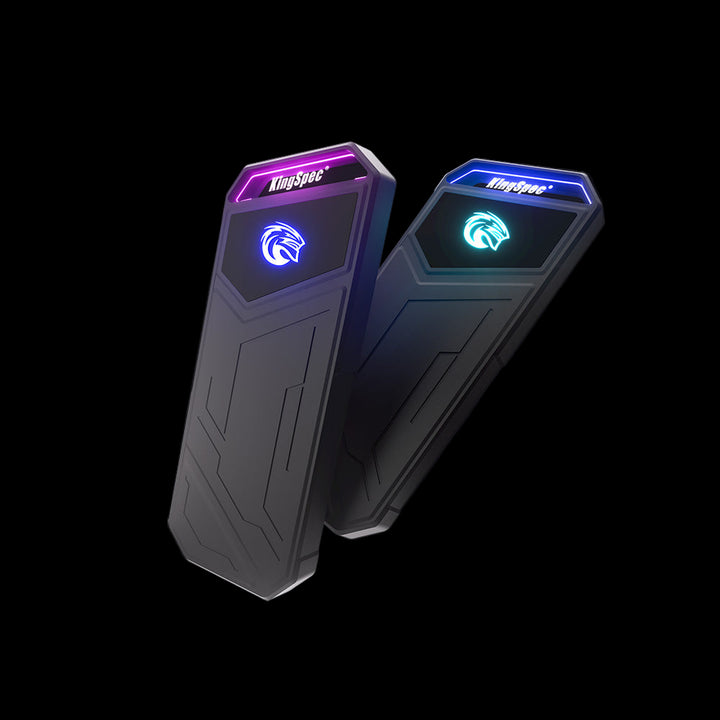
Z5 Series Portable External SSD
Rated up to 2,100 MB/s read. It needs a 20 Gbps port to approach that. On USB 3.0, it's limited to the same sub-500 MB/s ceiling.
Shop now →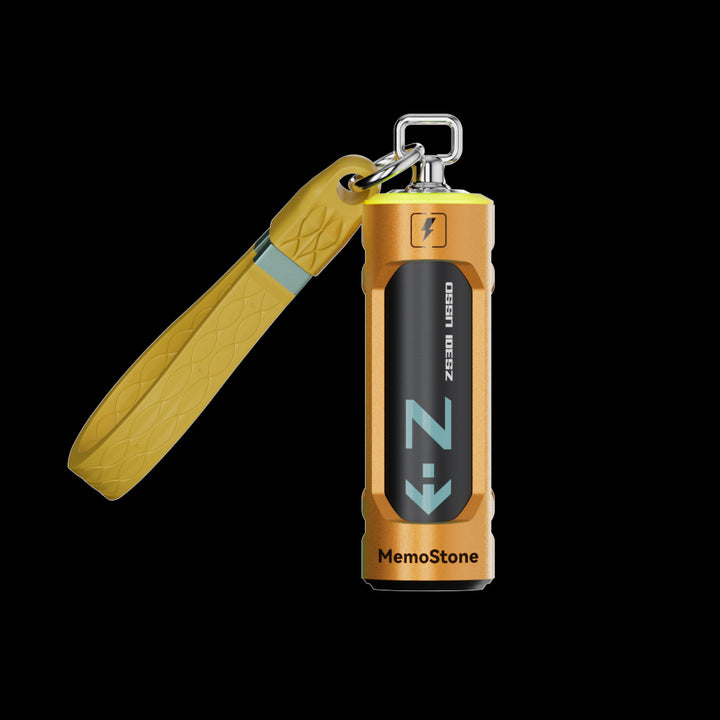
ZS301 Portable External USSD
Rated up to 2,000 MB/s read, with USB-A and USB-C. On a 10 Gbps port, expect it to run near that port's limit instead.
Shop now →Ratings are KingSpec's listed maximum sequential speeds, not independent tests. Actual speeds depend on the host port, cable, file type, and system.
Want the fastest results? Read our guide to the fastest portable SSDs and match the drive to your port.
How to Check Your USB Port Specifications
Check your computer's specs page first, then confirm in the operating system. Port labels and colors help, but they aren't always present or reliable.
On Windows
- Look up your PC or motherboard model on the maker's website. The specs list each port's speed, such as "USB 10Gbps" or "USB 3.2 Gen 2."
- Open Device Manager and expand Universal Serial Bus controllers to see your USB host controllers.
- Watch for the Windows notification that a device "can perform faster" when connected to a different port. It means the current link is slower than the device supports.
- On USB4 PCs, check Settings > Bluetooth & devices > USB for USB4 hub and device details.
On a Mac
- Hold Option, click the Apple menu, and choose System Information.
- Select USB under Hardware.
- Click your device. The Speed field shows the connection, such as "Up to 5 Gb/s" or "Up to 10 Gb/s."
How to Test USB Transfer Speeds
Copy a large file and time it, or run a benchmark tool. Test the same way each time so results are comparable.
- Use one large file, such as a 10 GB video, for a sequential test.
- Watch the transfer rate in the Windows copy dialog, or divide file size by seconds elapsed.
- Repeat with a folder of small files to see the small-file penalty.
- Run a benchmark for repeatable numbers. Our guide on how to benchmark SSD speed walks through common tools.
- Compare ports. Run the same test on each port to find the fastest one.
How to Improve Slow USB File Transfers
Most slow transfers improve with a better port, a better cable, or a change in how you copy.
- Use the fastest port your computer offers. Rear motherboard ports are often the best choice on desktops.
- Use the cable that came with the drive, or one rated for 10 Gbps or more.
- Remove hubs and connect directly while you test.
- Zip thousands of small files into one archive before copying.
- Consider Better performance mode in Windows for drives you always eject safely. It enables write caching.
- Update chipset and USB drivers from your PC or motherboard maker.
- Keep the SSD below about 80% full and give it airflow during long transfers.
When Does Upgrading to a Faster USB Interface Make Sense?
Upgrade when your drive is faster than your port and you move large files often. If your work is mostly small documents, USB 3.0 is usually enough.
| Your situation | Recommendation |
|---|---|
| Documents, photos, occasional backups | USB 3.0 (5 Gbps) is usually enough. |
| Large video projects or game libraries on a portable SSD | Move to 10 Gbps or faster ports and drives. |
| You own a 20 Gbps SSD but only have 10 Gbps ports | Consider a USB 3.2 Gen 2x2 PCIe card for desktops, or accept the 10 Gbps limit. |
| Laptop with USB4 or Thunderbolt ports | Pair it with a drive that supports those modes for the highest external speeds. |
| Old PC with only USB 2.0 | A USB 3.x expansion card (desktop) is the biggest single upgrade. |
Formatting can also matter for compatibility. Our exFAT vs NTFS guide explains which file system to use on an external SSD.
Common Mistakes to Avoid
- Treating 5 Gbps as 5 GB/s. It's 5 gigabits, which is 625 MB/s raw.
- Assuming USB-C means fast. Check the port's Gbps rating.
- Blaming the drive first. Test with a different port and cable before returning anything.
- Comparing different tests. One big file and many small files give very different results.
- Paying for 20 Gbps without a 20 Gbps port. The drive will run at the port's speed.
Frequently Asked Questions
How fast is USB 3.0 in MB/s?
USB 3.0 signals at 5 Gbps, which equals 625 MB/s of raw bandwidth. After 8b/10b encoding, the ceiling for data is 500 MB/s. Protocol overhead and device limits push real file transfers below that number.
Is USB 3.0 the same as USB 3.2 Gen 1?
Yes. USB 3.0, USB 3.1 Gen 1, and USB 3.2 Gen 1 all refer to the same 5 Gbps speed. USB-IF now labels it "USB 5Gbps" on certified products. Only the name changed between specification versions.
Is USB 3.0 or 3.2 faster?
It depends on the generation. USB 3.2 Gen 1 is the same 5 Gbps as USB 3.0. USB 3.2 Gen 2 runs at 10 Gbps, and USB 3.2 Gen 2x2 runs at 20 Gbps. Check the Gen number or the Gbps rating, not just "3.2."
Is USB-C faster than USB 3.0?
Not automatically. USB-C is a connector shape, and USB 3.0 is a speed standard. A USB-C port can run at USB 2.0 speed or as fast as 80 Gbps. Check the port's speed rating in your device's specs.
Is USB 3.0 fast enough for an external SSD?
It works, but it limits most modern portable SSDs to under 500 MB/s. That's still much faster than a hard drive. For SSDs rated at 1,000 MB/s or more, use a 10 Gbps or 20 Gbps port to get closer to the rated speed.
Is USB 3.0 fast enough for 4K video?
Usually yes for playback and copying files. Most 4K video bitrates are far below USB 3.0's bandwidth. Editing high-bitrate footage directly from the drive can benefit from a faster connection and a fast SSD.
Final Thoughts
USB 3.0 speed is 5 Gbps on paper and up to 500 MB/s of data after encoding, with real transfers somewhat lower. When files move slowly, check the port, cable, hub, and drive before anything else. If you regularly move large files, a 10 Gbps or 20 Gbps port paired with a matching SSD is the upgrade that makes the biggest difference.

