
A slow laptop is one of the biggest frustrations a student can face, especially during assignments, online classes, and deadlines. The good news is that upgrading to a budget SSD for students is one of the fastest and most affordable ways to transform a sluggish computer. Boot times drop to seconds, apps open instantly, and multitasking becomes genuinely smooth, all without buying a new device.

This guide covers everything a student needs to know before buying: how to choose the right type and capacity, which KingSpec drives offer the best value across internal and external options, and how to avoid the most common purchasing mistakes.
Key Takeaways
- A budget SSD upgrade makes any laptop feel dramatically faster without replacing the whole device
- 512GB is the sweet spot for most students; 256GB works only if you rely heavily on cloud storage
- SATA SSDs fit older laptops and cost less; NVMe SSDs are faster and suit modern thin laptops
- Always check your laptop's form factor (2.5", M.2 2280, or M.2 2242) before purchasing
- An external SSD adds portable backup and project storage without opening the laptop at all
- KingSpec offers reliable student SSD options starting at affordable price points with a 3-year warranty
Why a Budget SSD for Students Is Worth the Upgrade
Most student laptops ship with slow hard drives or low-grade eMMC storage. Replacing either with an SSD produces an immediate, noticeable improvement in every task students do daily:
- Windows or macOS boots in seconds instead of minutes
- Apps like Word, Chrome, Zoom, and Excel open almost instantly
- Switching between tabs, documents, and video calls stays smooth
- No moving parts means greater durability in a backpack
- Lower power draw can help extend battery life compared to spinning hard drives
Even the most affordable SATA SSD is four times faster than a traditional hard drive. For students juggling lectures, assignments, research, and remote learning, that speed difference changes how productive a study session can be. For a complete guide to the installation process, see: Laptop SSD Upgrade Guide: How to Boost Your Laptop's Speed and Storage.
How to Choose the Right Budget SSD for Students
Storage Capacity: How Much Do You Actually Need?
| Capacity | Best For | Practical Reality |
|---|---|---|
| 256GB | Light users, heavy cloud storage users | Works at first but fills up fast over 3 to 4 years |
| 512GB | Most college students | Sweet spot: OS, apps, projects, and room to grow |
| 1TB | Engineering, design, video, gaming students | Best long-term value per gigabyte for heavy users |
Windows 11 alone uses 20 to 40GB just for the operating system and updates. Add your apps, project files, downloaded lectures, and research PDFs, and 256GB gets tight faster than most students expect. If you plan to keep your laptop through a full degree, 512GB is the safer investment from day one.
SATA vs NVMe: Which Interface Fits Your Laptop?
| Type | Typical Speed | Best Laptop Fit | Cost |
|---|---|---|---|
| 2.5" SATA SSD | Up to 560 MB/s | Older laptops with a 2.5" drive bay | Most affordable |
| M.2 SATA SSD | Up to 560 MB/s | Thin laptops with M.2 SATA-only slots | Affordable |
| M.2 NVMe (PCIe 3.0) | Up to 3,500 MB/s | Modern thin laptops, ultrabooks | Mid-range budget |
The most important step before buying any budget SSD for students is checking which slot your laptop uses. Open the device manual or search your laptop model number online. Installing a 2280 drive in a laptop that needs 2242 is a physical mismatch. For help understanding form factor and interface differences before upgrading, see: M.2 SSD vs Standard SSD: Which Should You Choose?
Internal vs External SSD for Students
An internal SSD replaces your existing storage and delivers the full speed benefit directly. An external SSD plugs in over USB and requires no opening of the laptop, making it ideal for students who cannot upgrade internally or want portable backup storage for projects and shared files. Many students benefit from having both: an internal drive for speed and an external drive for portability and backup.
Best Budget SSD for Students: KingSpec Picks
KingSpec covers every student scenario with purpose-built, affordable drives across internal and external options. All carry a 3-year warranty and use 3D NAND for reliable everyday performance.
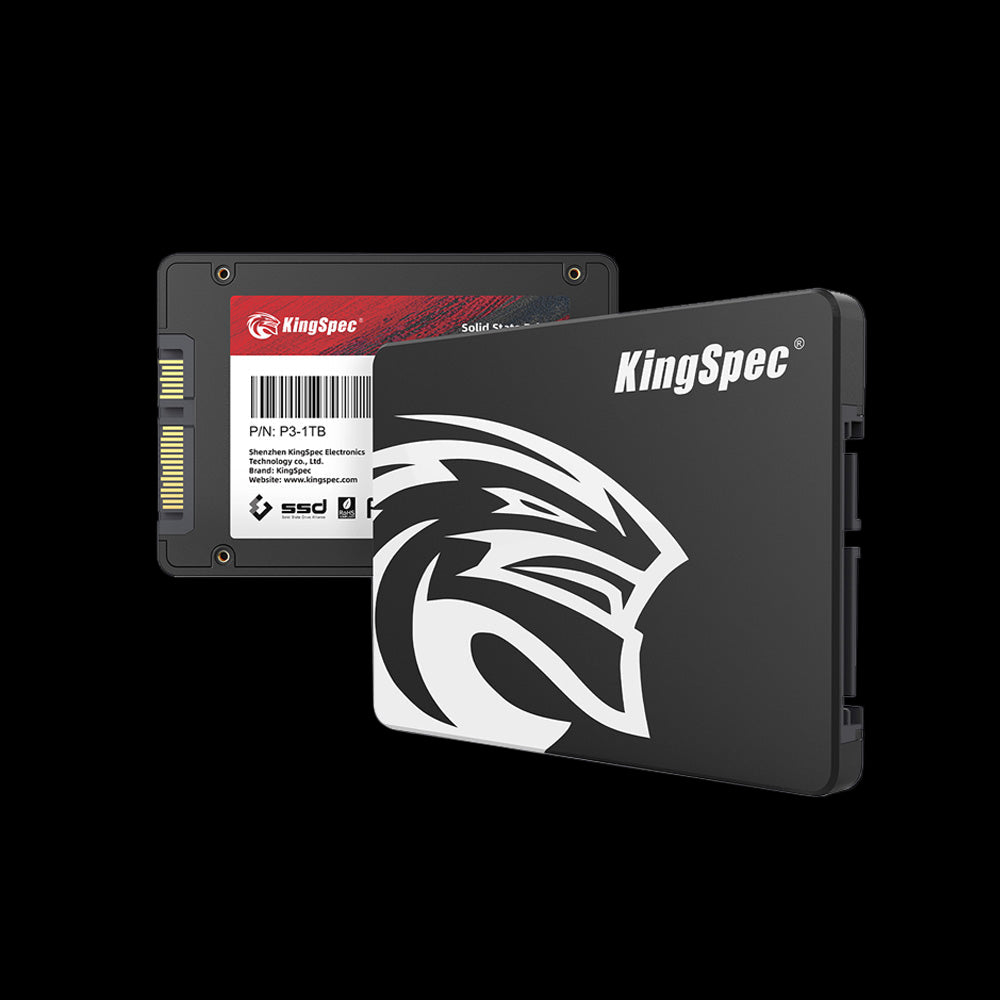
- Interface: SATA III (6 Gb/s)
- Read: Up to 560 MB/s
- Write: Up to 530 MB/s
- Form Factor: 2.5 inch
- Capacities: 256GB, 512GB, 1TB, 2TB
- Durability: Shock and vibration resistant
- Warranty: 3 Years
The most affordable student upgrade path. Fits any laptop with a 2.5" drive bay, using the same slot as the old hard drive. Installation is straightforward: swap the drive, clone or reinstall. Delivers 4x the speed of a spinning HDD at the lowest entry price.
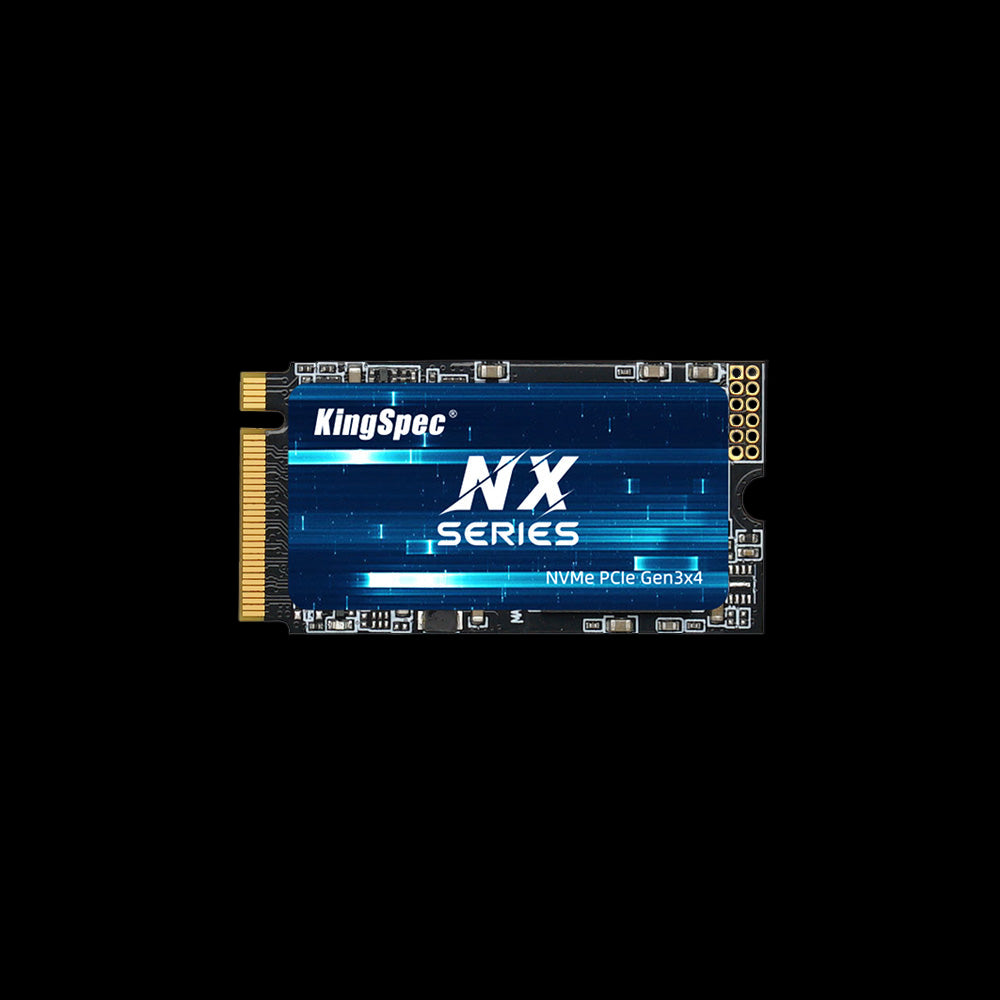
- Interface: PCIe Gen3 x4, NVMe
- Read: Up to 3,500 MB/s
- Write: Up to 2,500 MB/s
- Form Factor: M.2 2242 (42mm compact)
- Capacities: 256GB, 512GB, 1TB
- Design: Compact and power-efficient
- Warranty: 3 Years
Purpose-built for thin and light laptops that use the shorter 2242 M.2 slot. NVMe Gen3 x4 speed (up to 3,500 MB/s) in a compact 42mm form factor. Ideal for programming students, engineering software users, and anyone who multitasks heavily on a slim notebook.

- Interface: PCIe Gen3 x2, NVMe
- Form Factor: M.2 2242 (42mm)
- Capacities: 256GB, 512GB, 1TB
- NAND: 3D NAND, optimized firmware
- Compatibility: Wide laptop compatibility
- Power: Low power draw for battery savings
- Warranty: 3 Years
The reliable, balanced choice for students who need compact NVMe performance without paying a premium. Lower power consumption extends battery life during long lecture days. Optimized firmware balances reliability and speed across everyday student workloads.
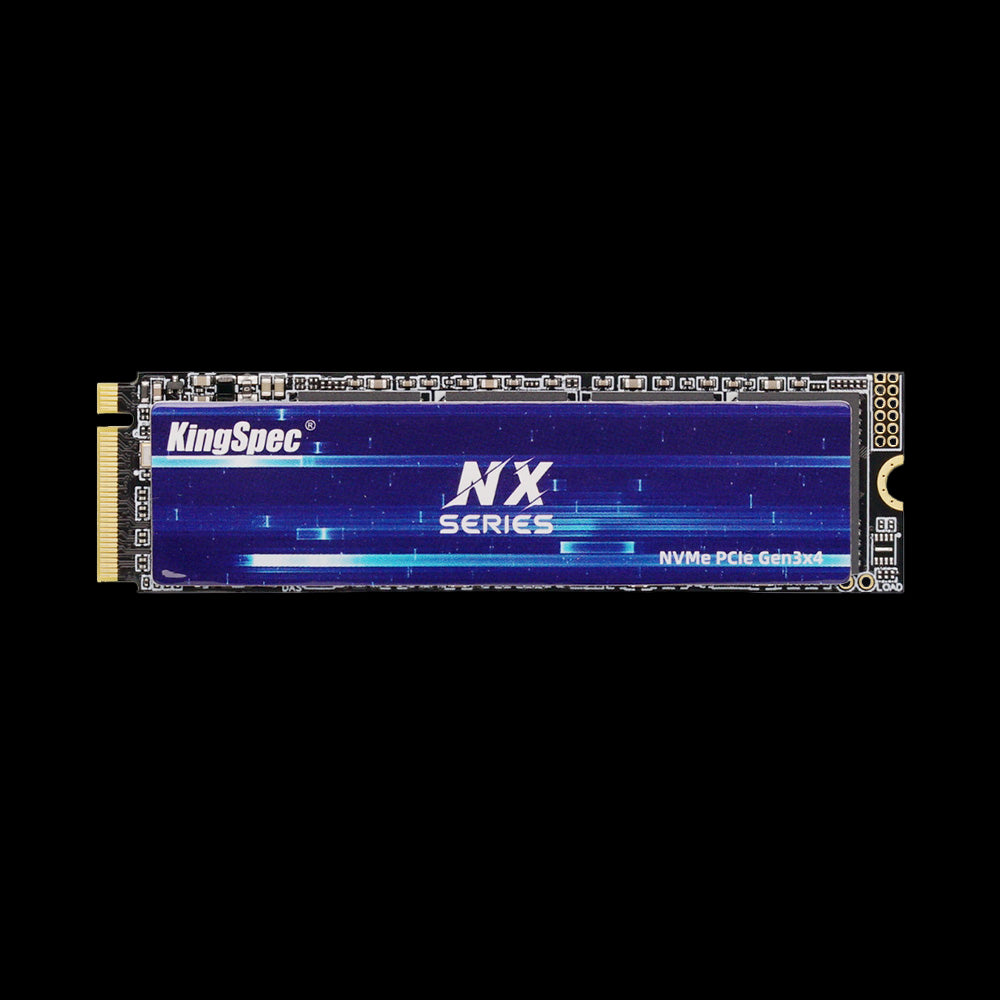
- Interface: PCIe Gen3 x4, NVMe
- Read: Up to 3,500 MB/s
- Write: Up to 3,000 MB/s
- Form Factor: M.2 2280 (standard size)
- Capacities: 256GB, 512GB, 1TB, 2TB
- Cooling: Ultra-thin graphene heatsink label
- Warranty: 3 Years
The most widely compatible NVMe budget drive in KingSpec's lineup. Fits virtually every modern student laptop and desktop that has an M.2 2280 NVMe slot. Gen3 x4 speed at a budget price, with an ultra-thin graphene heatsink label for thermal stability during longer work sessions.
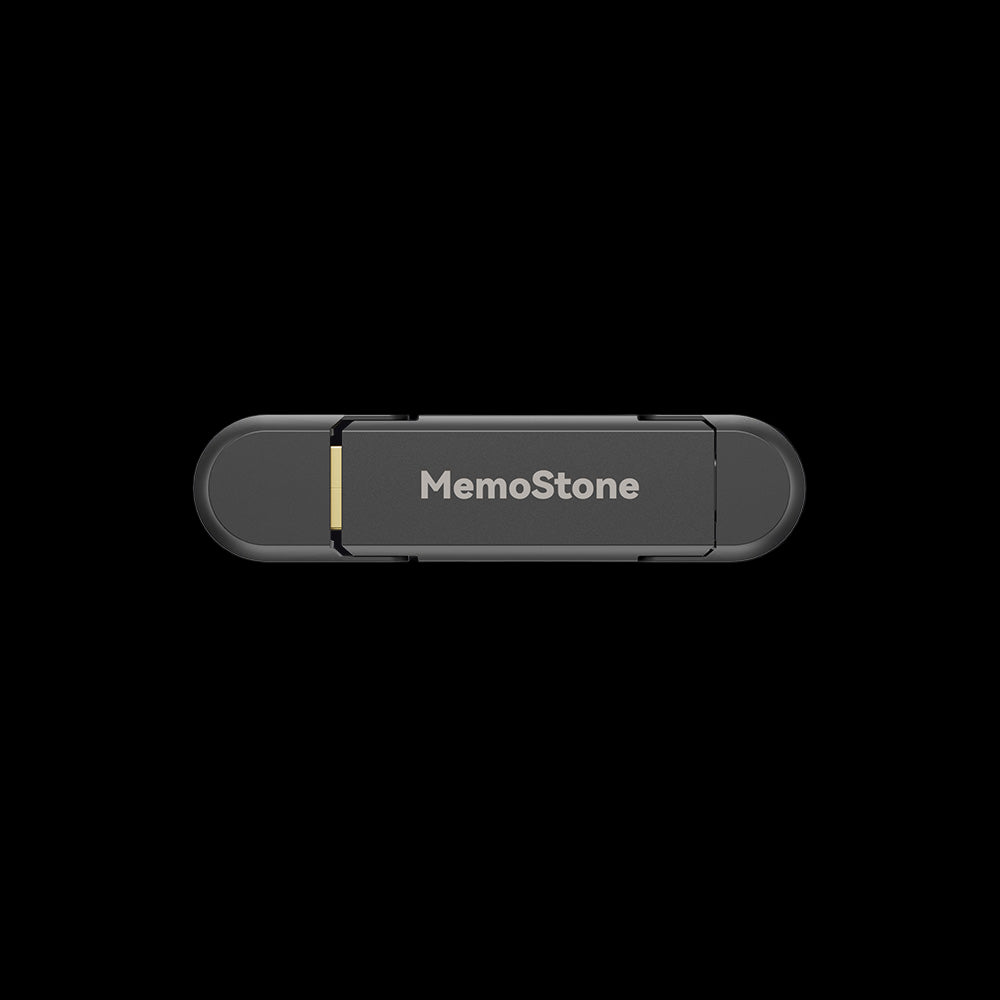
- Interface: USB 3.2 (USB-A and USB-C)
- Read: Up to 550 MB/s
- Design: 2-in-1 dual connector, flip cover
- Size: Mini, backpack-friendly
- Capacities: 512GB, 1TB, 2TB
- Compatibility: PC, Mac, phones, tablets
- Warranty: 3 Years
Plug-and-play portable storage with both USB-A and USB-C connectors built in, so it works with any laptop or phone without adapters. Compact enough to clip onto a keychain. Perfect for transferring assignments between devices, keeping project backups, and sharing files in group work.

- Interface: USB 3.2 Gen 2x2 (20 Gbps)
- Read: Up to 2,000 MB/s
- Write: Up to 1,850 MB/s
- Build: Zinc-metal casing, RGB lighting
- Capacities: 512GB, 1TB, 2TB, 4TB
- Compatibility: PC, Mac, PS5, Xbox
- Warranty: 3 Years
The fastest external SSD in KingSpec's portable lineup. At up to 2,000 MB/s over USB 3.2 Gen 2x2, it handles 4K video project storage, large design file transfers, and direct editing from the drive. Ideal for media, film, design, and architecture students who move large files regularly between campus and home.
How Much Storage Does a Student Really Need?
Storage fills up faster than most students expect. Planning ahead by one academic year is usually not enough. Here is a realistic breakdown of what consumes space over a full degree:
- Operating system plus regular updates: 20GB to 40GB or more
- Core productivity apps (Office, browsers, communication tools): 5GB to 15GB
- Course-specific software (CAD, Adobe suite, IDEs, MATLAB): 10GB to 60GB depending on field
- Lecture recordings, PDFs, and research downloads: grows steadily every semester
- Optional games, media, and personal files
For students in arts, engineering, architecture, or media production, 1TB is worth the modest price difference over 512GB. For general studies and humanities students who save most work to cloud services, 512GB is usually sufficient for four years.
SATA vs NVMe for Student Use: Which Feels Faster Day-to-Day?

Both SATA and NVMe SSDs are dramatically faster than hard drives, but the experience differs depending on the task:
- For everyday student work (browsing, Word, Zoom, email): SATA and NVMe feel nearly identical. Both are fast enough that the difference is imperceptible.
- For opening large files (Photoshop projects, CAD files, video timelines): NVMe is noticeably faster, cutting load times by several seconds per file.
- For installing large software (Adobe Creative Cloud, Visual Studio, game engines): NVMe installs complete significantly faster.
- For battery life: both have low power draw, but NVMe drives occasionally consume slightly more at peak performance.
If your laptop only has a 2.5" bay, SATA is your only internal option and it is still an excellent upgrade. If your laptop has an M.2 NVMe slot available, the NX or NXM Series gives you much more speed at only a slightly higher price. For a deeper comparison, see: How a Simple SSD Can Transform Your Slow Laptop.
Installing a Budget SSD: What Students Need to Know
Installing an SSD yourself is manageable for most students with basic comfort around technology. The process typically takes 20 to 30 minutes:
- Check your laptop manual to confirm the supported SSD slot type and size
- Back up all important files to an external drive or cloud storage before starting
- Power off the laptop and remove the bottom panel with a small Phillips screwdriver
- Insert the new SSD into the correct slot and secure it
- Reinstall your operating system from a USB drive, or clone the old drive using free software
- Reassemble and confirm the drive appears in your system before closing up
If you are unsure, a campus tech support desk or a local technician can install it for a small fee. The improvement in boot time and responsiveness is immediate. For a step-by-step walkthrough with troubleshooting tips, see: How to Upgrade Storage on PC the Right Way in 2026.
Common Mistakes Students Make When Buying an SSD
- Buying the wrong form factor: M.2 2242 and M.2 2280 are not interchangeable. Always confirm your laptop's slot size first.
- Choosing 256GB to save money and running out of space within one year
- Ignoring warranty coverage: a 3-year warranty is standard on reliable drives; avoid products with no warranty listed
- Buying NVMe speed for a laptop that only supports SATA slots, which wastes the speed advantage
- Skipping the backup step before installation and losing important assignment files
Conclusion
A budget SSD for students is one of the smartest and most impactful tech upgrades available at any price point. Whether you choose a 2.5" SATA drive for an older laptop, a compact 2242 NVMe for a thin ultrabook, or a portable external SSD for easy backup and file sharing, the improvement in daily speed and reliability is immediate. KingSpec's student-oriented lineup covers every laptop type, slot size, and budget level, all backed by a 3-year warranty and dependable 3D NAND storage. For general storage tips, recommendations, and pairing options including DDR RAM and memory cards, explore the full KingSpec internal SSD collection.
Browse Related Collections
Frequently Asked Questions
What is the best budget SSD for students?
The best budget SSD for students depends on their laptop type. For older laptops with a 2.5" drive bay, the KingSpec P3 Series SATA SSD is the most affordable and impactful upgrade. For thin laptops with an M.2 2242 slot, the NXM Series delivers Gen3 NVMe speed in a compact form. For standard modern laptops with M.2 2280, the NX Series is the most widely compatible NVMe choice. If you cannot upgrade internally or want extra portable storage, the MemoStone US4 external SSD is the practical add-on.
Is 256GB enough SSD storage for a college student?
256GB can work for a first year student who stores most files on Google Drive or OneDrive and avoids large software. However, the operating system, updates, and core apps alone can consume 50 to 70GB before you install anything course-related. Over four years, storage fills up faster than expected. For the majority of students, 512GB is the safer long-term choice that avoids storage management headaches mid-degree.
Is NVMe worth it over SATA for a student laptop?
For everyday student tasks like web browsing, document editing, and video calls, SATA and NVMe feel similar. NVMe makes a noticeable difference when opening large files (Photoshop, CAD, video projects), installing big software, and heavy multitasking. If your laptop supports NVMe and the price difference is small, NVMe is worth it. If your laptop only has a 2.5" SATA bay, then SATA is your only option and it is still an excellent upgrade over any hard drive.
How do I know which SSD fits my laptop?
Check your laptop's user manual, the manufacturer's support page, or search your model number plus "SSD upgrade compatibility" online. The key details to find are: drive interface (SATA or NVMe), form factor (2.5 inch, M.2 2280, or M.2 2242), and maximum supported capacity. Installing the wrong form factor is a physical mismatch that cannot be forced. When in doubt, contact the laptop manufacturer's support team before purchasing.
Should students buy an internal or external SSD?
An internal SSD is the better upgrade if your laptop supports it, because it delivers the full speed benefit for all daily tasks including boot time and app loading. An external SSD is the right choice if your laptop has soldered storage that cannot be replaced, or if you want portable backup and file-sharing storage without opening the device. Many students benefit from both: an internal drive for system speed and an external drive like the MemoStone US4 for assignments, backups, and group projects.
Can I install an SSD myself as a student?
Yes, for most laptops the process is manageable and takes 20 to 30 minutes. You need a small Phillips screwdriver, a USB drive for your operating system installer, and a backup of your important files. The steps are: back up data, remove the bottom panel, swap the SSD, reinstall the OS or clone the old drive. If your laptop has a warranty, check whether self-service voids it before opening. Campus IT support or a local technician can also install it for a small fee if you prefer not to do it yourself.

