
Your SSD holds your operating system, apps, photos, games, and every file you can't afford to lose. Checking its health takes a few minutes and can catch wear, overheating, or an early error message before the drive actually stops working. If your check turns up a warning and you end up needing a replacement, KingSpec's internal SSD lineup covers both SATA and NVMe upgrades.
This guide covers how to check SSD health on Windows, macOS, and Linux, what the results actually mean, and when a warning means it's time to back up or replace the drive. No health tool can predict every failure or guarantee how long a drive keeps running, but most of them will give you a real head start.
Key Takeaways
- CrystalDiskInfo is one of the easiest free SSD health tools for Windows
- Windows PowerShell can show a quick health status without installing anything
- Manufacturer utilities and Linux commands give you more detailed SSD information
- Check health percentage, temperature, total data written, and error counts together, not in isolation
- A "Good" result is never a substitute for regular backups
- Different manufacturers calculate health percentages differently, so don't compare them across brands
- KingSpec's internal SSDs, portable drives, and memory cards are worth a look when it's time to replace a failing drive
What SSD Health Means

SSD health describes the drive's reported wear and operating condition. It isn't the same thing as how fast the SSD reads or writes files. Health is a software interpretation of the drive's SMART data, wear indicators, and recorded errors, and the exact meaning varies by model and manufacturer.
SSD Health and SSD Performance Are Different
A drive can still perform well even after it's used up a chunk of its rated writing life. On the flip side, a drive can post completely normal benchmark speeds while quietly reporting serious SMART errors underneath. Speed tests and health checks answer two different questions, so run both if you want the full picture. If you've already benchmarked the drive, PCIe 4.0 NVMe SSD: Speed and Performance Guide is a useful companion read for understanding what those speed numbers mean.
What SSD Health Tools Commonly Check
Most SSD health tools look at a similar set of values:
- Remaining endurance
- Percentage used
- Total data written
- Temperature
- Available spare blocks
- Media and data errors
- Uncorrectable errors
- Critical warnings
- Power-on hours
The exact fields depend on the SSD's interface, model, firmware, and connection method. SATA and NVMe drives often use different attribute names and formats for the same underlying idea.
How SSD Health Percentages Work
Many tools show a health percentage or remaining-life estimate. A high percentage generally means the SSD has used little of its expected write endurance, but manufacturers calculate this number differently from one brand to the next.
Use the percentage as a guide, not a guarantee:
- High remaining-life value: Generally reassuring, as long as there are no serious errors alongside it
- Increasing Percentage Used: Shows that more of the drive's rated endurance has been consumed, on many NVMe drives
- Caution, Bad, or Critical: Back up your data and investigate immediately
- 100% Percentage Used: The estimated rated endurance has been reached, though immediate failure isn't guaranteed. Plan for replacement and monitor the drive closely
On many NVMe drives, "Percentage Used" refers to the portion of rated endurance already consumed, not the amount of life left, which trips people up constantly. Error messages usually matter more than the percentage itself. An SSD sitting at 95% health but reporting uncorrectable errors needs attention now, not later.
How to Check SSD Health on Windows
Windows offers a quick built-in check, and free third-party tools show more detailed SMART information when you need it. Start simple, then move to a deeper tool if something looks off.
Check SSD Health with Windows Settings
On supported Windows 10 and Windows 11 systems, you can find basic drive health information here:
- Open Settings
- Select System
- Choose Storage
- Open Advanced storage settings
- Select Disks & volumes
- Choose the SSD and open its properties
What you'll actually see here depends on the drive, the controller, and how well Windows supports it. Some computers won't show detailed SSD health information through this menu at all.
Check SSD Health with PowerShell
PowerShell gives you a quick status check without installing anything new.
- Right-click the Start button
- Select Terminal (Admin) or PowerShell (Admin)
- Enter: Get-PhysicalDisk | Select FriendlyName, MediaType, HealthStatus, OperationalStatus
Look for these results:
- Healthy: Windows doesn't detect an immediate problem through this storage interface
- Warning: Check the SSD more closely and back up important files
- Unhealthy: Treat this seriously, secure your data, and confirm the condition with another compatible tool if the drive still seems stable
This is a basic Windows status check, not a full SMART report. PowerShell may not surface detailed values like percentage used or total bytes written, so use CrystalDiskInfo or the manufacturer's own diagnostic program for the complete picture.
Check SSD Health with CrystalDiskInfo
CrystalDiskInfo is one of the easiest free SSD health checkers available for Windows. It reads most SATA and NVMe drives and lays out the important information in one simple window.
- Download CrystalDiskInfo from its official source
- Open the program
- Select the correct SSD at the top
- Review the health status and temperature
- Check the SMART attributes for errors and wear
Pay attention to:
- Health Status: Usually shown as Good, Caution, or Bad
- Temperature: A consistently high reading can shorten the drive's life
- Percentage Used: On many NVMe drives, a higher number means more rated endurance has been consumed
- Total Host Writes: Shows how much data has been written to the drive overall
- Media Errors: Rising error counts can signal a hardware problem
- Critical Warning: Needs immediate attention, especially on NVMe drives
If the drive shows Caution or Bad, identify the attribute that triggered it and compare it against the manufacturer's documentation, then copy your important files before you run any more tests. CrystalDiskInfo can't read SMART data through every USB enclosure, RAID controller, adapter, or virtual storage layer. If it can't see the drive's information, try the manufacturer's own utility or connect the drive directly to the computer instead.
Use the SSD Manufacturer's Free Tool
Many SSD makers offer free software for health checks and diagnostics, and these tools often show firmware updates, drive temperature, total writes, and remaining endurance too.
Reach for the manufacturer's tool when:
- Your usual health app can't read the drive
- You need to run a short or extended diagnostic
- You want to check the firmware version
- The drive is connected through RAID or a specialty controller
- You need information built specifically for that SSD model
Features vary by SSD model, operating system, and connection type. Some tools only work with that manufacturer's own drives, and external USB enclosures can block both SMART data and firmware updates. Back up important files before applying any firmware update or using a secure erase feature. Secure erase permanently deletes data, so only use it once you've confirmed you no longer need the files, or you have a verified backup. If you're weighing a full drive swap instead, How to Clone an SSD to a New Drive Easily and Safely walks through moving everything over without a fresh install.
How to Check NVMe SSD Health

NVMe SSDs often report health data differently from SATA drives. Look for percentage used, available spare, critical warnings, data units written, media errors, and temperature specifically.
Check NVMe Health with a Free Windows Tool
CrystalDiskInfo and most manufacturer utilities support NVMe drives directly. Select the NVMe SSD from the list and review both the health summary and the detailed SMART data underneath it.
NVMe Health Values Explained
The most important NVMe values include:
- Critical Warning: Shows whether the drive has an urgent condition right now
- Available Spare: Indicates how many spare storage blocks remain
- Percentage Used: Estimates how much rated endurance has been consumed
- Data Units Written: Shows the total amount of data written to the drive
- Media and Data Integrity Errors: Reports problems reading or storing data
These values follow the standard NVMe health information structure, though the way each program displays them can differ slightly.
Check NVMe Health on Linux
Install the NVMe command-line tools for your Linux distribution, then run:
sudo nvme smart-log /dev/nvme0
Review the critical warning, available spare, percentage used, data units written, media errors, and temperature fields in the output. Confirm that /dev/nvme0 is actually the correct drive before running any commands. Device names can differ between systems, and targeting the wrong device produces confusing, unreliable results.
How to Check SSD Health on macOS
macOS includes tools for checking the file system, but it may not show complete SSD endurance information on its own. Start with Disk Utility, then bring in a compatible SMART tool if you need deeper wear data.
Use Disk Utility First Aid
- Open Disk Utility
- Select View
- Choose Show All Devices
- Select the SSD or volume
- Click First Aid
- Review the report
First Aid checks the file system for problems. It doesn't provide a full report on NAND wear, total bytes written, or remaining endurance, so treat it as a first step rather than the final word.
Check SMART Information on a Mac
macOS may show a basic SMART status for some supported internal drives. Detailed SMART information isn't available for every Mac, every SSD, or every external USB enclosure. Open System Information and check the storage section for SMART data when it's available; some Macs and enclosures only expose limited fields.
When to Use a Third-Party SMART Tool on Mac
For a deeper report, use a trusted SMART utility built to support your Mac and your SSD's connection type. This matters most for external drives, since USB connections often hide health attributes that macOS would otherwise report on an internal drive. If you're formatting or reconfiguring an external drive as part of your check, How to Format External SSD on Windows and Mac covers the process for both platforms.
| Metric | What It Means | When to Take Action |
|---|---|---|
| Health Status | Overall Good, Caution, or Bad rating from the tool | Back up immediately on Caution or Bad |
| Temperature | Current drive temperature under idle or load | Investigate cooling if consistently high |
| Percentage Used | Estimated share of rated endurance consumed (NVMe) | Plan replacement as it nears 100% |
| Available Spare | Spare blocks remaining to replace worn cells | Back up if this drops sharply |
| Total Host Writes | Total data written to the drive over its life | Compare against the drive's rated TBW |
| Critical Warning | Flags an urgent condition, mainly on NVMe drives | Back up and investigate right away |
| Media/Data Errors | Problems reading or storing data on the drive | Treat any steady increase as a warning sign |
How to Read an SSD Health Report
A health report is most useful when you compare it over time. Save a screenshot or jot down the main values every few months so you have something to compare against later.
Healthy SSD Results
A healthy SSD usually reports:
- Good or healthy status
- No critical warnings
- No uncorrectable errors
- Stable temperature
- A reasonable percentage used
- No sudden increase in media errors
A passed diagnostic test is reassuring, but it can't guarantee future reliability on its own.
SSD Results That Need Attention
Check the drive more often if you notice the health percentage falling quickly, available spare space decreasing, temperature staying high, media errors increasing, the SSD disconnecting occasionally, or the computer reporting storage or input/output errors. A single unsafe shutdown count doesn't always mean the SSD is failing. It becomes more concerning when it shows up alongside file corruption, disconnects, or other SMART warnings.
Warning Signs of a Failing SSD
Back up your files immediately if you see any of the following:
- The drive shows Bad or Critical status
- A self-test fails
- Files become corrupted or disappear
- The SSD switches to read-only mode
- The computer freezes while opening or saving files
- The drive randomly disconnects
- Uncorrectable or media errors keep climbing
Not every problem here proves the SSD itself has failed. A damaged cable, faulty port, failing USB enclosure, controller issue, or file-system problem can all create similar symptoms. Confirm the cause where you can, but protect your data first regardless. If the drive is dropping out entirely, SSD Not Showing Up? Here's How to Fix It covers the most common causes and fixes.
How to Run an SSD Diagnostic Test
Free diagnostic tools can run both short and extended tests. They're genuinely useful, but they shouldn't replace a backup, ever. Not every SSD supports every self-test, and some tools only offer vendor-specific diagnostics, so follow the instructions that come with your specific utility.
Run a Short SSD Test
A short test usually finishes within a few minutes. It checks basic drive functions and can reveal some hardware problems quickly. Use it for routine monitoring or right after you notice a minor warning.
Run an Extended SSD Test
An extended test examines more of the drive and can take much longer to finish. Run it after repeated crashes, file corruption, or a SMART warning. Before you start: back up important files, close any programs using the SSD, and avoid turning off the computer mid-test. Don't run repeated benchmarks on a drive that may already be failing, since unnecessary write cycles add real wear that a struggling drive doesn't need. If the drive is disconnecting or failing to copy files, prioritize data recovery and backup over running more tests.
File-System Checks Are Different
Windows CHKDSK and macOS First Aid check the file-system structure. SMART tools check the SSD's reported hardware condition instead. A successful file-system repair doesn't prove the SSD has no hardware problems underneath it.
How to Protect Your Data After a Health Warning

Data protection comes before further testing, always. A failing SSD can become unreadable with very little warning.
- Copy important documents, photos, and work files to another drive
- Create a full backup if the SSD is still stable enough to read from
- Stop unnecessary downloads and benchmarks
- Check the cable, port, enclosure, or adapter
- Review the SMART report again
- Replace the SSD if errors continue or the drive stays unreliable
If the drive is unstable, copy the most important files first and stop there. Avoid repeatedly restarting, scanning, or writing to a drive that's disconnecting rapidly, since every extra write cycle is a chance to lose more. A portable SSD makes a fast, reliable landing spot for an emergency backup while you sort out a replacement.
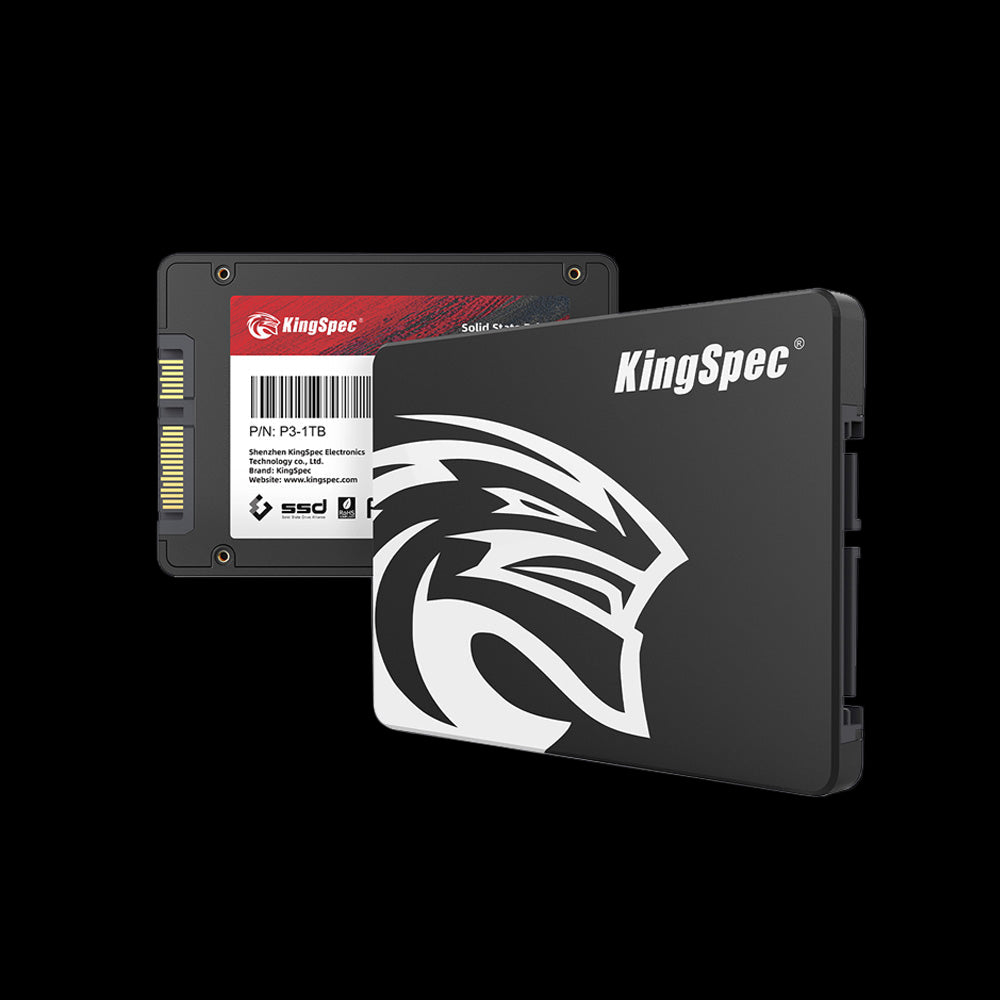
- Interface: SATA Rev.3.2 (6Gb/s)
- Read/Write: Up to 580 / 570 MB/s
- Capacities: 128GB up to 8TB
- TBW: Up to 1,920TB (8TB model)
- NAND: 3D NAND
- Warranty: 3 Years
A straightforward, affordable swap when a health check confirms an old SATA drive is on its way out. Drop-in replacement for any 2.5" bay, no special tools required.
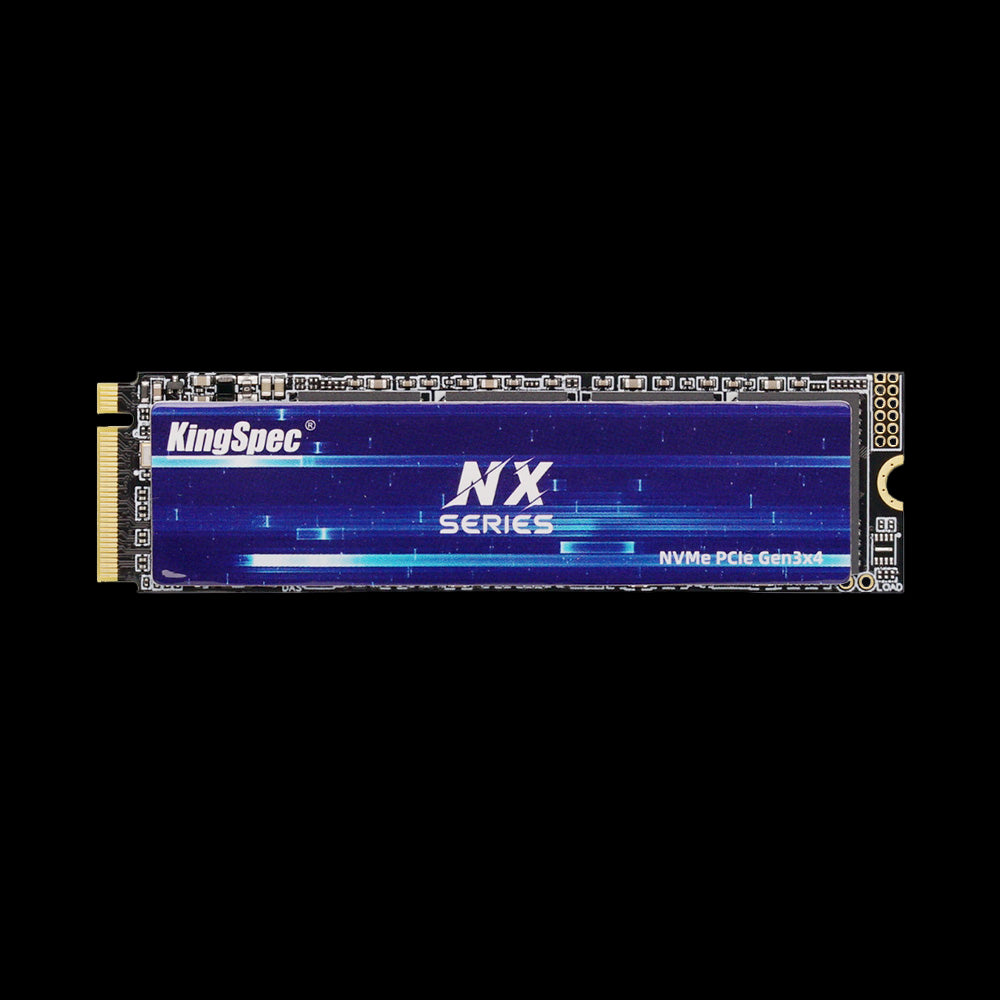
- Interface: PCIe Gen3 x4, NVMe 1.3
- Read/Write: Up to 3,500 / 3,200 MB/s
- Capacities: 128GB to 2TB
- TBW: Up to 2,000TB (2TB model)
- NAND: 3D NAND
- Warranty: 3 Years
A solid step up if your health check shows a SATA drive wearing down and you want NVMe headroom for the next few years without paying flagship prices.

- Interface: PCIe Gen4 x4, NVMe 1.4
- Read/Write: Up to 7,400 / 6,600 MB/s
- Capacities: 512GB up to 8TB
- TBW: Up to 4,000TB (8TB model)
- NAND: 3D NAND
- Warranty: 3 Years
Built for heavy write workloads like gaming, editing, or a server drive that logs a lot of hours. The high TBW rating gives you real breathing room before the next health scare.
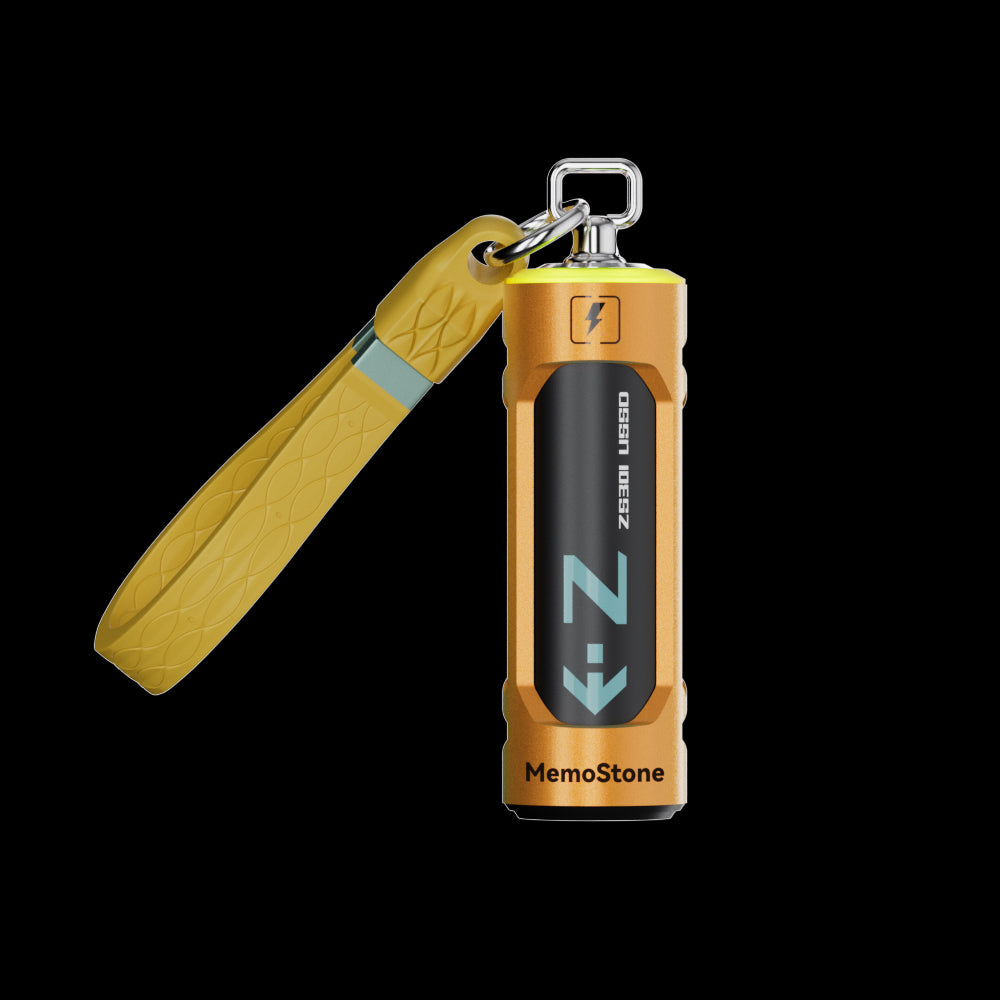
- Interface: USB 3.2 Gen2x2, 20Gbps
- Read Speed: Up to 1,900 MB/s
- Capacities: 256GB up to 2TB
- Design: Battery-shaped body with RGB glow
- Compatibility: PC, laptop, smartphone, tablet
- Warranty: 3 Years
Fast enough to pull a full backup off a failing internal drive in minutes instead of hours, and small enough to keep in a bag as an ongoing backup habit.
How Often Should You Check SSD Health?
For normal home use, check every three to six months. Check sooner after a crash, a forced shutdown, an unexplained slowdown, or a file error.
For gaming, video editing, servers, or other write-heavy work, check about once a month instead. Track the health percentage, total bytes written, temperature, and error counts together so you can actually notice sudden changes rather than guessing. This isn't a formal industry requirement, just a practical monitoring habit, and regular automated backups matter more than checking health on any fixed schedule.
Can You Improve SSD Health?
You can't restore endurance the SSD has already used. You can reduce future wear and help the drive stay reliable longer by:
- Keeping roughly 10% to 20% free space
- Managing high temperatures
- Avoiding unnecessary benchmark loops
- Keeping firmware updated carefully
- Using reliable power protection
- Leaving TRIM enabled where it's supported
- Maintaining current backups
Keeping some free space available helps maintain performance and gives the drive room for internal management tasks, though the exact amount isn't a universal requirement, and free space alone doesn't restore endurance you've already used. Temperature plays a real role here too. See SSD Temperature Range: What's Safe and Normal for the ranges worth watching. These steps can reduce stress on the drive, but no method guarantees an SSD won't eventually fail.
Conclusion
Checking SSD health regularly helps you catch wear and warning signs before they turn into a data loss emergency. Start with CrystalDiskInfo on Windows, PowerShell for a quick status, Disk Utility on macOS, or smartctl and nvme-cli on Linux. Focus on errors, critical warnings, temperature, and changes over time, not just the health percentage on its own.
A healthy report is never a substitute for a backup. If an SSD shows repeated errors, fails a diagnostic test, disconnects, or switches to read-only mode, protect your files first and plan for a replacement. Browse KingSpec's best-selling storage when you're ready to upgrade, and check capacity, interface, endurance, and warranty against your system before buying.
Browse Related Collections
Frequently Asked Questions (FAQs):
How do I know if my SSD is bad?
Check the SMART report for a Bad or Critical status, failing tests, media errors, or uncorrectable errors. Random disconnects, corrupted files, read-only behavior, and repeated storage errors are also serious warning signs. Back up your data before running any additional tests.
How do I run diagnostics on an SSD?
Use a free SMART program for a health report and the drive maker's diagnostic utility for short or extended tests. Linux users can turn to smartctl, and NVMe users can use nvme-cli where it's supported. Not every SSD supports every diagnostic test, and USB adapters can prevent the software from reading complete health information, so back up important files before running extended tests.
What is a good SSD health percentage?
A percentage near 100% usually means little of the drive's rated endurance has been used, when the tool reports remaining life. On many NVMe drives, however, "Percentage Used" shows the estimated portion of rated endurance already consumed, so a lower number is better there. The exact meaning varies by manufacturer and model, so always check the percentage alongside temperature, critical warnings, and error counts.
How do I check the health of my HP SSD?
Use the computer maker's built-in hardware diagnostic tools when they're available. You can also identify the SSD model and read its SMART data with a compatible free health utility. The SSD manufacturer's own diagnostic program may provide more detailed information than a general tool. If the drive is external, its enclosure may limit how much information diagnostic tools can actually access.
Can I increase my SSD health?
You can't reset used endurance or restore the original health percentage. Keeping free space available, controlling temperature, reducing unnecessary writes, and using reliable power can all help reduce future wear. Keeping around 10% to 20% free space may help maintain performance, though it isn't a universal requirement. These steps lower risk, but they can't prevent every type of failure.

